Portal Purchase Signature allows vendors to receive and sign purchase orders online from the portal. This eliminates paperwork, saves time, and helps businesses confirm orders faster with a clear and secure signing process.
This module allows vendors to review, accept, sign, or reject purchase orders directly from the portal without manual follow-up.
With secure digital signing workflows, businesses get faster confirmations, clear records, and better control over vendor approvals.
- Vendors can sign purchase orders directly from the portal.
- Vendors can easily receive and sign purchase orders online.
- Each signature is stored securely with the date and vendor details.
- Purchase order status is updated automatically after signing.
- Vendors can reject purchase orders for any reason.
- Vendors can add comments or feedback to purchase orders.
- Purchase orders are updated automatically upon vendor confirmation.
- Once you purchase the App from the Webkul store, you will receive a link to download it zip module submit.
- Extract the files on your system once the download is complete. As a result, you will be able to see a folder named- ‘wk_portal_purchase_signature‘.
- Copy and paste this folder inside your folder Odoo Add-ons Path.
- Now, open the Odoo Application and click on the Settings menu. Click Enable Developer Mode here.
- Then, open the Application menu and click ‘Update Module List.’
- In the search bar, clear all filters and search for ‘wk_portal_purchase_signature‘.
- You will be able to see the module in the search results. Click on ‘Activate‘ to install it.
- My Account: Vendors log in to the portal and go to My Account to view purchase orders. Navigation: Website → My Account→ Request a Quote
- Create Purchase Request: Admin creates purchase request from Purchase module. Navigation: Purchase → Order → Request a Quote → Create
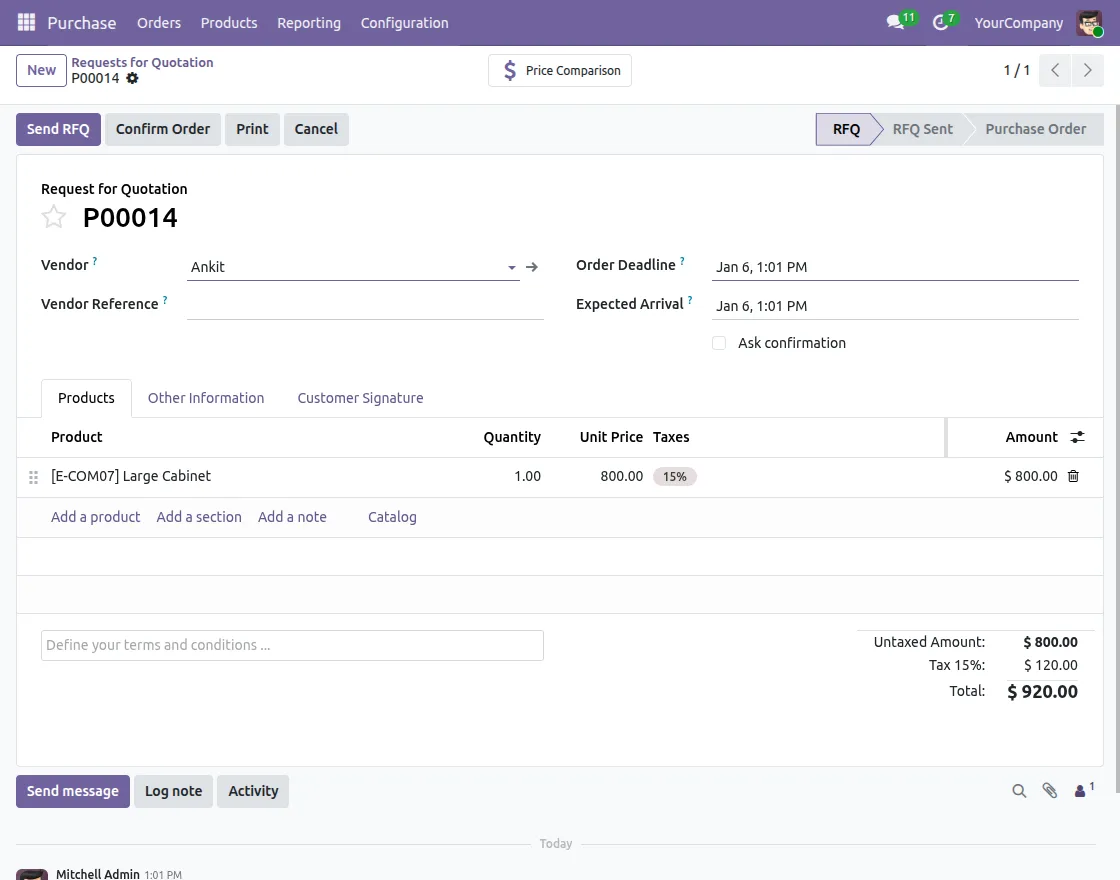
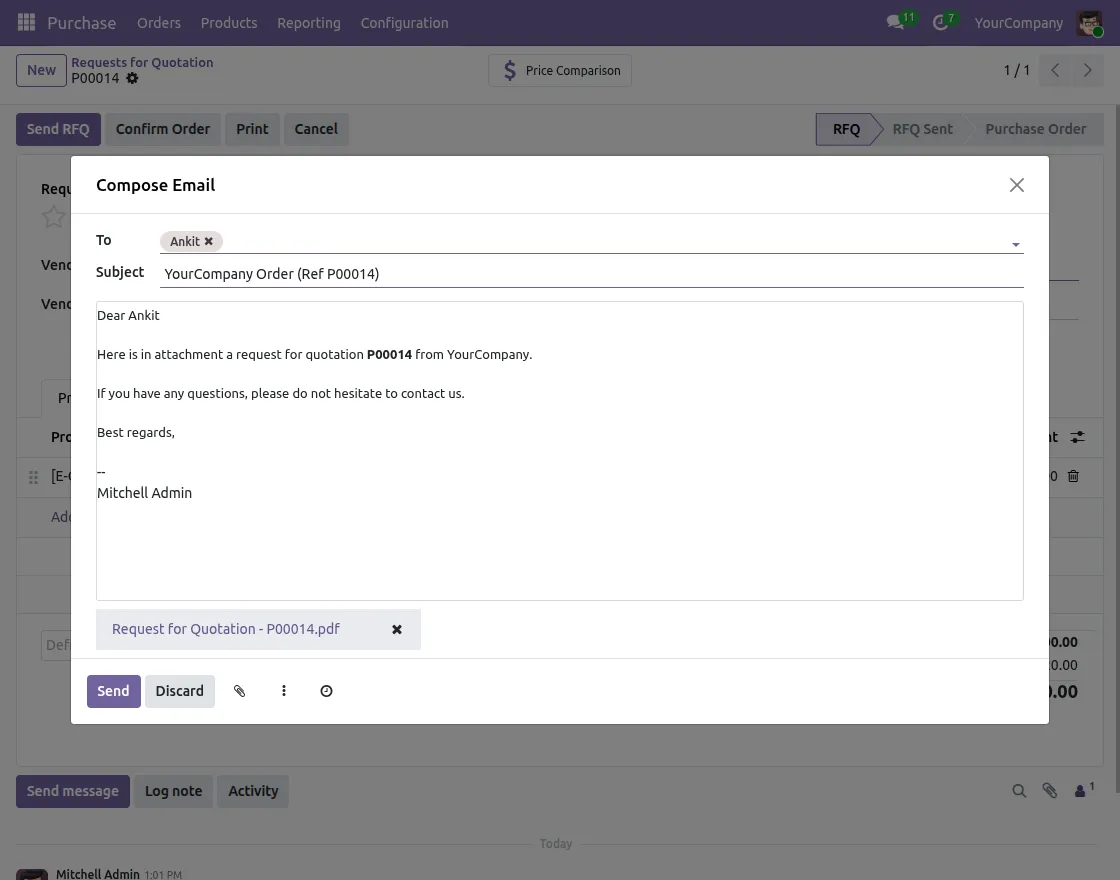
- Send Purchase Request: The purchase request is sent to the vendor for review and confirmation. Navigation: Purchase Request → Submit
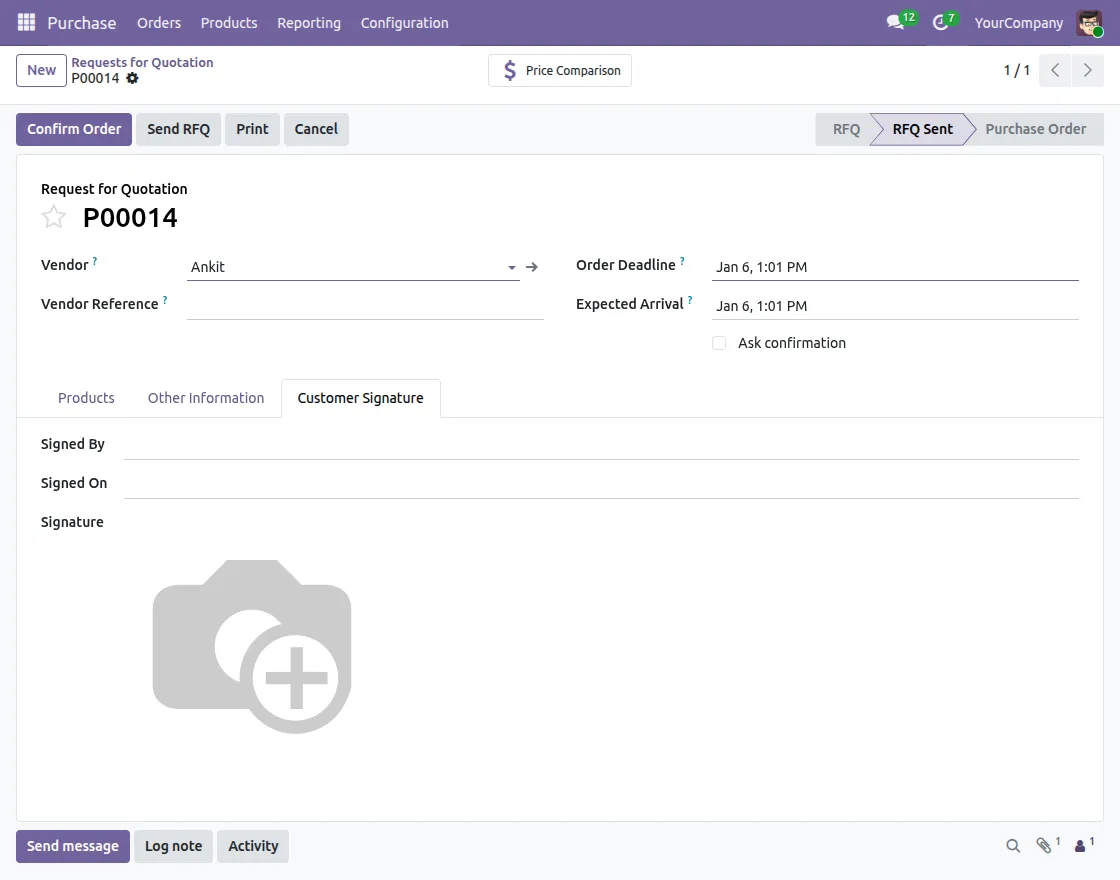
- No Customer Signature: If the order is not signed, No Customer Signature is displayed. Navigation: Purchase Request → Purchase Order
- Accept and Sign Options: Vendors view accepted price offers and see the Accept and Sign options. Navigation: My Account → Request a Quote → Order
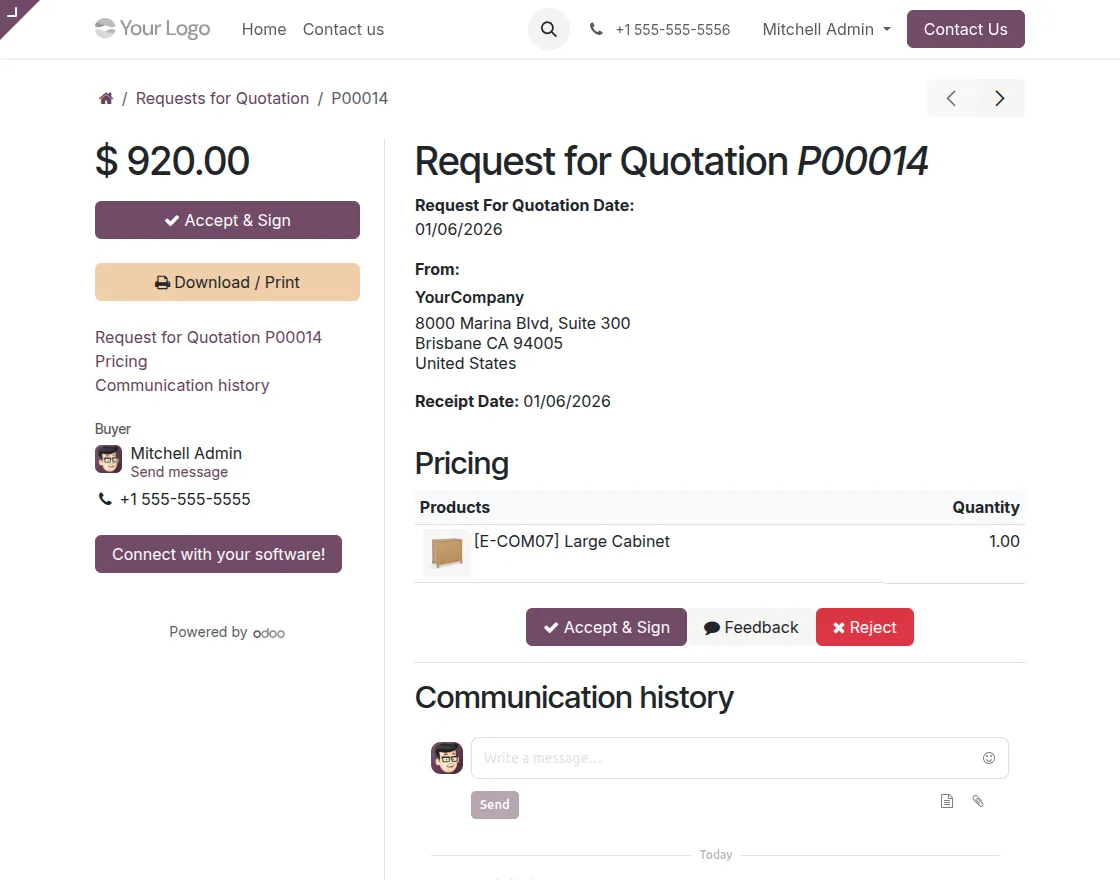
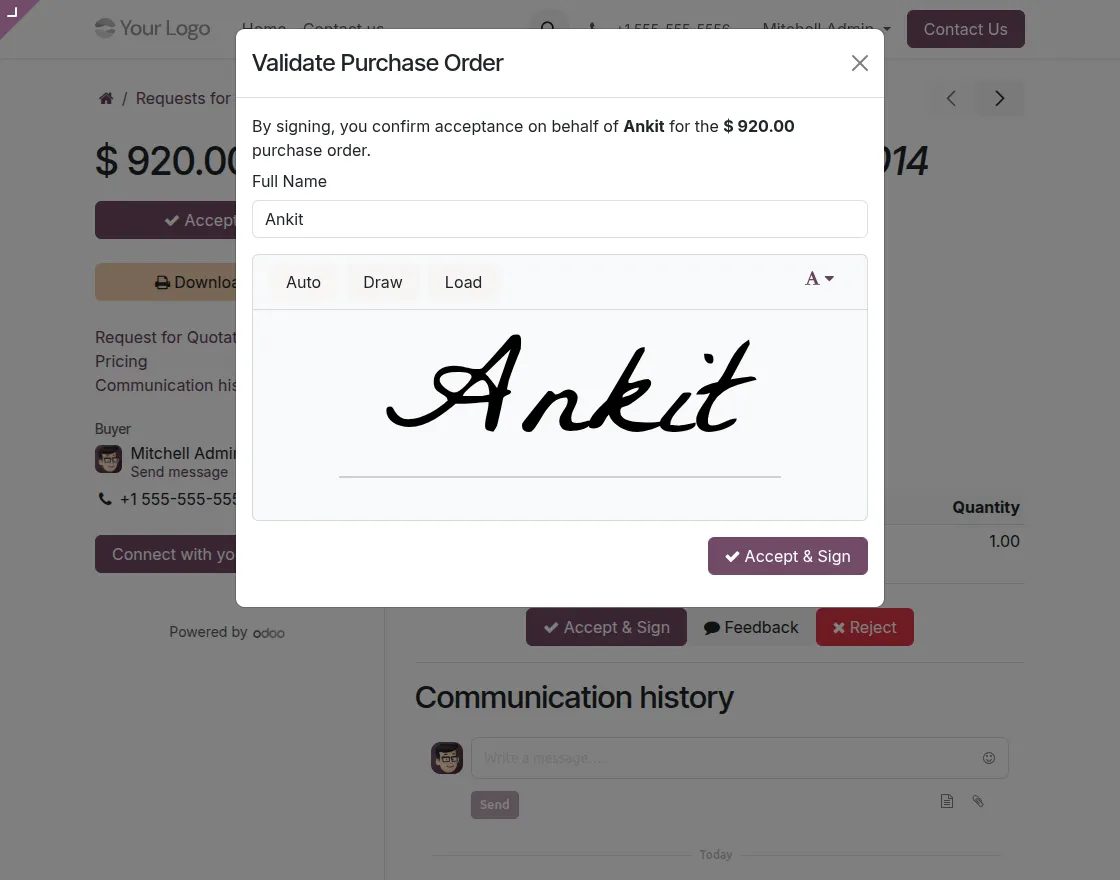
- Receive and Sign: The vendor accepts the order and adds a digital signature using the signature box. Navigation: My Account → Request a Quote → Order → Accept and Sign
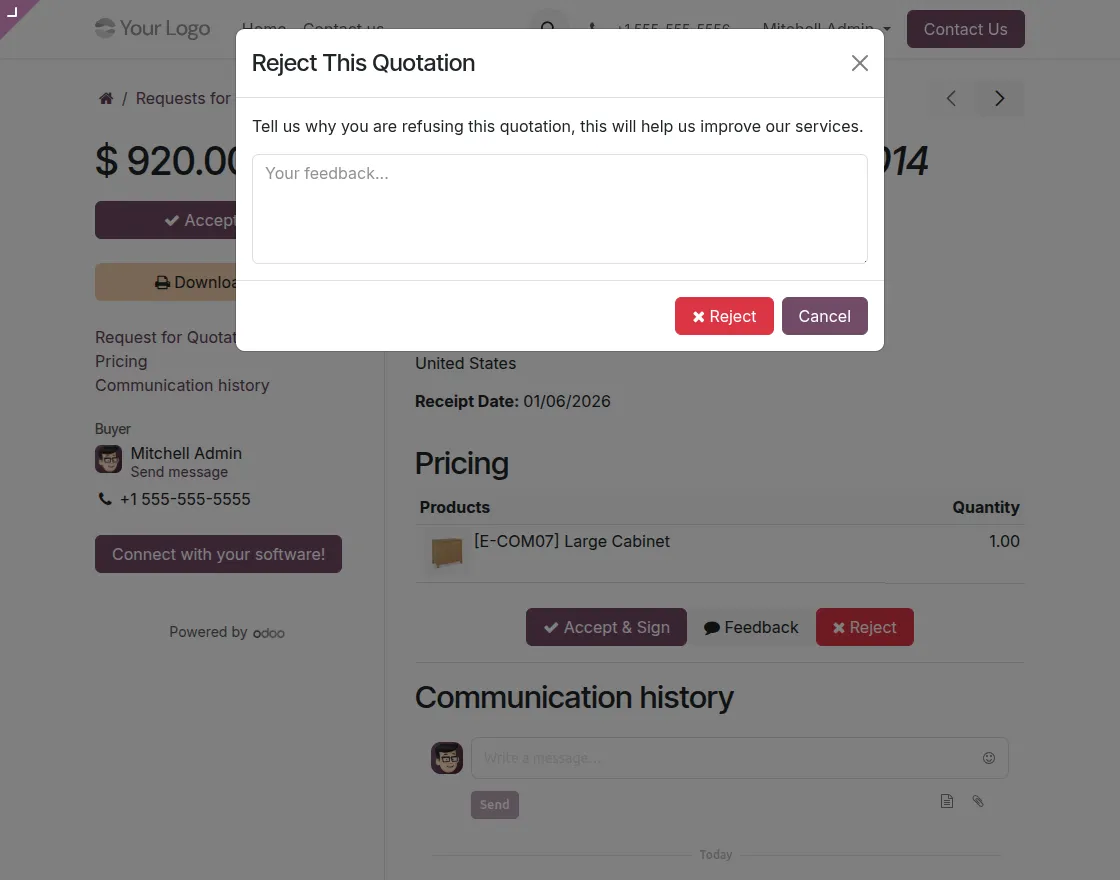
- Reject Offer: Vendors can reject purchase orders by providing mandatory reasons. Navigation: My Account → Request a Quote → Order → Reject
- Quote Feedback: Vendors can submit comments or feedback without rejecting the order. Navigation: My Account → Request a Quote → Order → Feedback
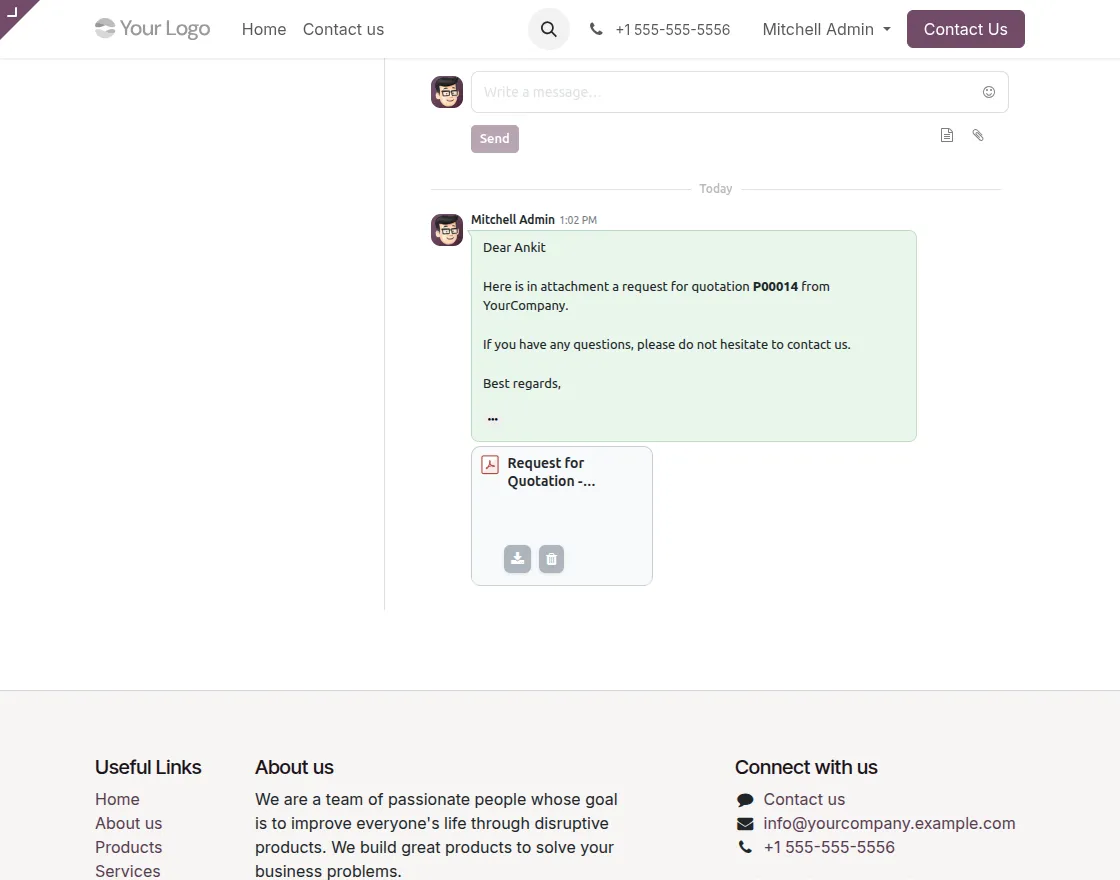
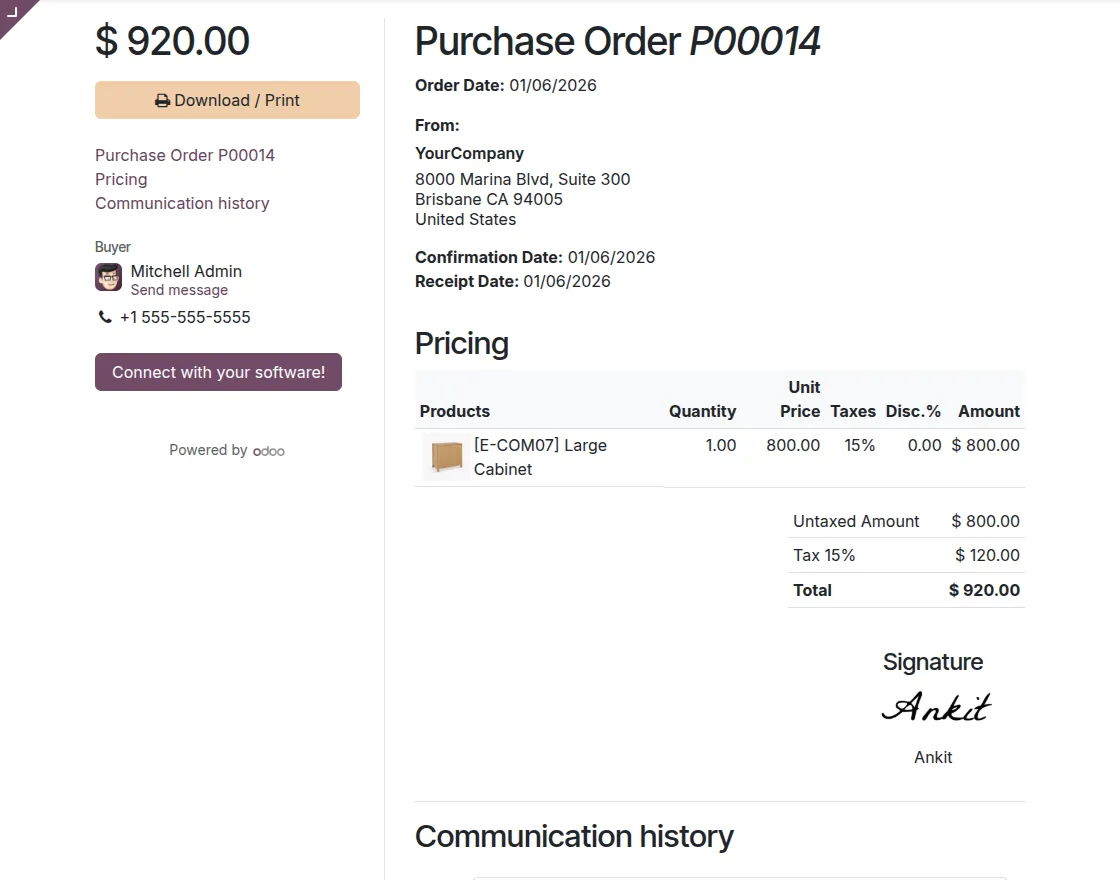
- Accept and Sign Complete: After signing, the purchase order status is updated automatically. Navigation: My Account → Request a Quote → Orders
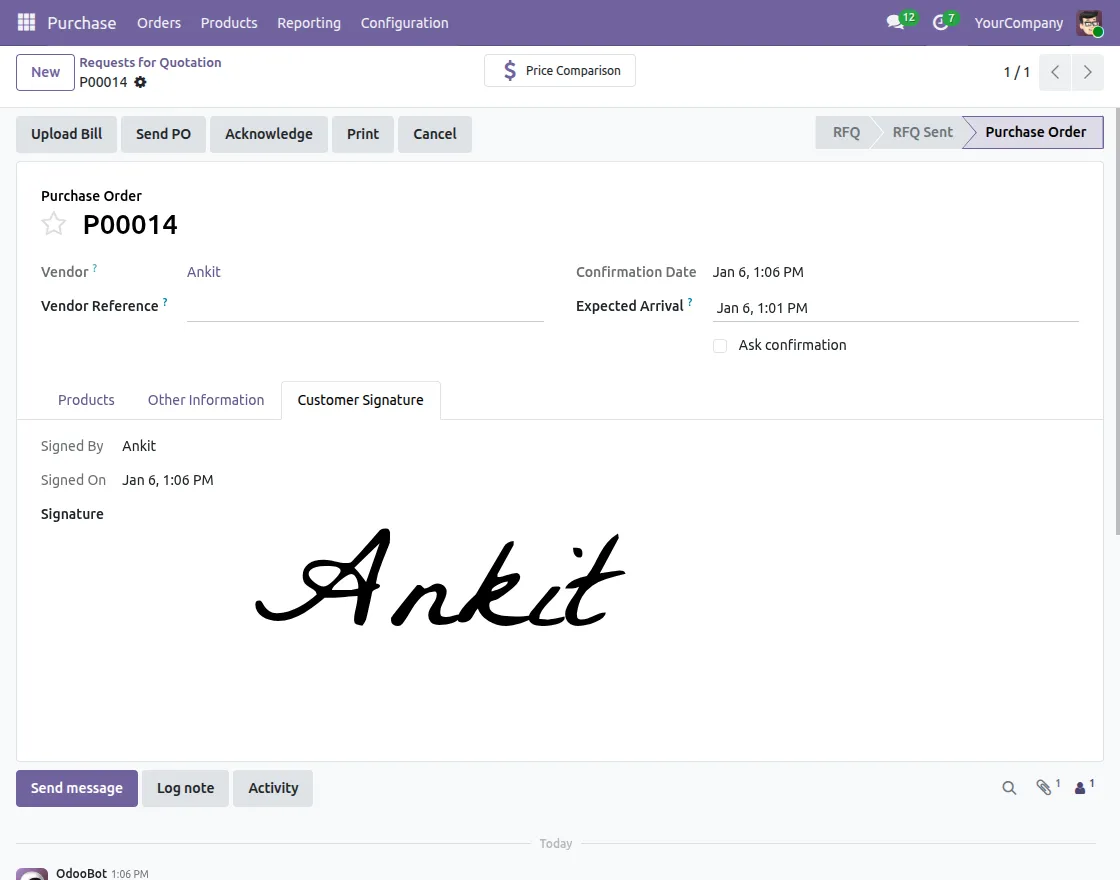
- Signature View on Offers in Customer Signature: Admin can view, download and verify signed purchase orders from backend. Navigation (Admin): Purchases → Orders → Purchase Orders → Purchase Orders
We hope this guide is useful for you! Please share your feedback in the comments below.
If you have any problems or questions, create a ticket at UV table.
For further assistance, contact us via our support email: [email protected]
Thank you for your attention!!
Current Product Version – 1.0.0
Supported Framework Versions – Odoo v19, v17, v16

News
Berita Teknologi
Berita Olahraga
Sports news
sports
Motivation
football prediction
technology
Berita Technologi
Berita Terkini
Tempat Wisata
News Flash
Football
Gaming
Game News
Gamers
Jasa Artikel
Jasa Backlink
Agen234
Agen234
Agen234
Resep
Download Film
Gaming center adalah sebuah tempat atau fasilitas yang menyediakan berbagai perangkat dan layanan untuk bermain video game, baik di PC, konsol, maupun mesin arcade. Gaming center ini bisa dikunjungi oleh siapa saja yang ingin bermain game secara individu atau bersama teman-teman. Beberapa gaming center juga sering digunakan sebagai lokasi turnamen game atau esports.