CS-Cart Multi Select Product Options add-ons extend the functionality of default product options by allowing customers to select multiple values in a single option.
This feature helps store owners offer add-ons, accessories, or special features when customers need more than one option.
Each selected option can include its own price modifier, which the system automatically adds to the base product price.
This add-on displays all selected options clearly on product, cart, checkout, and order details pages.
This ensures a smooth, flexible and user-friendly product customization experience for customers.
- Admins can create multi-select options for products, allowing customers to select multiple values in one option.
- This add-on supports multiple display layouts, including dropdowns and horizontal lists.
- Admin can set price modifiers for each option value.
- This add-on fully supports multi-options selected in the wish list.
- Customers can proceed to checkout directly from the wishlist with the selected options.
- Admin can also select multiple options while creating an order from the backend.
Also, check CS-Cart Order Cancellation Add-on to manage and simplify order cancellations.
After downloading Webkul Multiple Options add-on, you will get one zip file, one install.txt file, and the relevant User Guide manual document.
Please read it carefully for correct configuration.
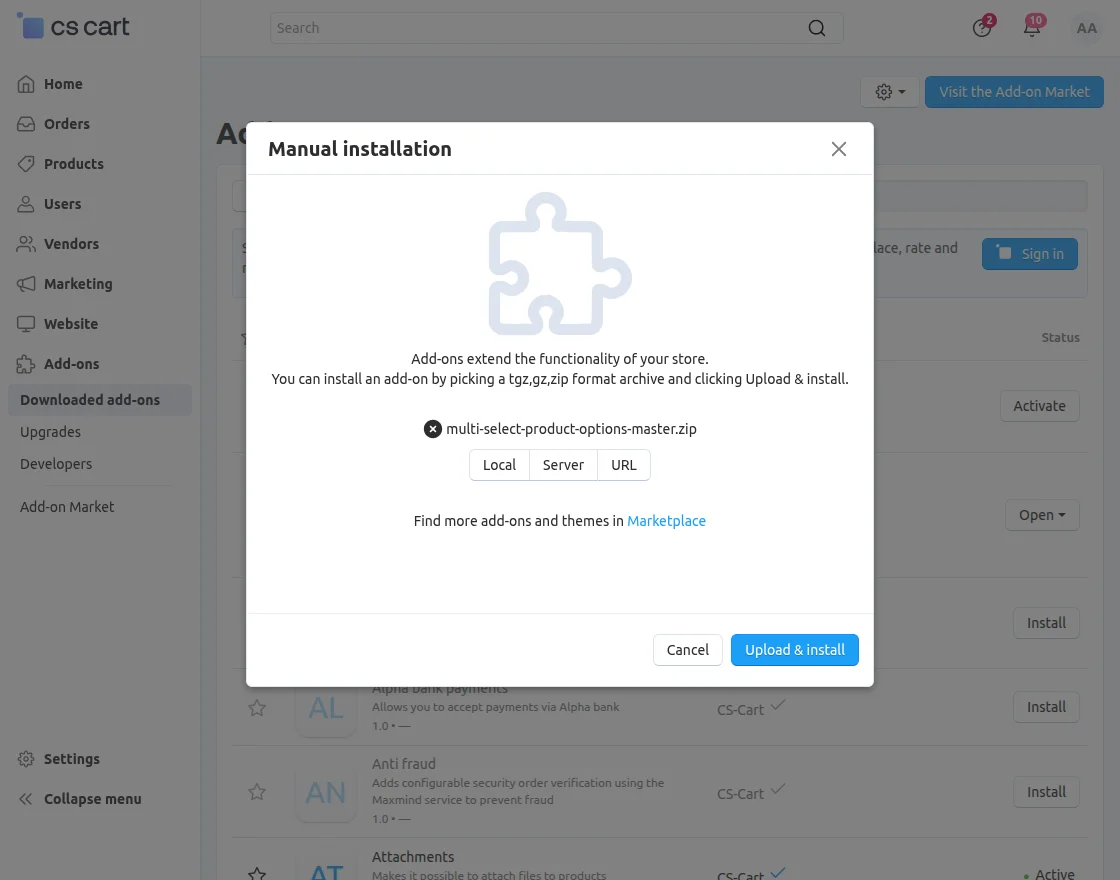
Go to Manage Add-ons, and click “Manual Installation” as shown below in the snippet.
Click “Local” to browse to the zip file, then click “Upload & Install” as shown below in the snippet.
Module Configuration
To create a product option, navigate to Products >> Options in the admin panel.
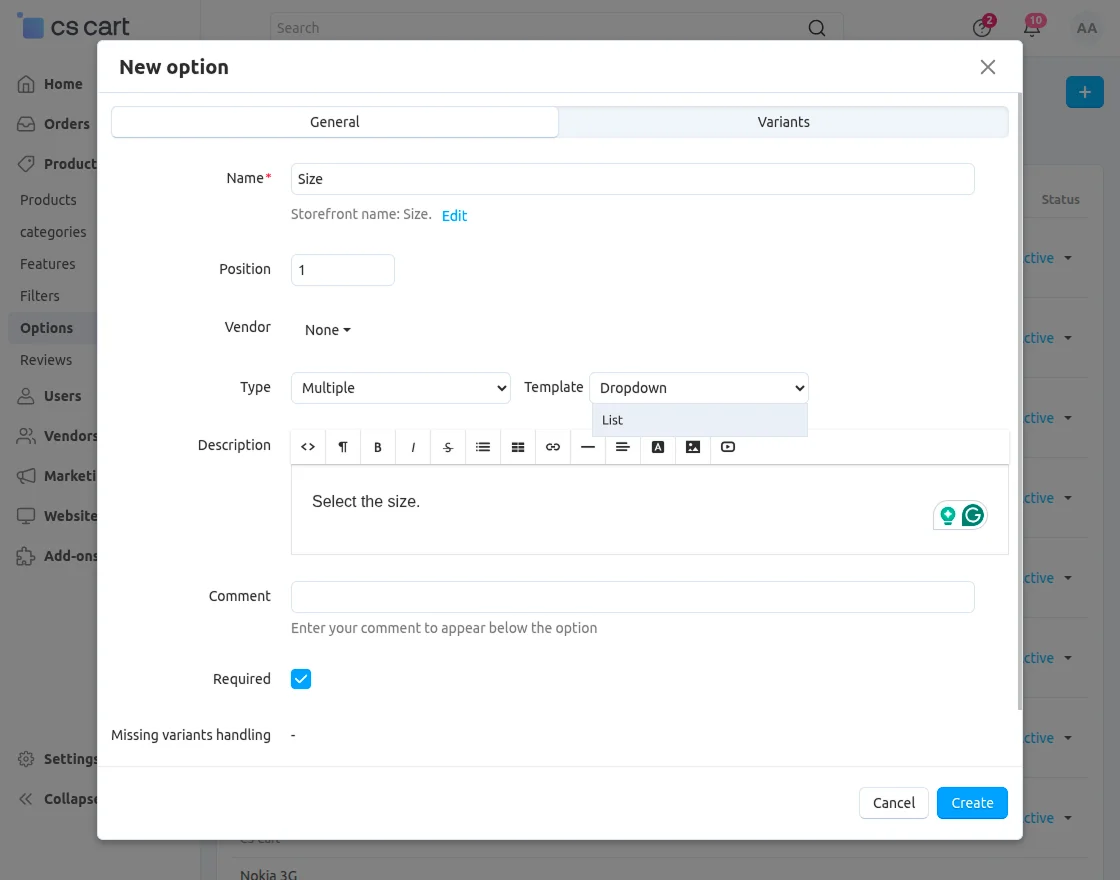
- Name: Enter an option name.
- Seller: Select the vendor.
- Type: Choose Lots as an option type.
- Template: Select one drop down or List layout.
- Required: Enable this option to require customers to select a value.
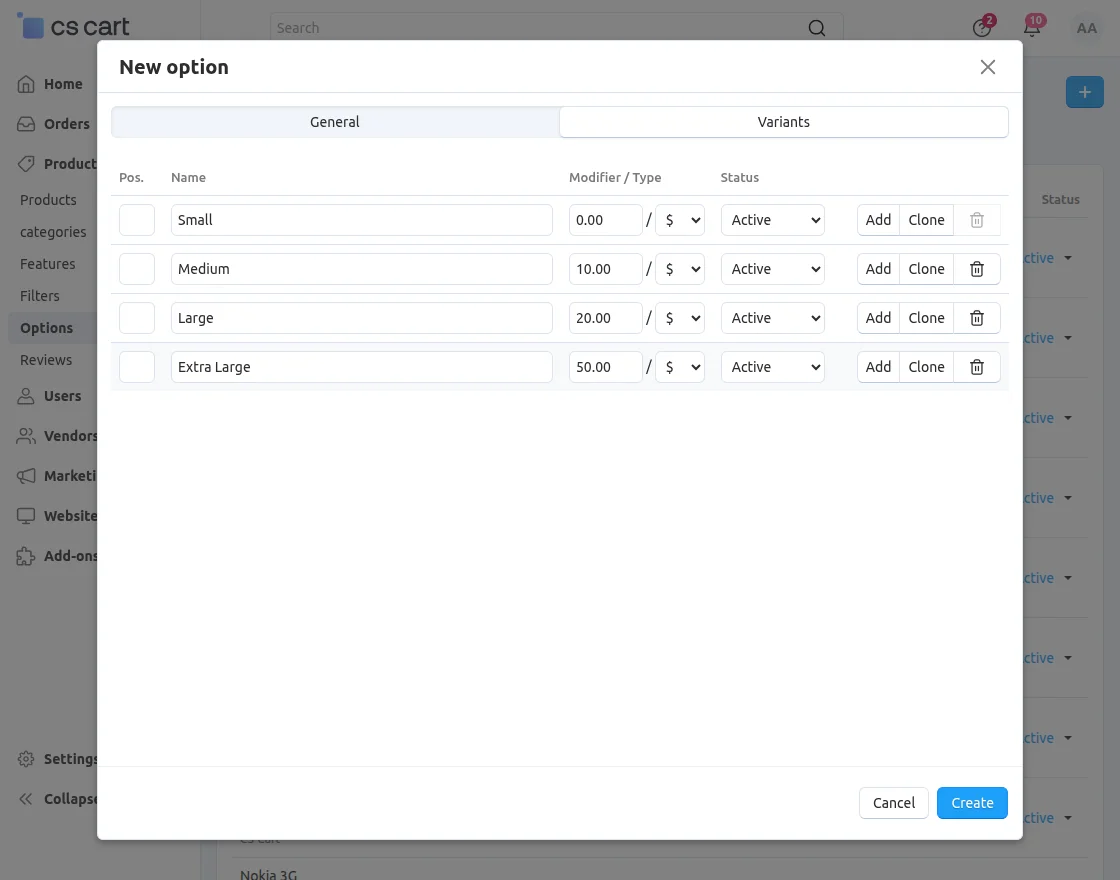
- Variant: Add option values (variants) that customers can choose from.
- Price: Set price modifiers for each variant, which the system will add to the base product price when selected.
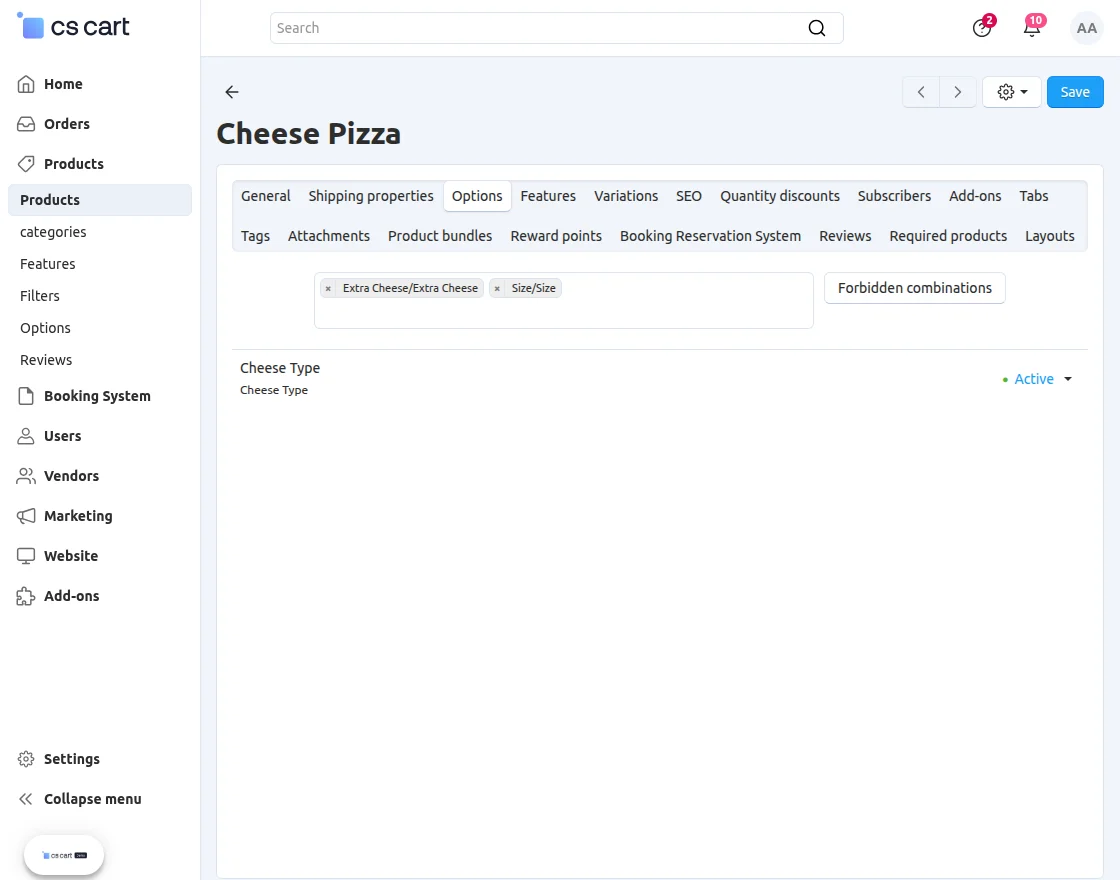
Add Options in Products
Navigate to Products >> Options to add and set product options, allowing customers to select multiple values and customize products easily.
Order
To manage options, navigate to Order.
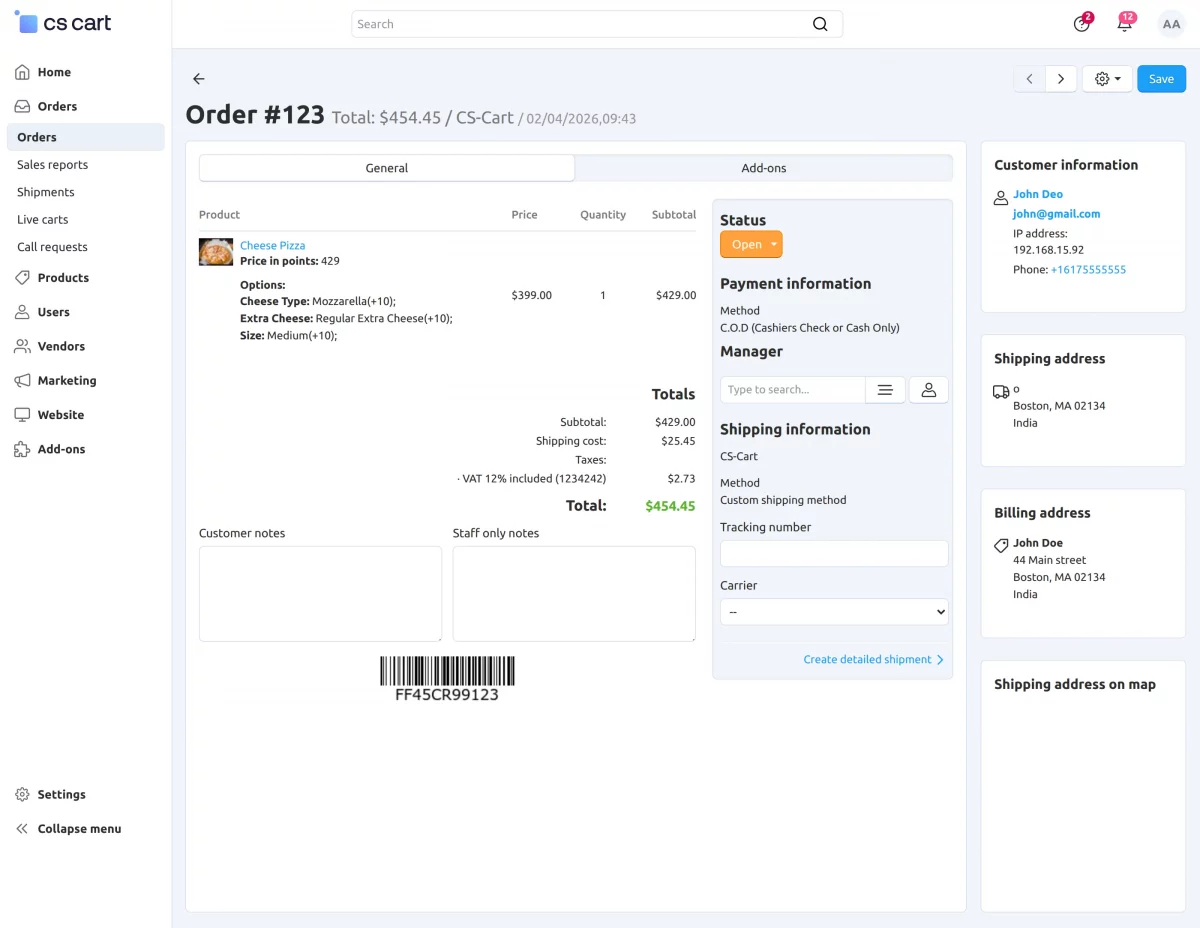
Admin can view and manage options selected by customers.
Customers can see the available options on the product page when they visit the product, making it easy to select and customize their choices.
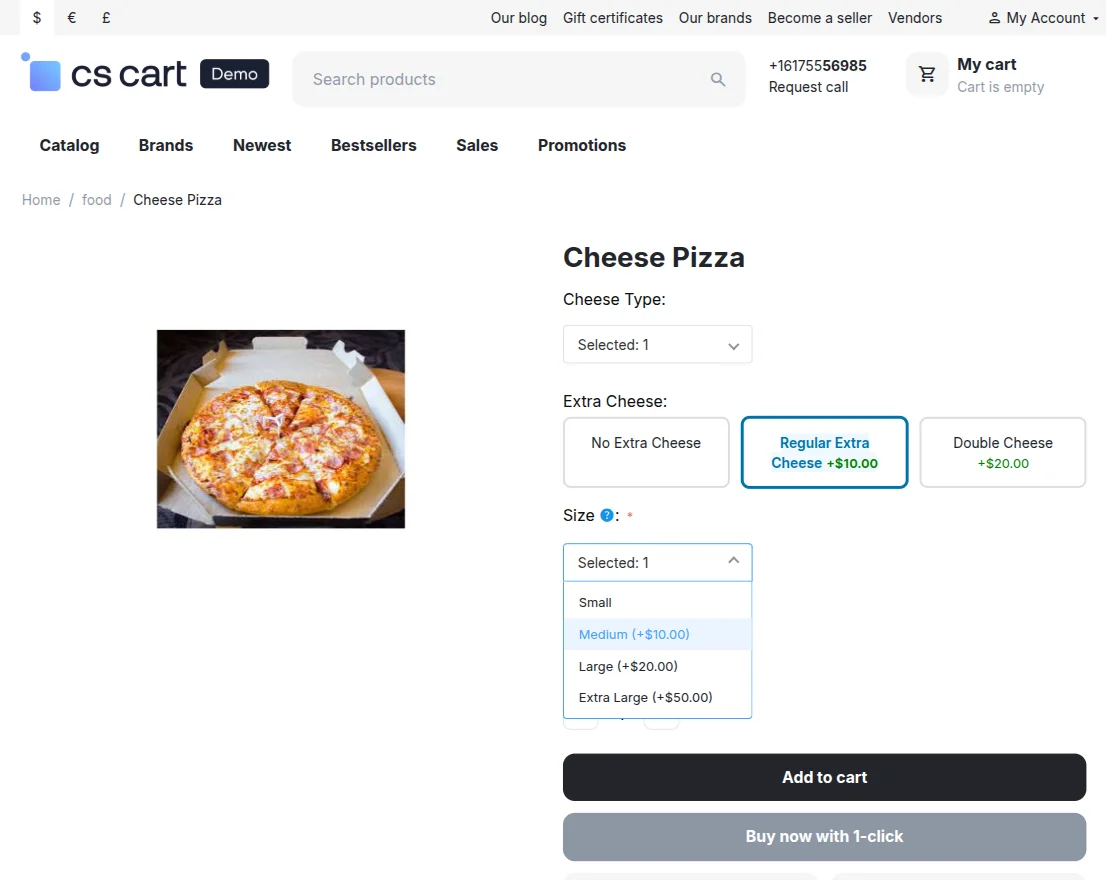
From here, customers can select the desired options and place their order easily.
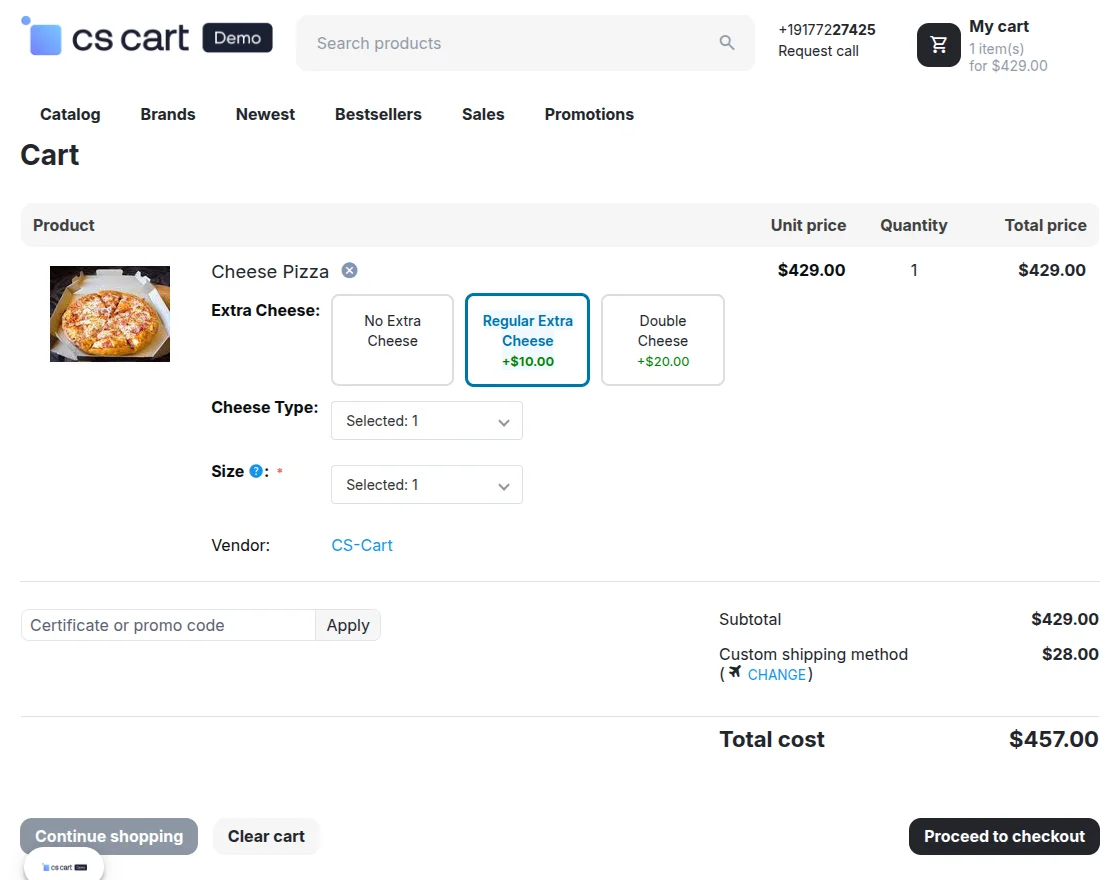
Cart View:
On the cart page, users can add or remove selected options, allowing them to update their selections before placing an order.
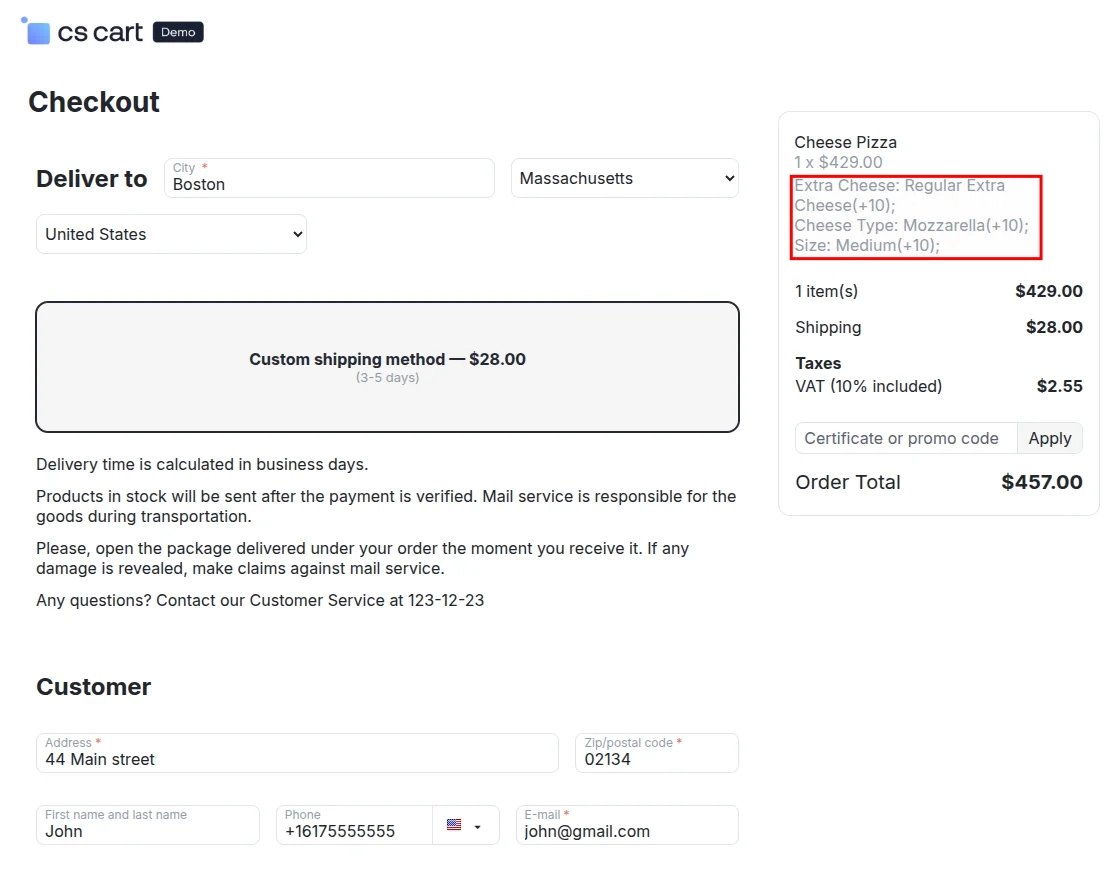
Payment Page:
Users can see their selected options on the checkout page, ensuring they confirm all choices before completing the order.
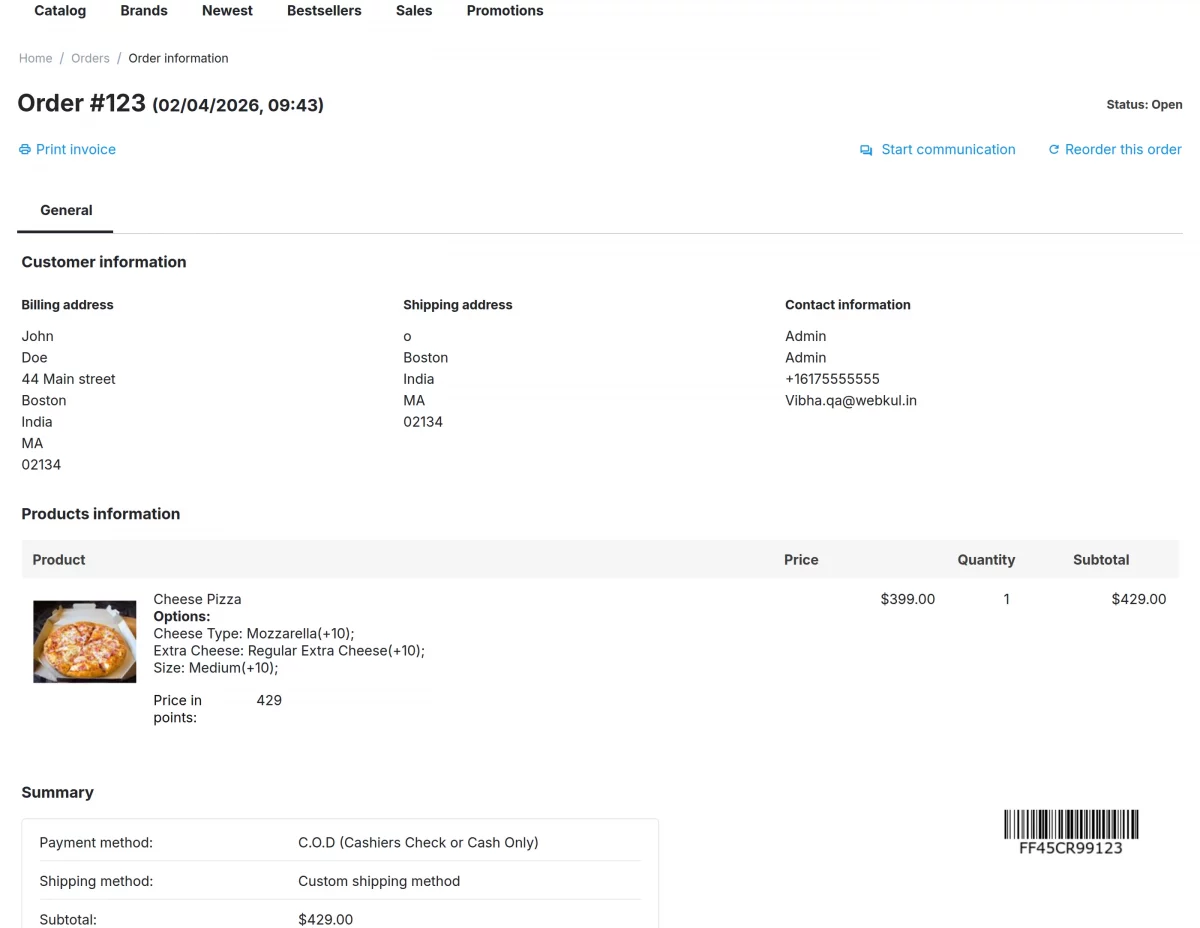
Order History Page:
Customers can see some details of the selected options on the order history page.
If you have any questions, suggestions, or customization requests, please feel free to contact us at [email protected] or submit a ticket at webkul.uvdesk.com.
Explore our premium quality CS Cart Extensions to enhance your store’s functionality.
You can also explore our CS-Cart Development Services and Quality CS-Cart add-ons.
Current Product Version – 1.0
Supported Framework Versions – (4.17.x, 4.18.x, 4.19.x.4.20.x)

PakarPBN
A Private Blog Network (PBN) is a collection of websites that are controlled by a single individual or organization and used primarily to build backlinks to a “money site” in order to influence its ranking in search engines such as Google. The core idea behind a PBN is based on the importance of backlinks in Google’s ranking algorithm. Since Google views backlinks as signals of authority and trust, some website owners attempt to artificially create these signals through a controlled network of sites.
In a typical PBN setup, the owner acquires expired or aged domains that already have existing authority, backlinks, and history. These domains are rebuilt with new content and hosted separately, often using different IP addresses, hosting providers, themes, and ownership details to make them appear unrelated. Within the content published on these sites, links are strategically placed that point to the main website the owner wants to rank higher. By doing this, the owner attempts to pass link equity (also known as “link juice”) from the PBN sites to the target website.
The purpose of a PBN is to give the impression that the target website is naturally earning links from multiple independent sources. If done effectively, this can temporarily improve keyword rankings, increase organic visibility, and drive more traffic from search results.