UnoPim Job Scheduler allows you to easily create and manage scheduled jobs from a simple admin panel.
This lets you run jobs automatically at fixed times, such as daily, weekly, or monthly. This job can import or export products and categories in UnoPim, helping save time and reduce manual work.
You can also create custom schedules by setting specific cron times for a job. Once configured, the scheduler runs jobs automatically at specified times without manual action.
- Schedule import and export jobs using cron expressions
- Create and manage jobs from the UnoPim admin panel
- Run jobs automatically based on a configured schedule
- Set retry attempts and cancel all running jobs if necessary
- View job execution history and logs
- Get notified when a job completes or fails
- Secure access with role-based permissions
- Manage multiple scheduled jobs from one place
- Simple and easy to use interface
- This module works with UnoPim version v1.0.0
- For UnoPim installation, make sure your server meets these system requirements
Download and unzip the extension, then merge the “packages” folder into the project root directory.
- Open composer.json, add the following line under ‘autoload psr-4’:
"Webkul\\JobScheduler\\": "packages/Webkul/JobScheduler/src/"
composer dump-autoload
- Open config/app.php and add the following line under ‘providers’:
Webkul\JobScheduler\Providers\JobSchedulerServiceProvider::class,
- Run the installer command:
php artisan job-scheduler:install
- Alternatively, run the migration manually:
php artisan migrate --path=packages/Webkul/JobScheduler/Database/Migration
- Add one crontab entry on your server. This is only cron entries are required — Laravel’s scheduler handles the rest:
* * * * * cd /path/to/your/unopim && php artisan schedule:run >> /dev/null 2>&1
crontab -e
- Job execution is sent to
job-schedulerqueue. Start a worker for this queue:
php artisan queue:work --queue=job-scheduler
- For production, use a process controller such as Supervisor:
[program:job-scheduler-worker]
process_name=%(program_name)s_%(process_num)02d
command=php /path/to/your/unopim/artisan queue:work --queue=job-scheduler --sleep=3 --tries=3 --max-time=3600
autostart=true
autorestart=true
stopasgroup=true
killasgroup=true
numprocs=2
redirect_stderr=true
stdout_logfile=/path/to/your/unopim/storage/logs/job-scheduler-worker.log
Set Job Schedule in UnoPim
After successfully installing the module in UnoPim, you will see the Job Scheduler option on the left side of the Navigation pane.
Click Job Scheduler. Here, you can see three sub-options:
- Scheduled Jobs
- Execution History
- Execution Log
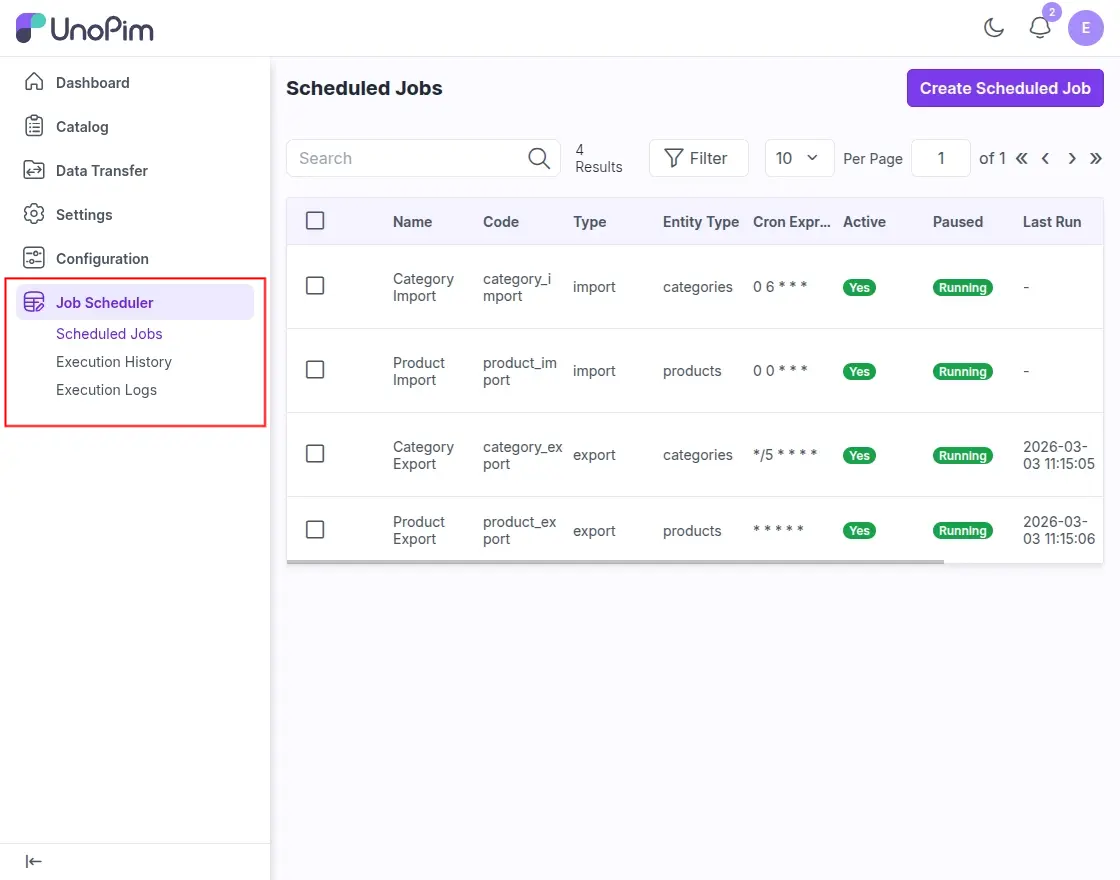
Click on Create Scheduled Jobs to create a new job with a scheduled time. A form will open where you need to fill in the following details:
- Name: Enter a job name.
- Code: Enter the job code. It is generated automatically when you type a name (for example, if the name is Export Categoriesthe code will be generated as export_category), but you can change it if necessary.
- Type: Select the type of work, for example Import or Export.
- Entity Type: Select the data type for the job, for example Product or Category.
- Work Example: Select the existing job instance that you want to schedule.
- Status: Enable or disable jobs using Active choice.
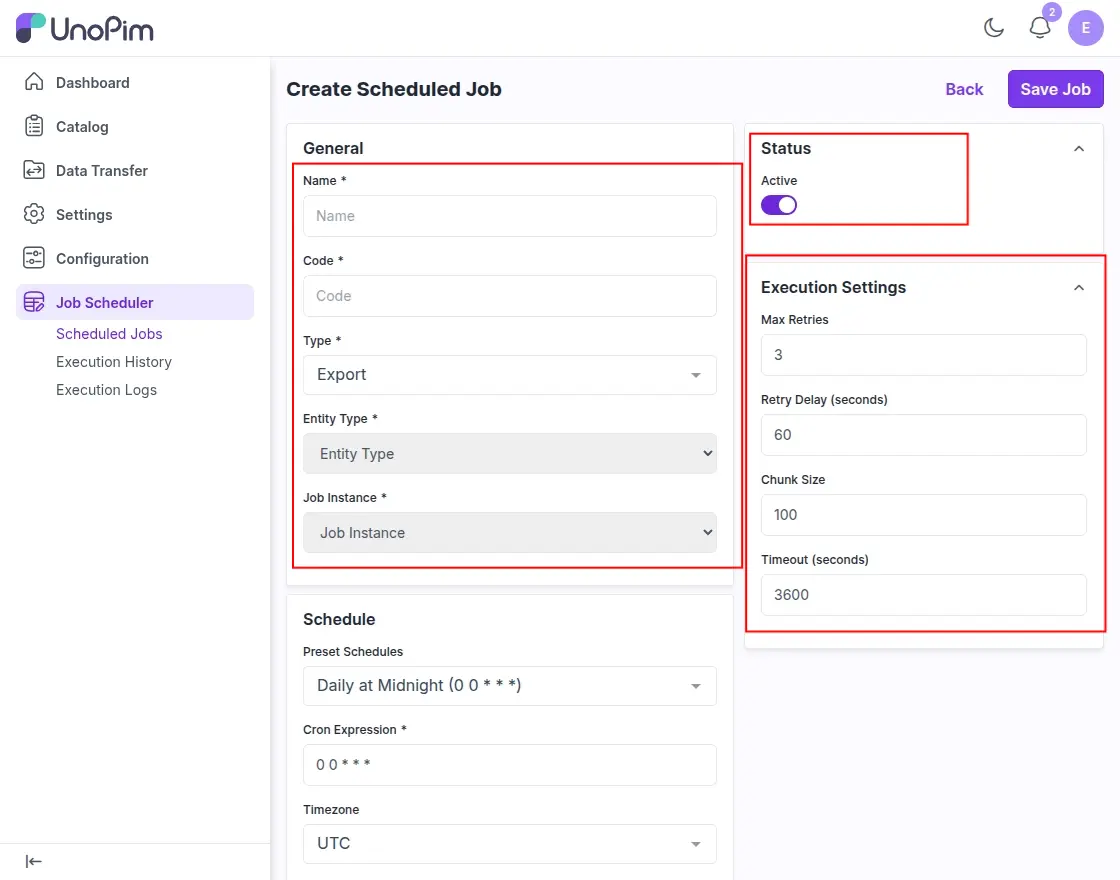
You can also configure execution settings such as retry attempts, retry delays, chunk sizes, and time limits for the job.
Notes: Before choosing a Work Examplemake sure the job is created UnoPim → Data Transfer → Import/Export. Only existing import or export jobs from Job Tracker can be scheduled here.
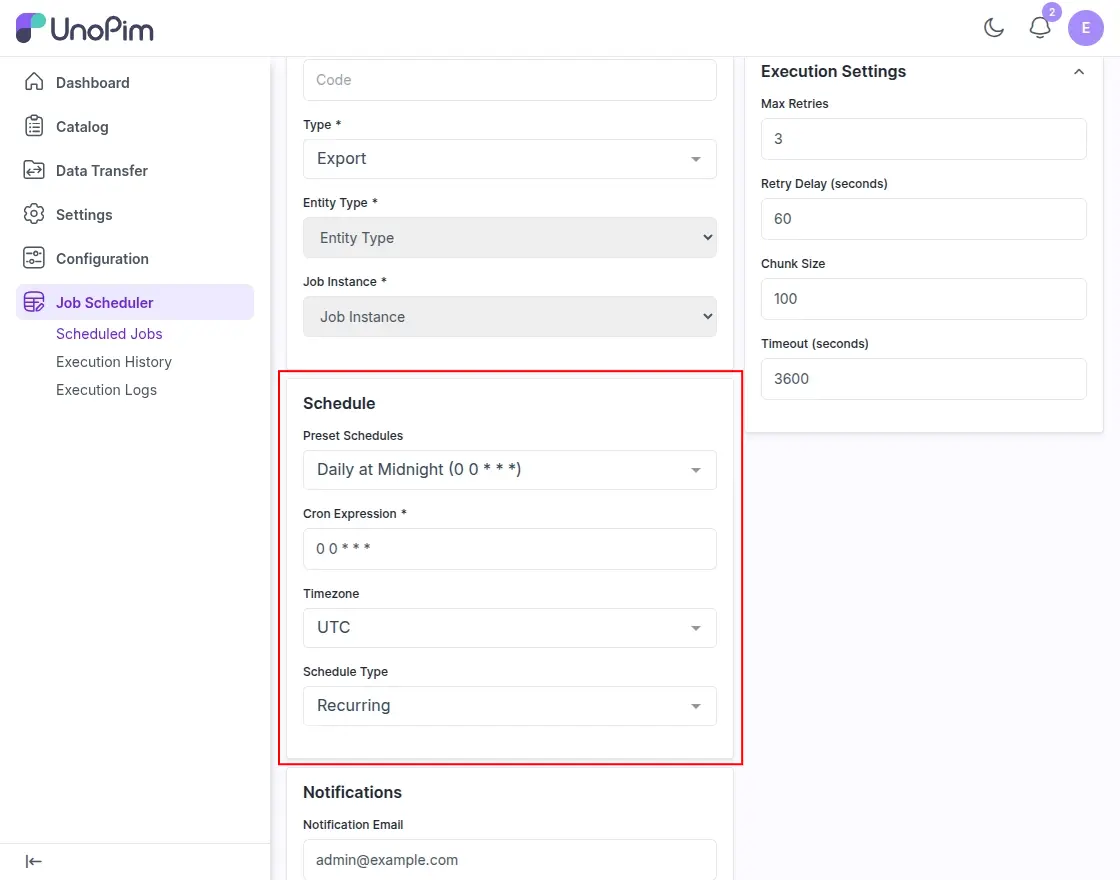
Schedule Settings
- Predefined Schedule: Select when the job should run. Available options include:
- Every Minute (** * * * ***)
- Every 5 Minutes (*/5 * * * *)
- Every 15 Minutes (*/15 * * * *)
- Every 30 Minutes (*/30 * * * *)
- Hourly (0 * * * *)
- Every day at Midnight (0 0 * * *)
- Every day at 6 am (0 6 * * *)
- Weekly on Monday (0 0 * * 1)
- Monthly (0 0 1 * *)
- Custom – Enter your own cron expression.
- Cron Expression: This field is filled automatically based on the preset schedule you choose. If you choose HabitYou can enter cron expressions manually.
- Time zone: Select the time zone in which the job should run so that its schedule follows the correct local time.
- Schedule Type:
- Recurring: The job runs repeatedly based on the selected schedule.
- One time: The job only runs once at the scheduled time.
- Notification Email: Enter the email address where job alerts should be sent.
- Notify If Successful: Enable this option to receive an email when a job completes successfully.
- Notify Failure: Enable this option to receive an email if a job fails.
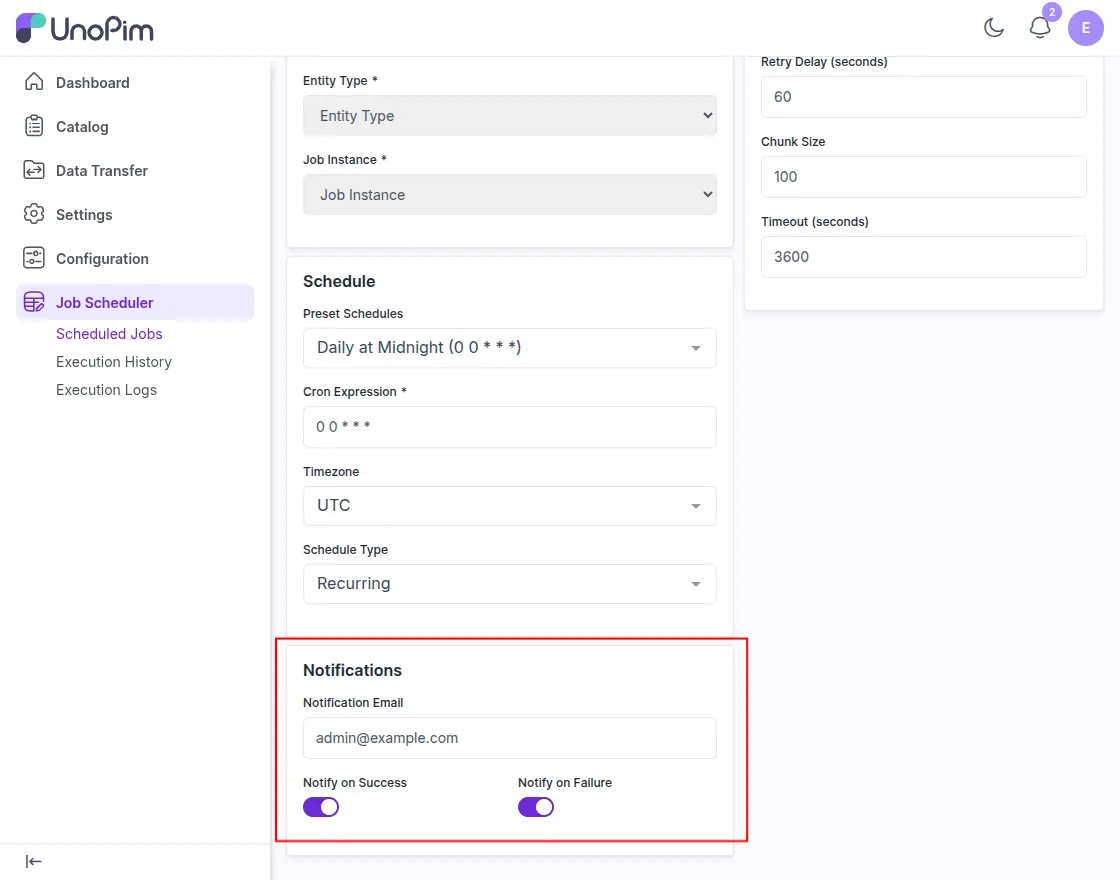
Click “Save Job” to save scheduled jobs and apply configured settings.
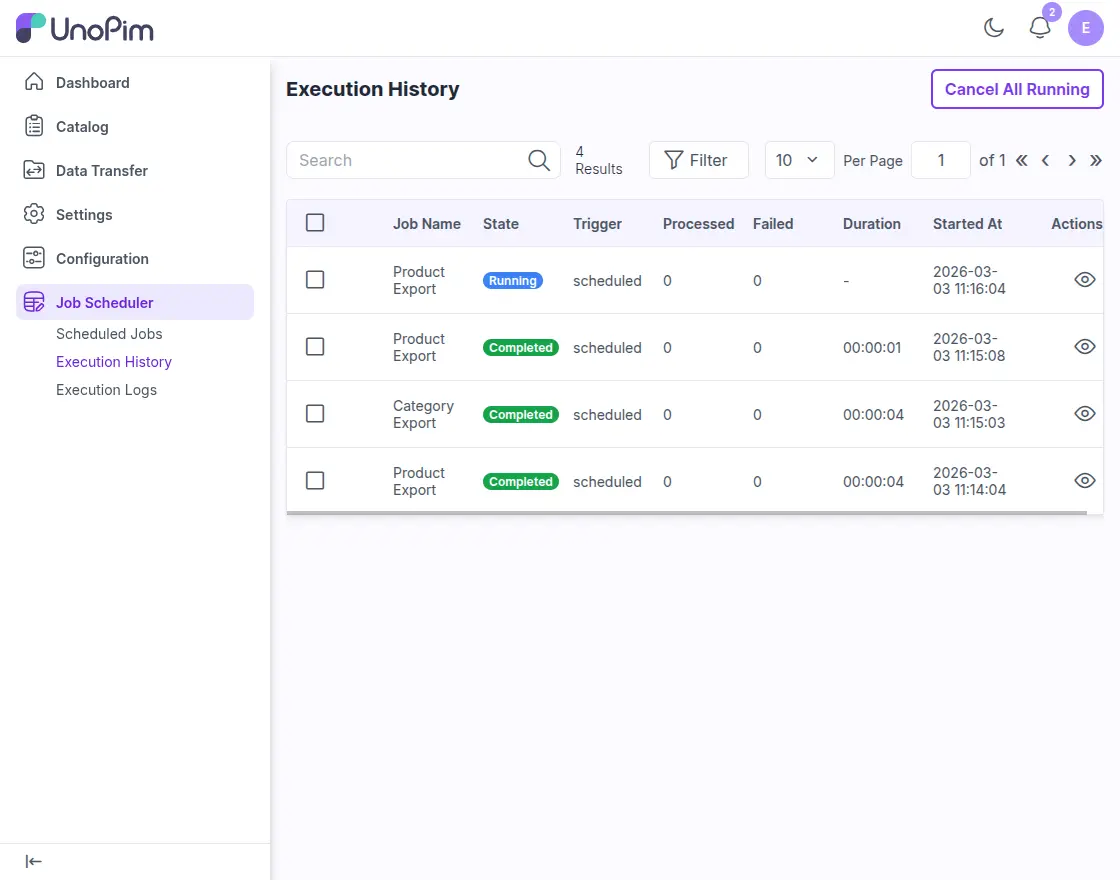
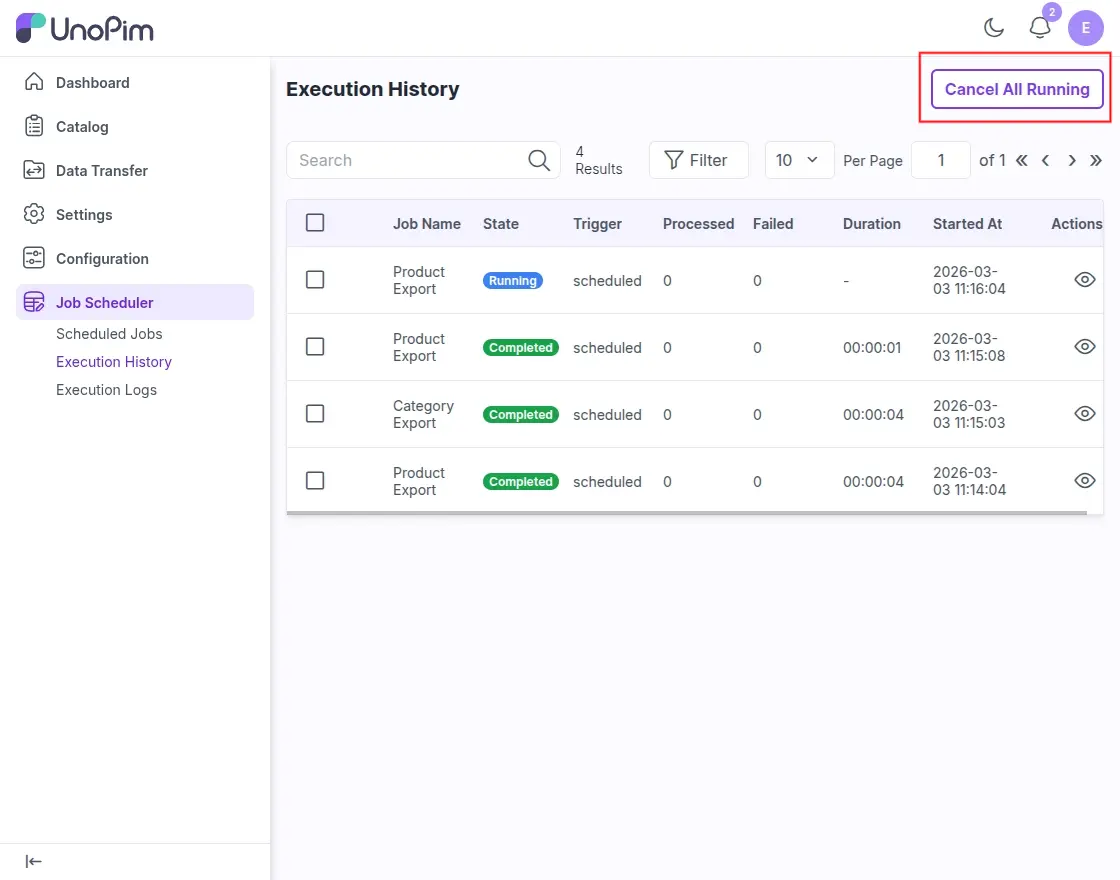
The Execution History section shows a record of all scheduled jobs that have run on the system. This helps administrators monitor job activities and check the status of each job execution.
- Job Name: Displays the name of the scheduled job (for example, Export Products or Export Categories).
- Country: Displays the current job status, for example Run, Finishedor Fail.
- Trigger: Shows how work starts, for example scheduled.
- Processed: Displays the number of records processed during job execution.
- Fail: Shows the number of records that failed during the process.
- Duration: Displays how long it will take to complete the job.
- Starting At: Shows the date and time when the job started running.
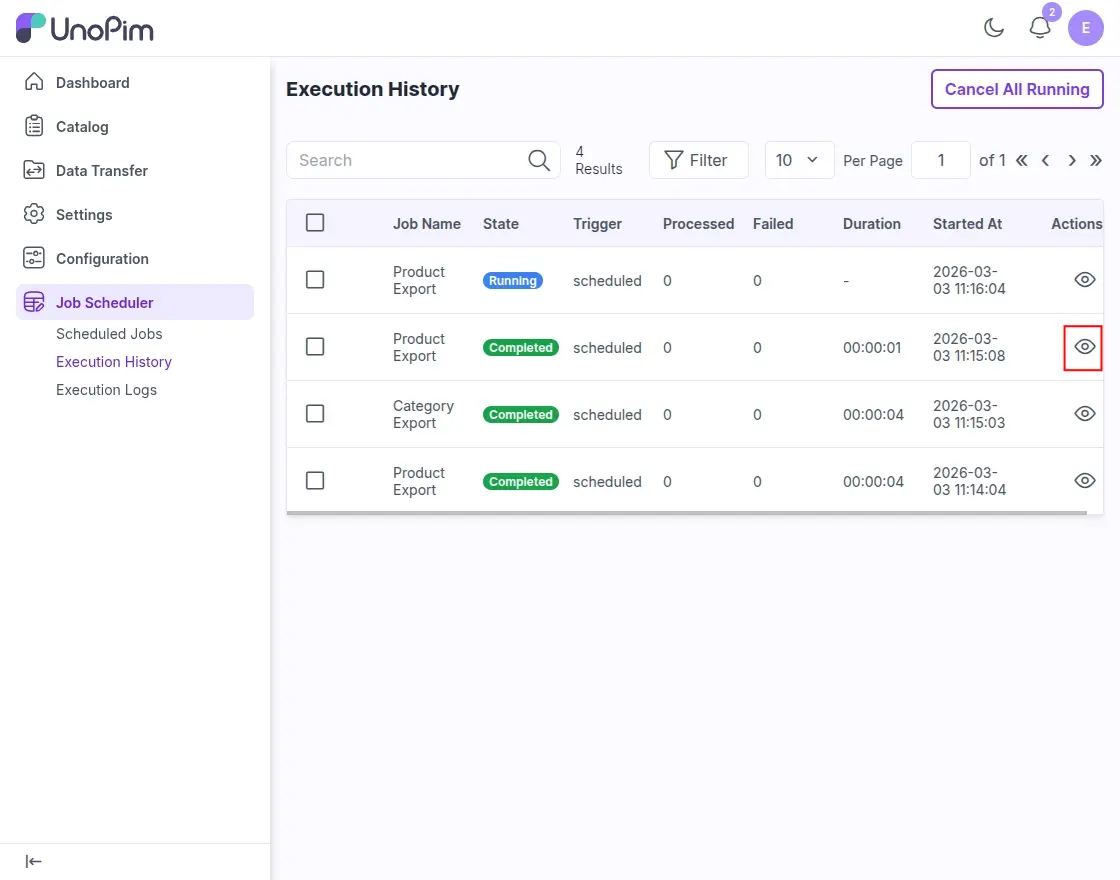
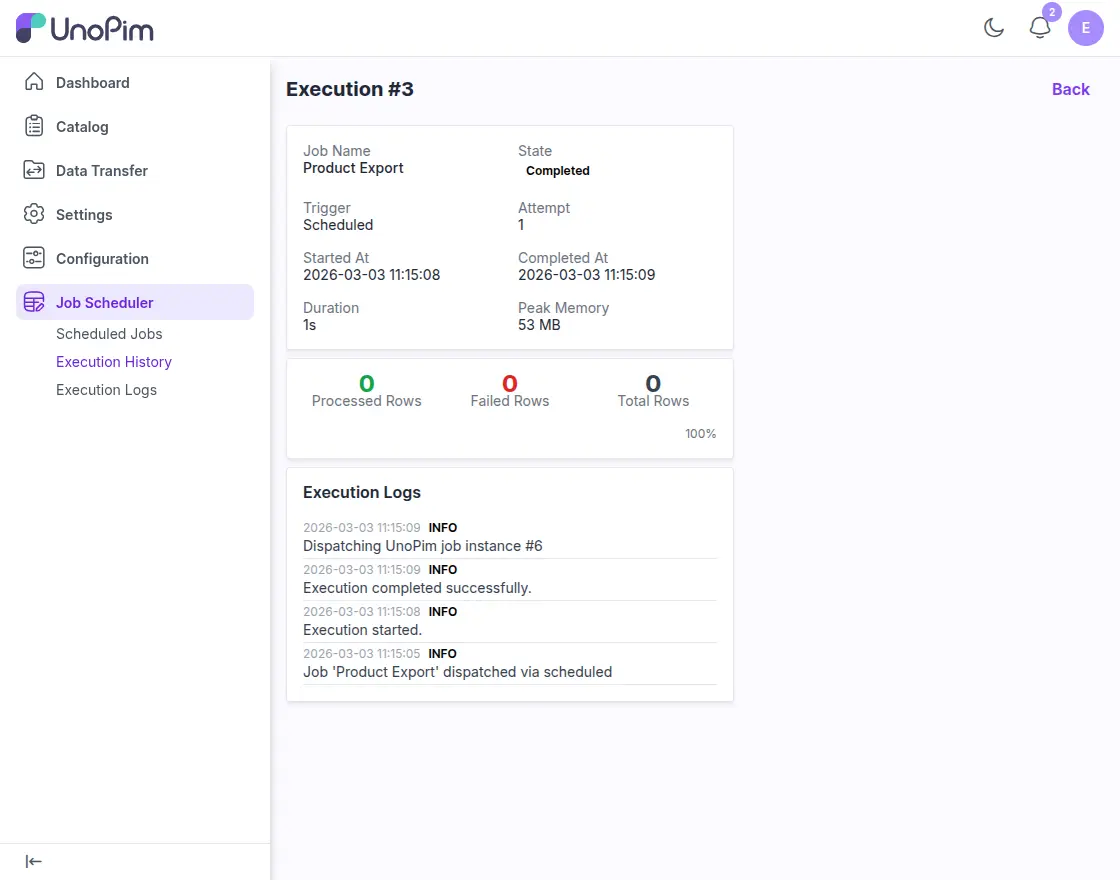
- Action: Click see icon to see more details about the execution of that job.
You can click “Cancel All Running” to stop all running jobs.
Execution Log This section shows detailed log messages for each job execution. This helps administrators understand what happens while running a job and quickly spot any issues.
- Job Name: Displays the job name, such as Product Export or Category Export.
- Execution: Displays the execution ID of the job being run. Each task run has a unique run number.
- Level: Displays the log level, for example INFORMATIONindicating normal work activities.
- Message: Displays log messages that describe what happened during the job, such as when execution started or finished.
- Line #: Displays the line number associated with the log message (if any).
- Sign in at: Displays the date and time the log entry was created.
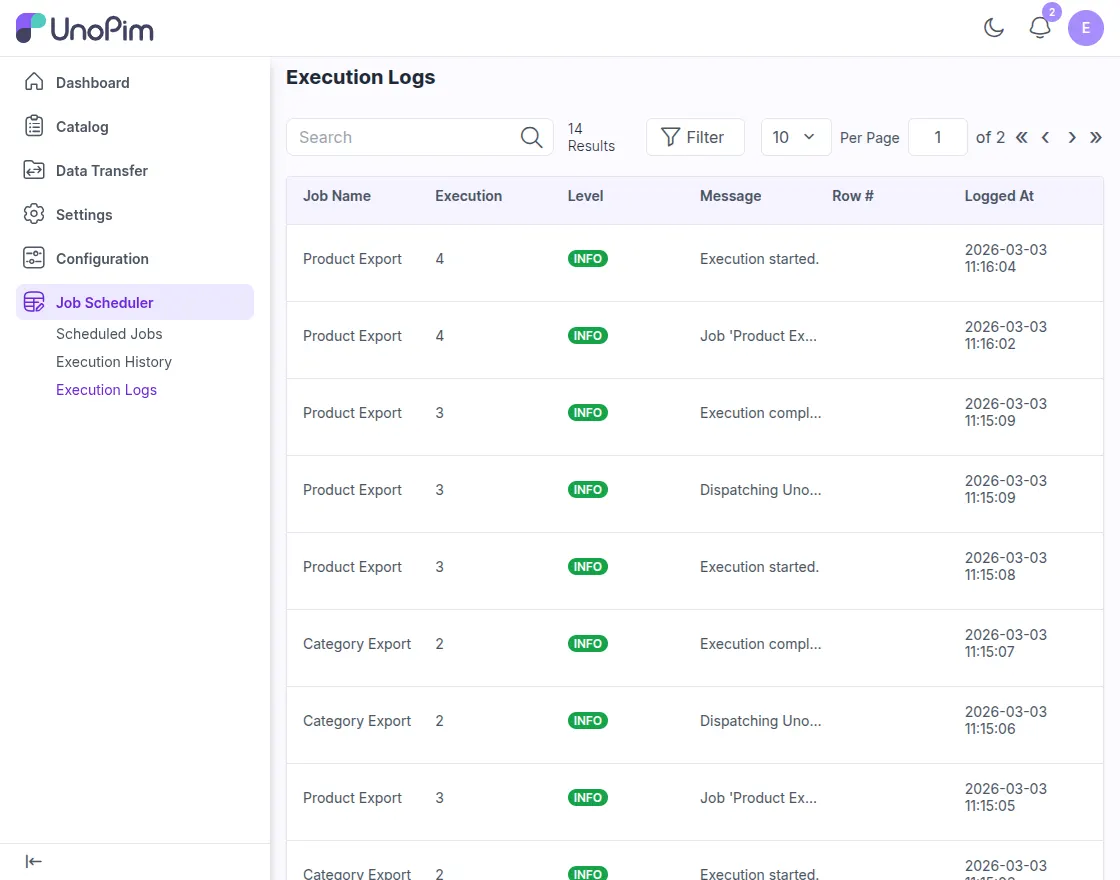
You can use this section to track job activities, review execution steps, and identify any errors during the job process.
Well, that’s a little about the UnoPim Job Scheduler User Guide. For any questions or doubts, contact us at [email protected]. You can also apply for a ticket with us Help Desk System.
Learn more about UnoPim and explore our UnoPim extensions.
Current Product Version – 1.0.0
Supported Framework Version – UnoPim v1.0.0

PakarPBN
A Private Blog Network (PBN) is a collection of websites that are controlled by a single individual or organization and used primarily to build backlinks to a “money site” in order to influence its ranking in search engines such as Google. The core idea behind a PBN is based on the importance of backlinks in Google’s ranking algorithm. Since Google views backlinks as signals of authority and trust, some website owners attempt to artificially create these signals through a controlled network of sites.
In a typical PBN setup, the owner acquires expired or aged domains that already have existing authority, backlinks, and history. These domains are rebuilt with new content and hosted separately, often using different IP addresses, hosting providers, themes, and ownership details to make them appear unrelated. Within the content published on these sites, links are strategically placed that point to the main website the owner wants to rank higher. By doing this, the owner attempts to pass link equity (also known as “link juice”) from the PBN sites to the target website.
The purpose of a PBN is to give the impression that the target website is naturally earning links from multiple independent sources. If done effectively, this can temporarily improve keyword rankings, increase organic visibility, and drive more traffic from search results.