Odoo Payment Provider Safaricom M-PESA helps businesses accept secure mobile payments via Safaricom M-Pesa at checkout. Customers receive STK Push requests and approve payments directly from their mobile devices.
This module integrates Daraja’s Safaricom API with your Odoo website, allowing customers to pay using their registered M-Pesa mobile number. It also allows administrators to configure payment credentials, process secure payments, and track payment transactions from the backend.
This module supports both sandbox and production environments. Businesses can test payment workflows before accepting live customer payments and easily monitor transaction records.
- Accept Safaricom M-Pesa payments directly from the website checkout page.
- Automatically send STK Push payment requests to customers’ mobile devices.
- Easily configure Daraja API credentials from payment provider settings.
- Supports sandbox and production environments for payment processing.
- Process payments using your registered M-Pesa mobile number securely.
- Track payment status updates automatically after customer payment authorization.
- Securely store transaction references for payment verification and auditing.
- View complete payment transaction records from a centralized dashboard.
- Monitor customer payment activities and transaction details from the backend.
- Once you purchase the App from Webkul store, you will receive a link to download zip module submit.
- Extract the files on your system once the download is complete. As a result, you will be able to see a folder named- ‘wk_safaricom_mpesa_payment‘.
- Copy and paste this folder inside your folder Odoo Add-ons Path.
- Now, open the Odoo Application and click on the Settings menu. Here, click Enable Developer Mode.
- Then, open the Application menu and click ‘Update Module List.’
- In the search bar, clear all filters and search for ‘wk_safaricom_mpesa_payment‘.
- You will be able to see the module in the search results. Click on ‘Activate‘ to install it.
Configuration of Odoo Safaricom M-PESA Payment Provider
1. First, navigate to Website -> Configuration -> Payment Provider. Then, find it Safaricom M-Pesa in the list of available payment providers. Finally, make sure the provider is installed and ready for configuration.
2. Open Safaricom M-Pesa payment provider and activate it. Select the required environment, enter the Daraja API credentials, Business Shortcode, and Passkey, then save the configuration.

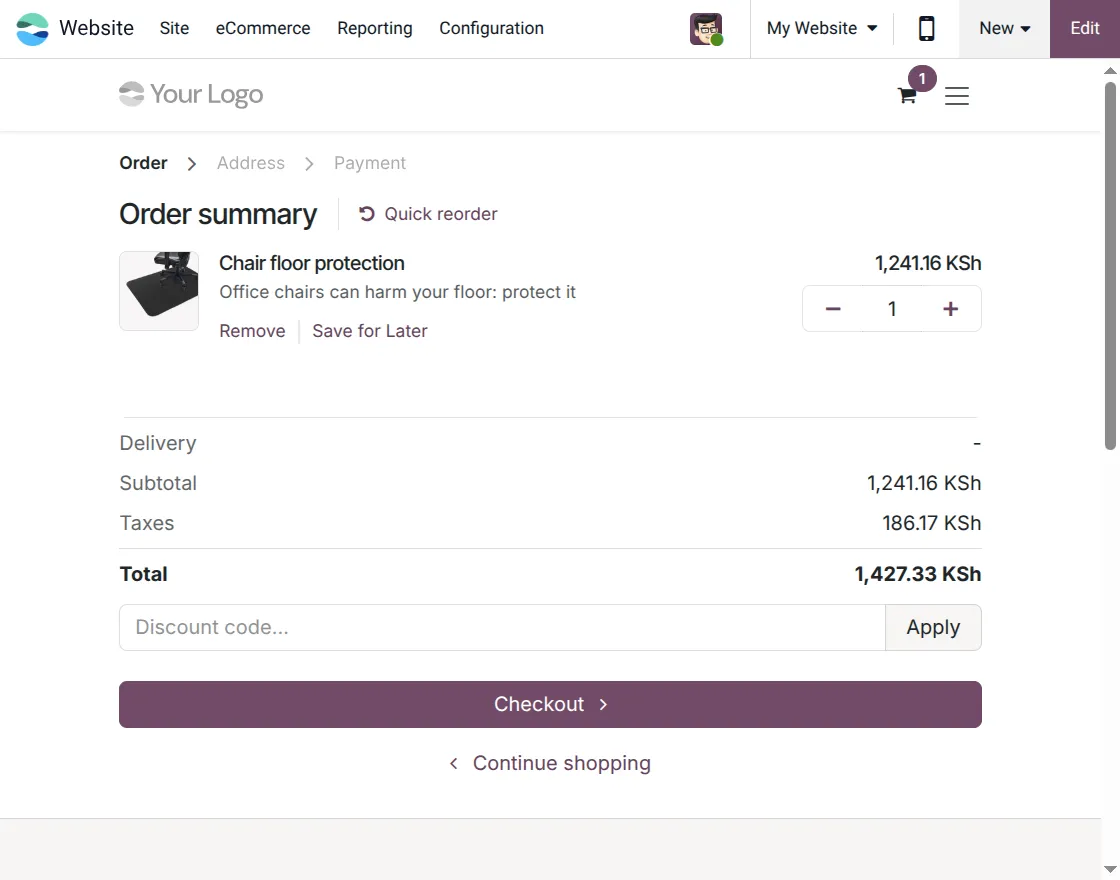
3. First, add the required products to the cart. Then, review product details, quantity, taxes, and total order amount on the checkout page. Finally, click Checkout to continue the Safaricom M-Pesa payment process.
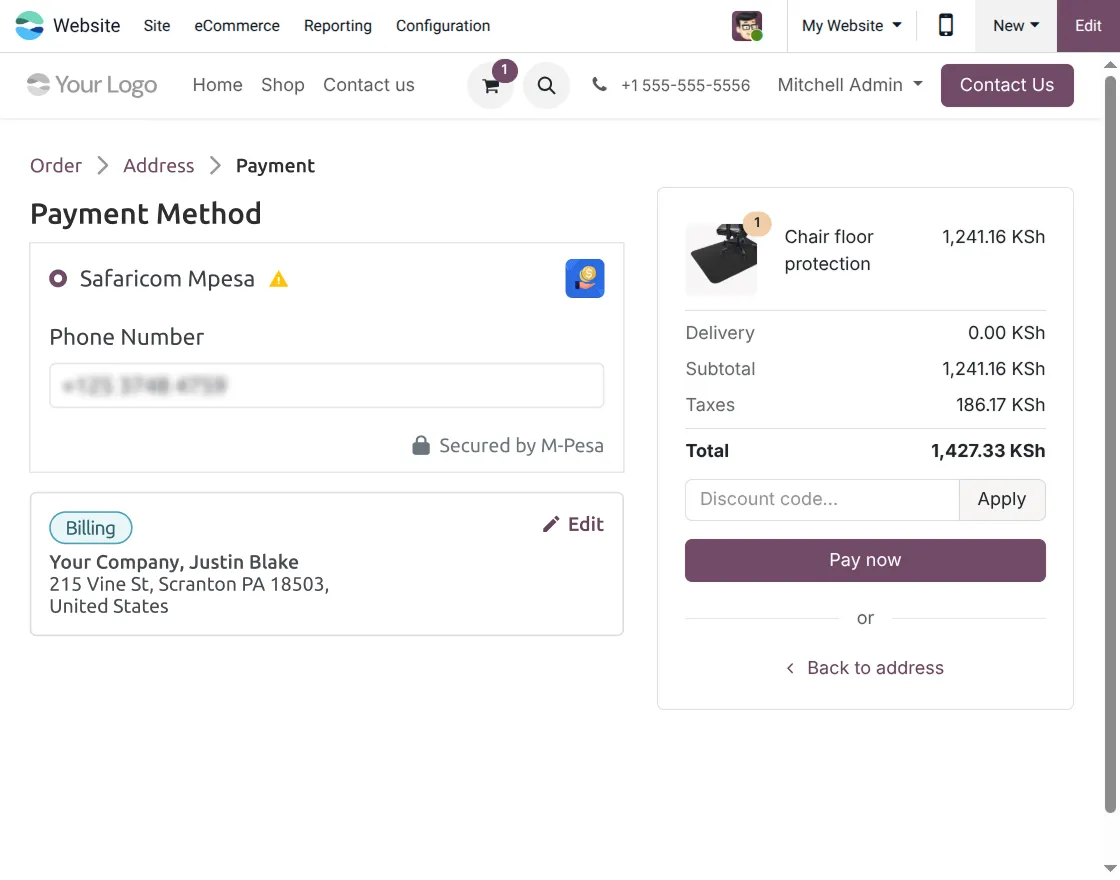
4. First, choose Safaricom M-Pesa as a payment method. Next enter a valid M-Pesa mobile number and click Pay Now. Then, an STK Push request is sent to the registered mobile device. Finally, approve the request to complete the payment successfully.
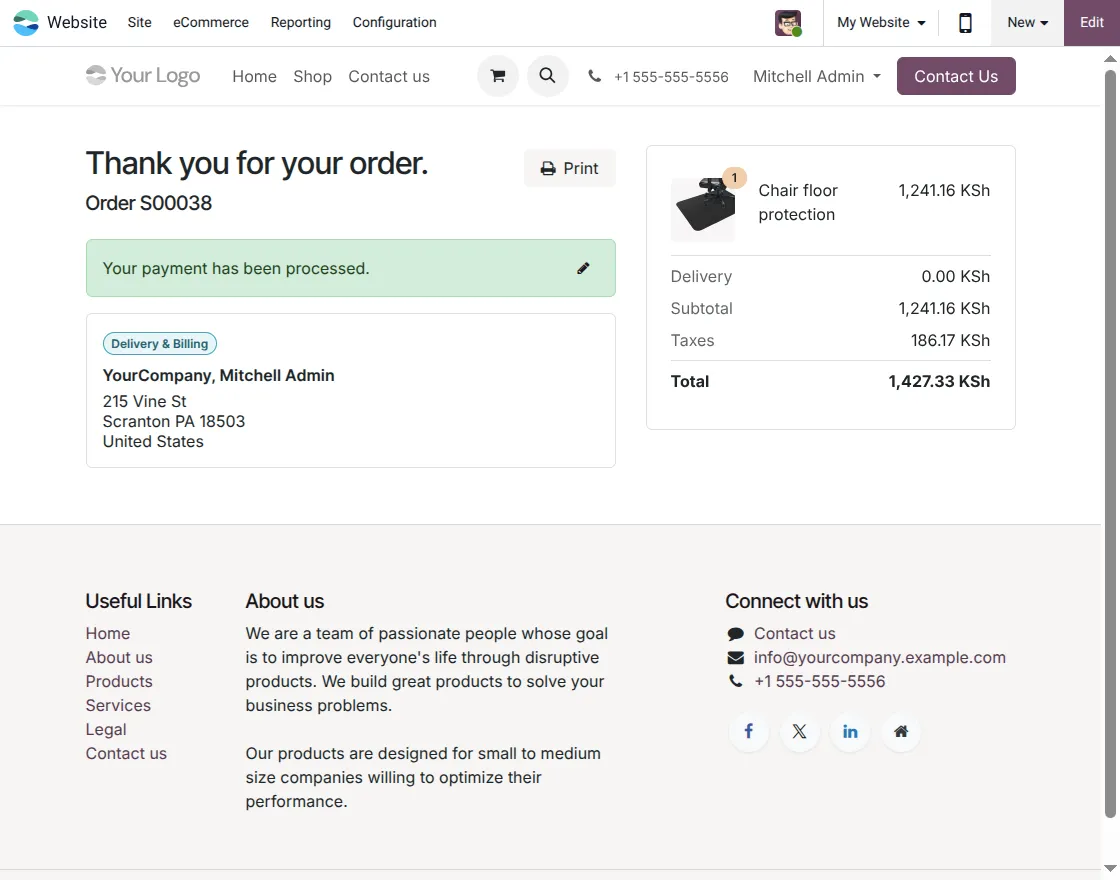
5. After that, the customer is directed to the order confirmation page after agreeing to the payment request. Then a success message appears along with order details, billing information, and payment confirmation status.
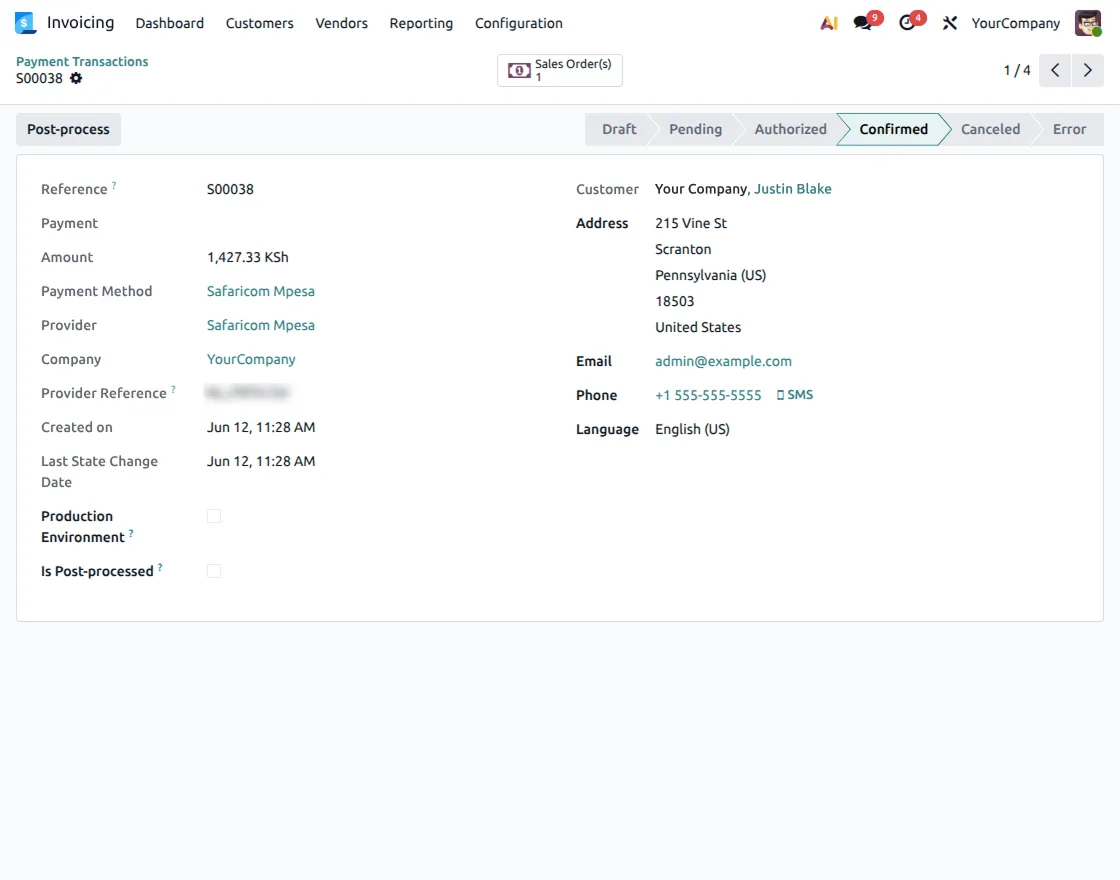
6. Navigate to Invoice > Payment Transaction to view all M-Pesa payment records. Here, you can monitor transaction references, payment methods, customer details and transaction history from a centralized location.

7. Next, open the payment transaction record to see complete transaction information. Then, review the transaction reference, payment amount, customer details, payment method, provider reference, and transaction status from one screen.
We hope this guide is useful for you! Please share your feedback in the comments below.
If you still have problems/questions, please create a ticket at UV Desk.
I hope this helps. If you have further questions, contact us on our support mail.
Thank you for noticing!!
Current Product Version – 1.0.0
Supported Framework Version – Odoo 19

PakarPBN
A Private Blog Network (PBN) is a collection of websites that are controlled by a single individual or organization and used primarily to build backlinks to a “money site” in order to influence its ranking in search engines such as Google. The core idea behind a PBN is based on the importance of backlinks in Google’s ranking algorithm. Since Google views backlinks as signals of authority and trust, some website owners attempt to artificially create these signals through a controlled network of sites.
In a typical PBN setup, the owner acquires expired or aged domains that already have existing authority, backlinks, and history. These domains are rebuilt with new content and hosted separately, often using different IP addresses, hosting providers, themes, and ownership details to make them appear unrelated. Within the content published on these sites, links are strategically placed that point to the main website the owner wants to rank higher. By doing this, the owner attempts to pass link equity (also known as “link juice”) from the PBN sites to the target website.
The purpose of a PBN is to give the impression that the target website is naturally earning links from multiple independent sources. If done effectively, this can temporarily improve keyword rankings, increase organic visibility, and drive more traffic from search results.