Odoo POS Paywizard Payment Terminal helps you connect Paywizard payment machines with Odoo POS. This allows staff to take card and digital payments directly from the POS screen.
Odoo POS Paywizard Payment Terminal sends payment requests automatically and updates payment status in real-time. This helps reduce manual work and speeds up payments.
It also automatically saves payment details, such as receipt number and payment method. Businesses can manage multiple Paywizard payment machines from one Odoo system easily.
- Connect Paywizard payment machines with Odoo POS easily.
- Take card and digital payments directly from the POS screen.
- Automatically update payment status once payment is complete.
- Manage multiple Paywizard payment terminals from one system.
- Save payment details automatically in Odoo.
- Verify payment responses before updating payment status.
- Show payment success or retry alerts automatically.
- Reduce manual work at checkout.
- Improve payment accuracy and checkout speed.
- Once you purchase the App from Webkul store, you will receive a link to download zip module submit.
- Extract the files on your system once the download is complete. As a result, you will be able to see a folder named- ‘pos_paywizard_payment_terminal.‘
- Copy and paste this folder inside your folder Odoo Add-ons Path.
- Now, open the Odoo Application and click on the Settings menu. Here, click Enable Developer Mode.
- Then, open the Application menu and click ‘Update Module List.’
- In the search bar, clear all filters and search for ‘pos_paywizard_payment_terminal.‘
- You will be able to see the module in the search results. Click on ‘Activate‘ to install it.
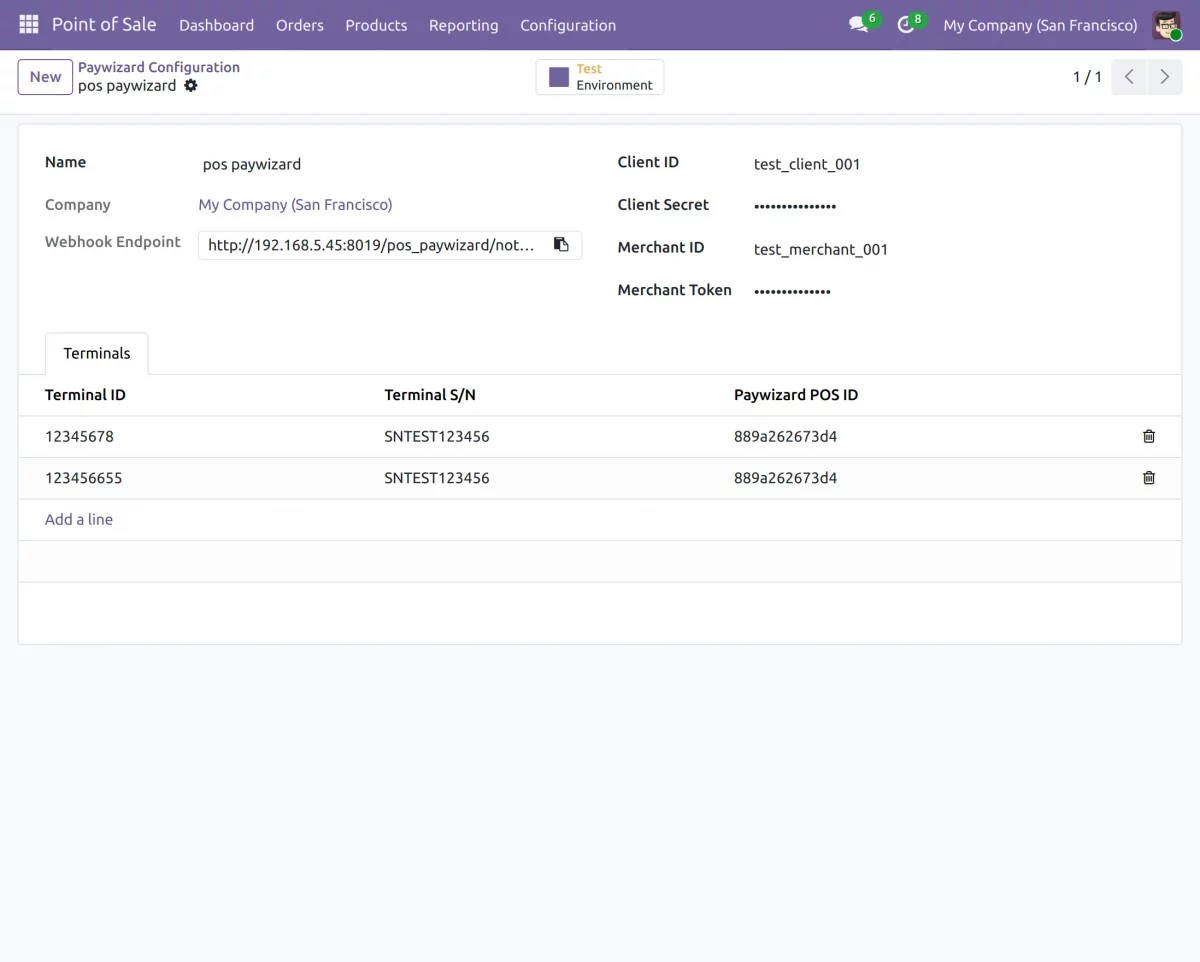
- After installing Odoo POS Paywizard Payment Terminal, configure Paywizard API details like Client ID, Merchant ID and webhook URL for payment communication.
2. After configuring API details, you can add and manage multiple Paywizard payment terminals from the same Odoo setup easily.
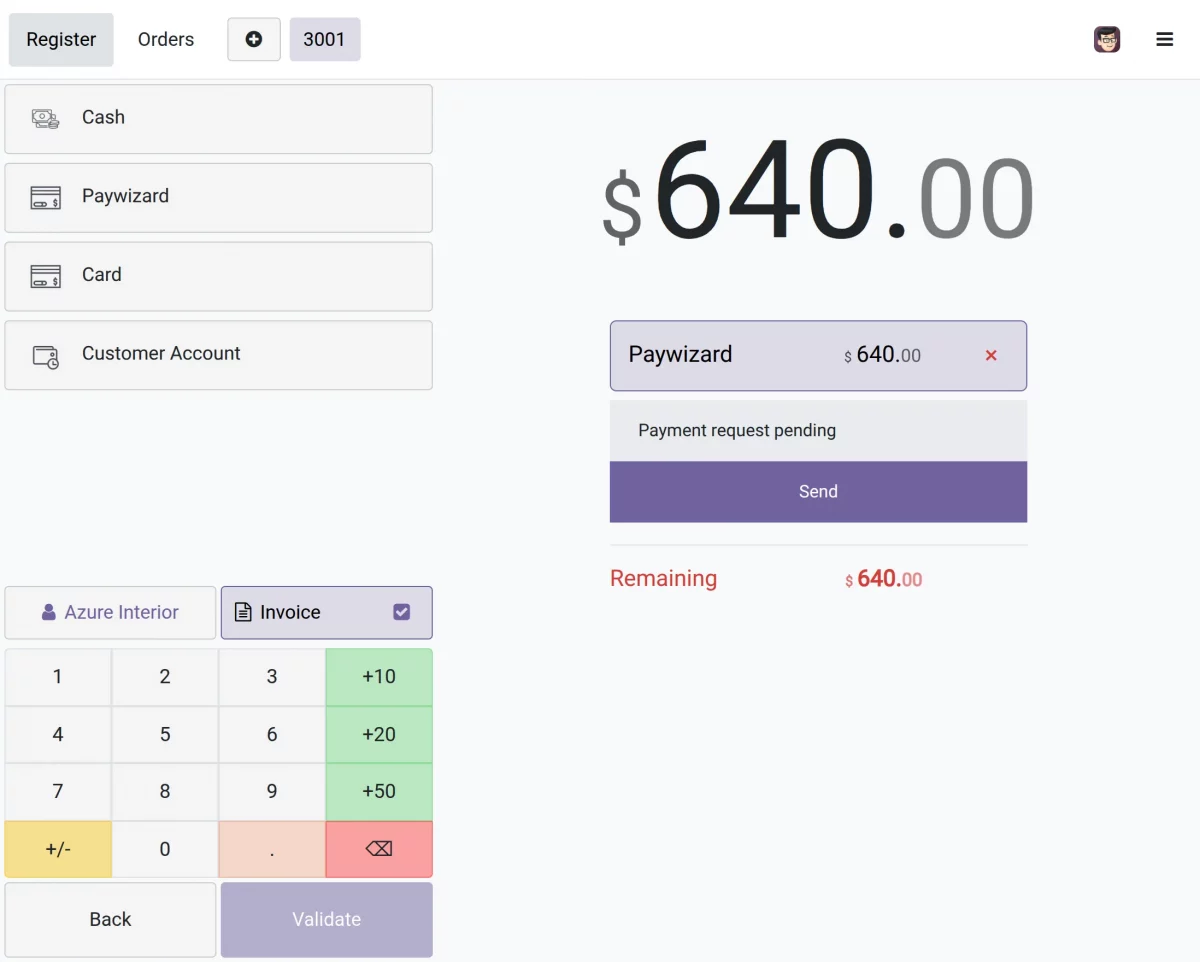
3. After selecting the Paywizard payment method, the cashier can send a payment request directly from the Odoo POS payment screen.
4. Once payment is completed, receive payment response automatically and update payment status in Odoo POS instantly.
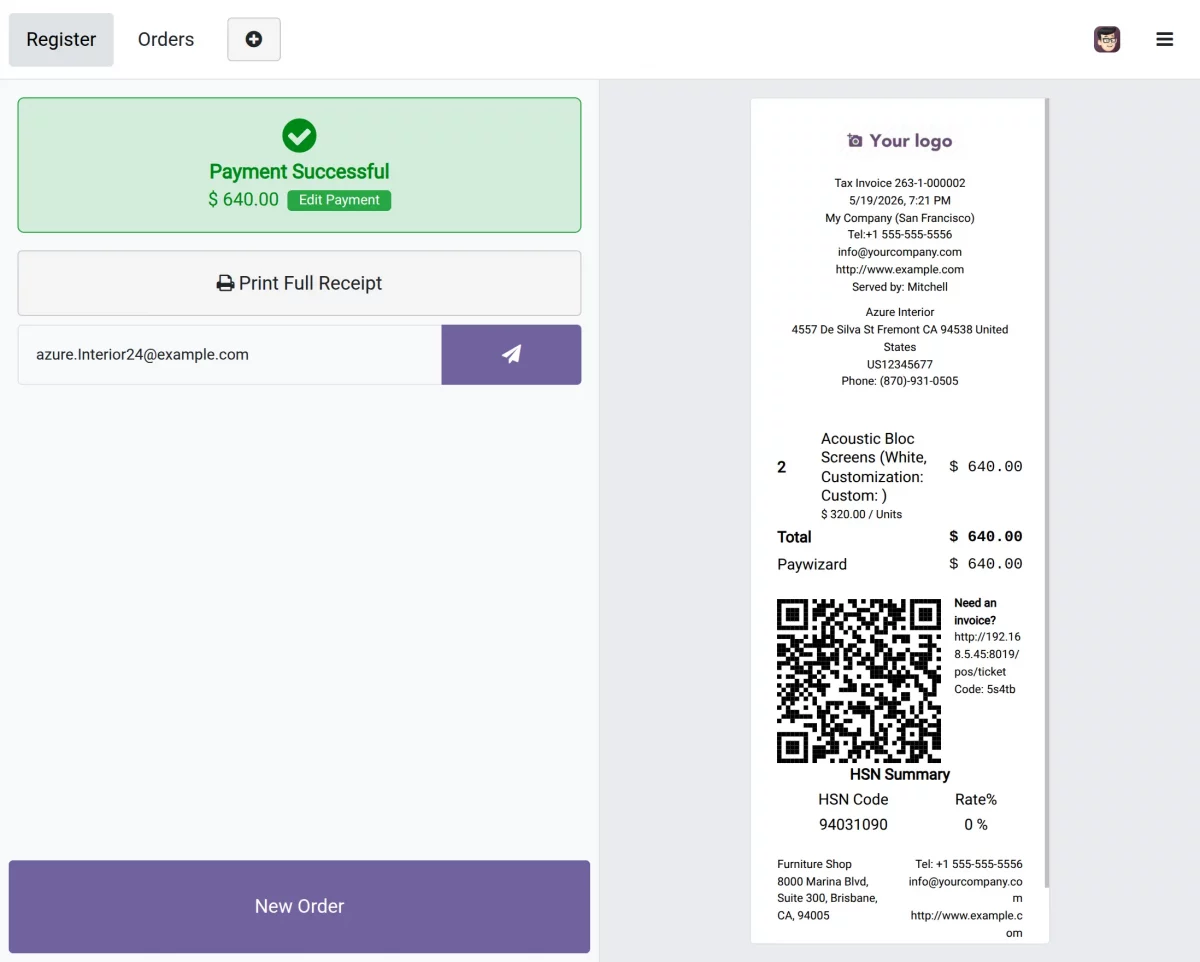
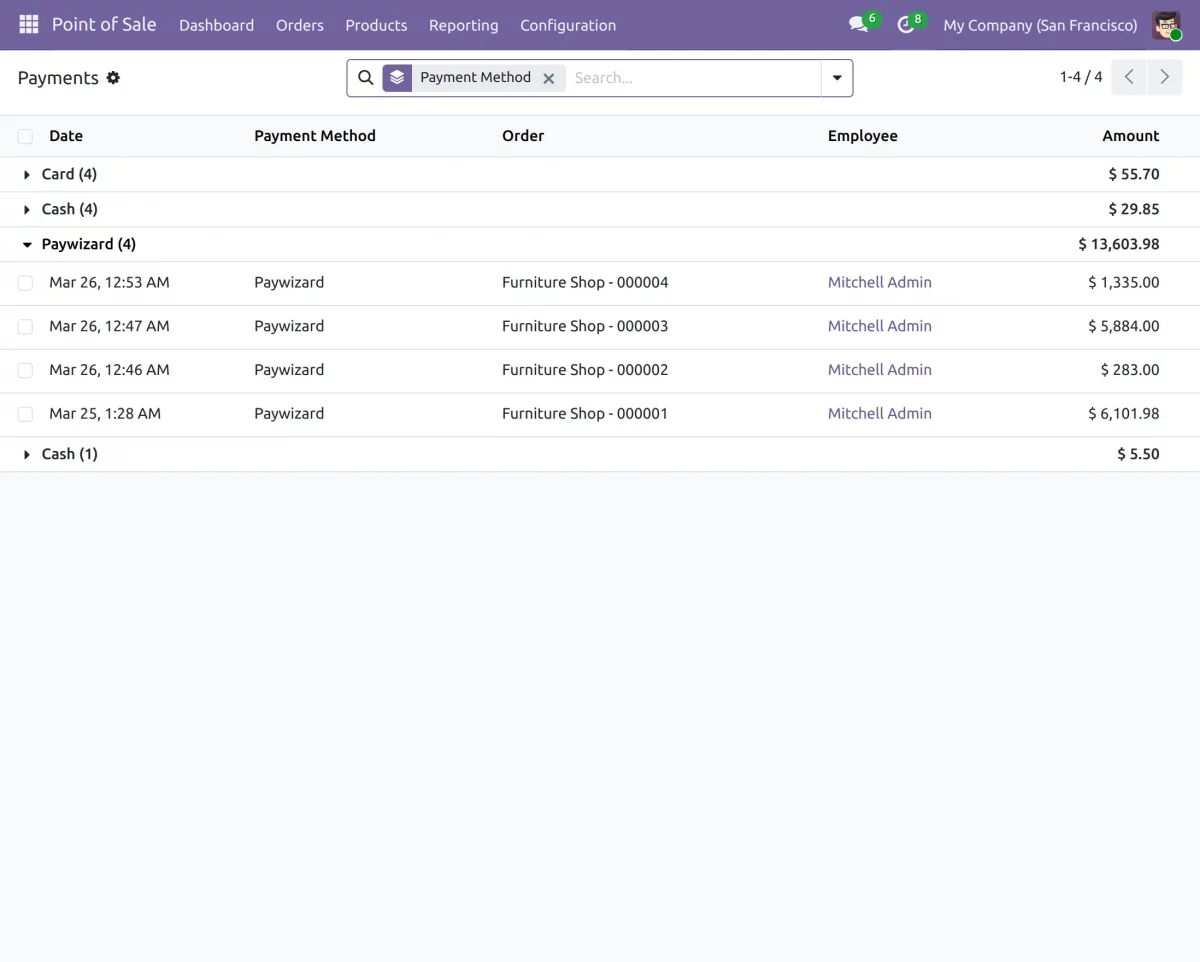
5. Once the payment is complete, all Paywizard payment details are captured and recorded automatically in the Odoo backend.
We hope this guide is useful for you! Please share your feedback in the comments below.
If you still have problems/questions, please create a ticket at UV Desk.
I hope this helps. If you have further questions, contact us on our support mail.
Thank you for noticing!!
Current Product Version – 1.0.0
Supported Framework Versions – Odoo V19, V18, V17

PakarPBN
A Private Blog Network (PBN) is a collection of websites that are controlled by a single individual or organization and used primarily to build backlinks to a “money site” in order to influence its ranking in search engines such as Google. The core idea behind a PBN is based on the importance of backlinks in Google’s ranking algorithm. Since Google views backlinks as signals of authority and trust, some website owners attempt to artificially create these signals through a controlled network of sites.
In a typical PBN setup, the owner acquires expired or aged domains that already have existing authority, backlinks, and history. These domains are rebuilt with new content and hosted separately, often using different IP addresses, hosting providers, themes, and ownership details to make them appear unrelated. Within the content published on these sites, links are strategically placed that point to the main website the owner wants to rank higher. By doing this, the owner attempts to pass link equity (also known as “link juice”) from the PBN sites to the target website.
The purpose of a PBN is to give the impression that the target website is naturally earning links from multiple independent sources. If done effectively, this can temporarily improve keyword rankings, increase organic visibility, and drive more traffic from search results.