The Stripe Reader Magento 2 POS extension integrates Stripe Terminal with Magento 2 POS to enable fast and secure in-store payments.
It supports card and contactless payment methods for a smooth checkout experience.
Payments are processed securely via Stripe readers. Order and payment details are synced in real time with Magento 2.
This ensures accurate reporting and smooth POS operations.
Additionally, you can check out the Magento 2 POS Thermal Printer, the add-on allows POS agents to print order receipts via any printer connected to the POS.
- Seamless integration with Magento 2 POS
- Easy interface without requiring special training
- Accepts Visa, MasterCard, American Express, and Discover
- Supports tap, chip and swipe payments
- Fast payment processing in real time
- Automatic payment status updates in Magento POS
- Works in online and offline POS mode
- Seamless, contactless payments for customers
Please Note: To use this module you must have Magento 2 Point of Sale installed first.
Customers will get a zip folder then they have to extract the contents of this zip folder on their system.
The extracted folder has src folder, inside the src folder you have application folder.
You need to transfer this application folder to the Magento 2 root directory on the server, as shown below.
After successful installation, you have to run this command in the Magento2 root directory.
composer require stripe/stripe-php:^16.0.0
php bin/magento setup:upgrade
php bin/magento setup:di:compile
php bin/magento setup:static-content:deploy
php bin/magento indexer:reindex
php bin/magento cache:flush
Multilingual Support
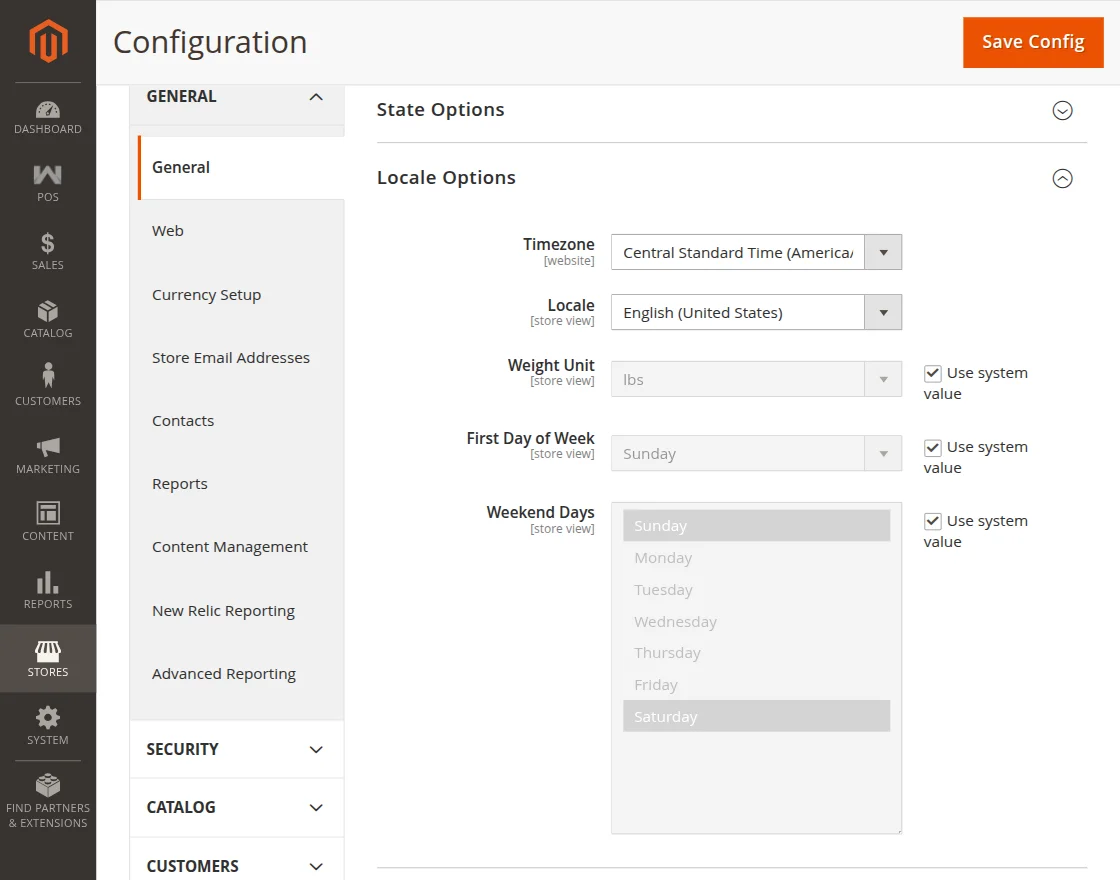
For multilingual support, admin will navigate Store->Configuration->General ->Local Options and select local as German
(the language the admin wants to translate the shop content into).
Language Translation
For Magento 2 AI Base Image Generator translation, navigate to the following path on your system src/app/code/Webkul/PosStripeTerminal/i18n.
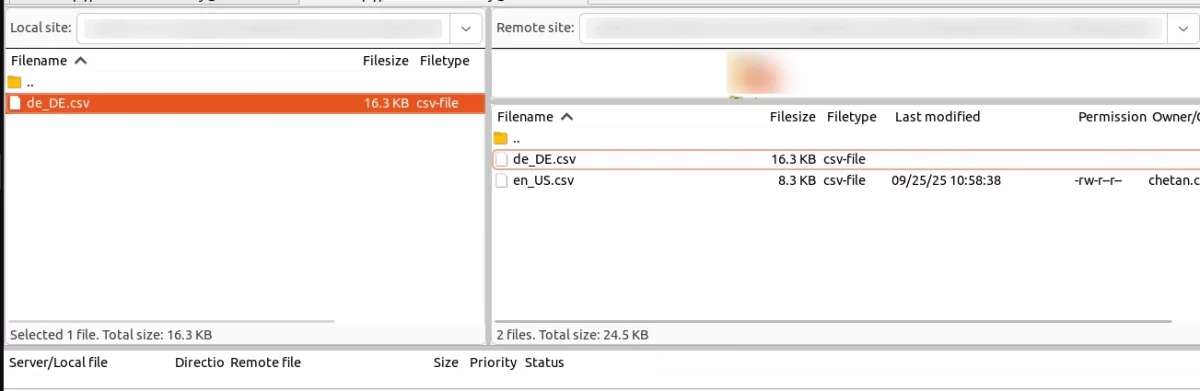
Open the file named en_US.CSV to edit as shown in the image below.
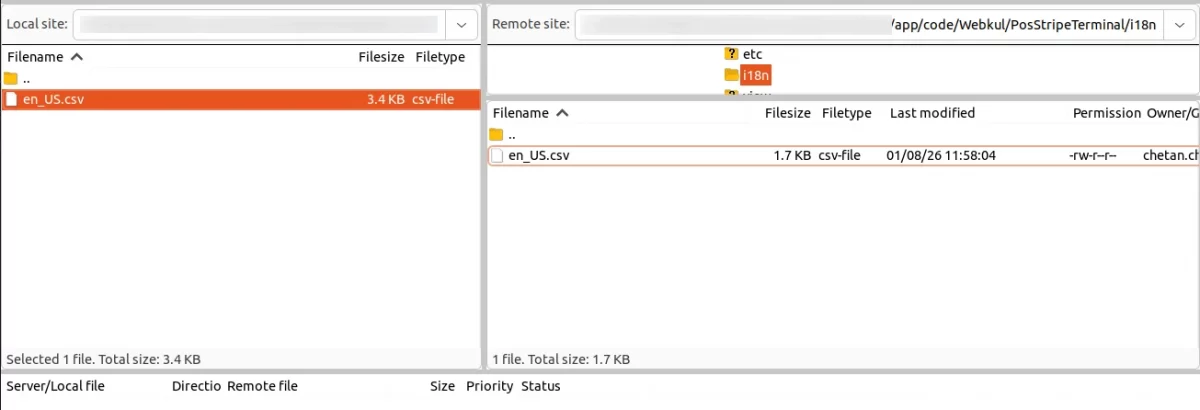
Now, upload it to the path src/application/code/Webkul/PosStripeTerminal/i18n where the Magento 2 installation is on the server.
The module is translated into the desired language.
Users can edit the CSV as shown below.
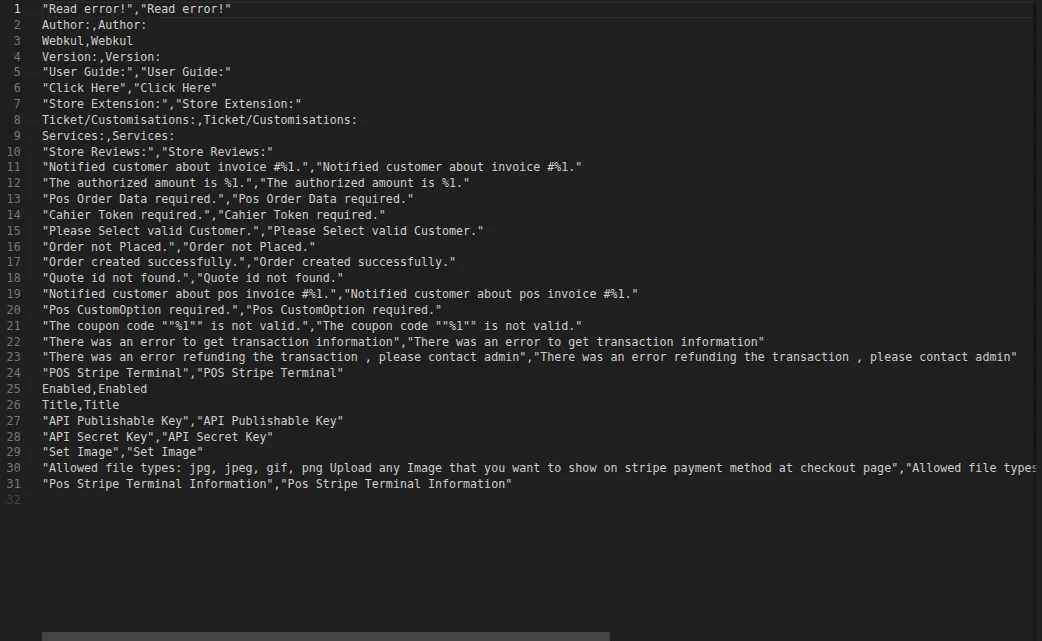
After editing and translating the CSV file, you need to save the name of the translated file according to your region, language and country code, such as – de_DE.CSV.
Followed by uploading the translation file to the same folder where you got it. Now your module translation is complete.
Manual Installation
- Customers will get a zip folder and they have to extract the contents of that zip folder on their system.
- The extracted folder contains the NextJs folder, move the folder to the directory where you want to install it.
- Setup env – Duplicate env.template rename the duplicate to .env. Now update the below mentioned values in the env file:
MAGENTO_URL=
IMAGE_DOMAIN=magento-url.com
APP_URL=
DEMO_CREDENTIALS='email password'
STRIPE_API_URL=
STRIPE_SECRET_KEY=secret-key
MODE=production
FALLBACK_LOCALE=en
- Run the following command via terminal:
npm install OR yarn install
npm run build OR yarn build
npm run start OR yarn start
- This will serve on port 3000 to your server for example: .
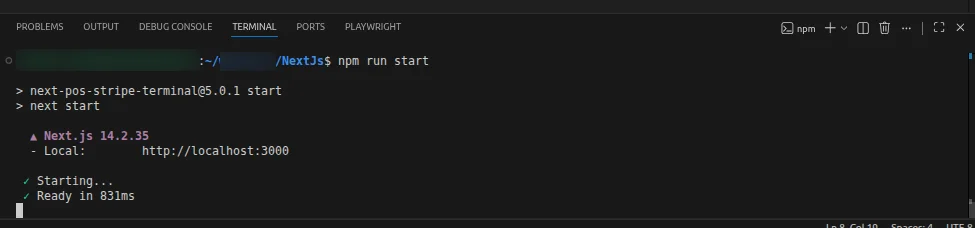
- You can access the POS-Stripe terminal by using your serverip:3000 and you can also ask your server team to map your port 3000 to any custom domain.
After installation of Stripe Reader Magento 2(Adobe Commerce) POS Extension module, admin can configure module settings.
By navigating to Store > Configuration > Sales > Payment Methods > Stripe POS Terminal as shown below:
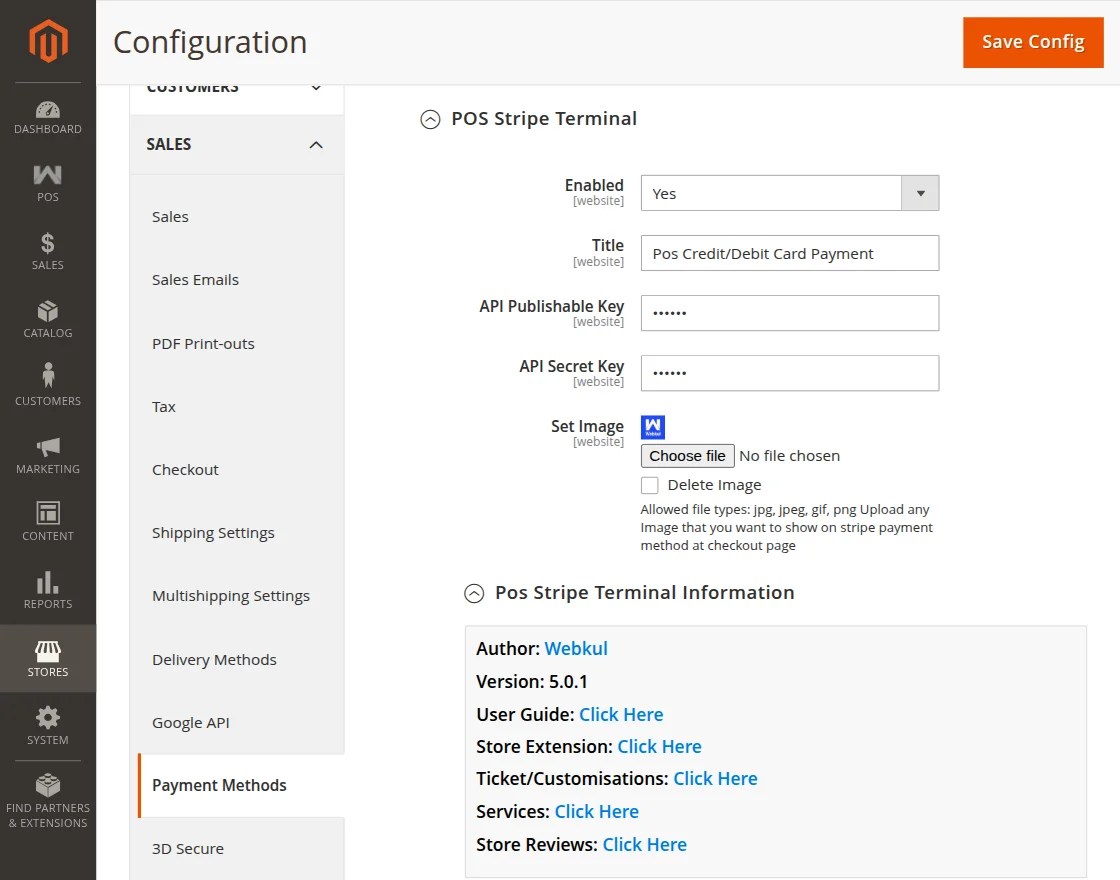
Here admin can:
- Enabled- Admins can give cashiers permission to activate and use the Stripe Terminal POS module.
- Title- Enter a module title that will be visible at checkout.
- Issueable API Keys- Enter the Publishable API key
- API Secret Key- Enter the API Secret key
- Set Image- Upload the logo that you want to display on the stripe payment method on the checkout page.
Stripe Magento 2 POS Reader Extension Workflow
After admin configuration, POS users can log in directly from the POS terminal.
Notes: Before checking the Post configuration make sure the Node Server is running.
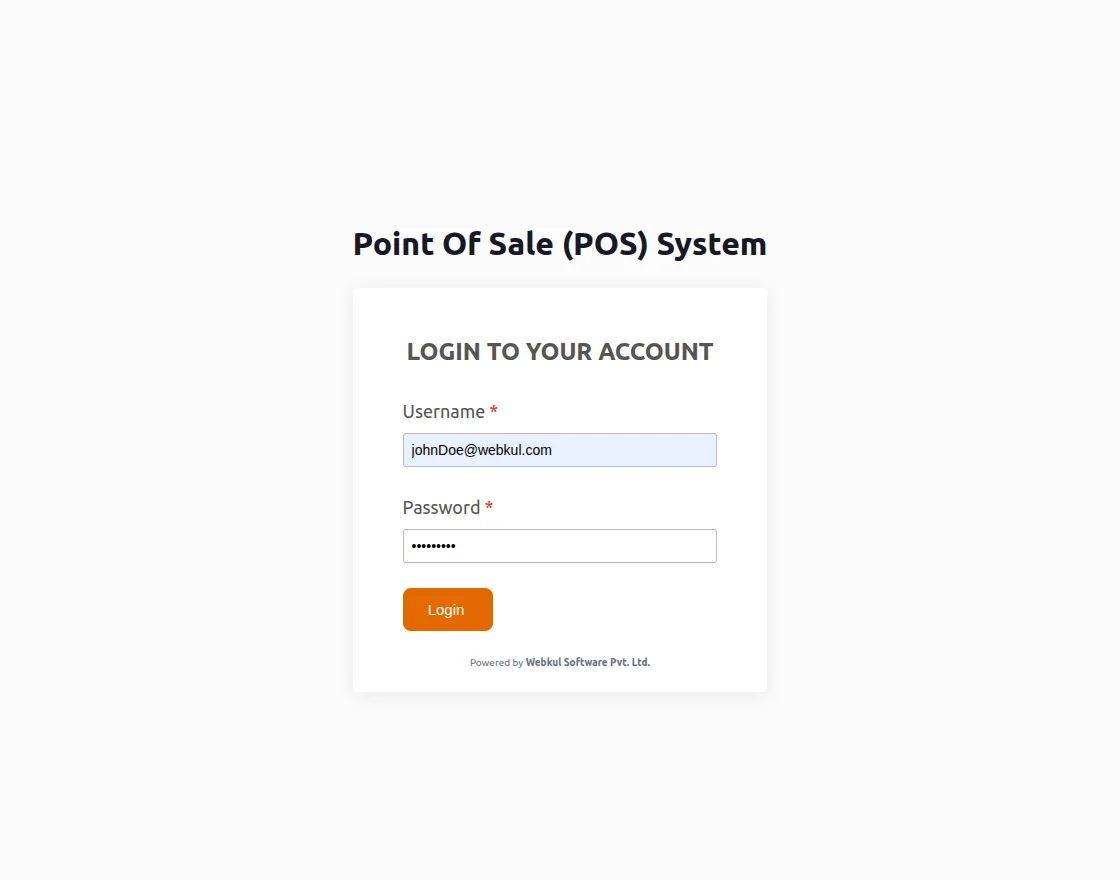
When the Stripe server is not connected, the Stripe payment gateway symbol will appear as “No Reader Found” on the POS as shown below:
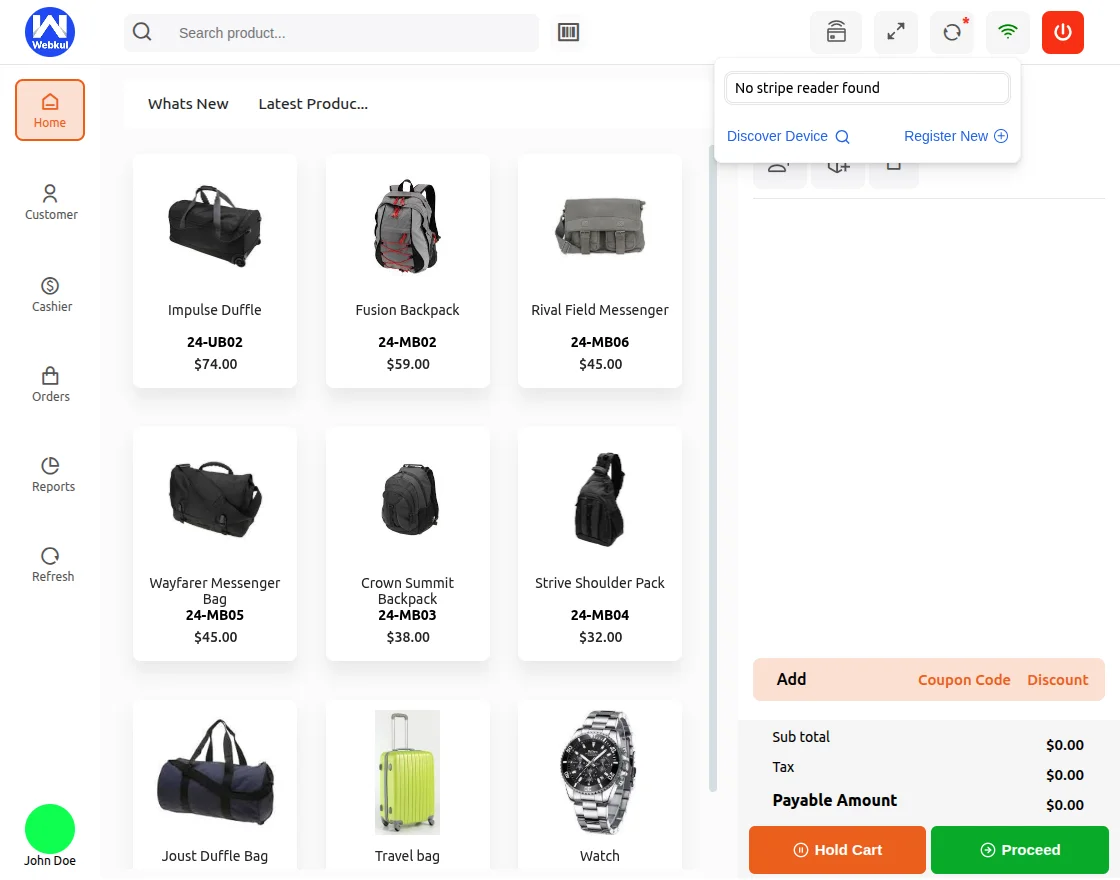
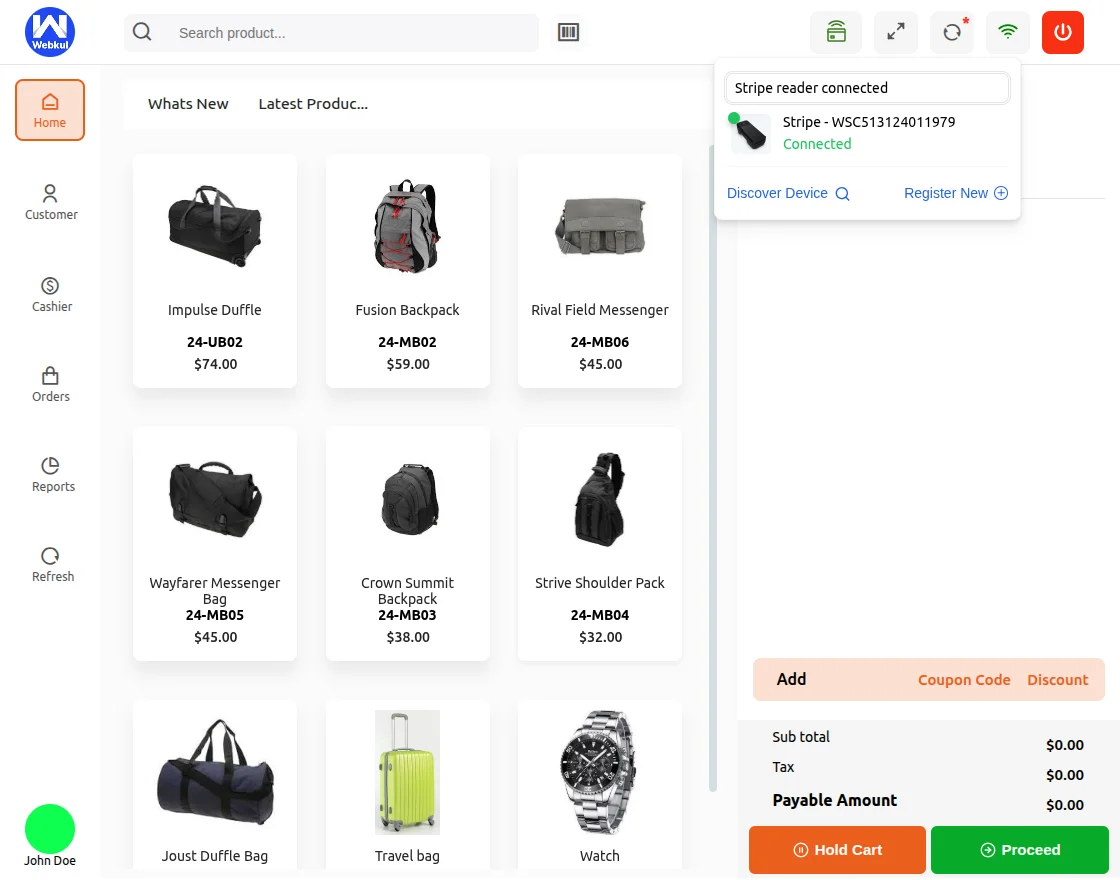
Once connected, Stripe will confirm that the app was successfully linked by changing the color of the icon.
Clicking the icon will display a message indicating that the Stripe reader is connected.
After that, the POS user can select the customer’s products and add them to the cart.
Next, POS users can proceed to the checkout page.
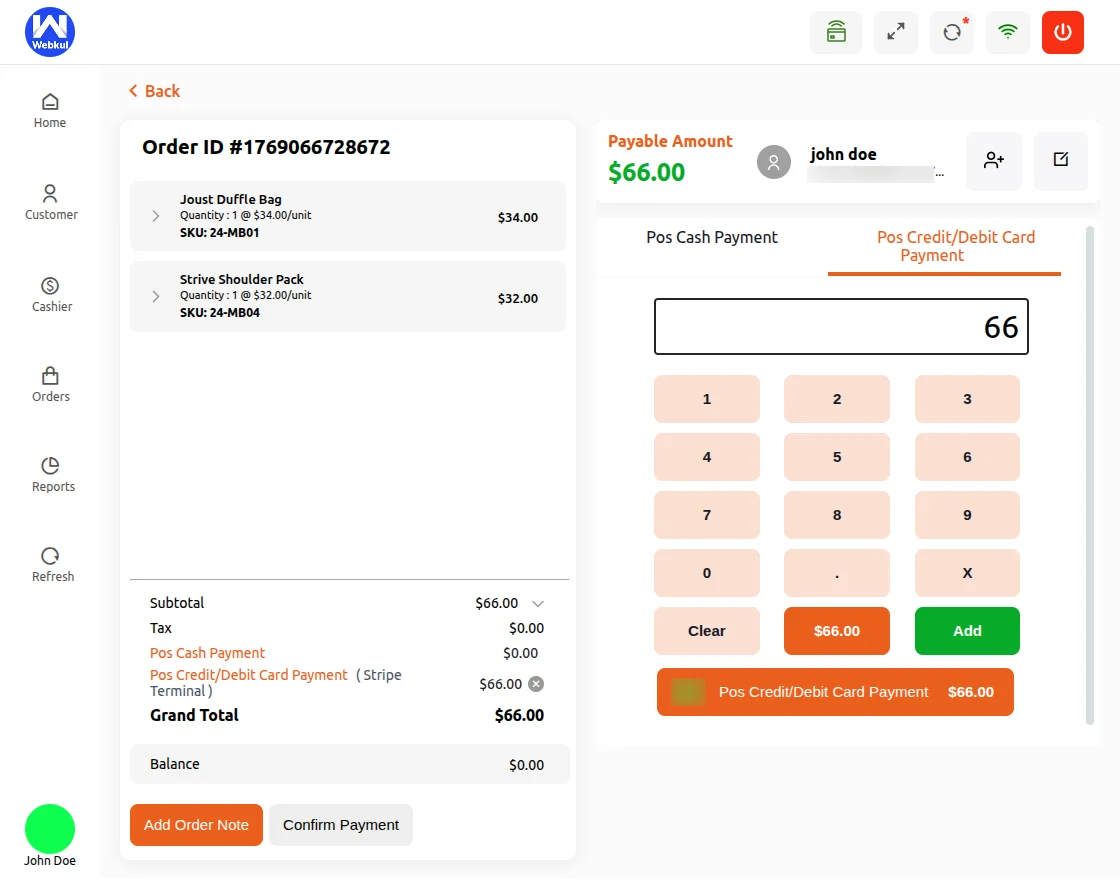
Then select POS Credit/Debit Card Payment as the payment method for customer product purchases.
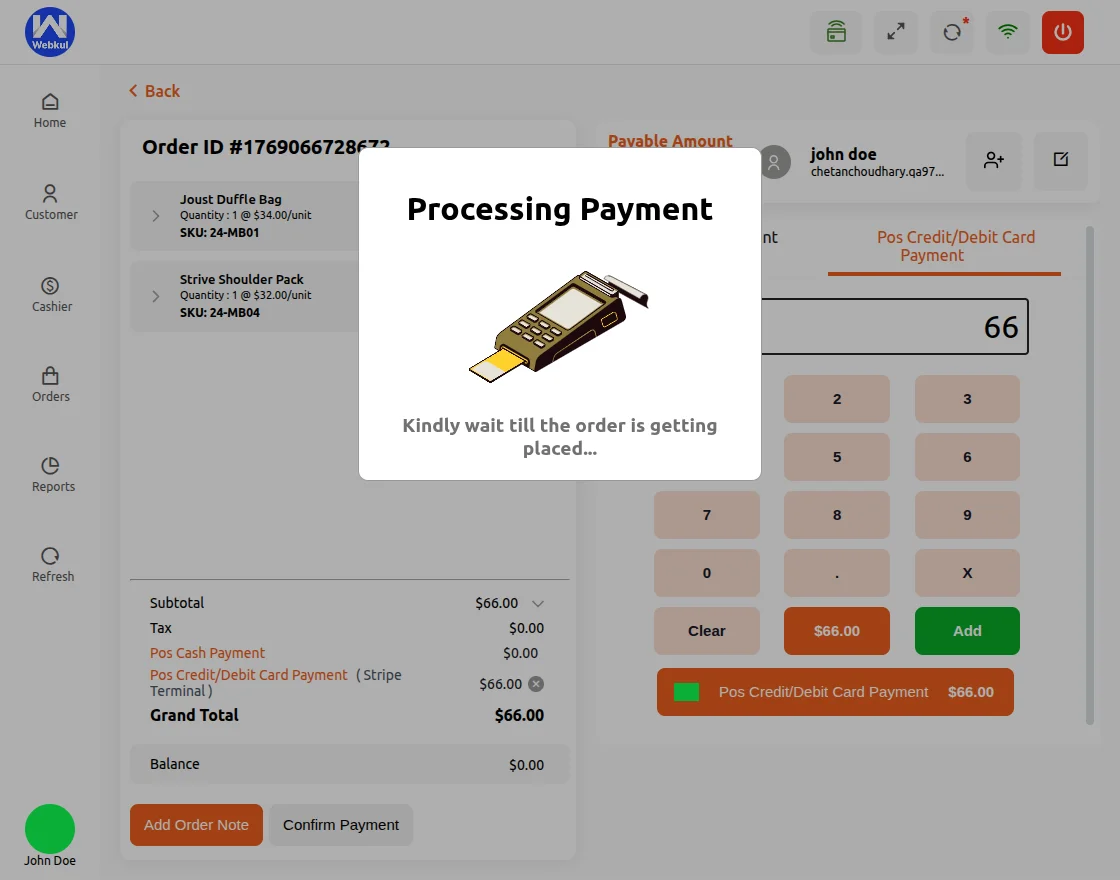
Now, the Postal user will log in to the stripe device to complete the payment process through the stripe card payment gateway. The device opens with a stripe Home.

Post Users need to tap or Insert the card to settle the remaining amount due.

After inserting the card or tapping on it, the payment is processed and as soon as the amount is deducted, the payment will be processed.
After that, the status is set to complete as shown in the image.

Payment Approved and Completed from the desired card and device. The product payment status is confirmed by the device and approved.
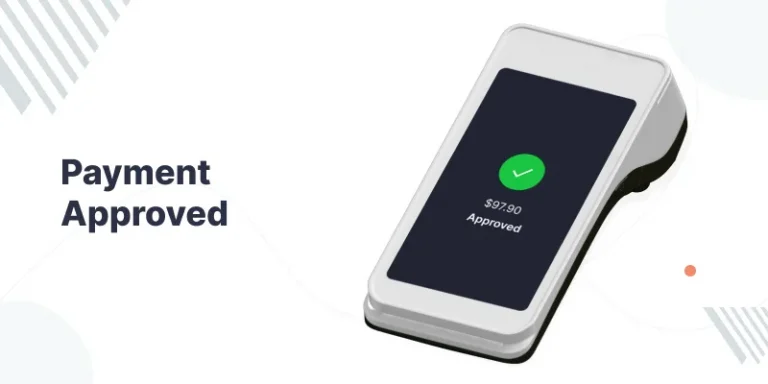
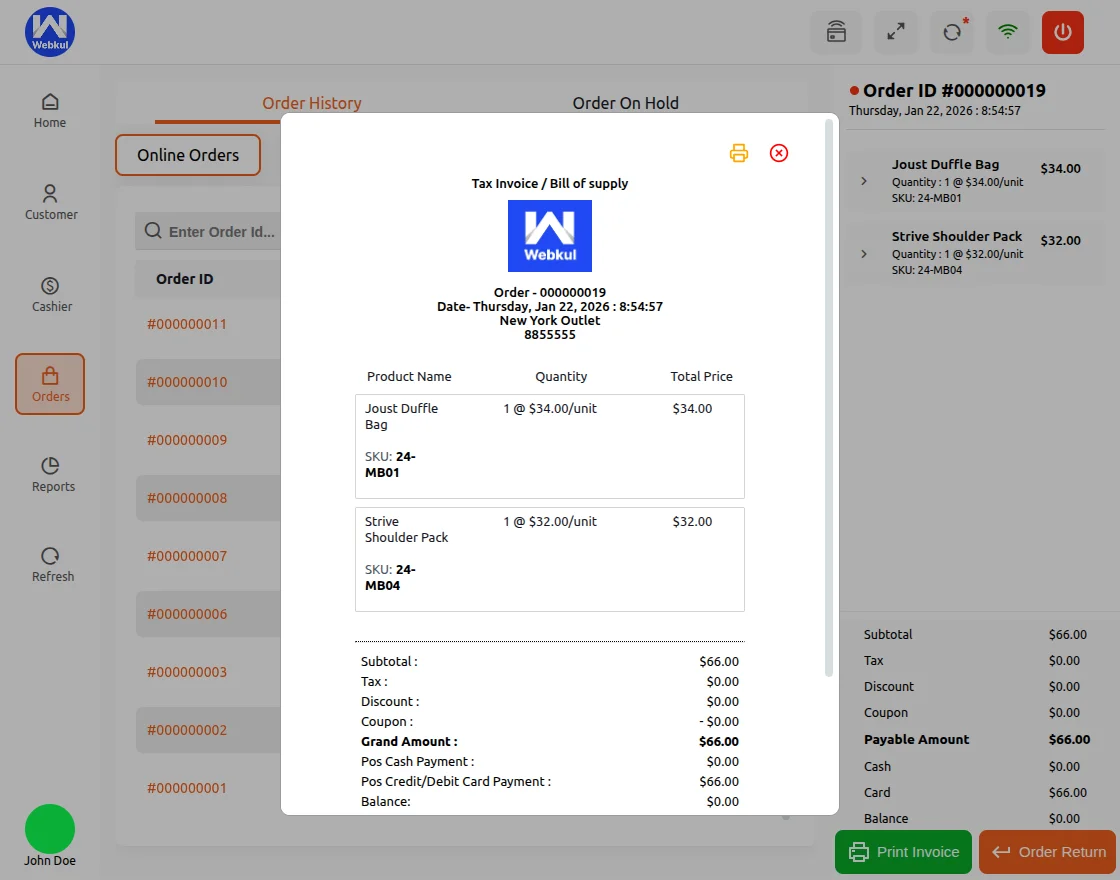
Once the payment is confirmed by the device, the order details along with the payment confirmation are transferred to the POS panel.
The POS then generates a product invoice, as shown below.
You can track your orders from the sales history section for reference and recording.
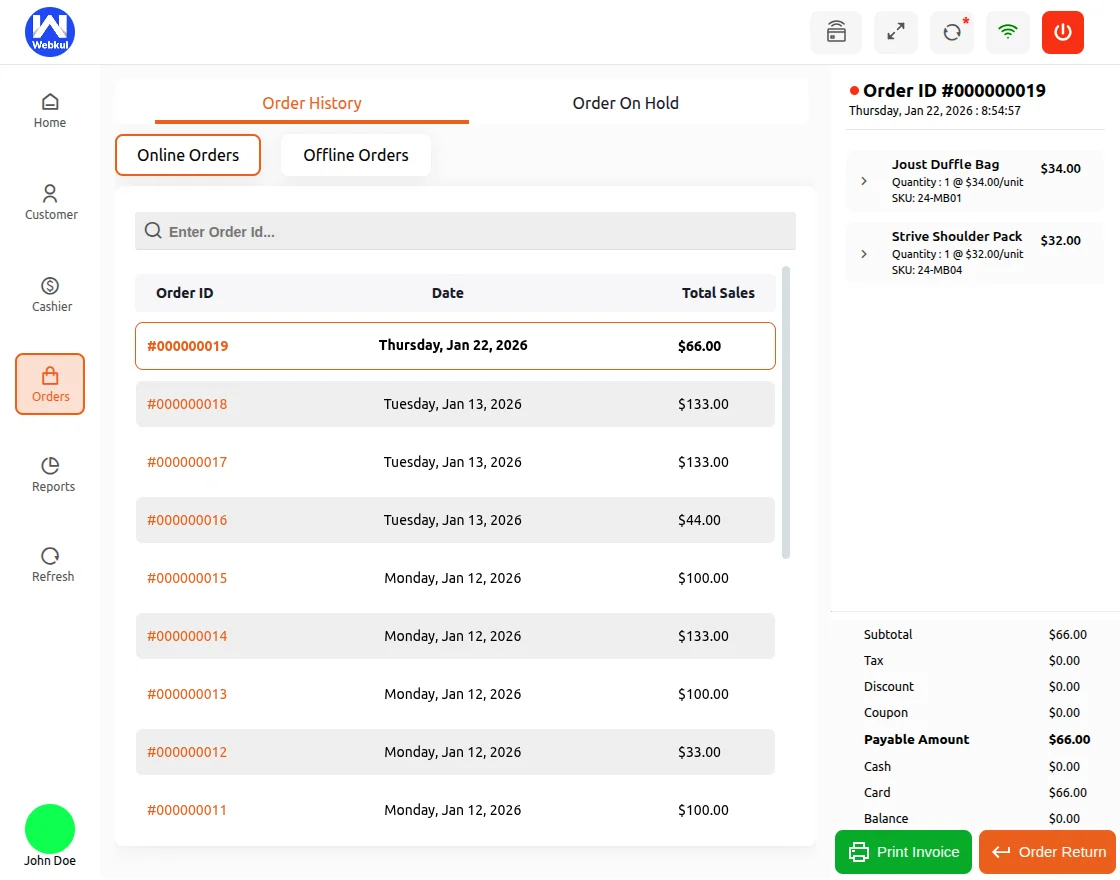
This section helps store owners and staff monitor completed transactions, check order details, and maintain an organized history of all sales activities.
So, that’s it for him Magento 2 POS Line Reader Extension.
If you have any questions, suggestions, or customization requests, please feel free to contact us at [email protected] or submit a ticket at webkul.uvdesk.com.
Please explore our Quality Magento Development and Magento 2 Extension Services.
Current Product Version – 5.0.1
Supported Framework Versions – Magento 2.0.x, 2.1.x, 2.2.x,2.3.x, 2.4.x

PakarPBN
A Private Blog Network (PBN) is a collection of websites that are controlled by a single individual or organization and used primarily to build backlinks to a “money site” in order to influence its ranking in search engines such as Google. The core idea behind a PBN is based on the importance of backlinks in Google’s ranking algorithm. Since Google views backlinks as signals of authority and trust, some website owners attempt to artificially create these signals through a controlled network of sites.
In a typical PBN setup, the owner acquires expired or aged domains that already have existing authority, backlinks, and history. These domains are rebuilt with new content and hosted separately, often using different IP addresses, hosting providers, themes, and ownership details to make them appear unrelated. Within the content published on these sites, links are strategically placed that point to the main website the owner wants to rank higher. By doing this, the owner attempts to pass link equity (also known as “link juice”) from the PBN sites to the target website.
The purpose of a PBN is to give the impression that the target website is naturally earning links from multiple independent sources. If done effectively, this can temporarily improve keyword rankings, increase organic visibility, and drive more traffic from search results.