That HubSpot ERPNext CRM Connector helps businesses sync Contacts, Leads, Opportunities (Offers), and Products between ERPNext and HubSpot CRM.
You can purchase the HubSpot ERPNext CRM Connector directly from the Webkul Store. This connector eliminates manual data entry and keeps customer and sales data synchronized across both platforms.
With this HubSpot ERPNext CRM Integration, businesses can manage CRM operations from ERPNext while maintaining accurate records in HubSpot CRM.
This connector supports two-way sync, duplicate prevention, record mapping, and multiple HubSpot CRM account management.
Prerequisites for using the HubSpot ERPNext CRM Connector
The HubSpot ERPNext CRM Connector works in conjunction with the following modules:
ERPNext Multi CRM Base
You must install the modules mentioned above to use the HubSpot ERPNext CRM Connector.
- Sync Contacts between ERPNext and HubSpot CRM.
- Sync Leads between ERPNext and HubSpot CRM.
- Opportunity (Offer) Synchronization between ERPNext and HubSpot CRM.
- Product and Item Synchronization between ERPNext and HubSpot CRM.
- Prevent duplicate Contacts using email matching.
- Prevent duplicate Products using SKU matching.
- Manage multiple HubSpot CRM accounts from ERPNext.
- Maintain CRM entity mapping for synchronized records.
- Update synced notes automatically.
- Secure OAuth2 authentication with HubSpot CRM.
- After purchasing the app from the Webkul store, you will receive a link to download the ZIP file of the module.
- Extract the downloaded ZIP file, and you will see a folder named ‘erpnext_hubspot_crm_connector’.
- Set up the module in your Git repository.
- If the app is hosted on GitHub, fetch the app using the command:
bench get-app --branch main
● (Replace “main” with your branch name and replace “HTTPS URL” with your HTTPS clone
URL.)
5. Install the application on your site using the command:
bench --site <your-site_name> install-app erpnext_hubspot_crm_connector
6. Finally, run the “bench migration” command to complete the installation.
Configure Connector Type
Navigate to Multi CRM → Connector Type.
Create a new Connector Type for HubSpot CRM and enter the required API details.
Create a Connecting Account
Navigate to Connecting Account.
Create a new HubSpot CRM account by entering the details.
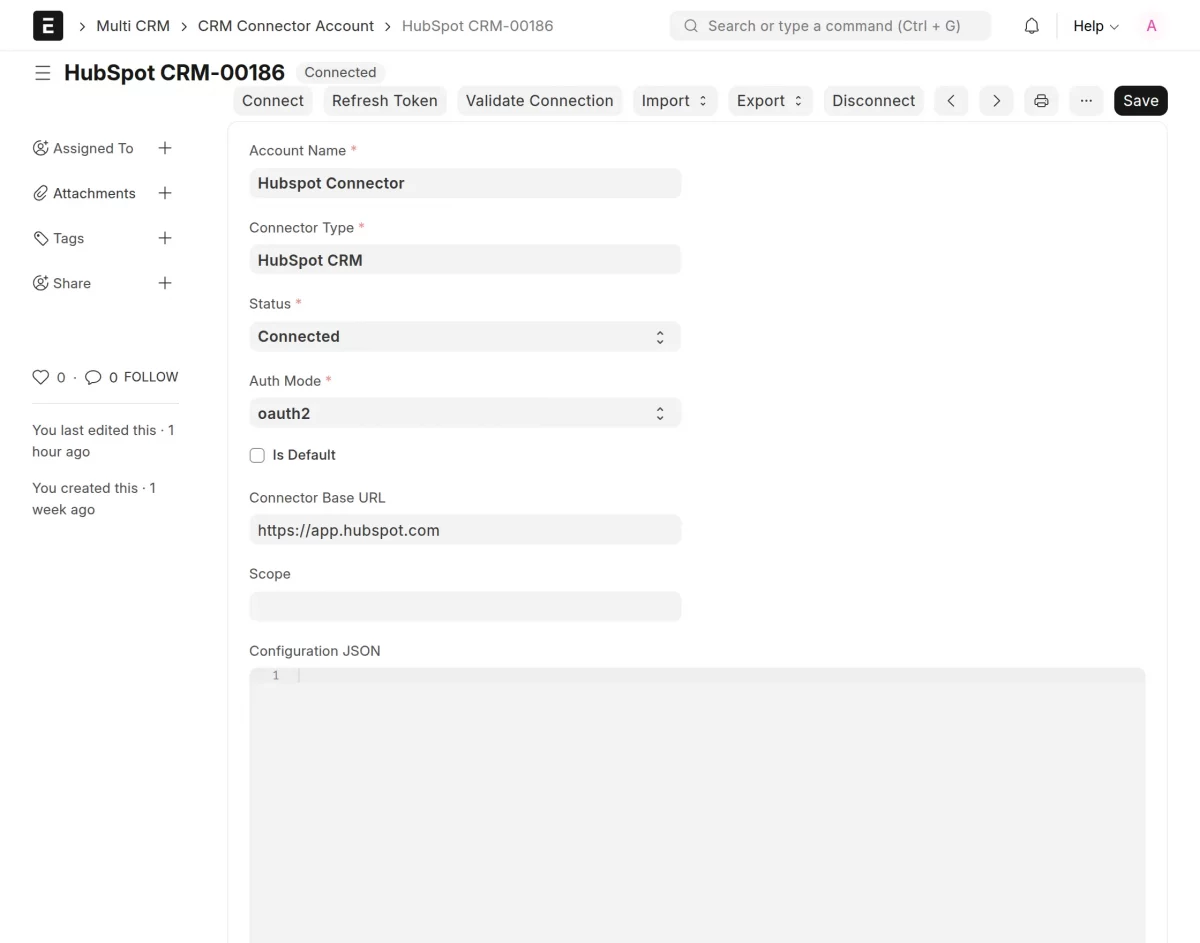
Connect HubSpot CRM
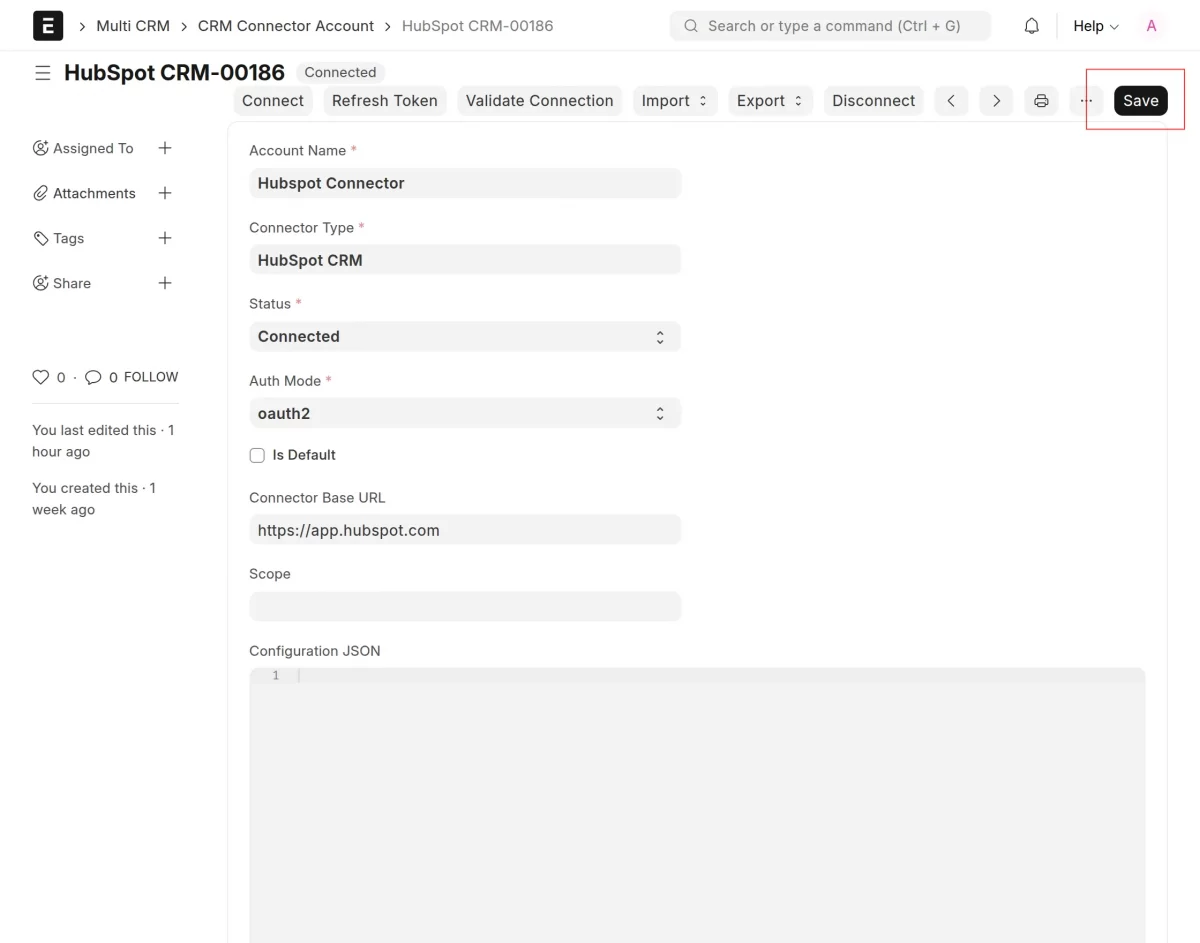
Click Save and Connect.
Authenticate your HubSpot CRM account and validate the connection.
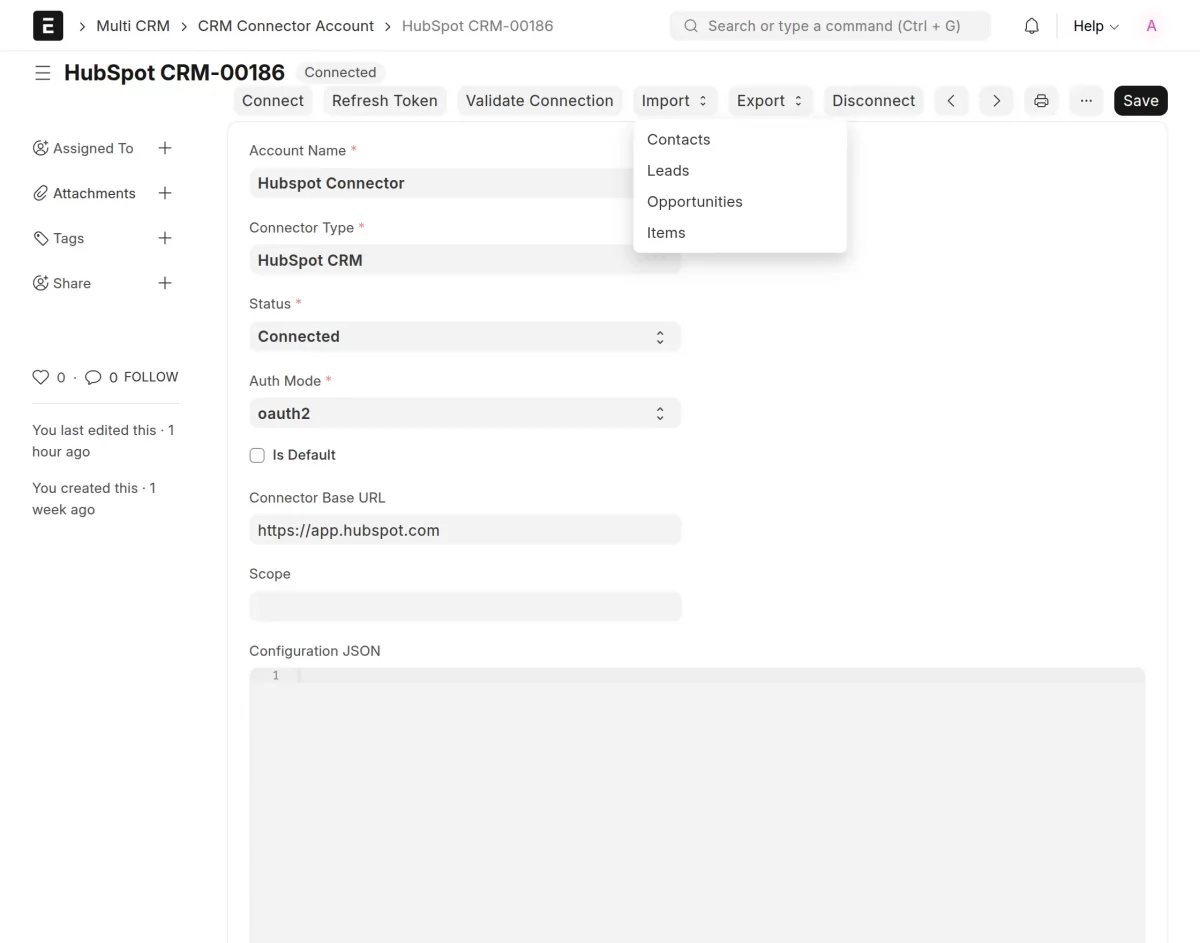
Import Notes from HubSpot CRM
Import Contacts, Leads, Opportunities, and Products from HubSpot CRM to ERPNext.
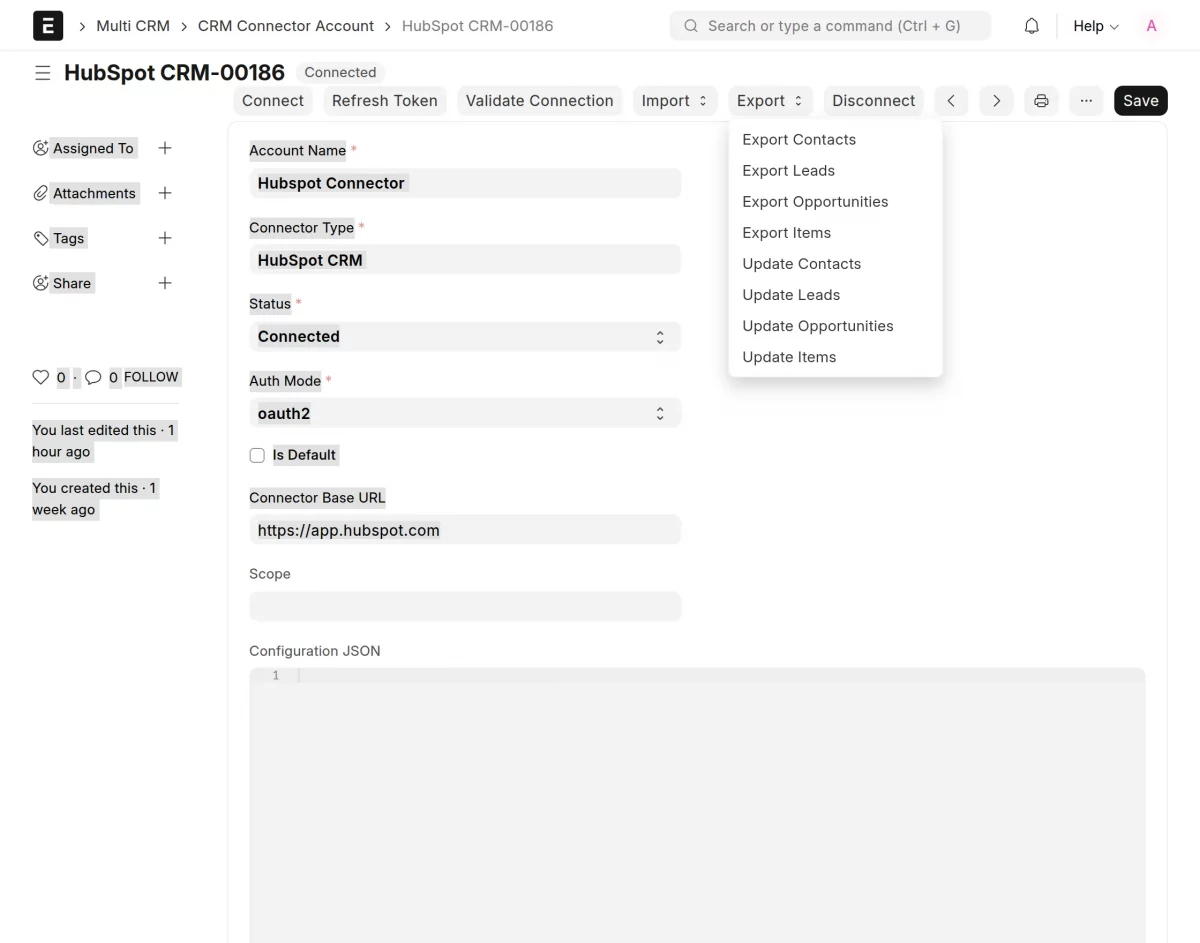
Export Notes to HubSpot CRM
Export Contacts, Leads, Opportunities, and Products from ERPNext to HubSpot CRM.
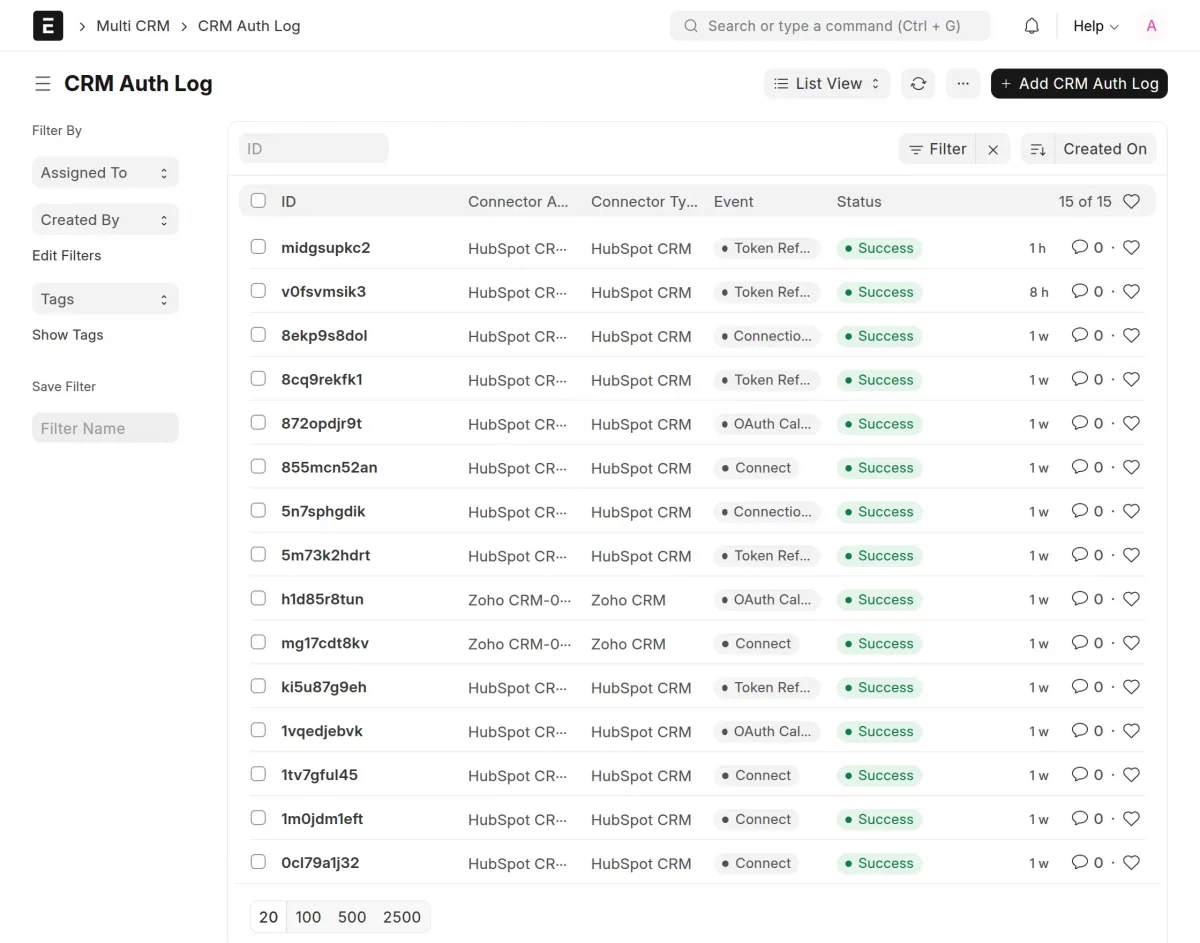
View Authentication Log
Navigate to Authentication Log.
Review authentication events and connection status.
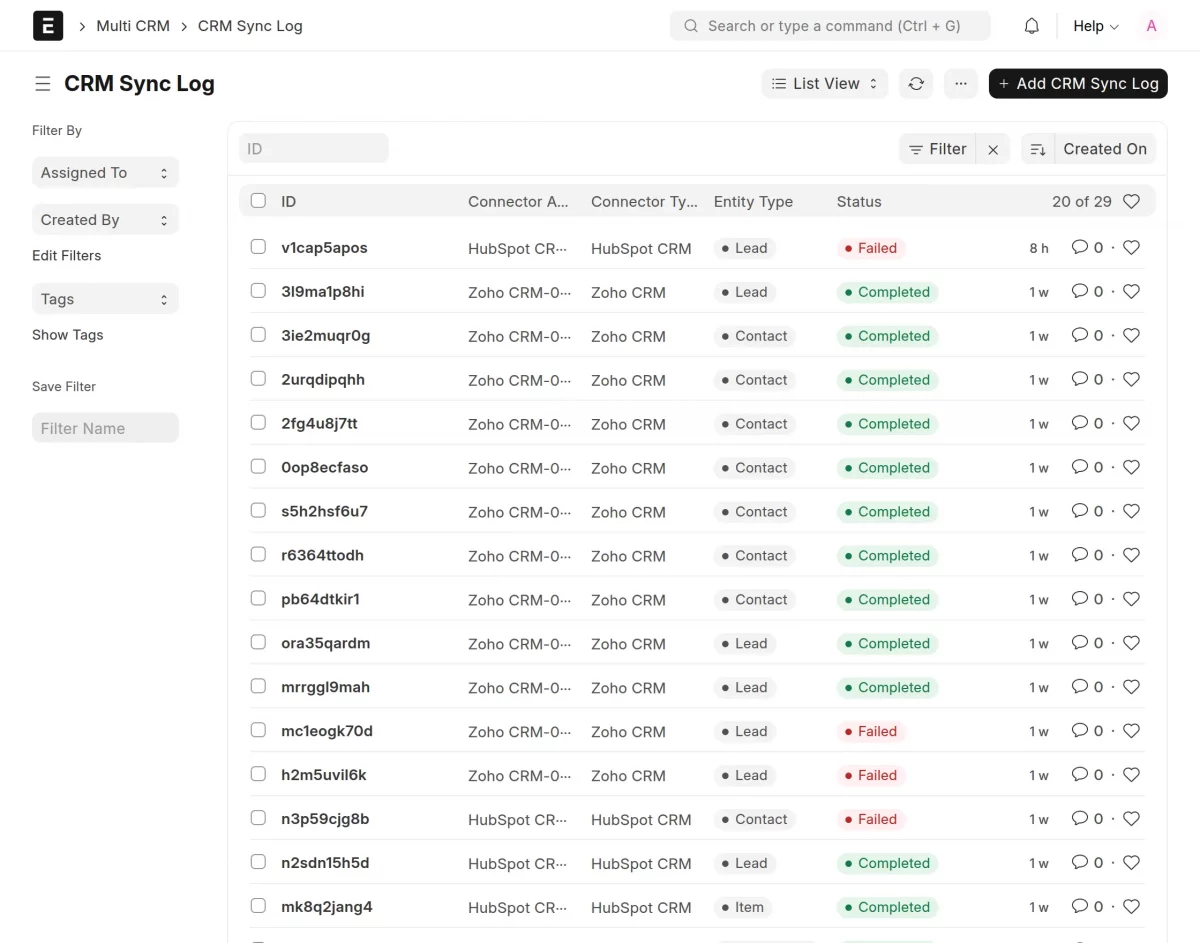
View Sync Log
Navigate to Sync Logs.
Review notes synced between ERPNext and HubSpot CRM.
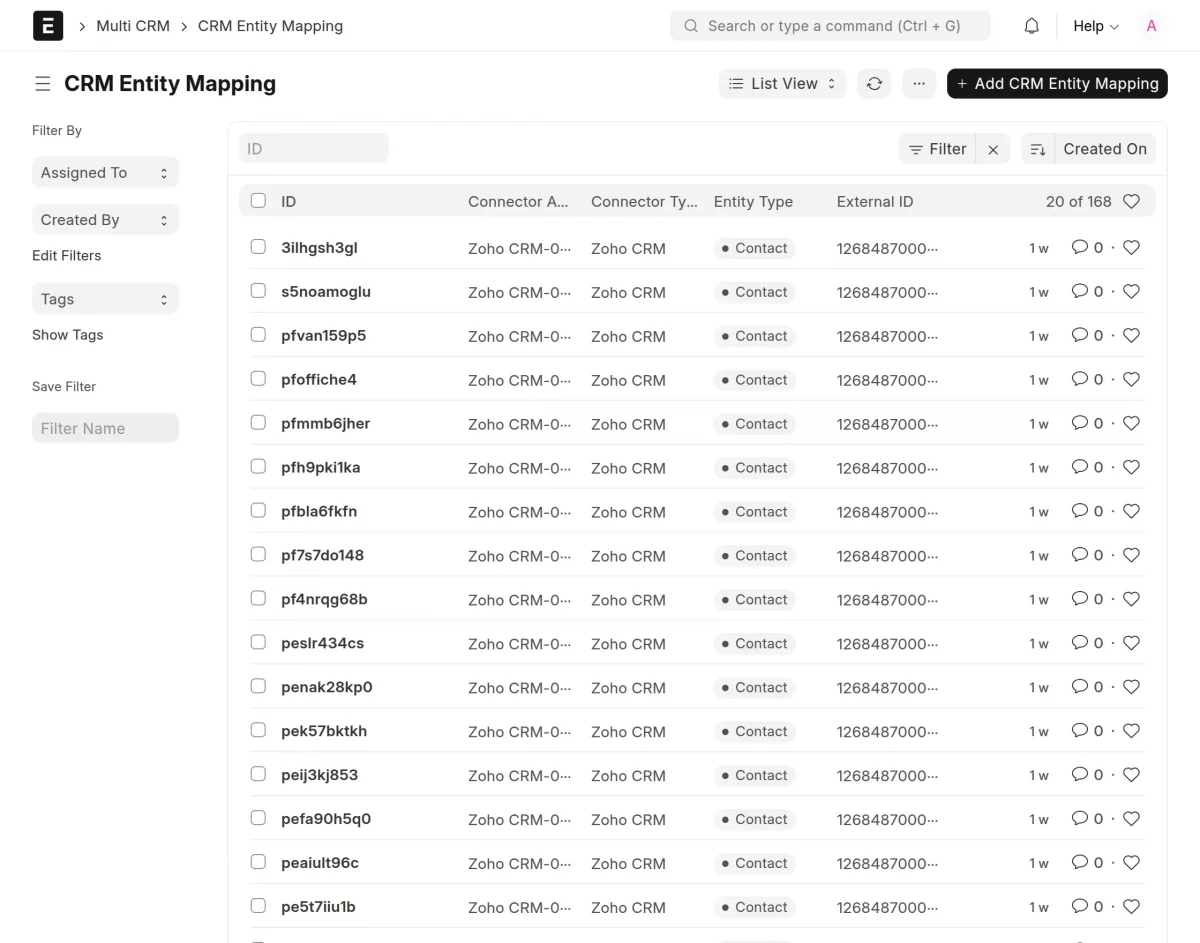
Manage Entity Mappings
Navigate to Entity Type.
View the CRM entity mapping created between ERPNext and HubSpot CRM.
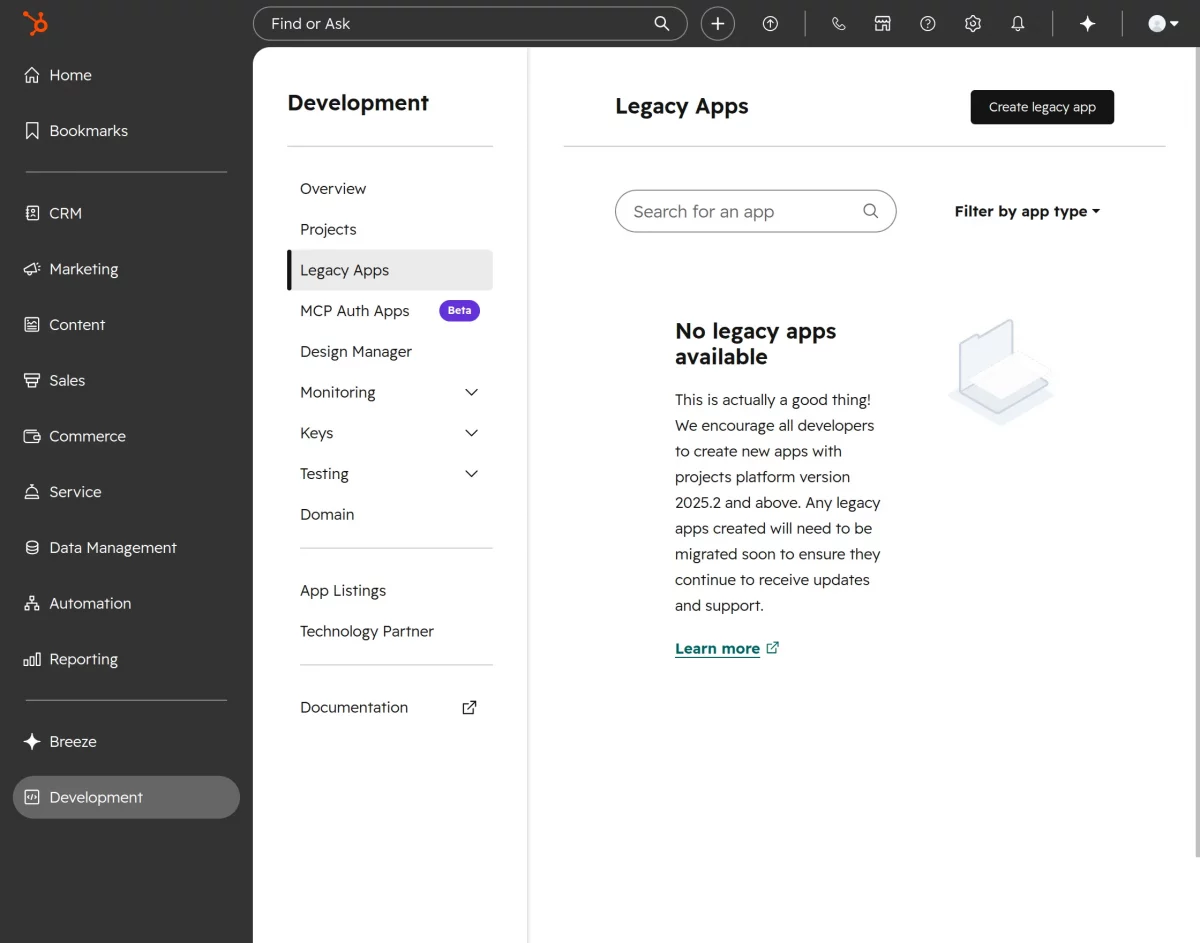
Generate HubSpot Client ID and Client Secret
Step 1
Log in to your HubSpot Developer Account.
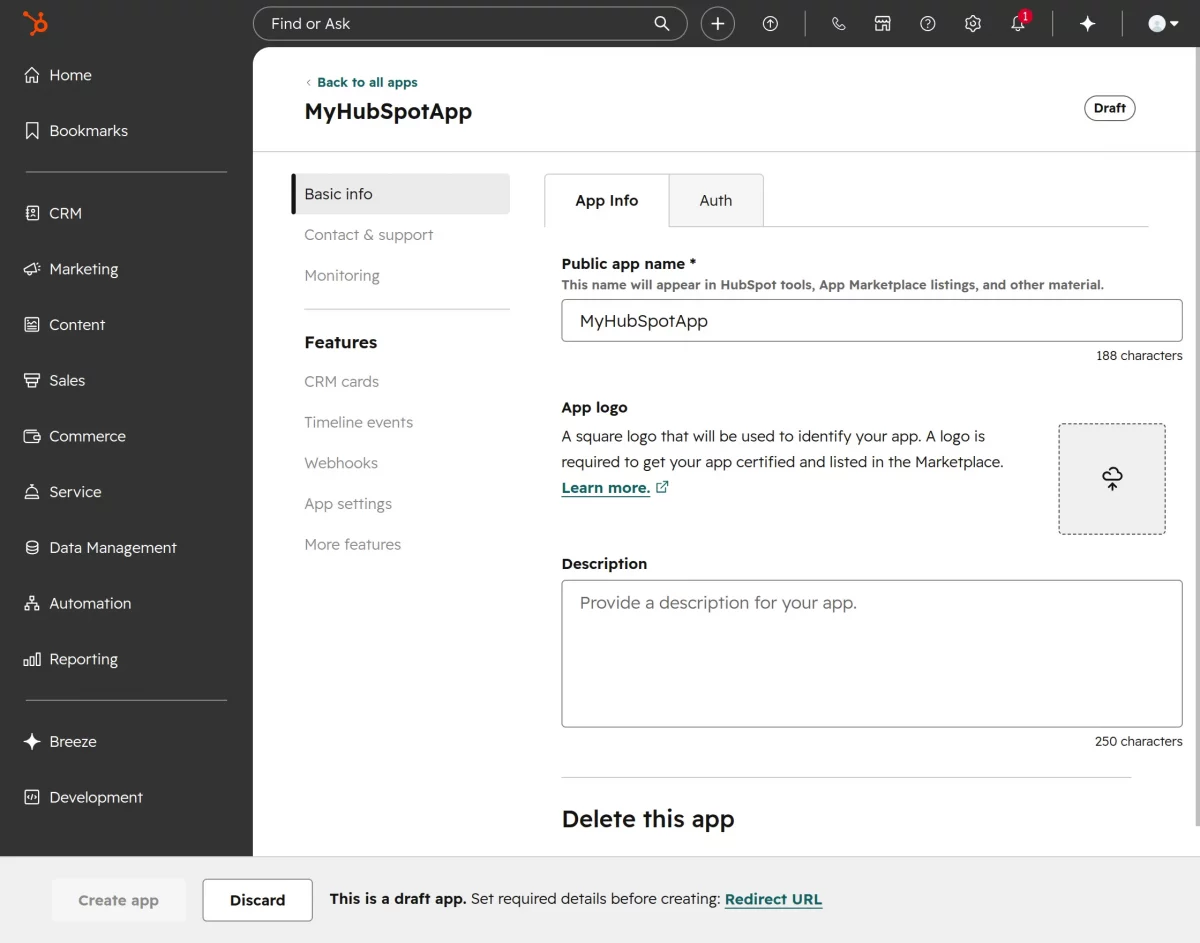
Click Create an old App.
Step 2
Enter app details such as public app name, app logo, and description.
Step 3
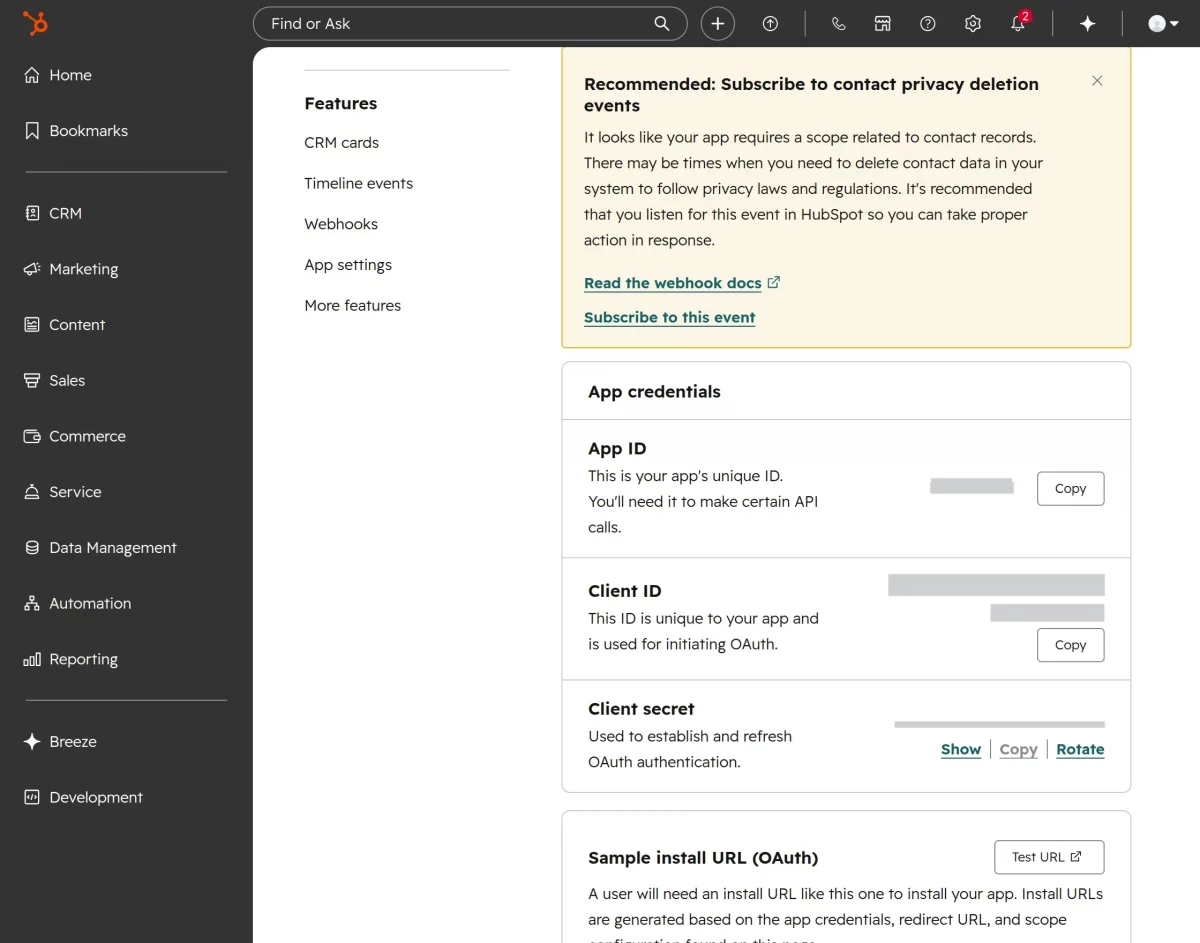
Copy the generated Client ID and Client Secret.
Use these credentials when creating a Connector Account.
Step 4
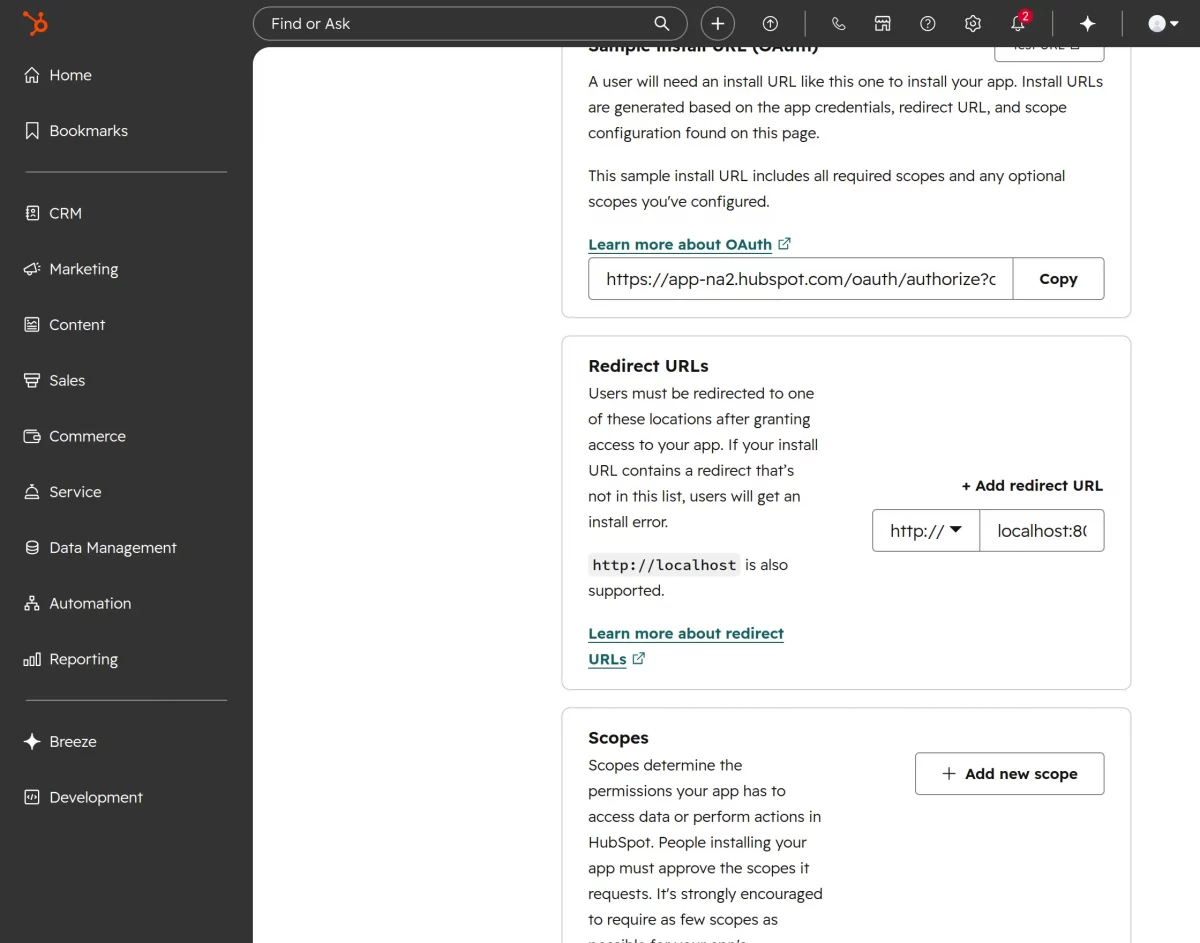
Configure application details and OAuth settings. Add the Redirect URL required for ERPNext authentication.
Step 5
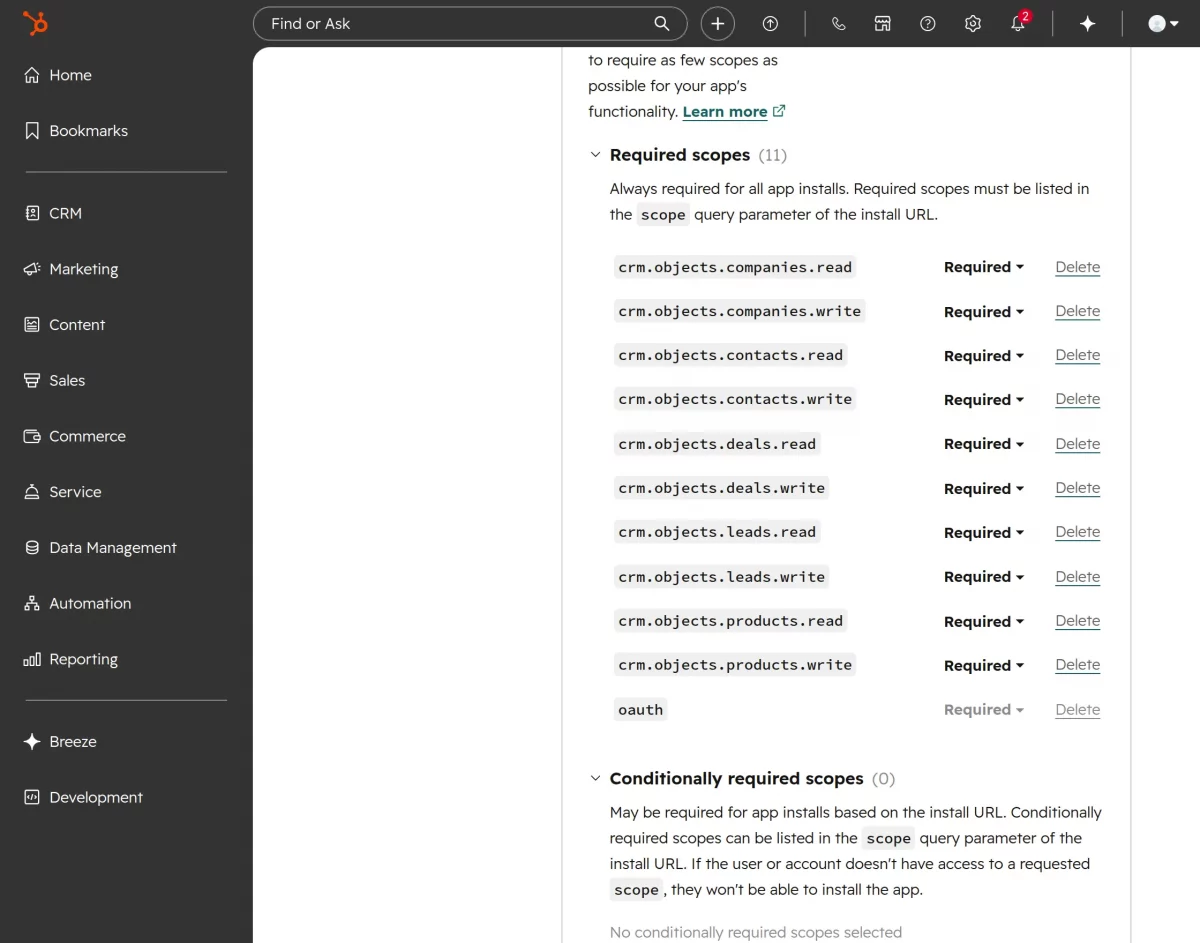
Configure the required scopes
We hope this guide is useful for you! Please share your feedback in the comments below.
If you still have problems or questions, please create a ticket at the UV Desk.
I hope this helps. If you have further questions, contact us via our support email: [email protected]
Thank you for noticing!!
Current Product Version – 1.5.0
Supported Framework Version – ERPNext V15

PakarPBN
A Private Blog Network (PBN) is a collection of websites that are controlled by a single individual or organization and used primarily to build backlinks to a “money site” in order to influence its ranking in search engines such as Google. The core idea behind a PBN is based on the importance of backlinks in Google’s ranking algorithm. Since Google views backlinks as signals of authority and trust, some website owners attempt to artificially create these signals through a controlled network of sites.
In a typical PBN setup, the owner acquires expired or aged domains that already have existing authority, backlinks, and history. These domains are rebuilt with new content and hosted separately, often using different IP addresses, hosting providers, themes, and ownership details to make them appear unrelated. Within the content published on these sites, links are strategically placed that point to the main website the owner wants to rank higher. By doing this, the owner attempts to pass link equity (also known as “link juice”) from the PBN sites to the target website.
The purpose of a PBN is to give the impression that the target website is naturally earning links from multiple independent sources. If done effectively, this can temporarily improve keyword rankings, increase organic visibility, and drive more traffic from search results.