Introduction
Odoo SAP B1 Connector connects Odoo with SAP Business One to synchronize products, customers, inventory, warehouses, categories, and sales orders.
This connector uses the SAP Service Layer to exchange business data between both ERP systems. It also provides mapping, field configuration, sync controls, and detailed logs.
With Odoo SAP B1 Connector, businesses can reduce repeated data entry and maintain connected records across Odoo and SAP Business One.
Features
- Connect Odoo with SAP Business One using SAP Service Layer credentials and test the connection.
- Sync product details, prices, barcodes, item codes, stock, and inventory between Odoo and SAP Business One.
- Sync customers, vendors, Business Partners, and their billing and shipping addresses.
- Sync Odoo sales orders to SAP with products, quantities, prices, taxes, discounts, and order references.
- Sync warehouses, tax codes, item groups, price lists, and weight units from SAP to Odoo.
- Match existing records using mappings, references, and barcodes to prevent duplicate records.
- Map product, customer, and sales order fields between Odoo and SAP without coding.
- Automatically sync newly created products from Odoo to SAP and detect changes for re-synchronization.
- Control sync operations with filters and limits while tracking logs, statuses, and sync timestamps.
Installation
- Once you purchase the App from Webkul store, you will receive a link to download module’s zip file.
- Extract the file on your system after download finishes. As a result, you will be able to see a folder named- ‘odoo_sap_connector’
- Copy and paste this folder inside your Odoo Add-Ons path.
- Now, open Odoo App and click on the Settings menu. Here, click on Activate Developer Mode.
- Then, open Apps menu and click on ‘Update Modules List.’
- In the search bar, remove all the filters and search ‘odoo_sap_connector’
- You will be able to see module in the search results. Click on ‘Install’ to install it.
Workflow
1. Configure SAP Business One Connection
The first step is to connect Odoo with SAP Business One through the SAP Service Layer.
- Click on instance tab at top and create a new instance.
- Configure the required SAP connection details with the Service Layer URL, including the database name, username, and password.
- You can also set the default SAP prefix for records synced to Odoo. It can only be set once for the connection
- After entering the details, test the connection directly from Odoo. The connector displays the connection status so users can identify whether the connection is ready for synchronization.
2. Configure SAP Reference Data
After establishing the connection, users can bring reference data from SAP Business One into Odoo.
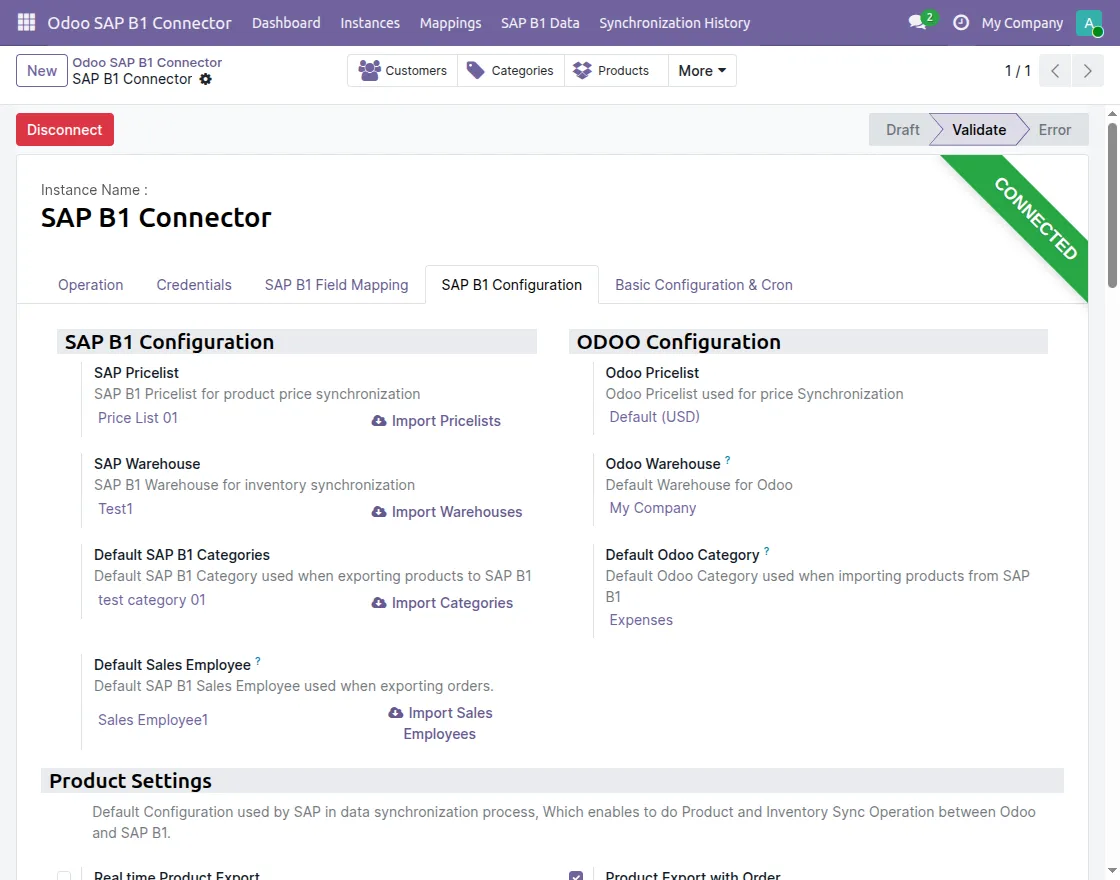
- Navigate to SAP B1 Configuration tab in the connection instance.
- You first need to import SAP Pricelists, warehouses, SAP Categories, and Sales employees. Once done, you can set the default values for these records when syncing to SAP Business One
- You also have to configure the default Odoo pricelists, warehouses, and categories for syncing these records to Odoo
3. Product and Stock settings
Odoo SAP B1 Connector also has the feature of real-time product and stock sync to SAP Business One.
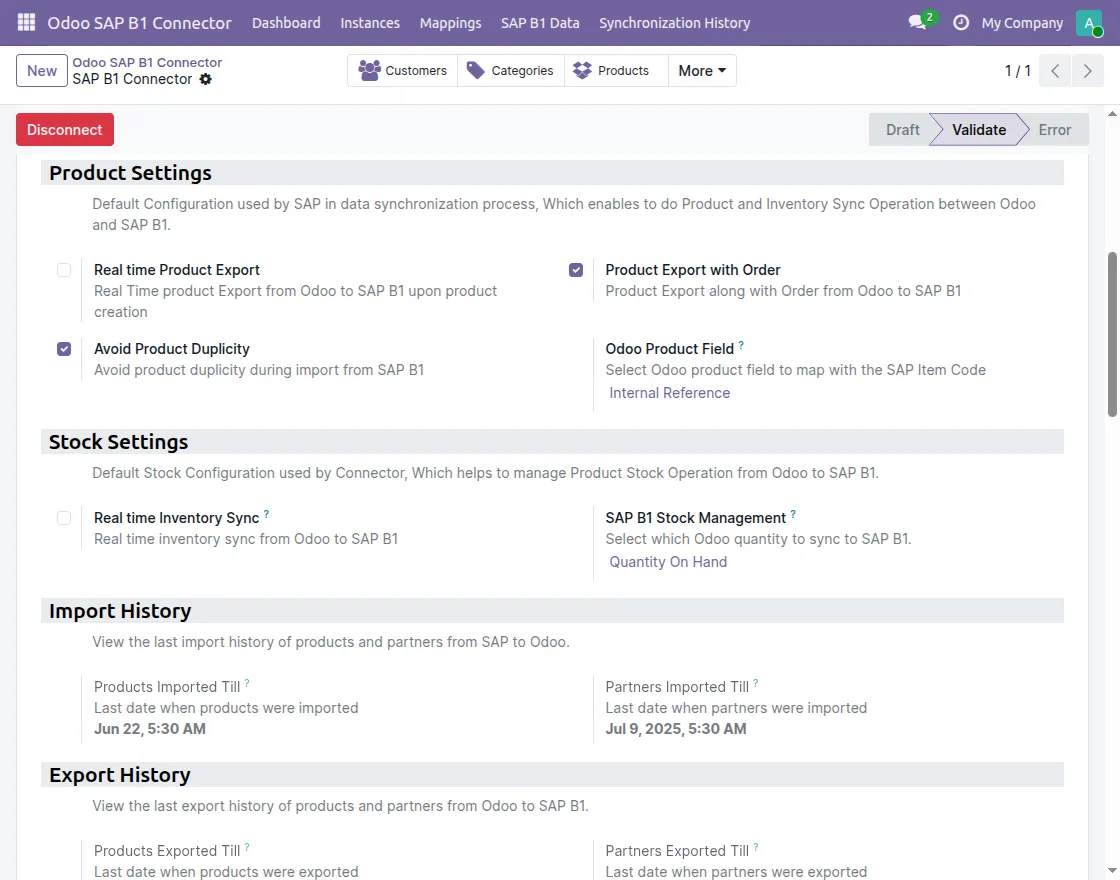
- You need to navigate to SAP B1 Configuration tab in the connection instance.
- Under Products, you can enable/disable Real time Product Export and Product Export with Order.
- To avoid duplicity of Product when importing to Odoo, we provide option and you can also select whether to match SKU or Barcode
- There is an option for real-time inventory sync from Odoo to SAP B1. You can choose to sync Quantity on Hand, Free Quantity or Forecasted Quantity.
4. Basic Configuration and cron
Odoo SAP B1 Connector has an order sync cron from Odoo to SAP Business One. You can configure the same as per your needs with the required frequency and priority.
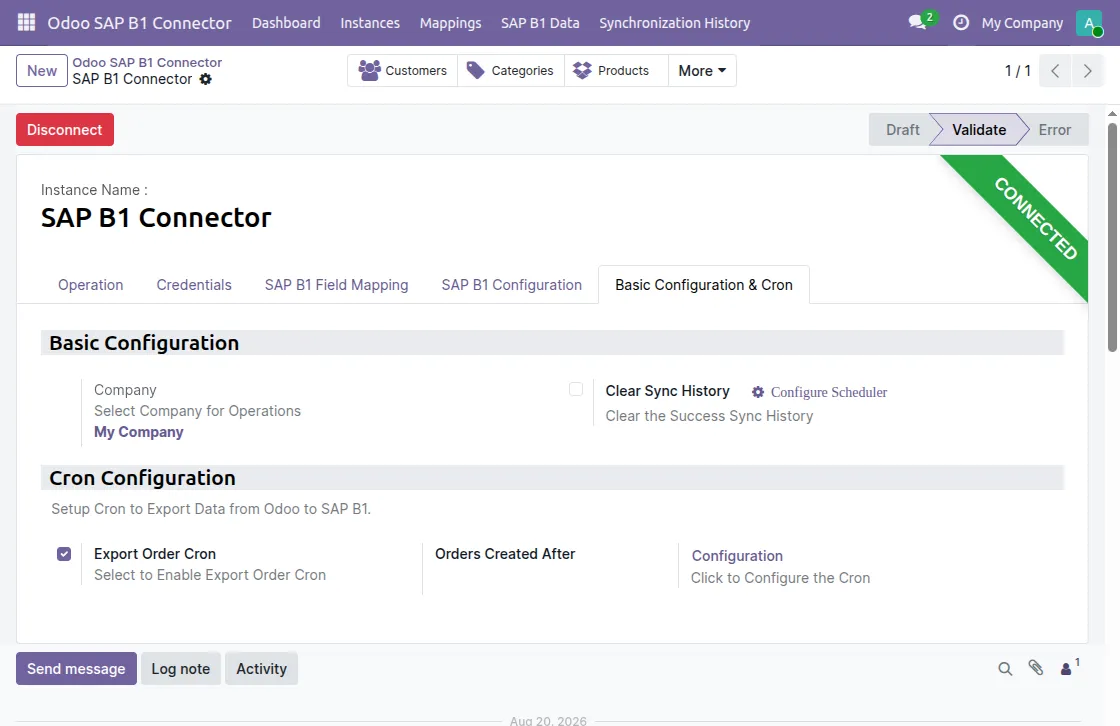
- Navigate to Basic Configuration & Cron tab in connection instance
- You can set the default Odoo company for operations in the connector.
- Configure the Clear Sync History scheduler to clear sync history of successful operations
- In cron configuration you can setup the order sync cron for automatic sync from SAP to Odoo at fixed intervals.
5. Configure Custom Field Mapping
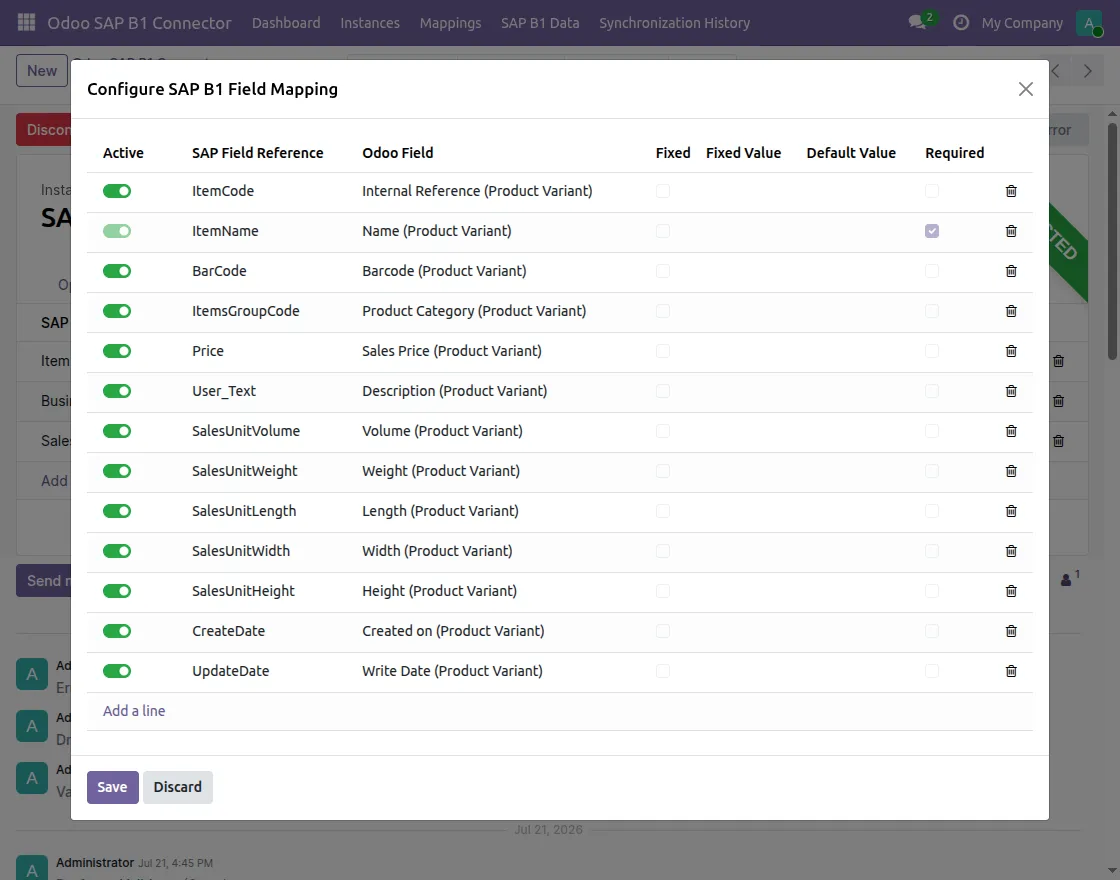
Custom Field Mapping allows users to define how selected fields should be exchanged between Odoo and SAP Business One.
- Navigate to SAP B1 Field Mapping tab in the connection instance.
- Users can configure mappings for products, customers, and sales orders without changing the module code.
- The mapping configuration supports fixed values, default values, and required fields.
6. Synchronize Products from SAP to Odoo
Users can synchronize product information from SAP Business One to Odoo. The synchronization can include product name, barcode, item code, category, price, and warehouse stock quantities.
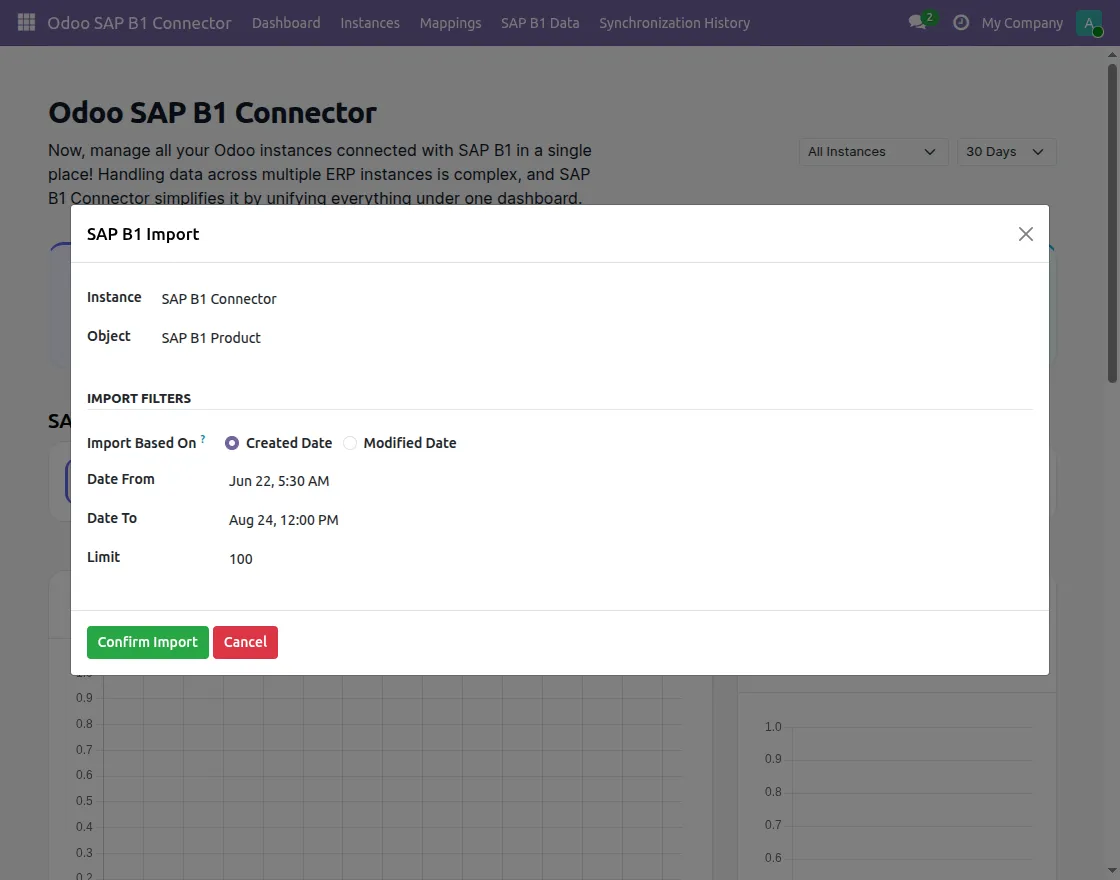
- Navigate to the Dashboard and under SAP B1 Connector Quick Actions click on Import and select SAP B1 Product
- You can filter the records by create or update date and set the import limits
7. Synchronize Products from Odoo to SAP
Products can also be synchronized from Odoo to SAP Business One by date filter to process only the required product records.
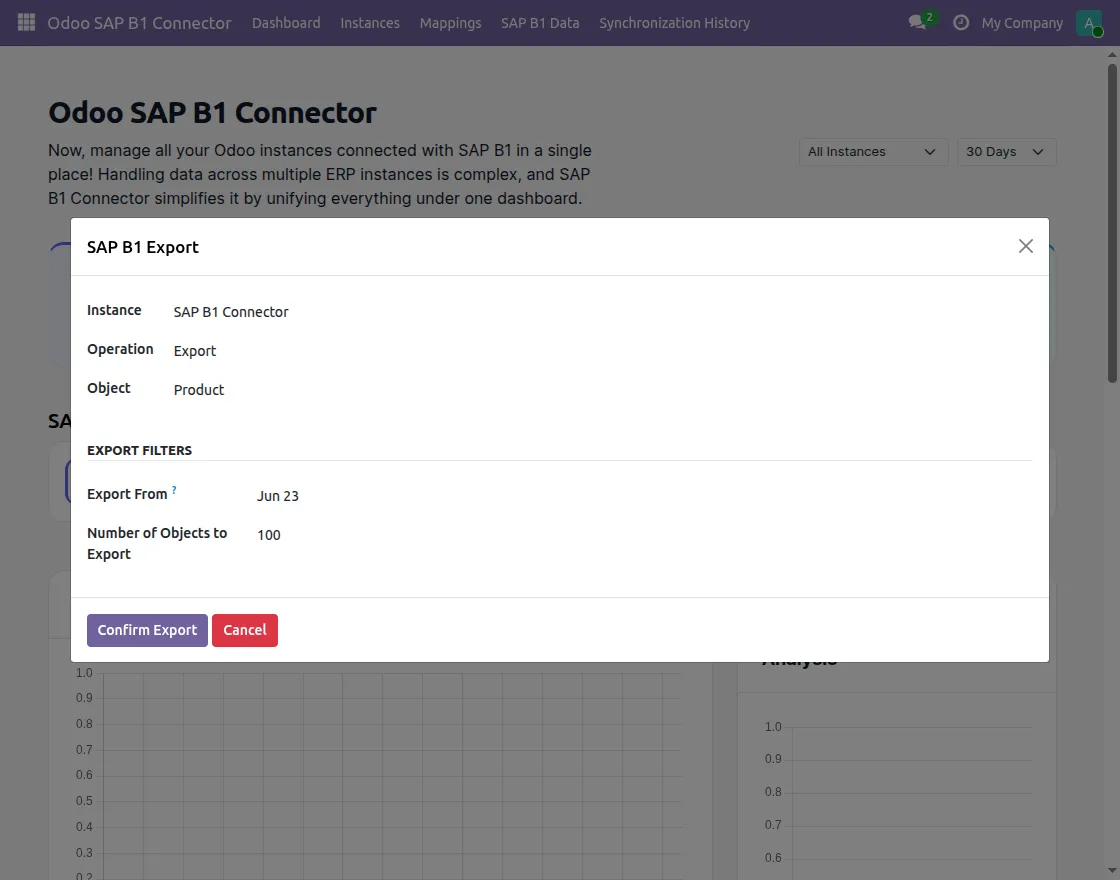
- Click on the export button on the Dashboard and select Product.
- Set the date filter from when you want to sync the product to SAP B1
- You can choose to export or update the product and set the limit of records to be synced
8. Synchronize Customers and Business Partners
The connector allows users to synchronize Odoo customers and vendors with SAP Business One Business Partners bidirectionally
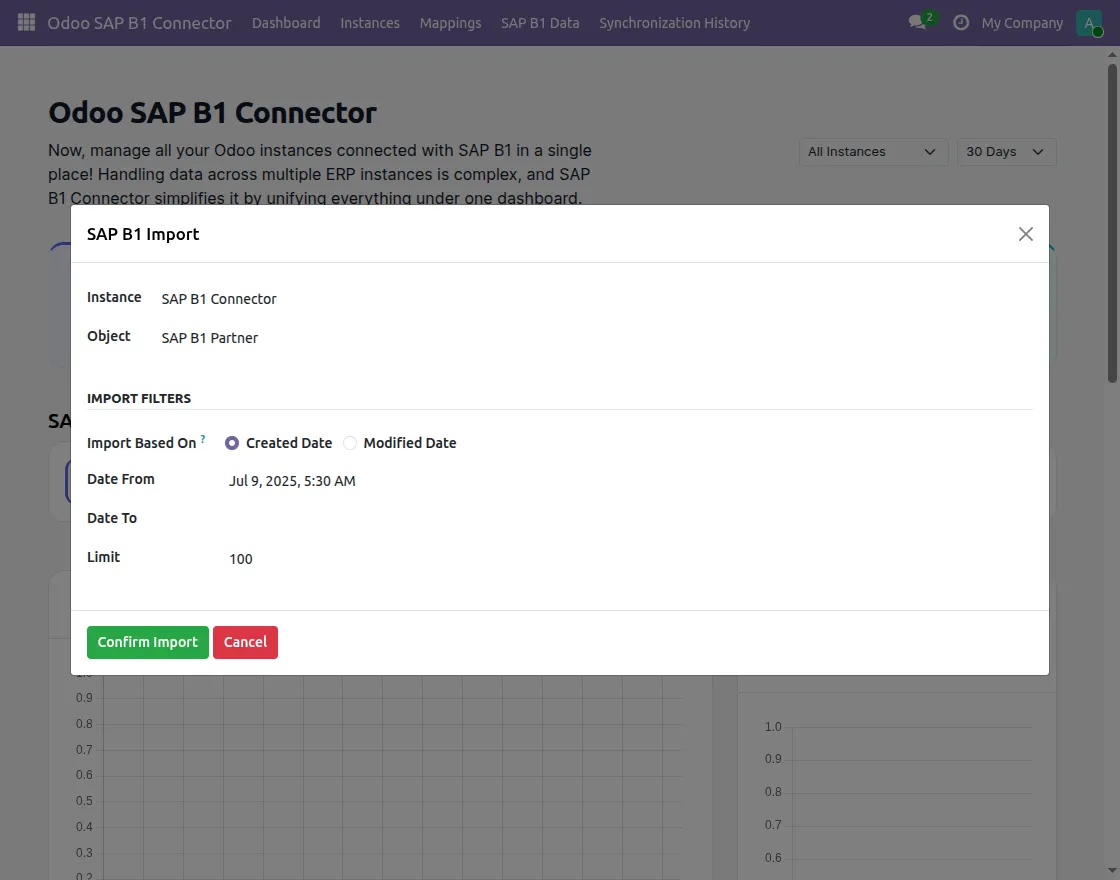
- To import the SAP Partners in Odoo, click on the import button on the Dashboard and select object as SAP B1 Partner
- Enter the date filters for creation or modification as per your need and click on Confirm Import
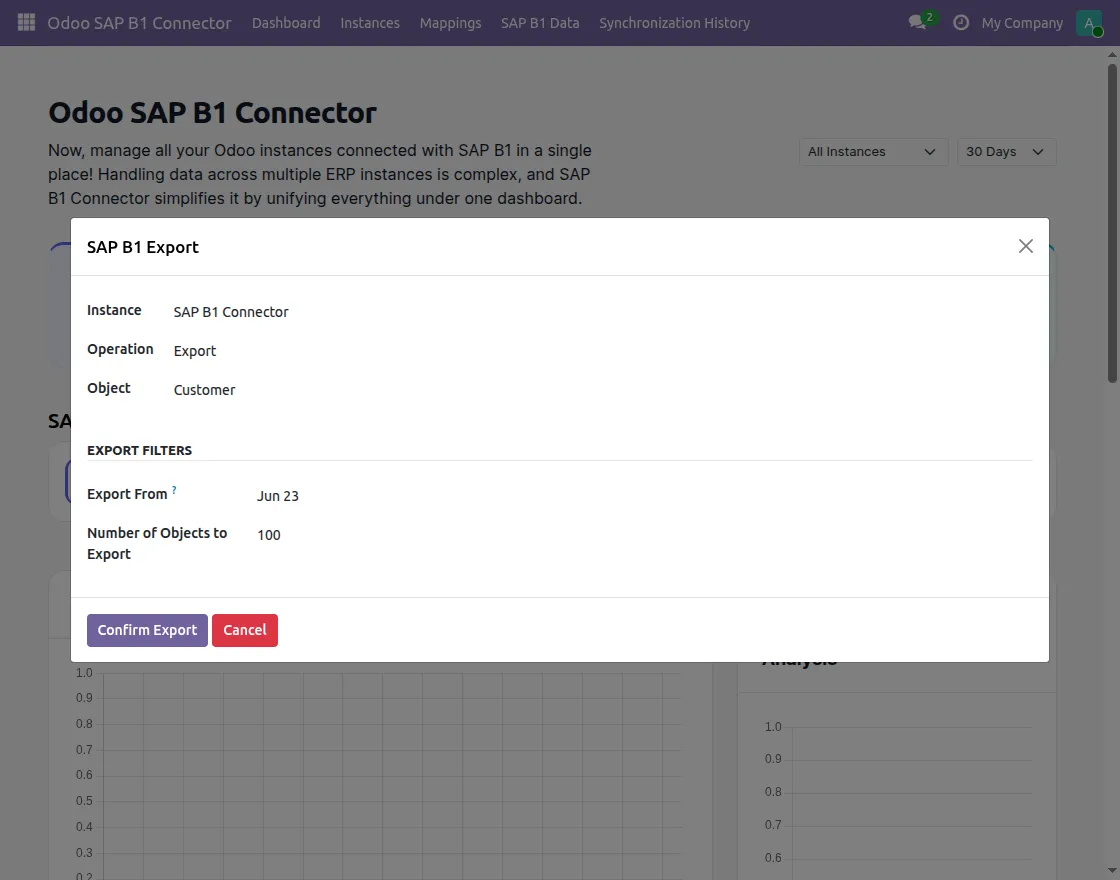
- For exporting customers to SAP Business One, click on the export button on the Dashboard and select Customers.
- You can select either to update or create the customers and set the number of records to be synced
9. Synchronize Sales Orders from Odoo to SAP
Users can synchronize sales orders from Odoo to SAP Business One manually or through scheduled actions.
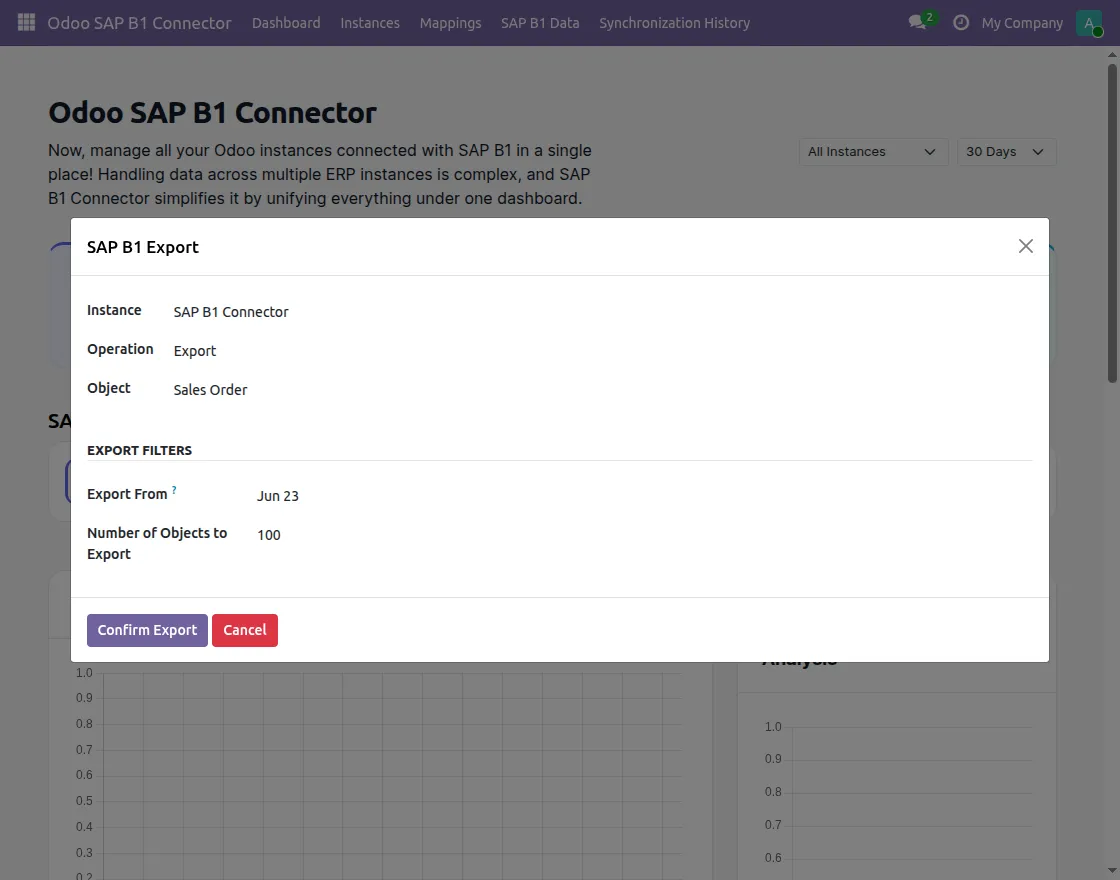
- To manually sync the order, click on the export button on the Dashboard and select Sales Order.
- Set the date from which you want to sync order to SAP B1 and set the limit for records to be synced. Click on Confirm Export to export the sales orders
10. Manage Sync Controls and History
Users can control synchronization operations by setting processing limits and applying date filters.
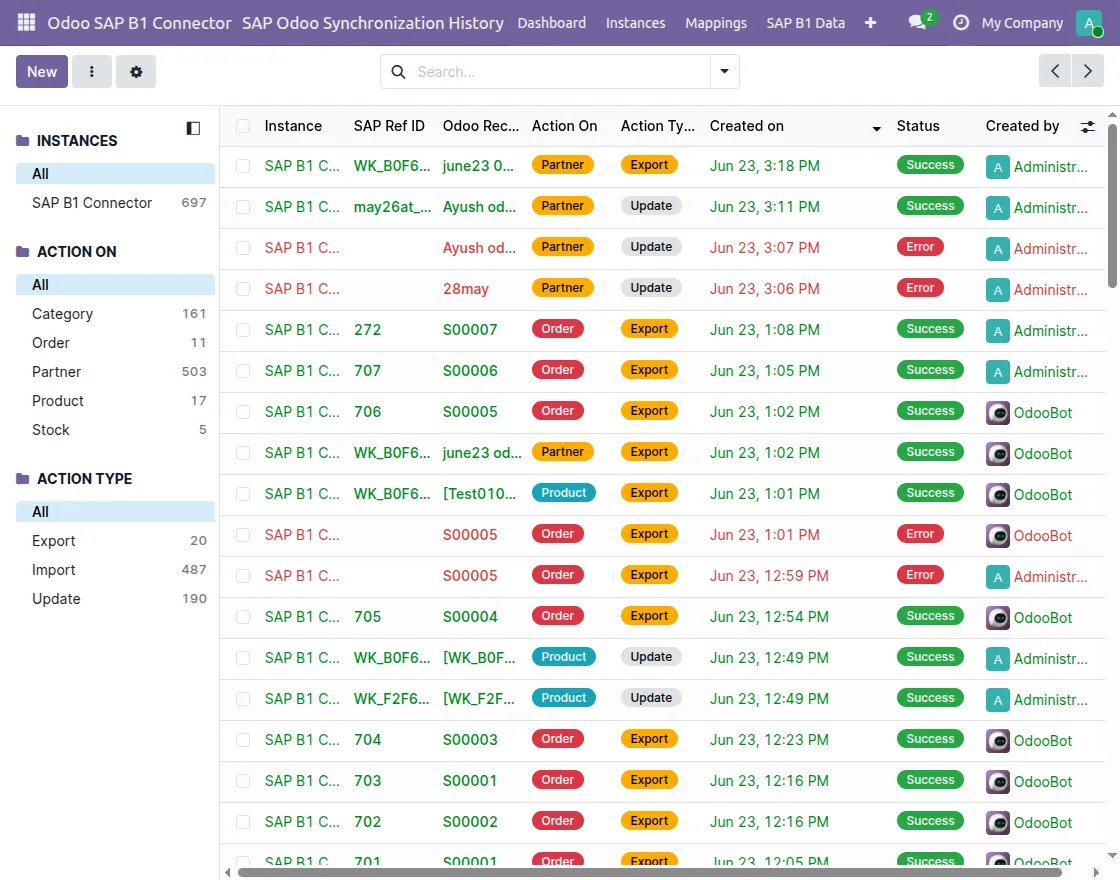
Detailed sync logs store operation status, SAP references, summaries, and timestamps. Last-sync timestamps also help pre-fill import/export date filters so subsequent operations can focus on newly created or modified records.
- Click on the Synchronization History tab at the top to view the sync history of all operations and their status
11. Mapping of SAP B1 Data
When the data is synced from SAP Business One, its respective mapping is created in the connector.
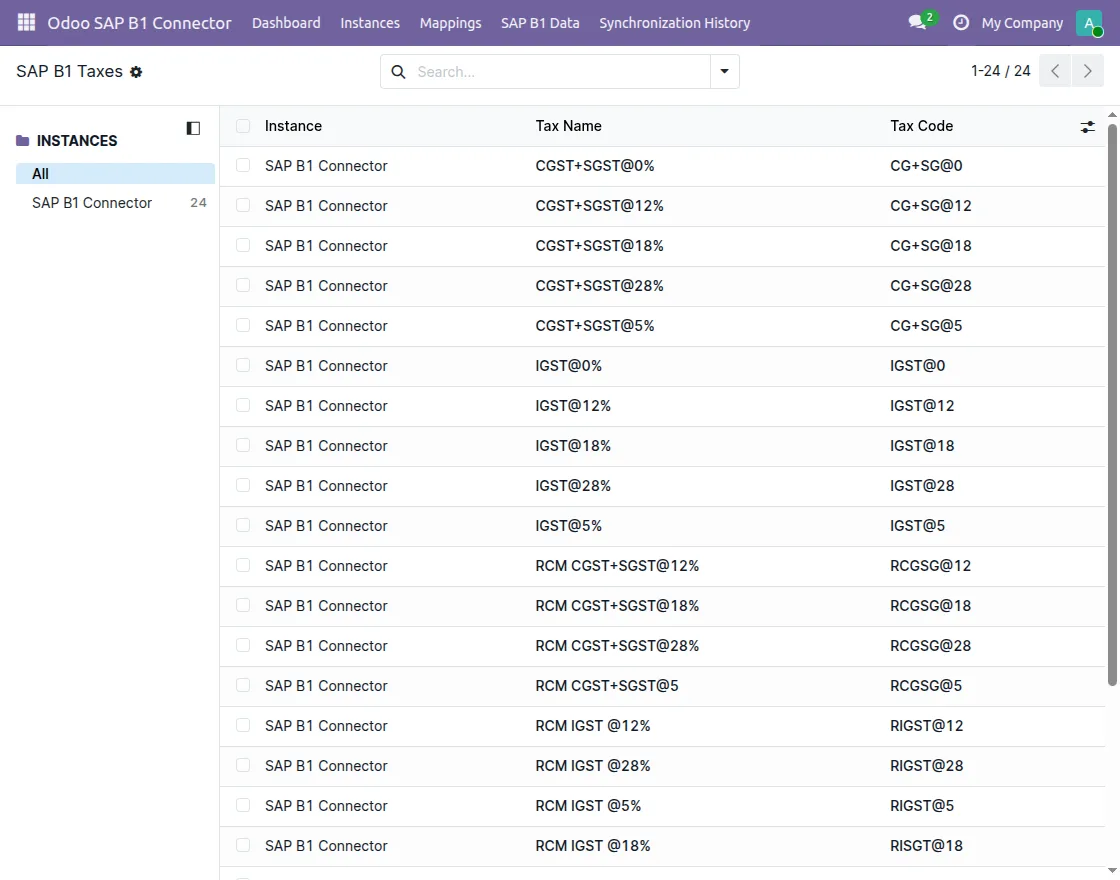
- You can view the mappings for SAP B1 taxes, pricelists, warehouses, categories, and sales employees
- Navigate to SAP B1 Data tab at the top and select the mapping you want to view.
- Click on Taxes and you can now view all the taxes that have been synced from SAP Business One to Odoo
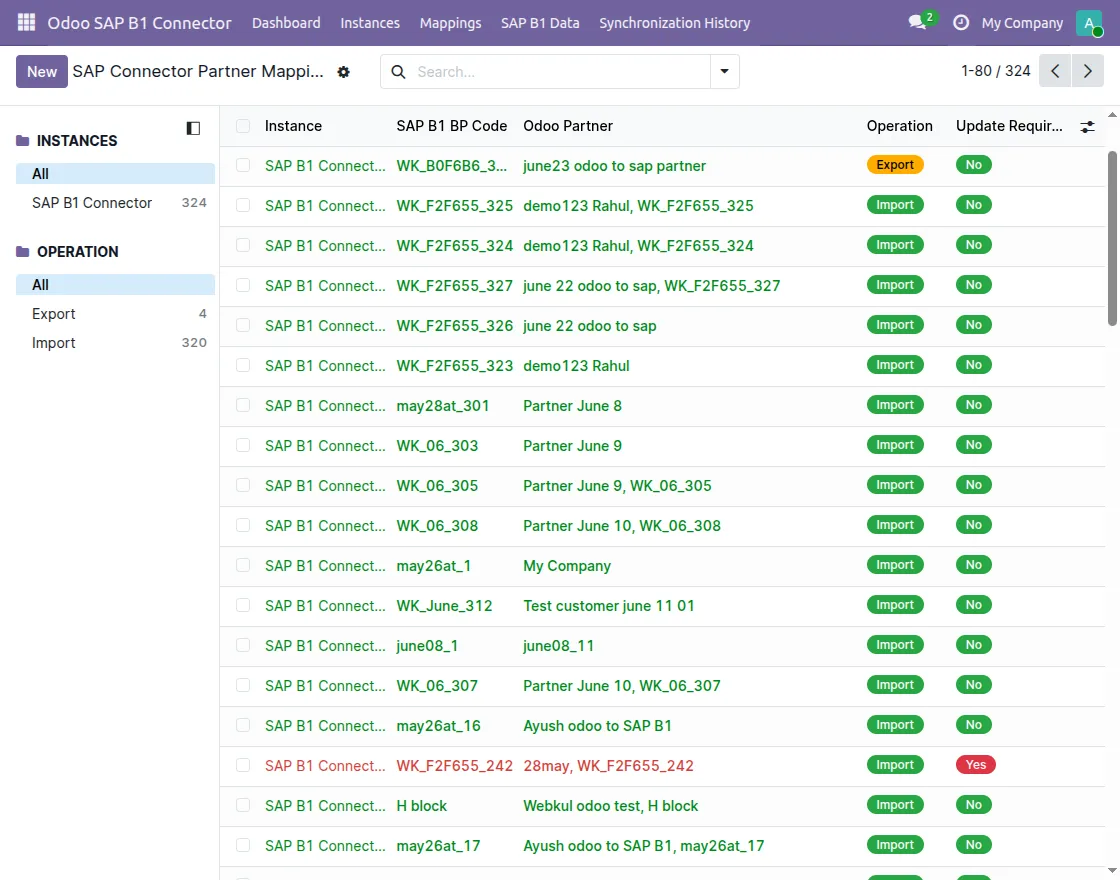
- You can also view the product, partner and sale order mapping by clicking on the Mapping tab at the top.
- Click on the Partners to view all the partners that have been synced between Odoo and SAP
NEED HELP?
Hope you find guide helpful! Please feel free to share your feedback in the comments below.
If you still have any issues/queries, please create a ticket at the UV Desk.
I hope this helps. In case of any further queries, contact us at our support mail.
Thanks for paying attention!!
Current Product Version – 1.0.0
Supported Framework Version – Odoo v19
PakarPBN
A Private Blog Network (PBN) is a collection of websites that are controlled by a single individual or organization and used primarily to build backlinks to a “money site” in order to influence its ranking in search engines such as Google. The core idea behind a PBN is based on the importance of backlinks in Google’s ranking algorithm. Since Google views backlinks as signals of authority and trust, some website owners attempt to artificially create these signals through a controlled network of sites.
In a typical PBN setup, the owner acquires expired or aged domains that already have existing authority, backlinks, and history. These domains are rebuilt with new content and hosted separately, often using different IP addresses, hosting providers, themes, and ownership details to make them appear unrelated. Within the content published on these sites, links are strategically placed that point to the main website the owner wants to rank higher. By doing this, the owner attempts to pass link equity (also known as “link juice”) from the PBN sites to the target website.
The purpose of a PBN is to give the impression that the target website is naturally earning links from multiple independent sources. If done effectively, this can temporarily improve keyword rankings, increase organic visibility, and drive more traffic from search results.