Odoo Product Feed for ChatGPT helps businesses create structured product feeds from Odoo that can be read by AI systems like ChatGPT. As a result, products can appear in AI-powered search and shopping results.
Additionally, Odoo Product Feed for ChatGPT organizes product data using the OpenAI product feed format. This makes it easier for the AI platform to understand and display product information correctly.
Additionally, this module allows you to map fields, create feeds, and publish them via hosted URLs. Therefore, businesses can prepare their product catalogs for AI-based product discovery.
- Generate ChatGPT compatible product feeds directly from Odoo using the OpenAI product feed format.
- Map OpenAI product feed fields with Odoo product fields for accurate data structure.
- Create and update product feeds automatically using scheduled actions.
- Publish product feeds using hosted URLs for easy access by AI systems.
- Control product eligibility to decide which products appear in AI shopping results.
- Support product variants so that all product options are included in the feed.
- Provides structured product data that is easy for AI systems like ChatGPT to understand.
- Set up your product catalog for AI commerce and product discovery.
- Once you purchase the App from Webkul store, you will receive a link to download zip module submit.
- Extract the files on your system once the download is complete. As a result, you will be able to see a folder named “wk_chatgpt_product_feed”.
- Copy and paste this folder inside your folder Odoo Add-ons Path.
- Now, open the Odoo Application and click on the Settings menu. Here, click Enable Developer Mode.
- Then, open the Application menu and click ‘Update Module List.’
- In the search bar, clear all filters and search for ‘wk_chatgpt_product_feed‘
- You will be able to see the module in the search results. Click on ‘Activate‘ to install it.
After installing Odoo Product Feed for ChatGPTYou will see a new menu called AI Shopping Feed in the Odoo backend.
2. Once you click AI shopping feed, the Product Feed page will appear. Click Configure >> Move to Product Feed Field.
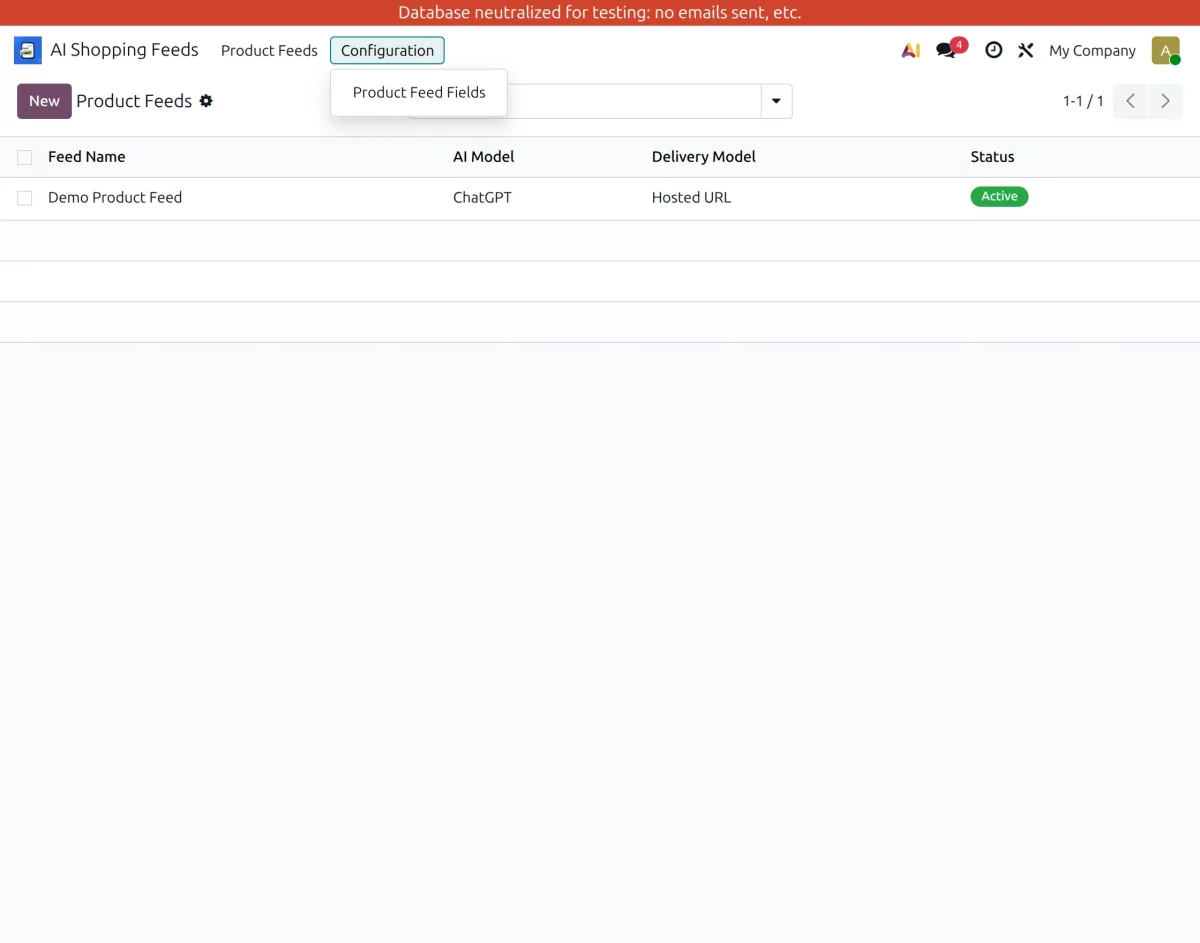
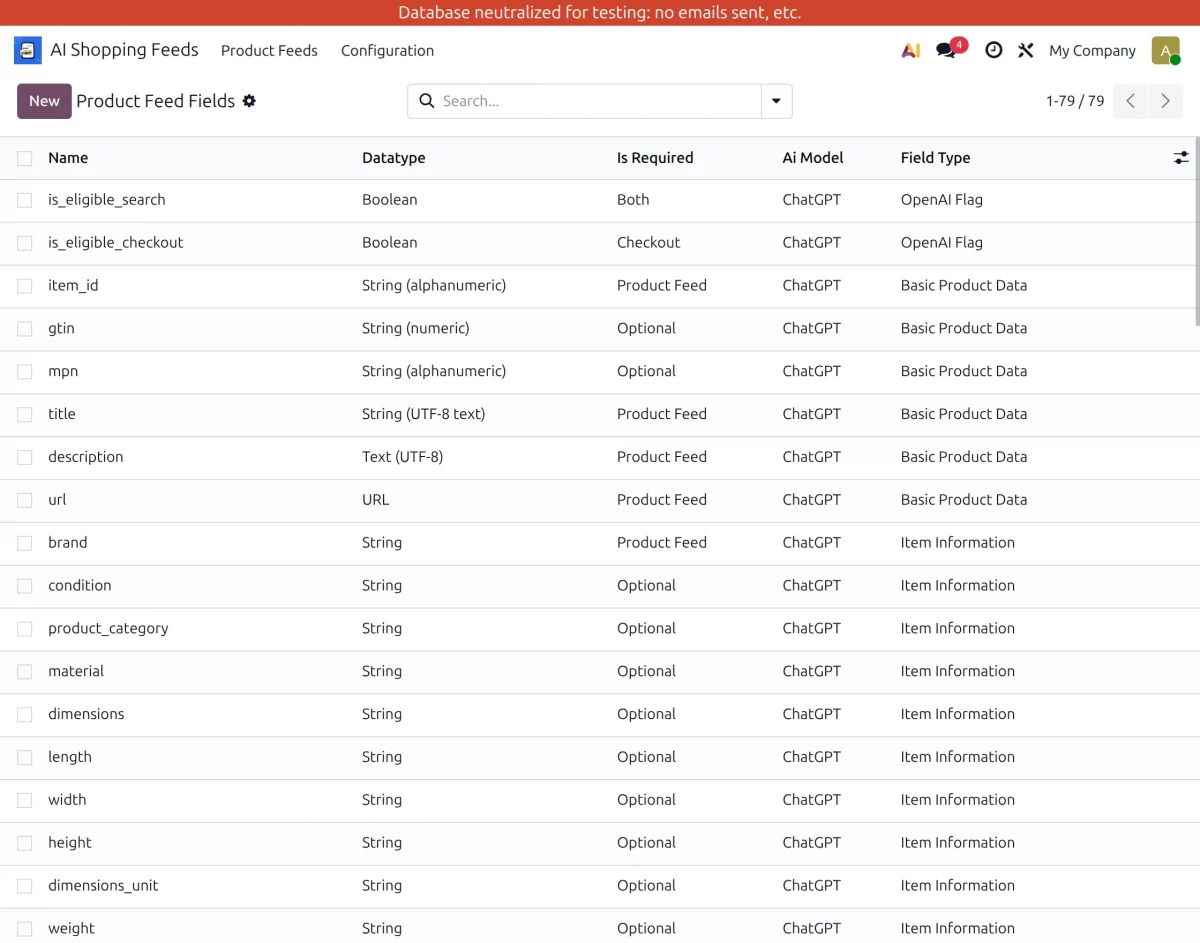
3. Here, you will see a list of Product Feed columns, these columns are provided by OpenAI which are required to send product data in a structured format to the AI system.
4. Now, click New to create new Product Feed Fields based on your business needs.
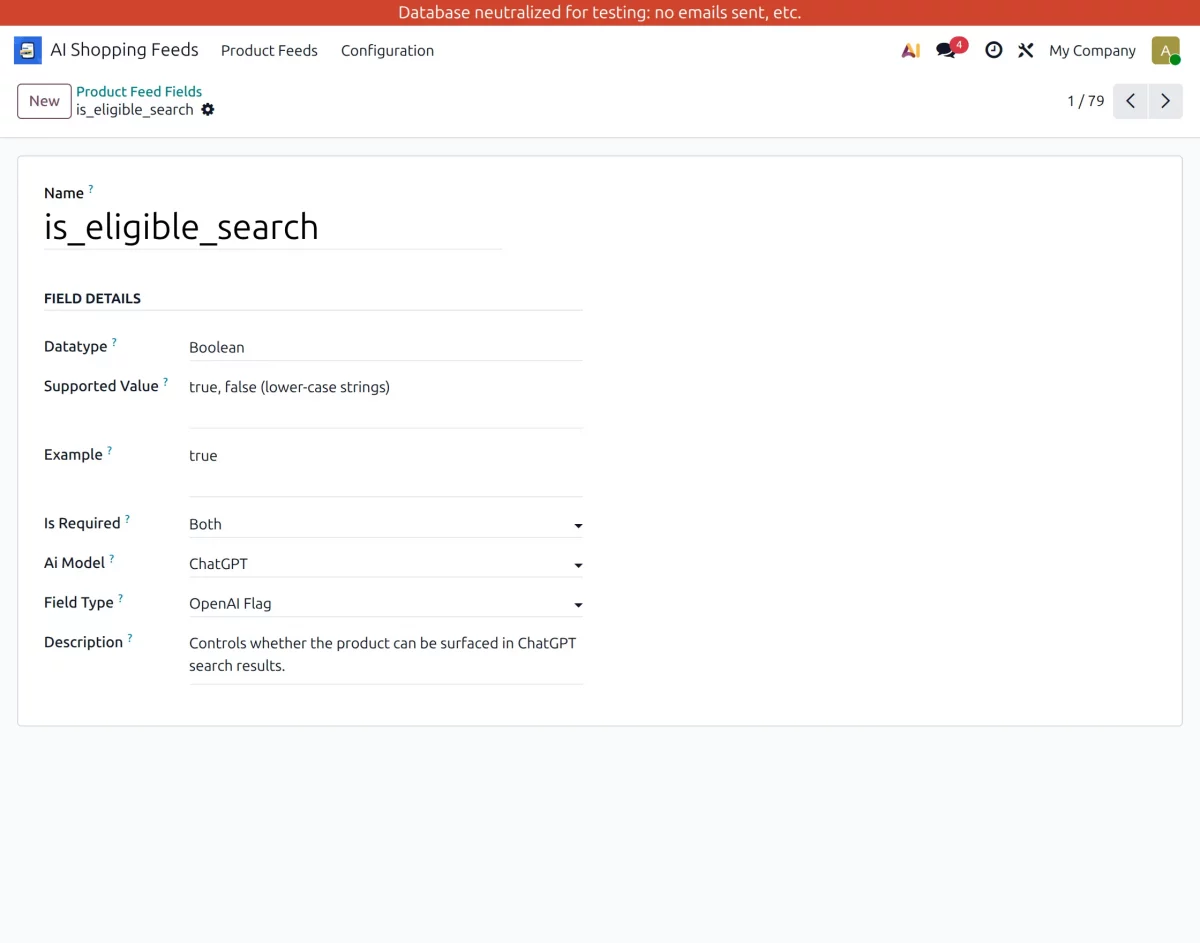
5. Configure the Product Feed fields by filling in Field Details namely as follows:-
(a)Data Type :- Select the data type like integer, string, or boolean.
(b)Supported values:- Define the allowed values based on the selected data type.
(c) Required – Determine whether the field is required for product feeds, checkout, both, or optional.
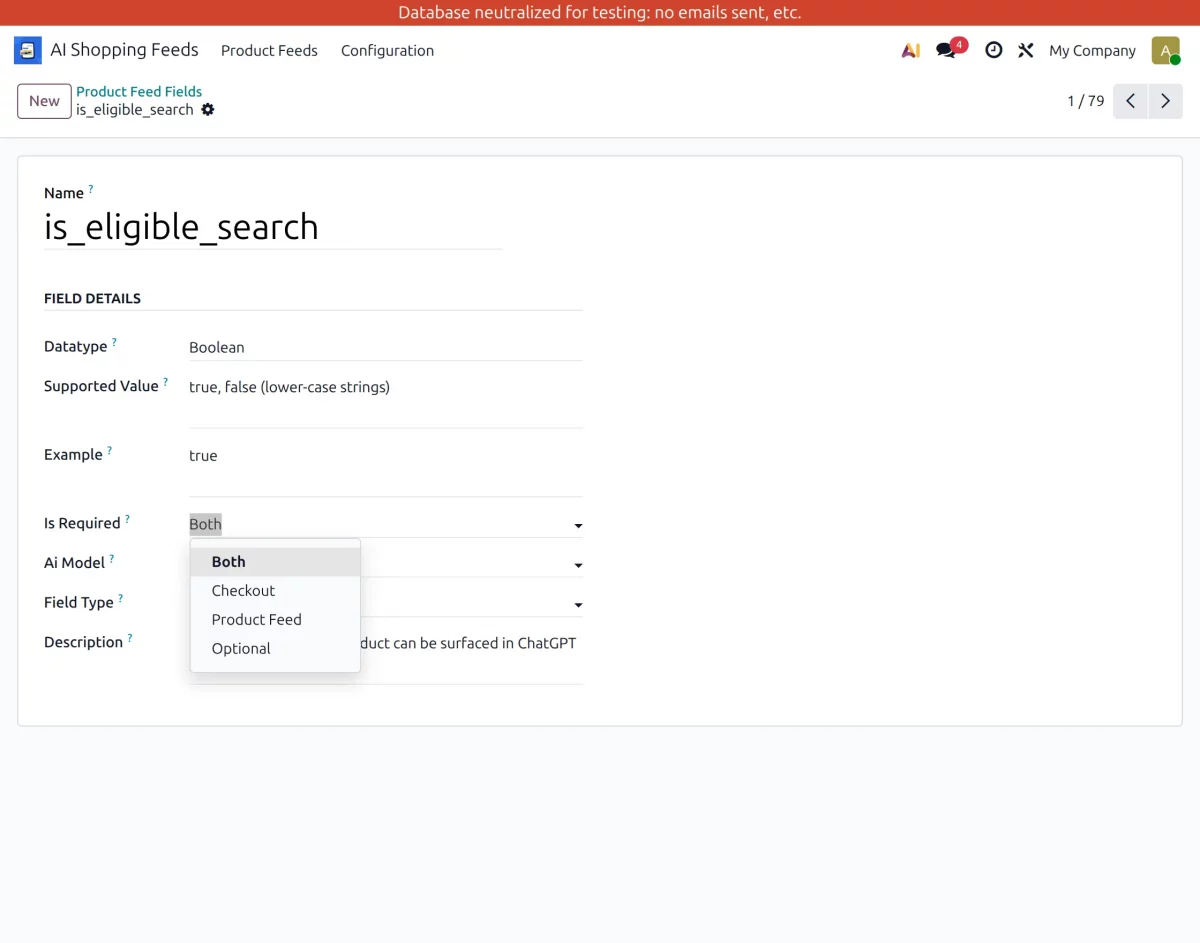
(d) Field Type : This refers to the standard Field Group provided by OpenAI. Select the field type that suits your field.
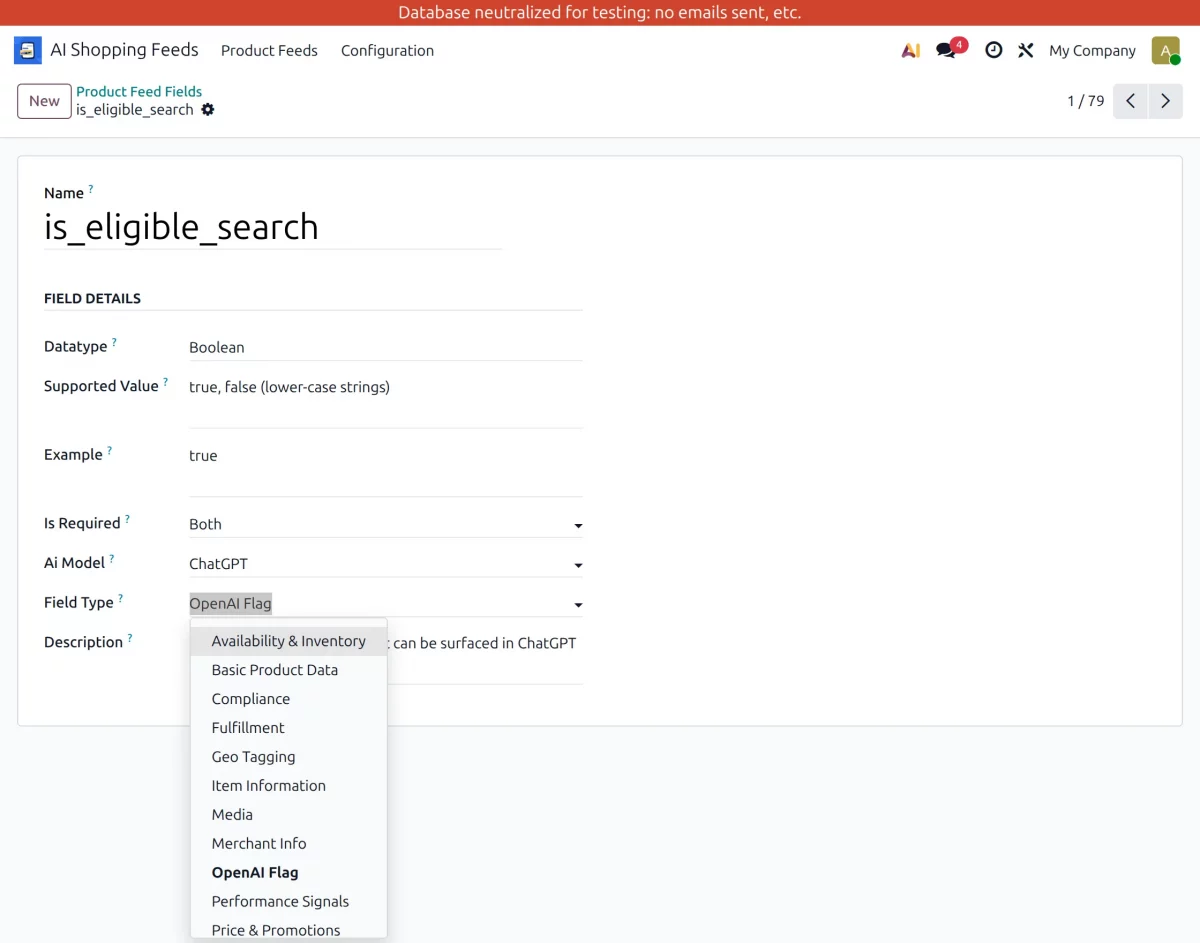
(e) Description:- Finally you can add a description for your field reference regarding field information, then Save.
Product Feed Configuration
6. Next, go to Product Feed And click New to create a new product feed.
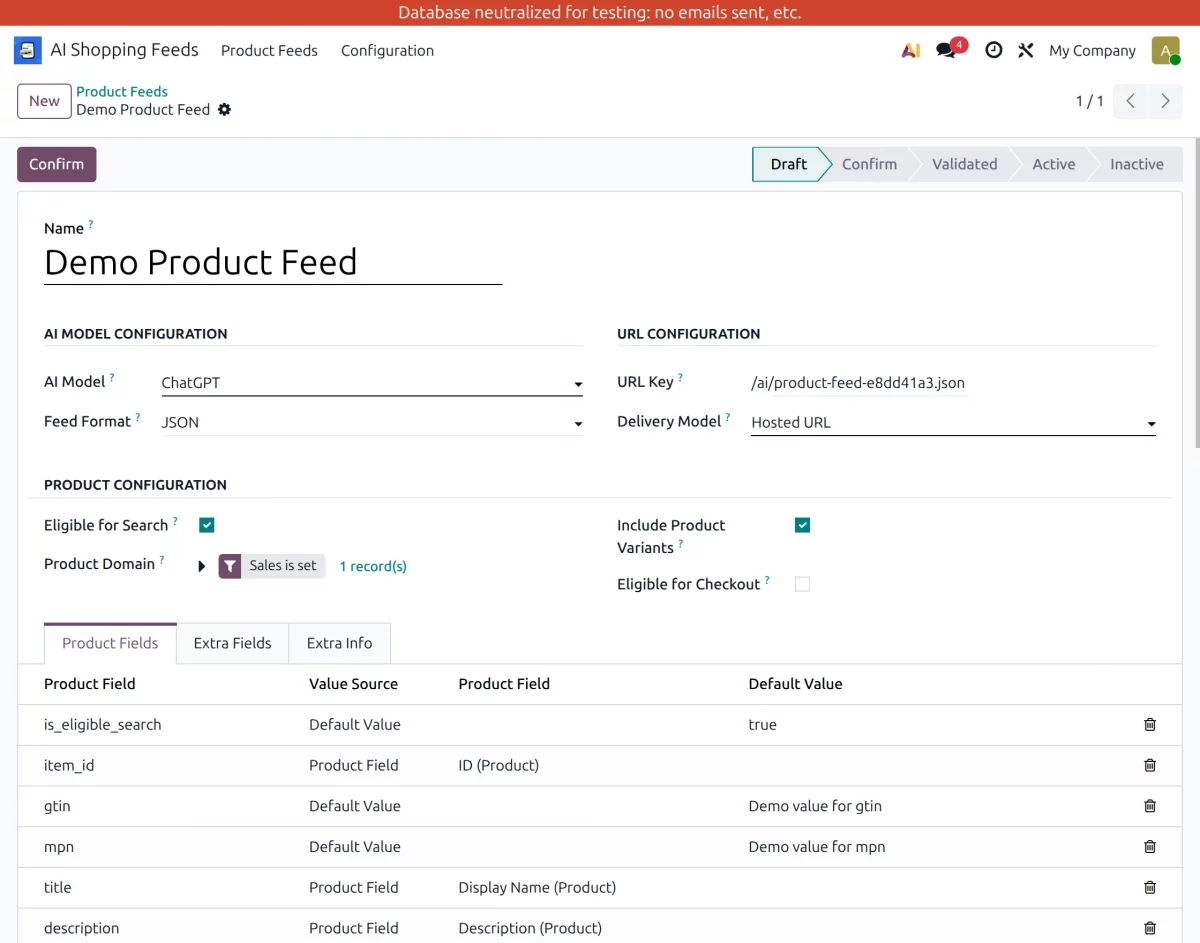
7. Continue with the configuration of the Product feed, this is where the OpenAI columns are mapped with the Odoo columns and the Product feed is created.
8. In the Product Configuration Section, select your feed creation preferences.
(A). Eligible for Search: Products are eligible for search in the Generated Feed
(B). Include Product Variants: Several product variants will also be considered for feed manufacturing
(C). Eligible for checkout:- Make the product eligible for checkout from OpenAI directly
(D). Product Domain:- Select the Product domain from which data will be retrieved.
9. Now, go to Field Mapping section to map OpenAI product fields with Odoo product fields. This step ensures correct data structure.
10. In Product Field sections, map fields related to product details such as name, description and other important information.
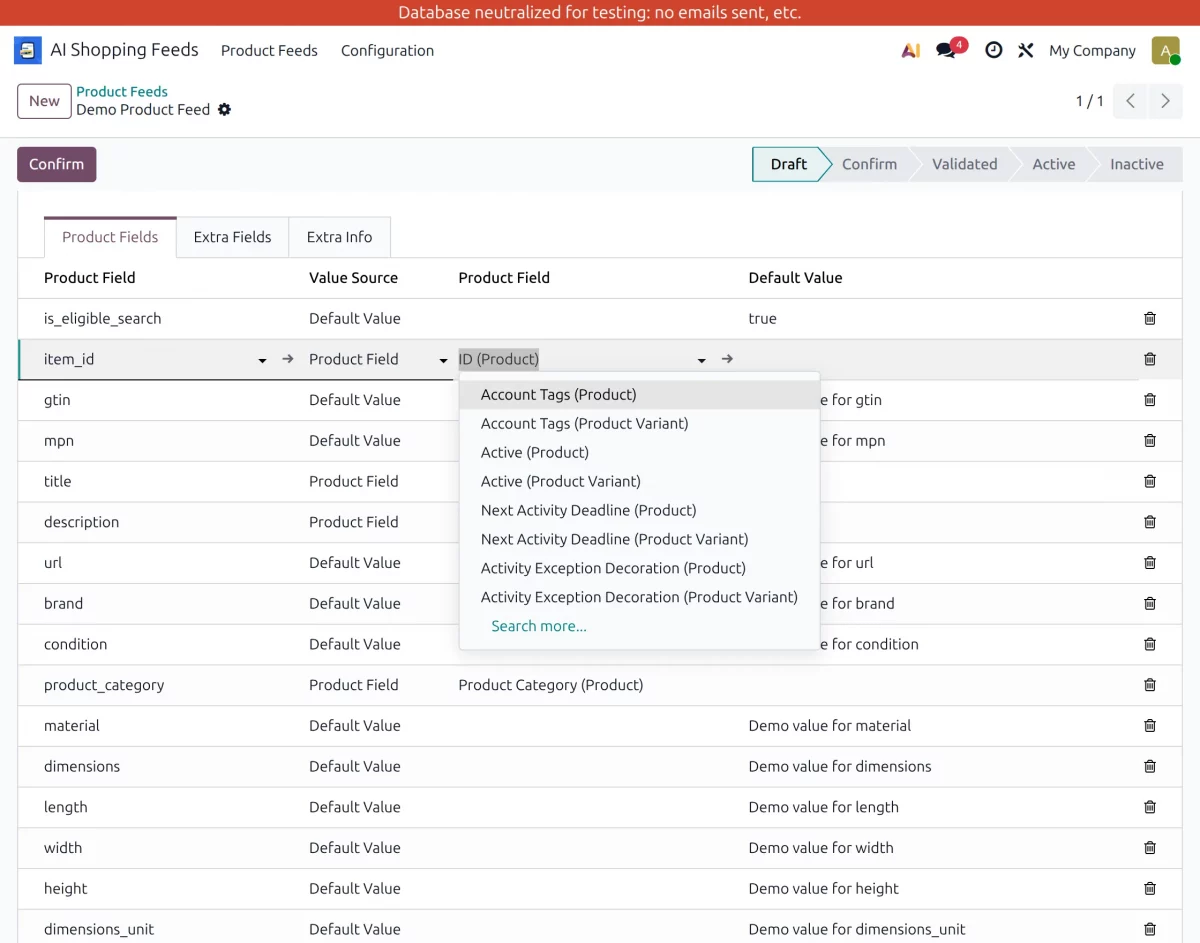
11. In Sources of Value section, you can select product fields for mapping or set default values for those fields.
12. Then, move to Extra Fields section to map additional information like policies, seller details, or target countries, etc.
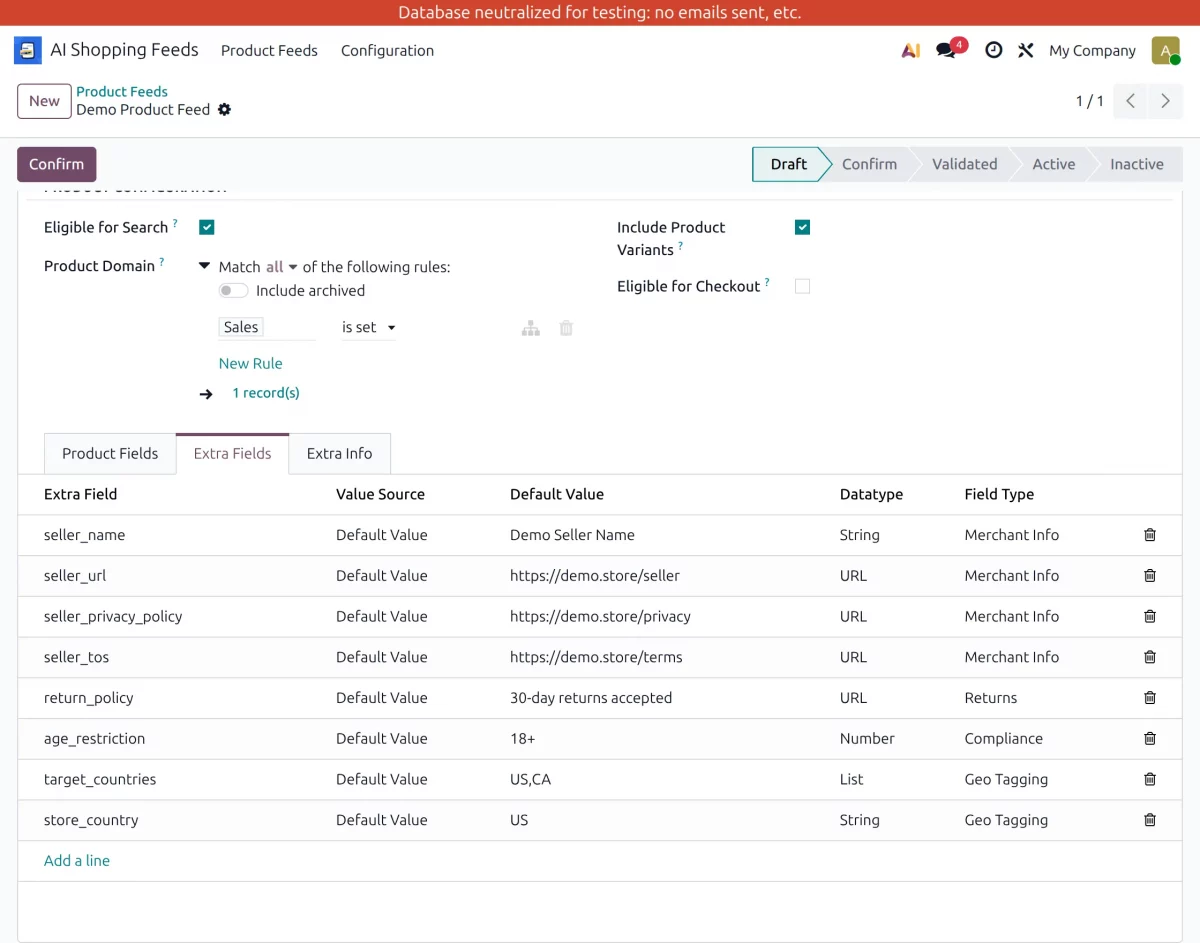
13. After completing the mapping, click Confirming Then Confirm to complete the product feed.
14. Click on ” Generate Feed The button to generate the product feed button and its status will be changed to Active.
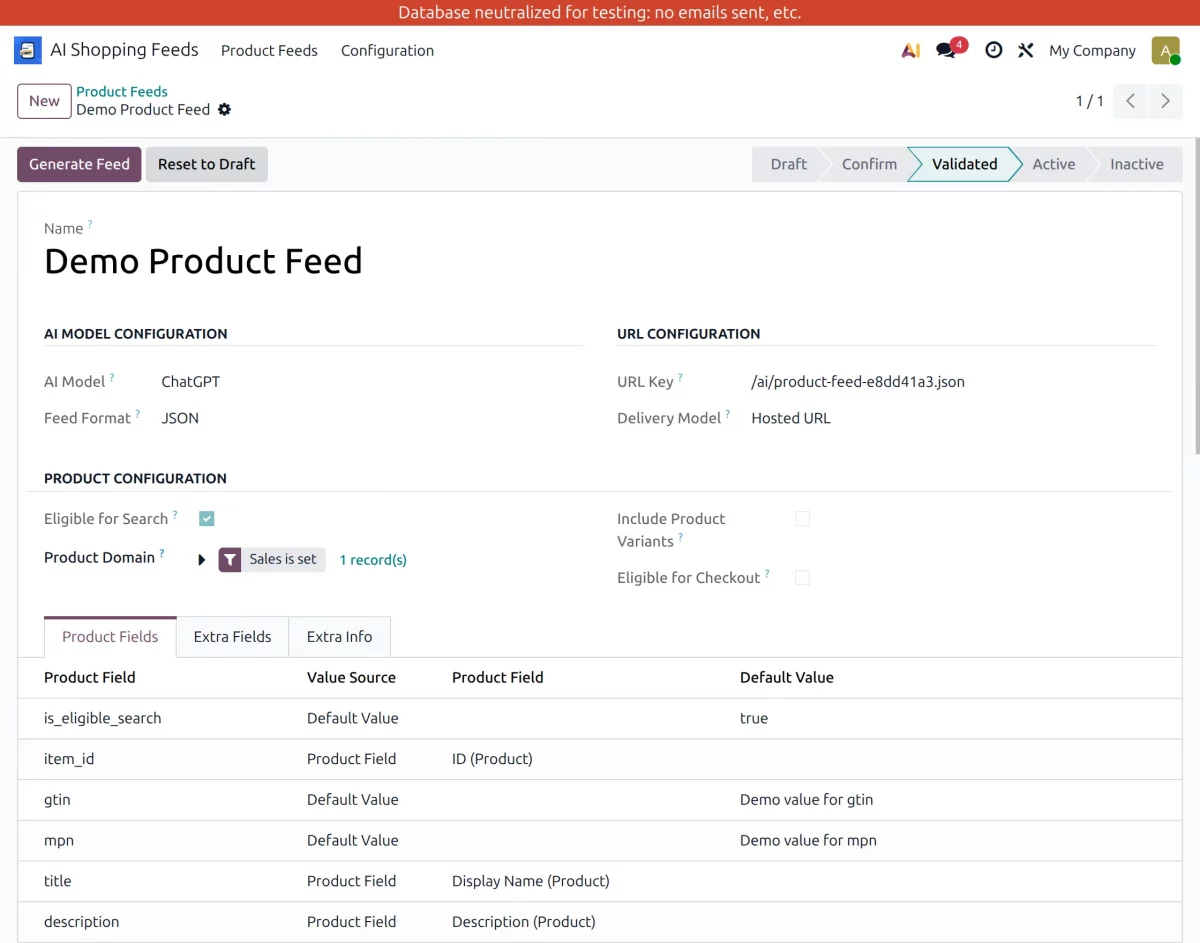
15. After validation, a Hosted URL generated when the feed becomes active. This URL can be used by ChatGPT and other AI systems.
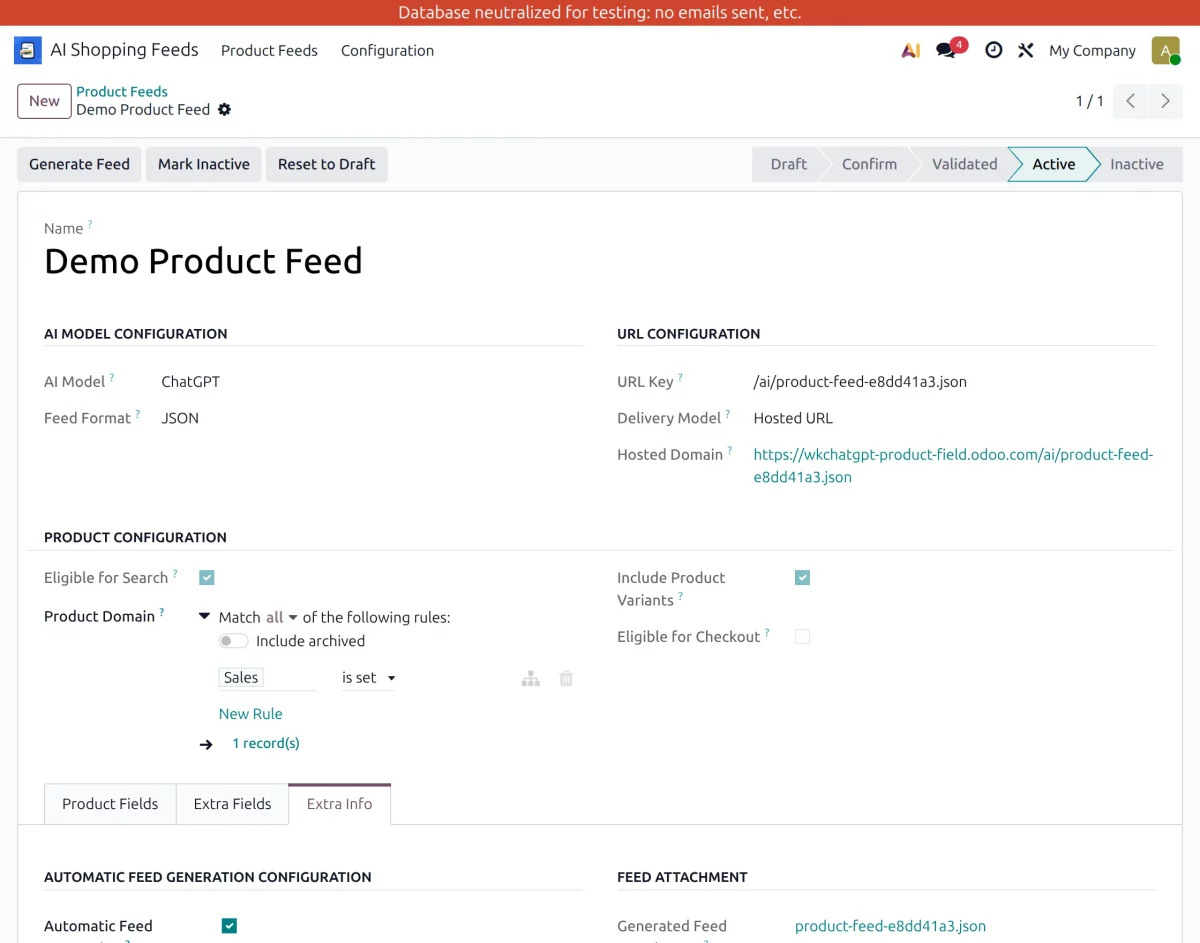
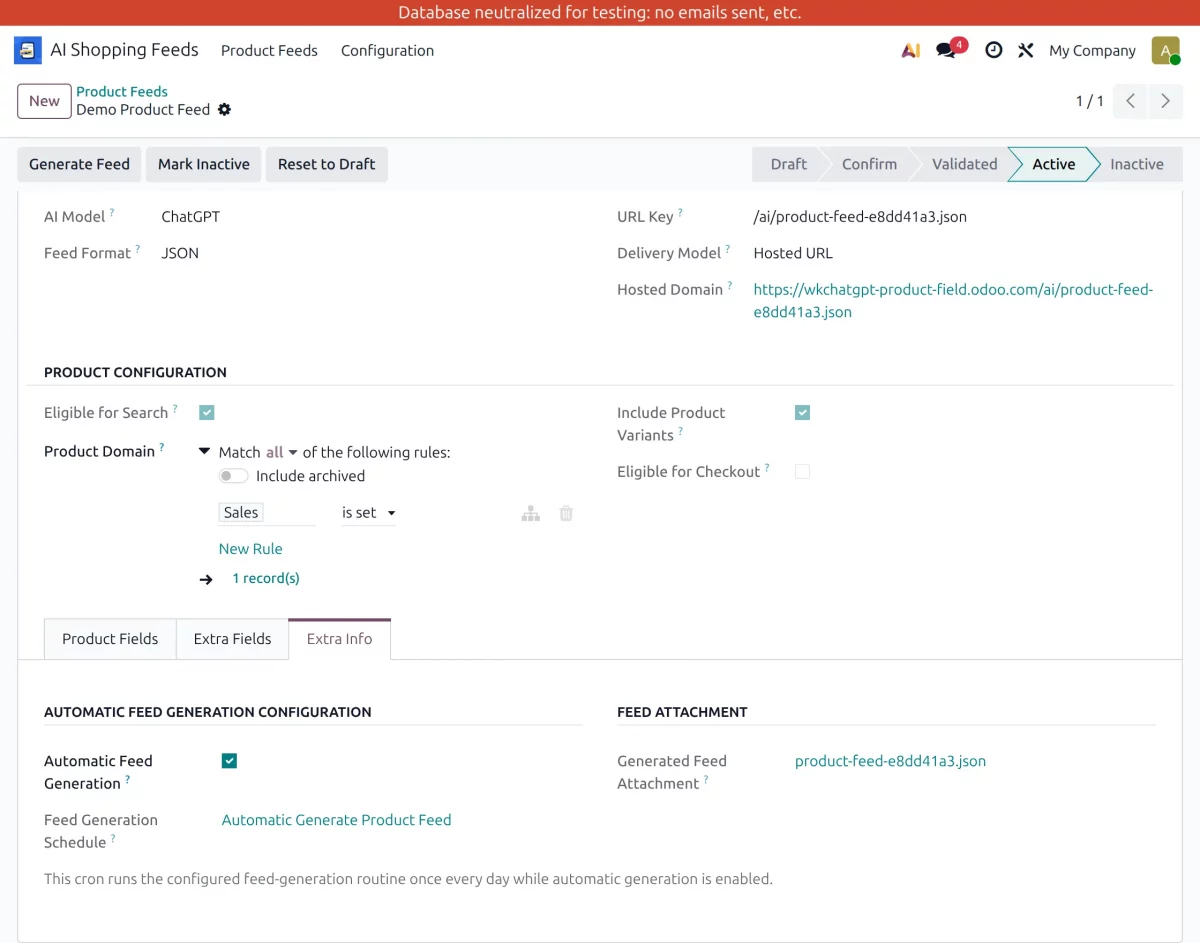
16. On the Additional info tab, the automatic feed creation feature can be selected to automatically update the product feed at scheduled time intervals.
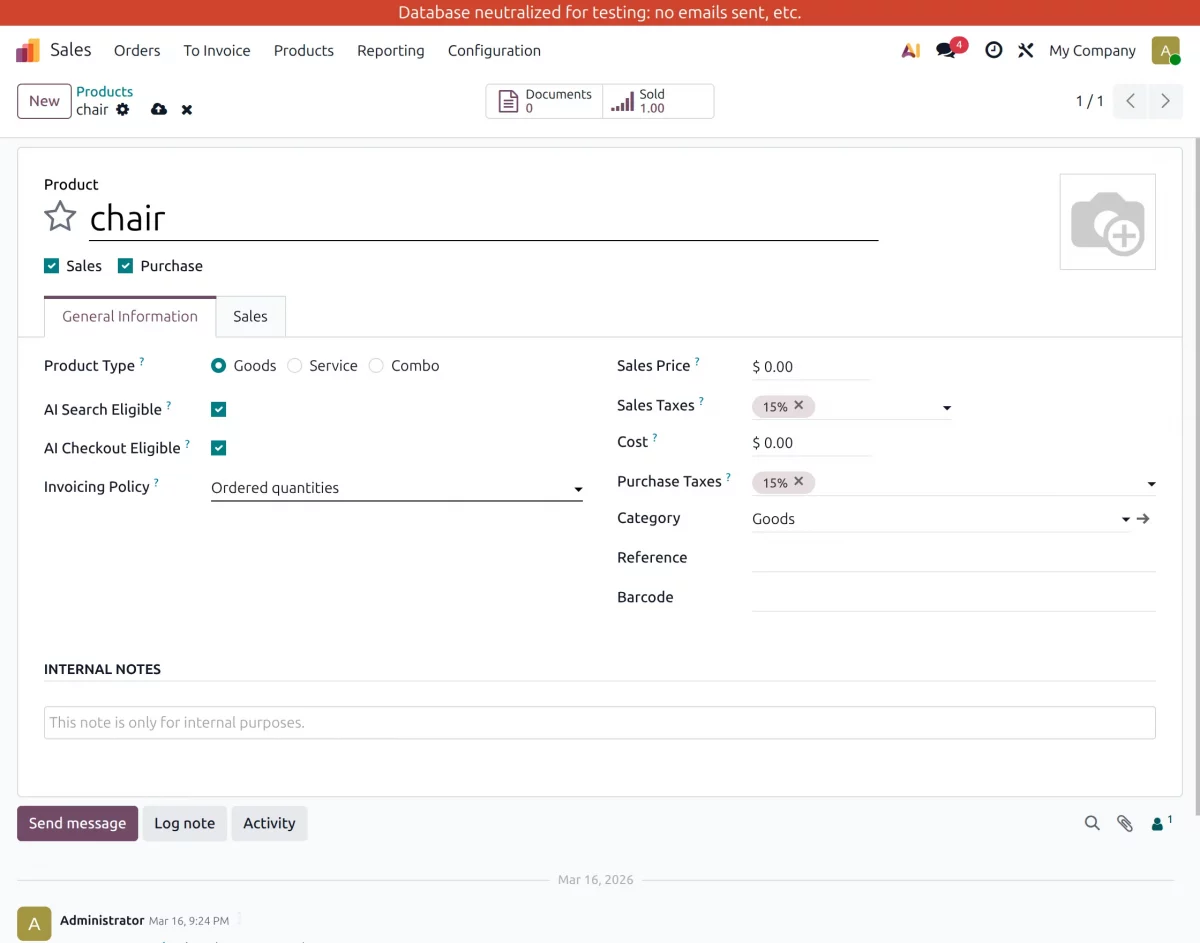
17. Go to Sales → Products and open any product. Here, you can mark the product as AI Search Qualified And AI Payments Eligible. If this field is enabled, we have to add it in Product Domains in the product feed.
We hope this guide is useful for you! Please share your feedback in the comments below.
If you still have problems/questions regarding this, please submit a ticket at the UV Desk.
I hope this helps. If you have further questions, contact us at [email protected].
Thank you for noticing!!

PakarPBN
A Private Blog Network (PBN) is a collection of websites that are controlled by a single individual or organization and used primarily to build backlinks to a “money site” in order to influence its ranking in search engines such as Google. The core idea behind a PBN is based on the importance of backlinks in Google’s ranking algorithm. Since Google views backlinks as signals of authority and trust, some website owners attempt to artificially create these signals through a controlled network of sites.
In a typical PBN setup, the owner acquires expired or aged domains that already have existing authority, backlinks, and history. These domains are rebuilt with new content and hosted separately, often using different IP addresses, hosting providers, themes, and ownership details to make them appear unrelated. Within the content published on these sites, links are strategically placed that point to the main website the owner wants to rank higher. By doing this, the owner attempts to pass link equity (also known as “link juice”) from the PBN sites to the target website.
The purpose of a PBN is to give the impression that the target website is naturally earning links from multiple independent sources. If done effectively, this can temporarily improve keyword rankings, increase organic visibility, and drive more traffic from search results.