Odoo Envia Shipping Integration connect your Odoo system with Envia to manage delivery tasks from one place. It helps you retrieve live shipping rates, create shipments, print labels, and track shipments directly in Odoo.
This module eliminates the need to switch between courier websites. All shipping actions are handled within Odoo, saving time and reducing manual errors.
With multi-carrier support, you can compare services, costs and delivery times before confirming an order, making delivery faster and more reliable.
- Multi-carrier shipping support via Envia
- Real-time shipping rate calculation
- Easy shipping carrier configuration
- Delivery creation directly from Odoo
- Automatic shipping label creation
- Cancellation of delivery before pickup
- Delivery Details in Chat
- Once you purchase the App from Webkul store, you will receive a link to download the module zip file.
- Extract the files on your system once the download is complete. As a result, you will be able to see a folder named- ‘envia_shipping_integration’.
- Copy and paste this folder inside your Odoo Add-Ons path.
- Now, open the Odoo Application and click on the Settings menu. Here, click Enable Developer Mode.
- Then, open the Application menu and click ‘Update Module List’.
- In the search bar, clear all filters and search for ‘envia_delivery_carrier’.
- You will be able to see the module in the search results. Click ‘Activate’ to install it.
Configure Odoo Envia Delivery Integration
1. Open Inventory and go to Configuration, then select Shipping Method and create a new shipping carrier for Envia Shipping Integration.
Enter the Submit API Key.
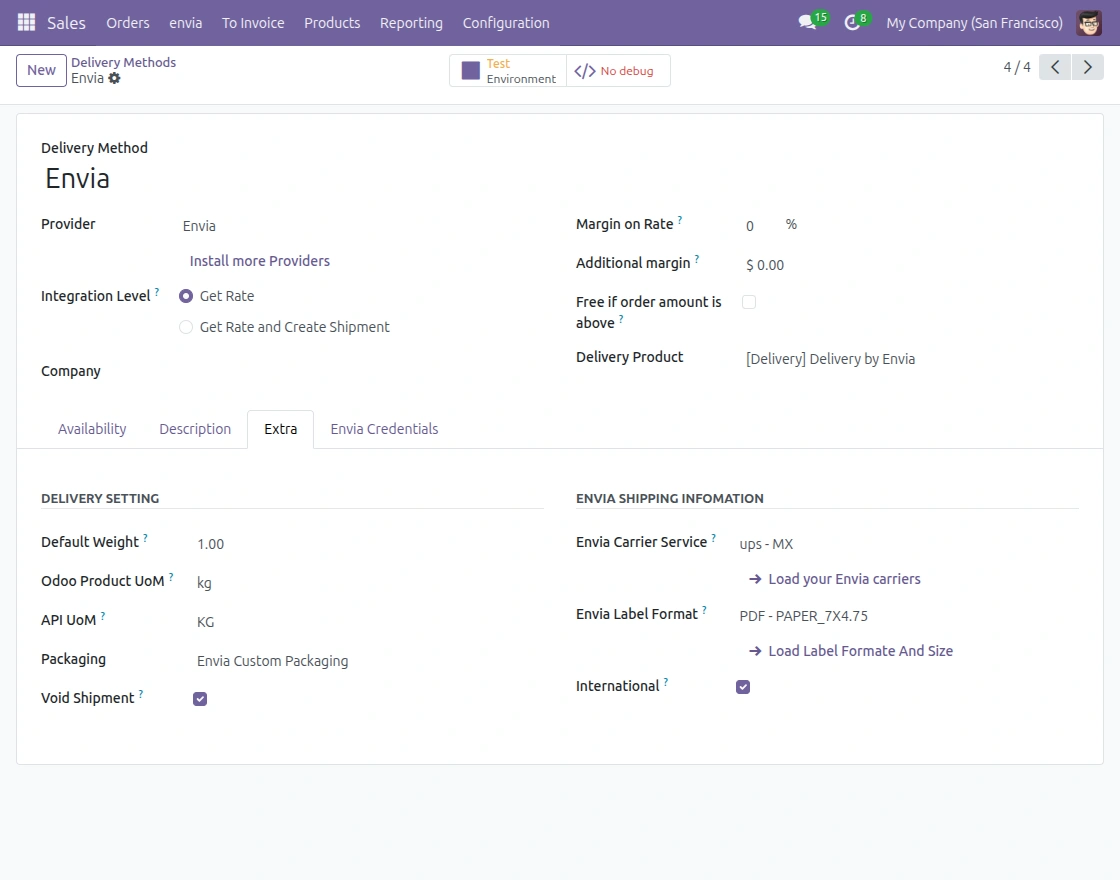
2. Go to the Extras tab within Envia shipping methods.
Set Carrier service, default weight, product UoM, Label format, and enable void shipping, international if required.
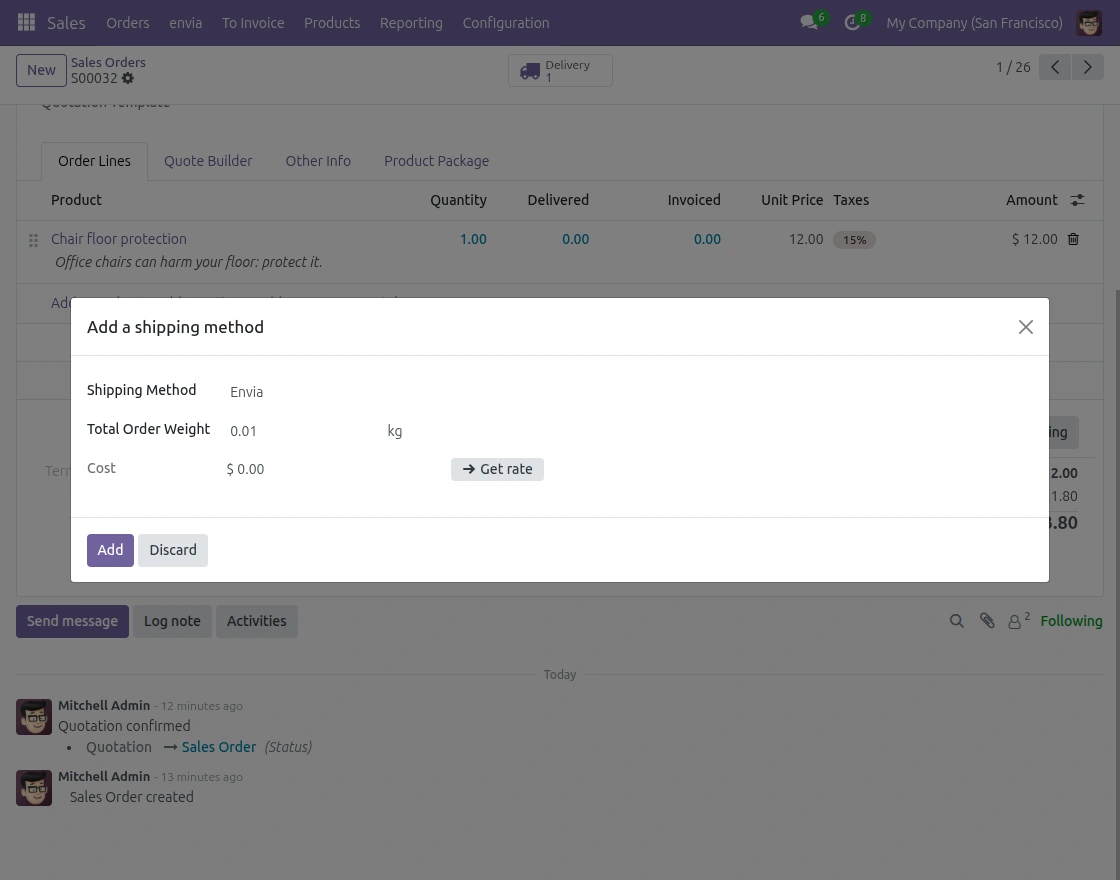
3. Open the sales order and click Add Shipping Method. Select Envia and click Get Value.
4. Click Select on the carrier service that best suits your shipping needs.
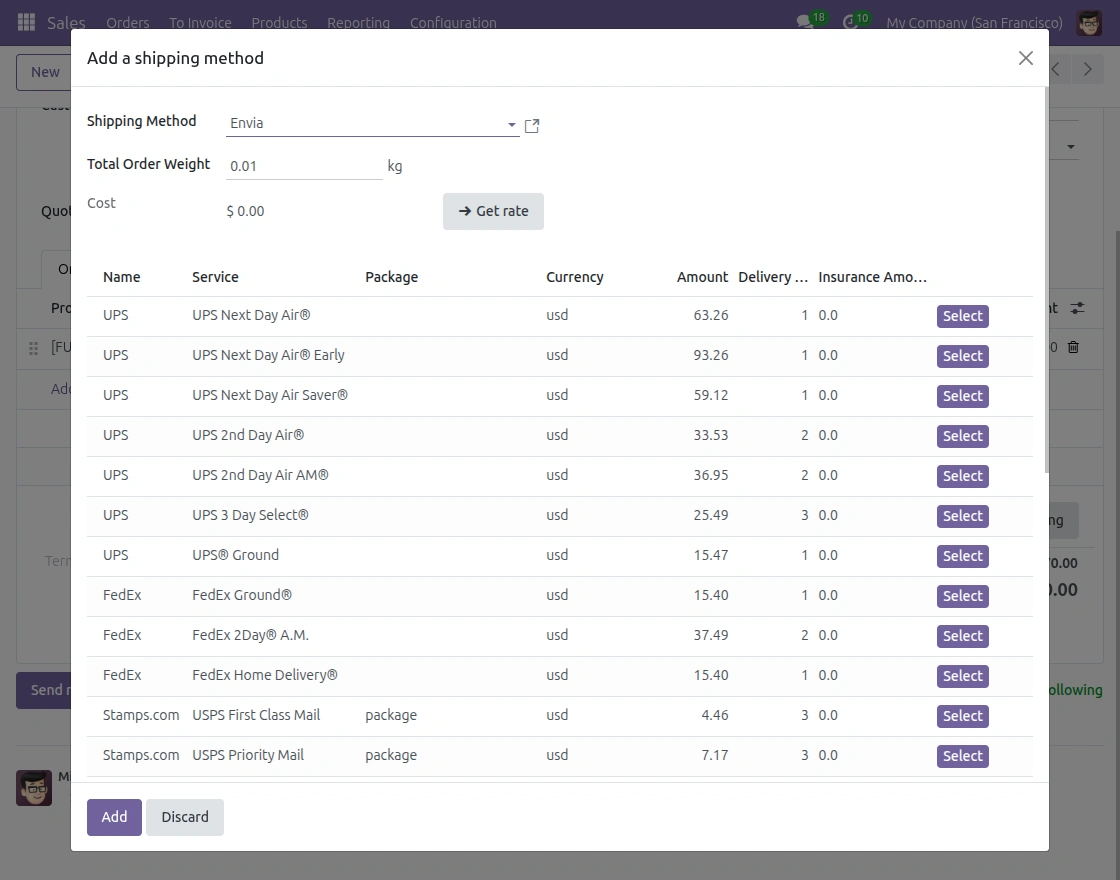
5. Displayed here is the carrier name, service type, estimated delivery time, total shipping price and other details for easy reference.
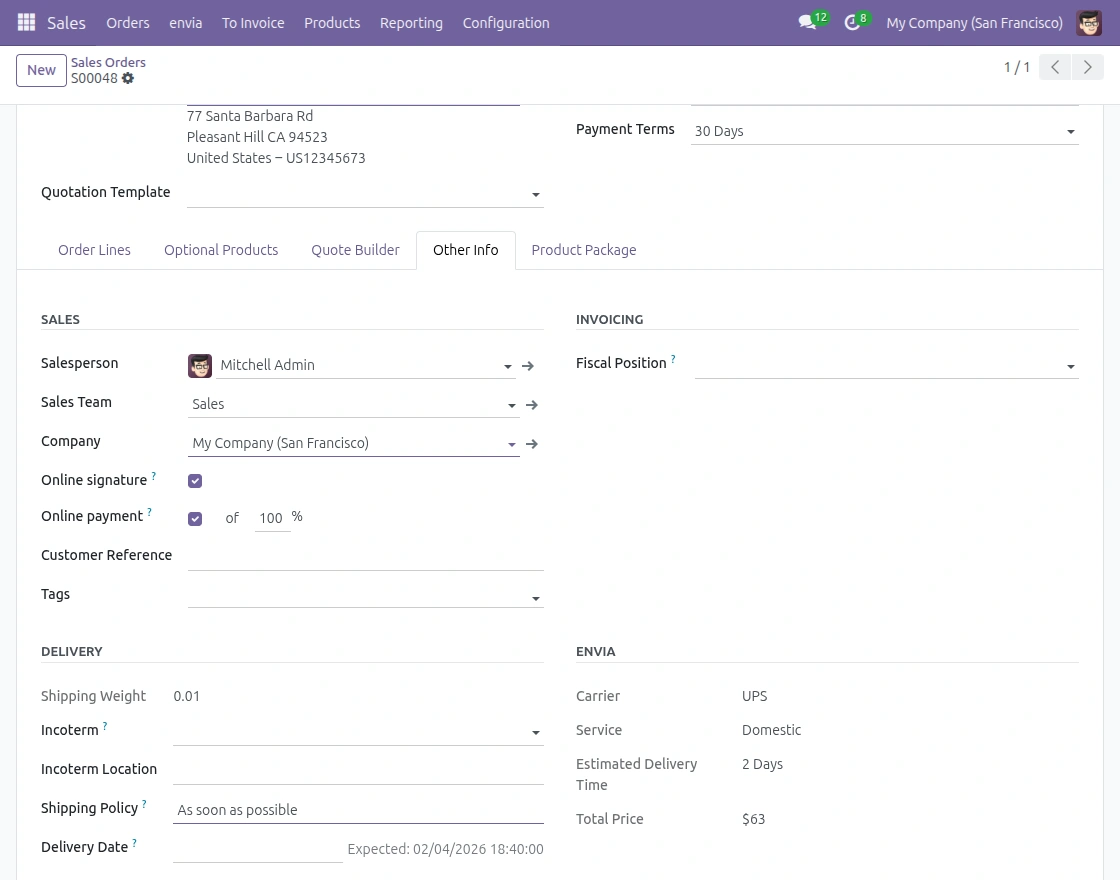
6. Click Enter Package to include the selected products in the shipping package. Packing goods prepares shipping orders for shipping and label creation.
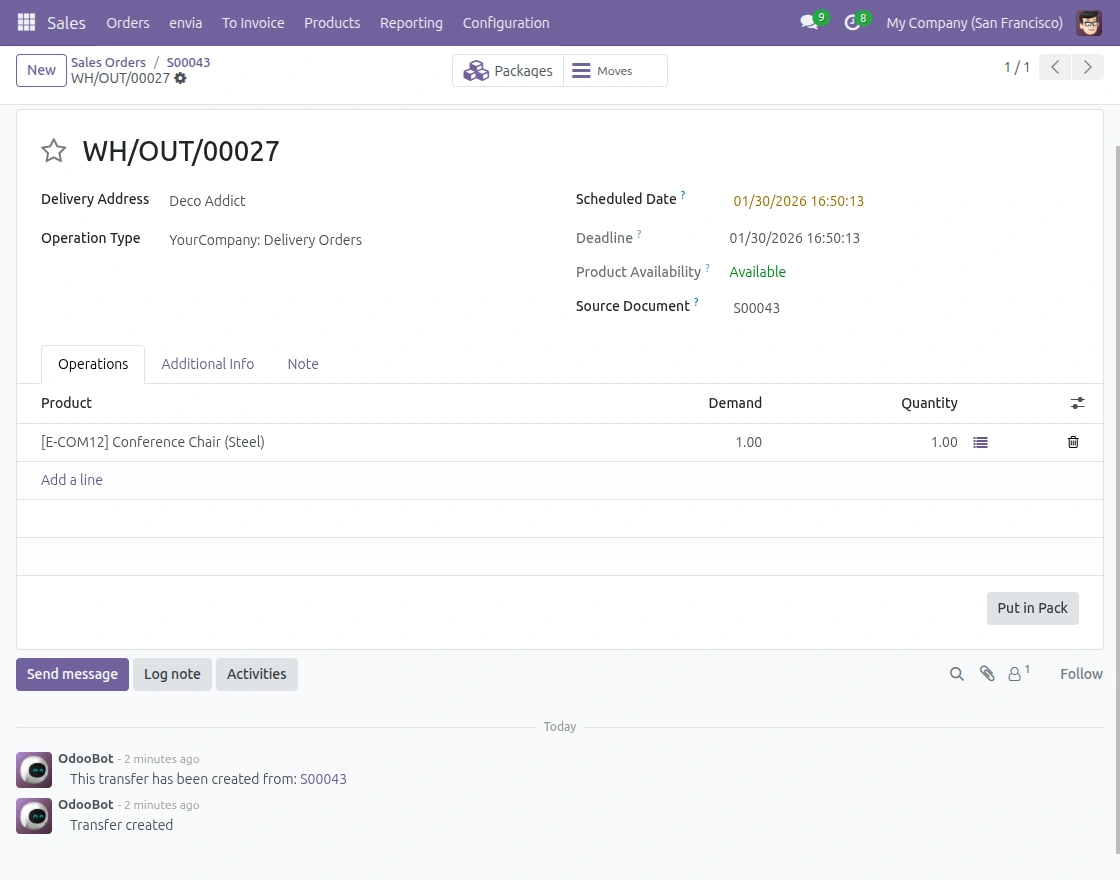
7. Allows users to review and confirm package information before proceeding with delivery. Click Save to apply the plan details.
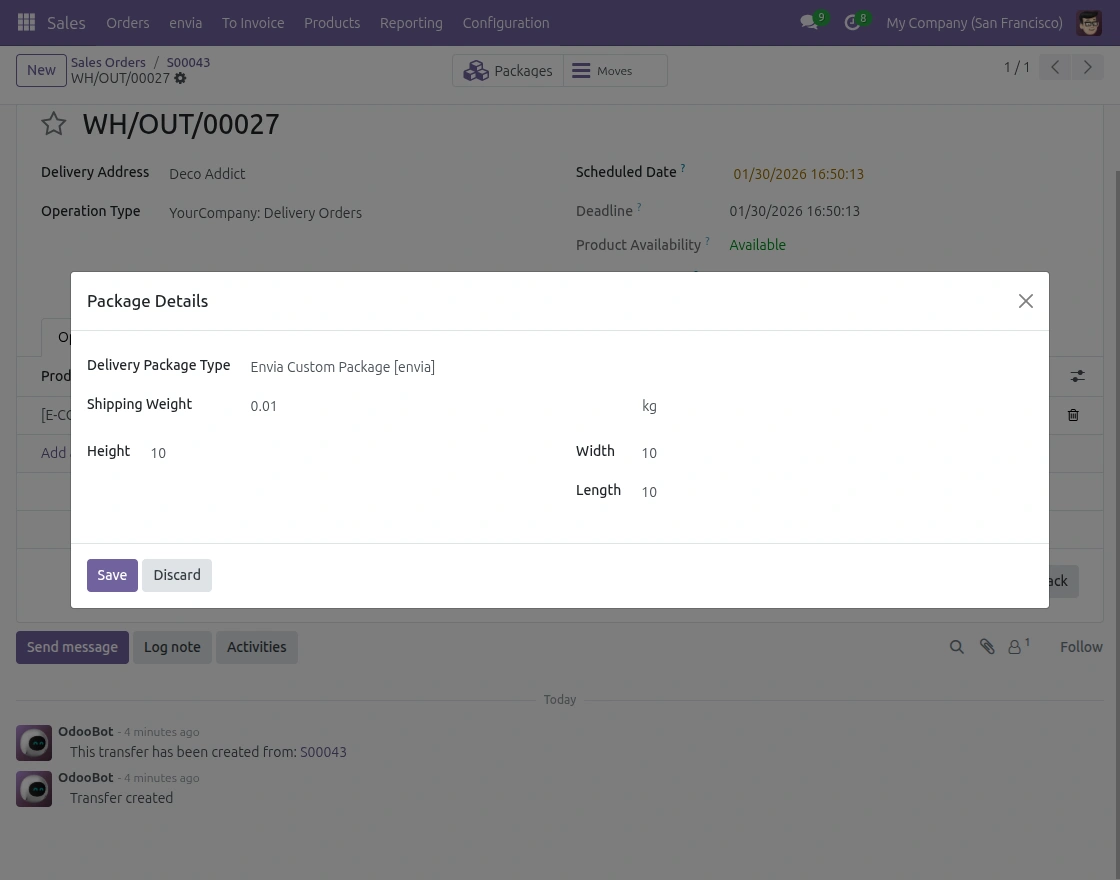
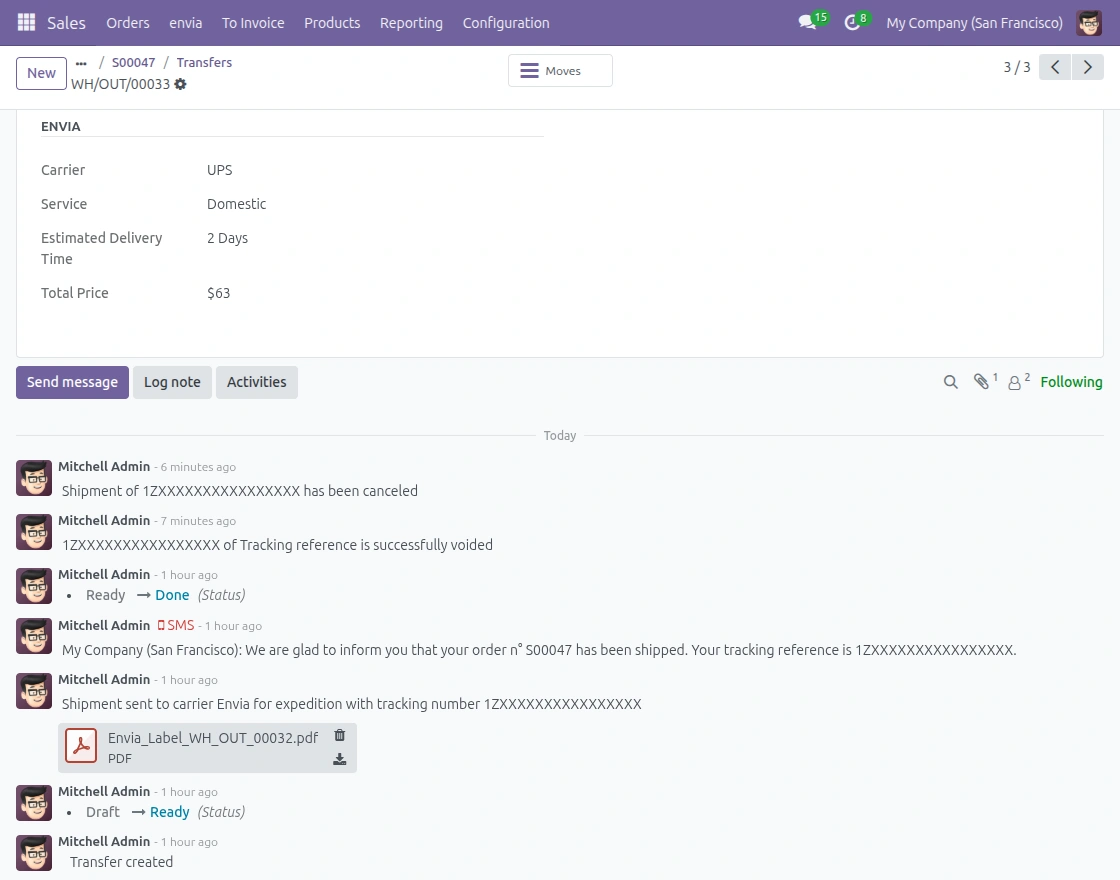
8. Once the shipment is validated, Here you can see the Envia carrier, tracking reference number, service level, price, and label, Estimated time. In the Chat Section, you can download a PDF of the generated shipping label.
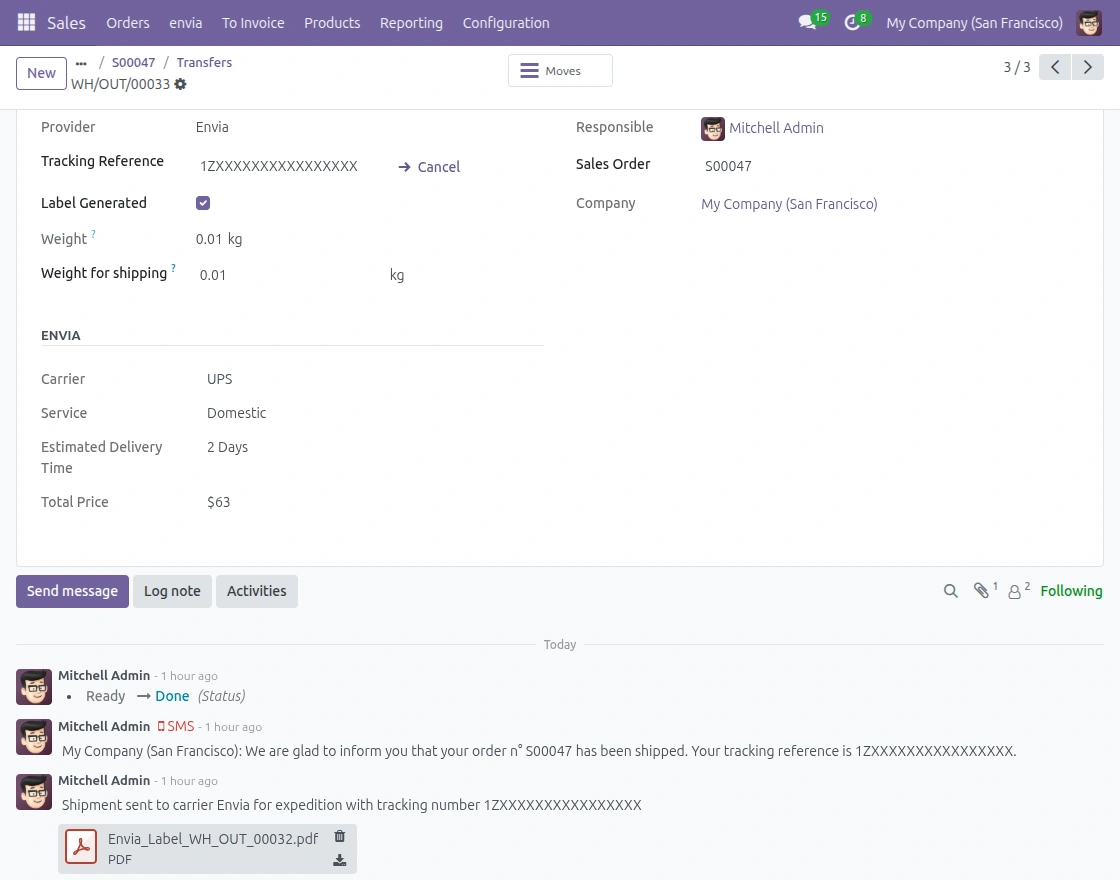
9. To Cancel an Order, click Cancel. Envia Shipping Integration updates shipping orders automatically. You can see the message “Sending has been cancelled” in the Chat section.
We hope this guide is useful for you! Please share your feedback in the comments below.
If you still have problems/questions, please create a ticket at UV Desk.
I hope this helps. If you have further questions, contact us on our support mail.
Thank you for noticing!!
Current Product Version – 1.0.0
Supported Framework Versions – Odoo 19,18,17

Berita Terkini
Berita Terbaru
Daftar Terbaru
News
Jasa Impor China
Berita Terbaru
Flash News
RuangJP
Pemilu
Berita Terkini
Prediksi Bola
Technology
Otomotif
Berita Terbaru
Teknologi
Berita terkini
Berita Pemilu
Berita Teknologi
Hiburan
master Slote
Berita Terkini
Pendidikan
Resep
Jasa Backlink
Slot gacor terpercaya
Anime Batch