The NodeJS Food Delivery Application transforms your online food ordering platform into a complete delivery management ecosystem for efficient order handling.
It enables seamless order processing, delivery assignment, and real-time order tracking to streamline delivery operations.
The NodeJS Food Delivery Application includes both an Admin Panel and a Delivery Agent Mobile App, allowing businesses to efficiently manage food deliveries across Android and iOS devices.
All essential food delivery features are integrated into the solution to ensure smooth coordination between administrators, delivery agents, and customers throughout the order lifecycle.
The NodeJS Food Delivery Application enables restaurants, food businesses, and delivery services to streamline delivery operations, improve order fulfilment, and enhance customer satisfaction.
This ready-made food delivery solution helps businesses expand their delivery network, monitor order movement in real time, and optimize delivery performance.
The NodeJS Food Delivery Application with source code provides a scalable and secure platform for managing delivery agents and assigning orders.
It also supports real-time delivery tracking and OTP-based delivery verification for a smooth delivery workflow.
The Delivery Management Admin Panel provides complete control over delivery operations, including delivery boy management and order assignment.
It also enables live delivery monitoring, performance reporting, and OTP verification settings from a centralized dashboard.
A modern delivery management system powered by NodeJS helps businesses improve operational efficiency, reduce delivery delays, and ensure accurate order fulfilment.
The Delivery Agent App includes a user-friendly dashboard, assigned orders management, order timeline tracking, delivery history, profile management, and real-time delivery status updates.
Mobikul simplifies food delivery operations by providing a feature-rich delivery management solution that enables businesses to efficiently manage delivery workflows and improve customer experience.
Delivery Management Module Installation Guide
This guide explains how to install and configure the Delivery Management module in your Medusajs backend.
Follow the steps below to successfully integrate the module and enable delivery management features in the Medusajs Admin Panel and Delivery Boy Mobile App.
1. Prerequisites
Before installing the Delivery Management module, ensure that the following requirements are met:
- Medusa backend is already installed and running.
- Server access (SSH) is available.
- Node.js and npm are installed.
- The database is configured and connected.
- Admin access to the Medusa Admin Panel is available.
2. Copy Source Files
Copy the Delivery Management module source code into the client’s Medusajs backend.
Copy the following directories into your Medusajs backend:

- `src/modules/delivery`
- `src/api/admin/delivery`
- `src/api/store/delivery`
- `src/admin/routes/delivery`
- `src/workflows/delivery`
- `src/subscribers/delivery`
- `src/migrations`
- `src/utils/delivery`
3. Install Dependencies
Navigate to your MedusaJS backend directory and install all required dependencies.
npm install
This installs any packages required by the Delivery Management module.
4. Update Medusa Configuration
Open the following file:
medusa-config.ts
Register the Delivery module inside the Medusajs configuration so it becomes available in the application.
5. Add Environment Variables
Update the .env file with the required environment values.
Example:
MEDUSA_BACKEND_URL=
MEDUSA_ADMIN_BACKEND_URL=
If your project requires additional environment variables for delivery services, add them accordingly.
6. Run Installation Commands
Navigate to the backend project and execute the following commands:
cd /path/to/client-medusa-backend

npm install
npm run migrate
npm run build
npm run start
cd /path/to/client-medusa-backend

npm run dev
7. Open the Admin Panel
After the backend starts successfully, open the Delivery Management module from the Medusajs Admin Panel.
/app/delivery
Verify that the Delivery Management menu is accessible.
8. Configure Delivery Management
Configure the delivery module from the Admin Panel.
You can configure:
- Delivery Workflow Settings
- OTP Verification Settings
9. Connect the Delivery Boy App
Configure the Delivery Boy Mobile App to use the client’s backend URL.
The mobile application communicates with the Delivery Management APIs for:
10. Test the Installation
After completing the setup, verify the following functionality:
- Failed or Cancelled Delivery Flow (if enabled)
11. Installation Summary
Run the following commands to complete the installation:
cd /path/to/client-medusa-backend
npm install
npm run migrate
npm run build
npm run start
Finally:
- Copy the Delivery Management source files.
- Register the module in
medusa-config.ts.
- Configure the required environment variables.
- Open the Delivery Management module from the Admin Panel.
- Connect the Delivery Boy Mobile App to the backend.
- Verify all delivery management features using the test checklist.
The Delivery Management module is now ready to manage delivery agents, assign orders, and track deliveries through the MedusaJS Admin Panel.
It also enables seamless delivery operations using the Delivery Boy Mobile App with real-time status updates and delivery management.
Application Overview
The NodeJS Food Delivery Application provides a complete delivery management solution for restaurants and food businesses.
It enables efficient order assignment, real-time delivery tracking, and delivery agent management through a centralized admin panel and mobile application.
The system helps streamline delivery operations and improve overall customer satisfaction.
Key Features
- Delivery Boy Management
- Order Assignment & Reassignment
- Real-Time Delivery Tracking
- Assigned Orders Management
- Delivery Timeline Tracking
- Failed Delivery Management
- Live Order Pipeline Monitoring
- Delivery Reports & Analytics
- Mobile App for Delivery Agents
- Admin Delivery Management Panel
- Delivery Performance Monitoring
Dashboard Overview
The Delivery Management Dashboard provides a centralized view of delivery operations, helping administrators monitor delivery performance and manage delivery workflows efficiently.
The dashboard displays key delivery metrics, including active delivery agents, active orders, delivered orders, and failed deliveries.
It also provides graphical insights into delivery status distribution and operational performance.
Dashboard Components
Total Agents
Displays the total number of registered delivery boys available in the system.
Active Agents
Shows the number of delivery agents currently available for order assignments.
Active Orders
Displays all orders that are currently assigned and in progress.
Delivered Today
Shows the total number of orders successfully delivered today.
Failed Today
Displays the number of delivery attempts marked as failed.
Order Graph
Provides a visual representation of the current delivery pipeline, including:
This graph helps administrators monitor order movement across different delivery stages.
Sales Graph
Provides an operational view of successful and failed deliveries.
Using this graph, administrators can quickly compare completed deliveries against failed deliveries and evaluate overall delivery performance.
Delivery Capacity
Displays the availability of delivery agents for new assignments.
This information helps administrators determine whether additional delivery resources are required before assigning new orders.
Today’s Orders
Displays the latest delivery activities and recent order movements, including order status updates such as:
This section enables administrators to track delivery progress in real time and respond quickly to operational changes.
Quick Actions
The Delivery Management Dashboard also provides quick access to key delivery operations through the following actions:
Create Delivery Boy
The Delivery Boy button allows administrators to create and manage delivery agent accounts directly from the dashboard.

Assign Order
The Assign Order button enables administrators to assign pending orders to available delivery boys. During the assignment, administrators can:
- Add Delivery Instructions
- Manage Delivery Workflows Efficiently
These quick actions help streamline delivery operations and improve order fulfilment efficiency.

Today’s Orders Overview
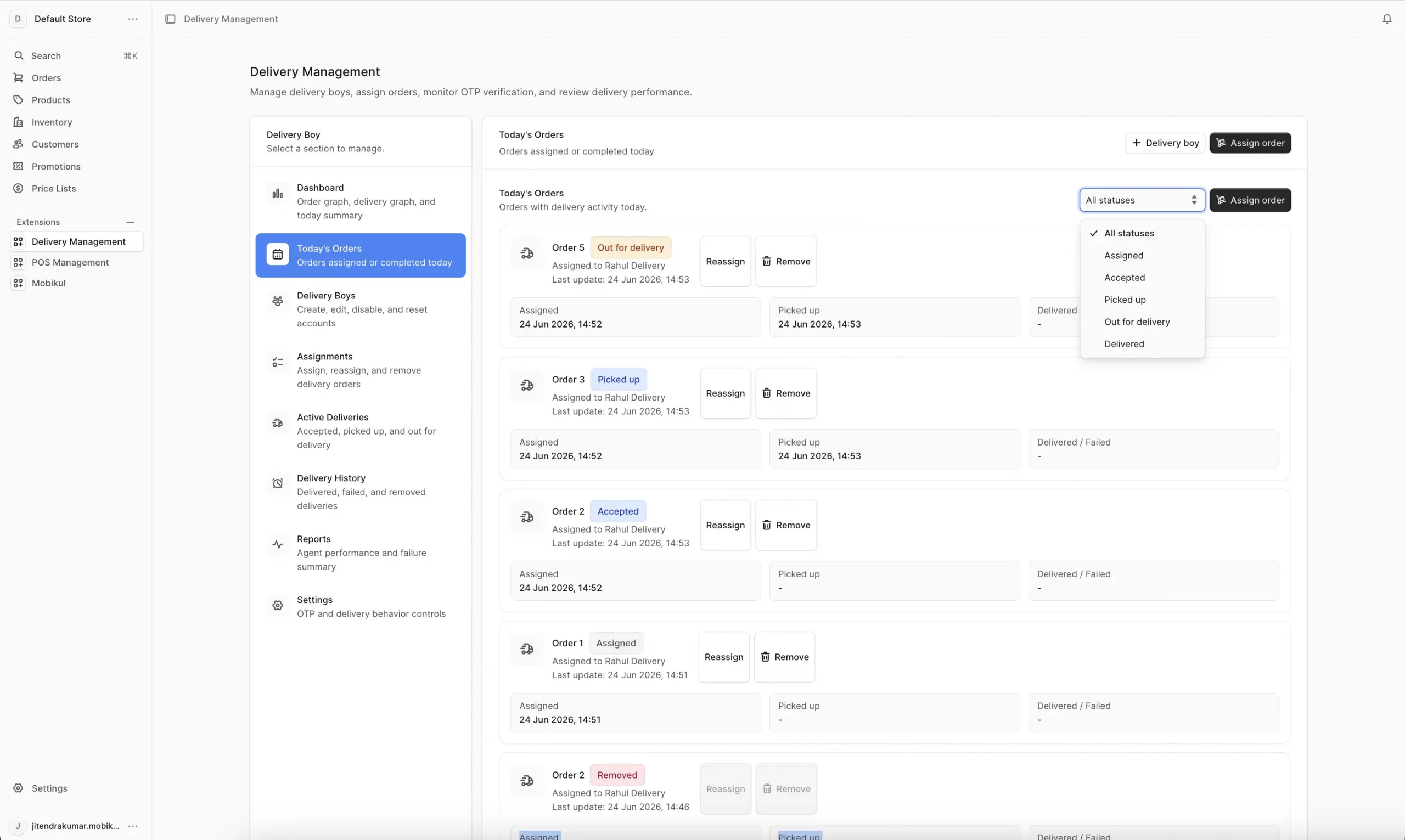
The Today’s Orders section provides a real-time overview of all delivery-related activities performed during the current day.
Administrators can track assigned orders, monitor delivery progress, reassign orders when required, remove assignments, and filter orders by delivery status to efficiently manage daily operations.
This section helps ensure timely deliveries, balanced workload distribution among delivery boys, and complete visibility into ongoing and completed delivery tasks.
Filter Orders by Status
Use the Status Filter dropdown to quickly view orders based on their current delivery stage.
Filter orders by Assigned, Accepted, Picked Up, Out for Delivery, or Delivered status to monitor delivery progress efficiently.
Assign Order
Click the Assign Order button to allocate a pending order to an available delivery boy.
Search and select an order, choose a delivery boy, add optional delivery instructions, and assign the order for processing.
Features:
- Search orders by Order ID, email, or order number.
- Select an available delivery boy.
- Add optional admin notes or delivery instructions.
- Instantly assign orders for delivery.
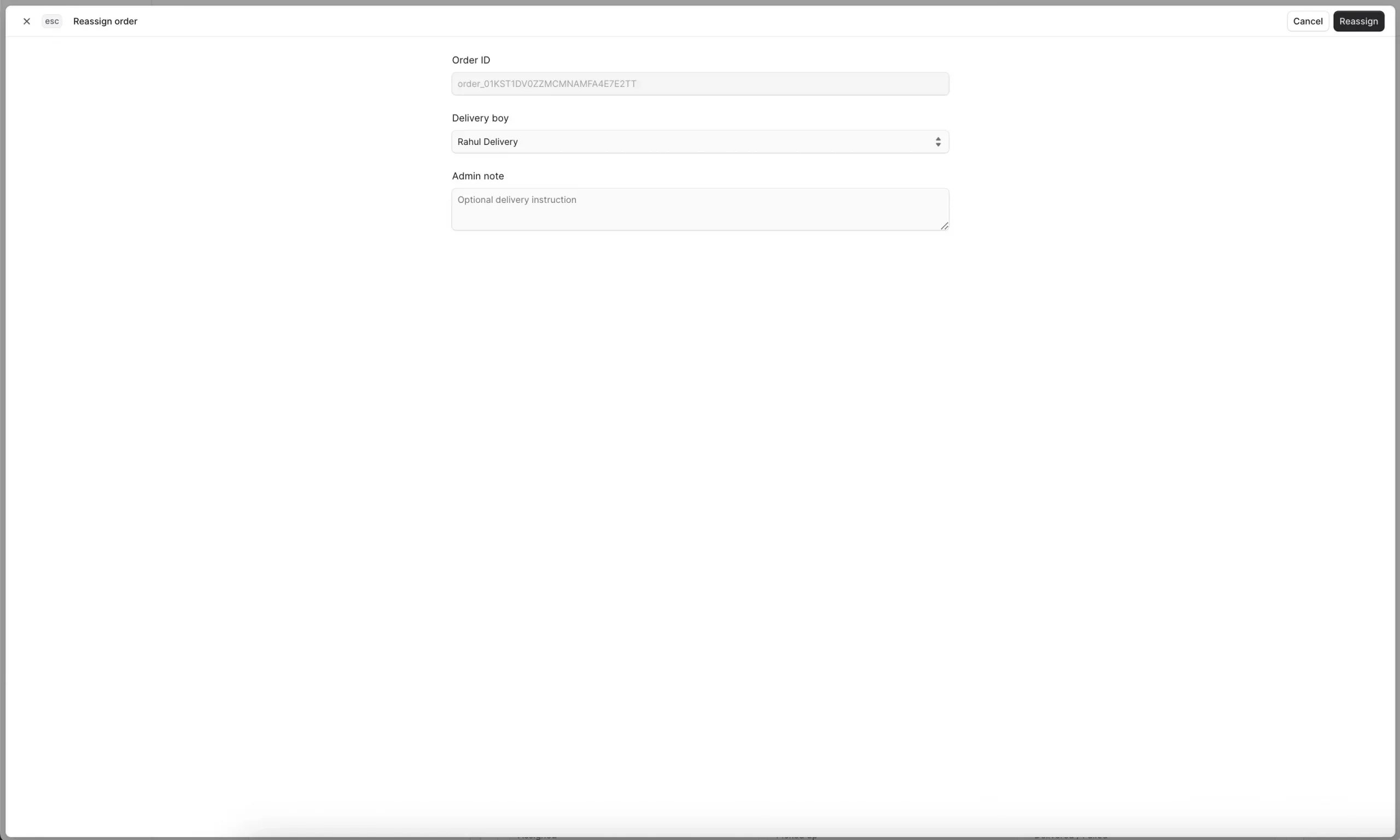
Reassign Order
Use the Reassign option to transfer an already assigned order to a different delivery boy. This helps manage workload, unavailable agents, or delivery issues without affecting order tracking.
Features:
- Change the assigned delivery boy.
- Add reassignment notes for internal tracking.
- Maintain complete delivery history and status records.
- Improve delivery efficiency and workload distribution.
Remove Assignment
Use the Remove option to unassign an order from a delivery boy when delivery is cancelled, reassignment is required, or the assignment was created by mistake.
Features:
- Remove active order assignments.
- Keep order records and delivery logs intact.
- Allow reassignment to another delivery boy later.
- Prevent incorrect delivery processing.
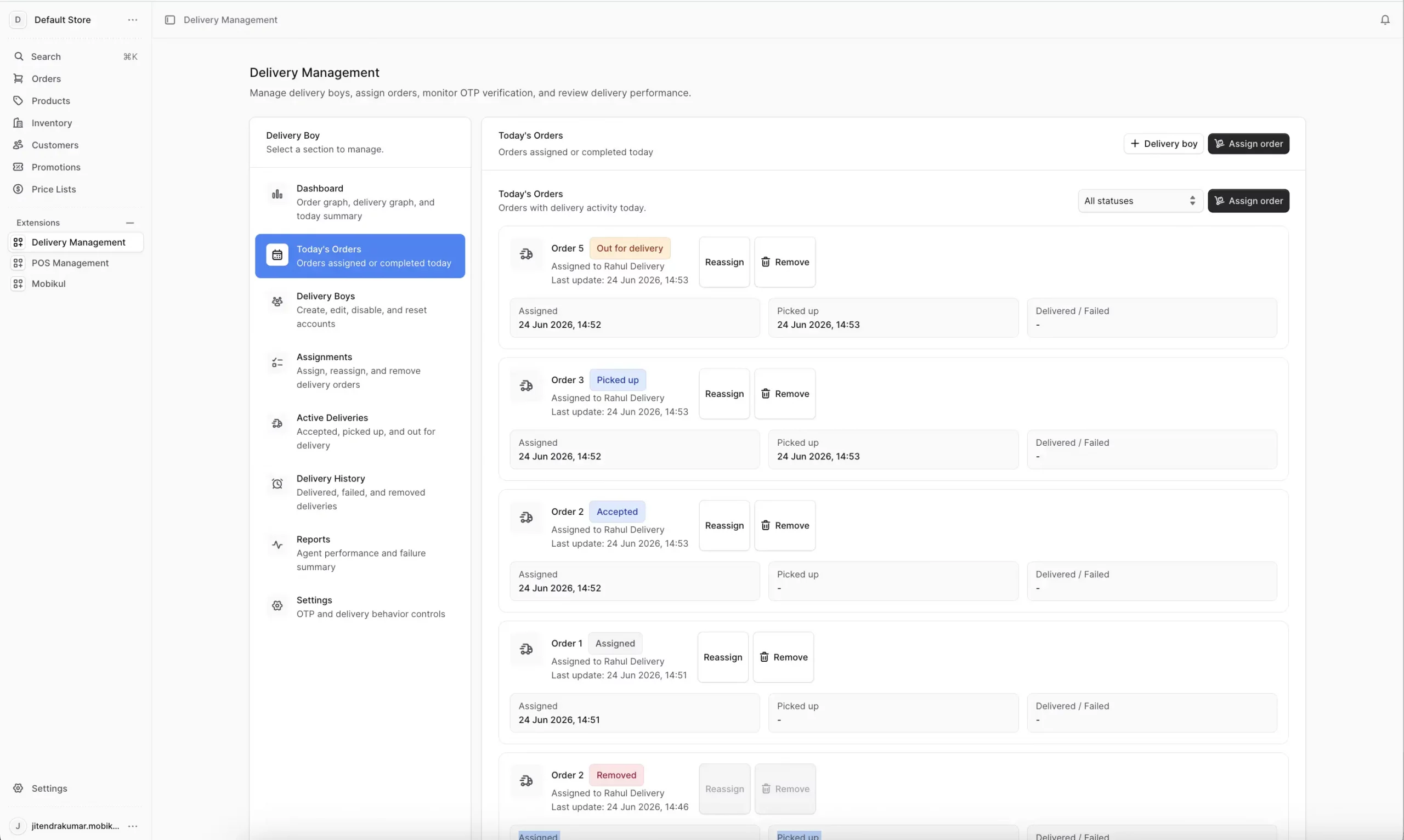
Order Status Tracking
Each order card displays the delivery progress timeline, allowing administrators to monitor every stage of fulfilment.
Available Statuses:
- Assigned – Order assigned to a delivery boy.
- Accepted – The delivery boy accepted the assignment.
- Picked Up – Order collected from the store.
- Out for Delivery – Order is on the way to the customer.
- Delivered – Order successfully delivered.
- Removed – Assignment removed by the administrator.
This provides real-time visibility into delivery operations and helps track order progress efficiently.
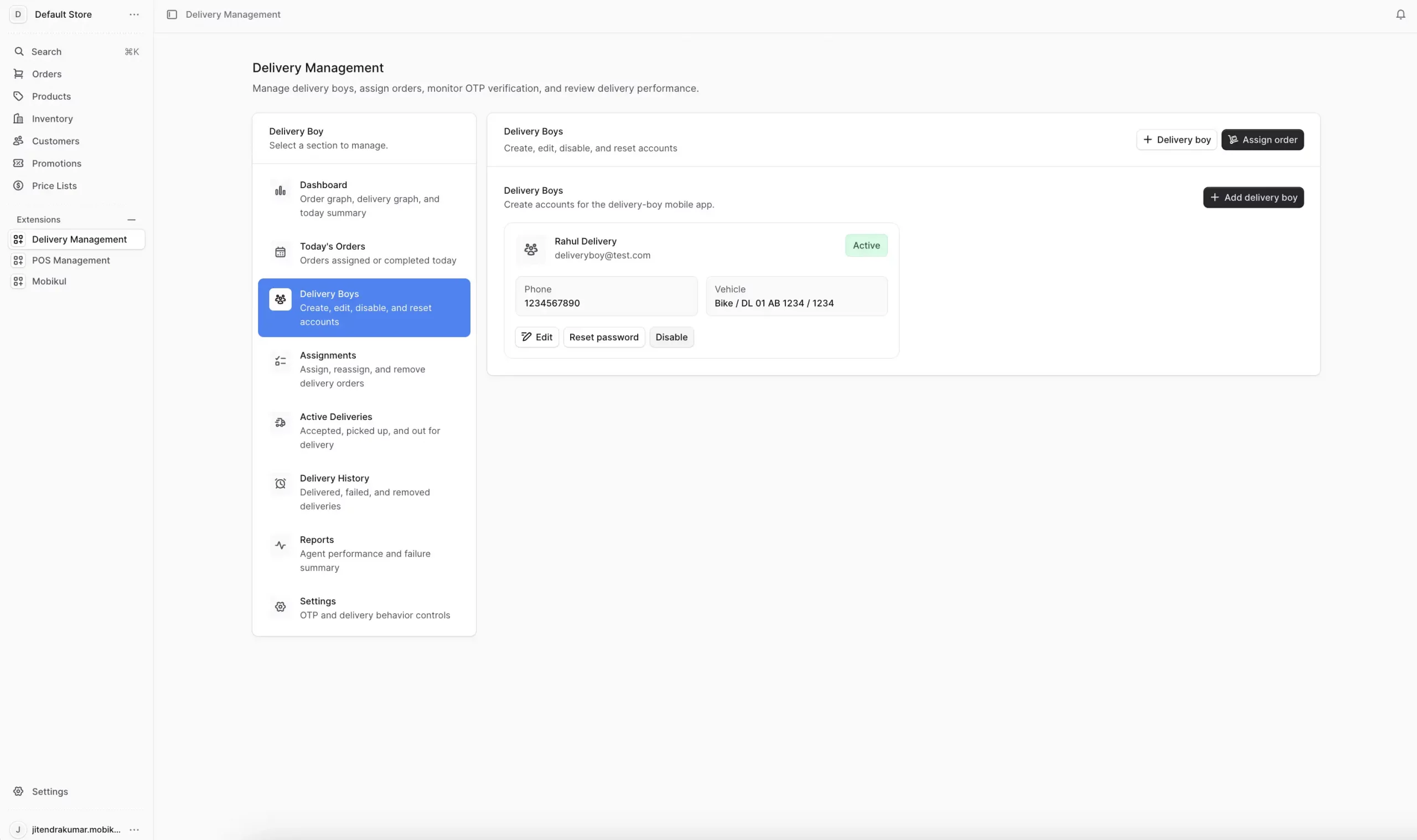
Delivery Boys Overview
The Delivery Boys section helps administrators create and manage delivery-agent accounts used in the delivery-boy mobile application.
From this screen, you can add new delivery boys, update account information, reset passwords, and enable or disable agents for order assignments.
Features:
- Create new delivery-boy accounts for the mobile app.
- View delivery-boy details, including name, email, phone number, and vehicle information.
- Edit the delivery-boy profile and vehicle details.
- Reset delivery-boy login passwords when required.
- Enable or disable delivery-boy accounts.
- Monitor active and inactive delivery agents.
- Quickly access delivery management actions from a centralized dashboard.
Available Actions
Add Delivery Boy
Create a new delivery-boy account by providing:
- Phone Number
- Vehicle Type
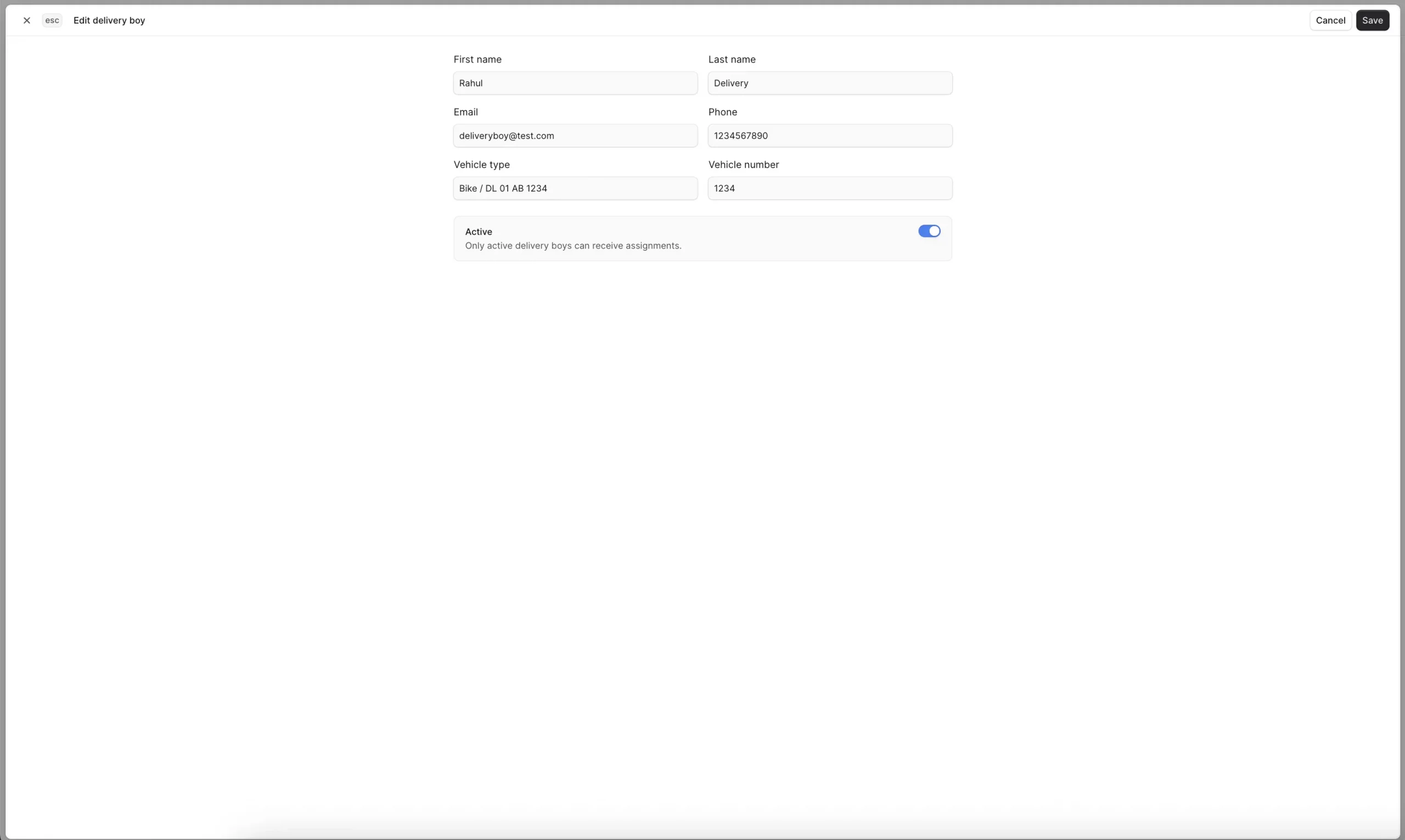
Edit Delivery Boy
Update delivery-boy information such as:
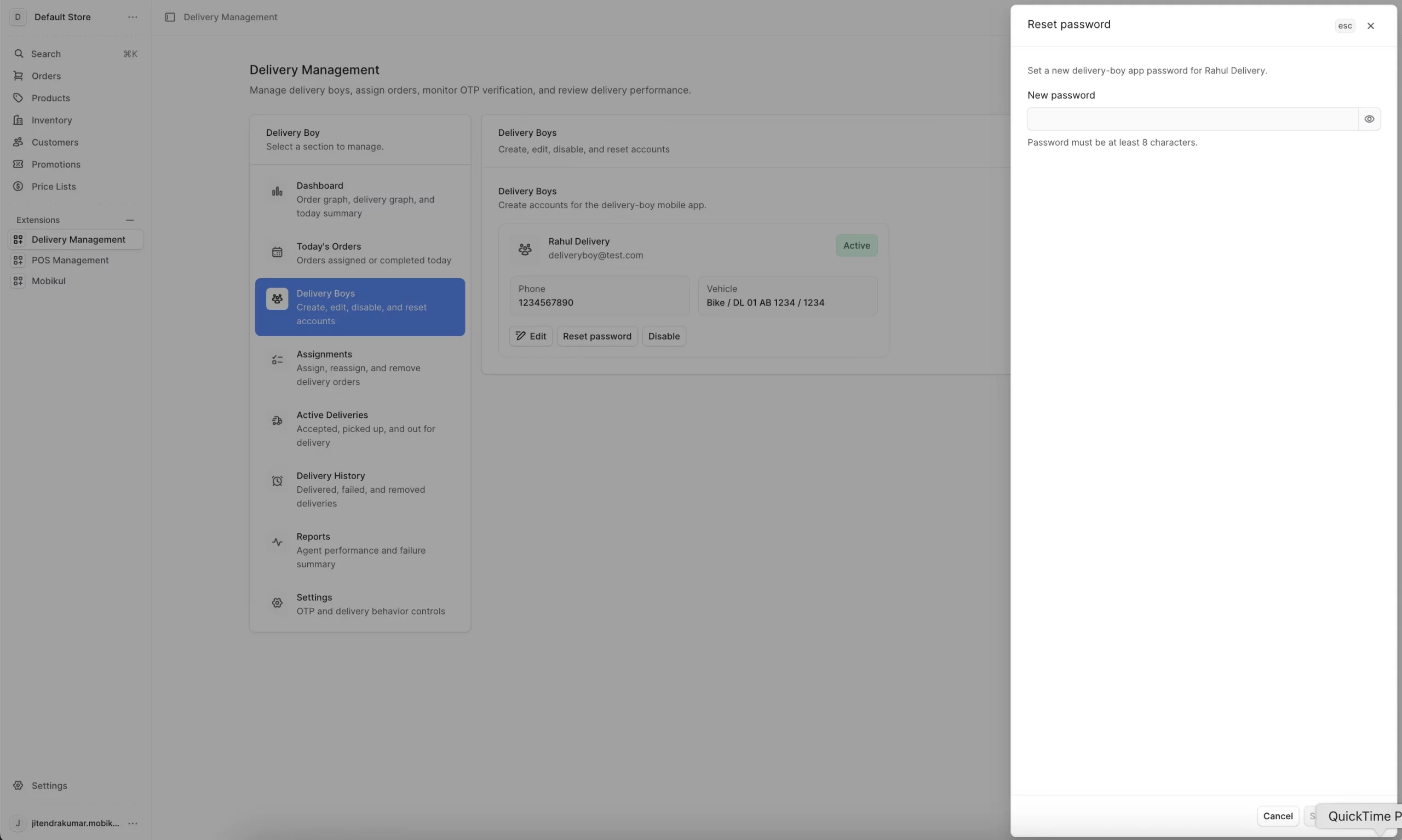
Reset Password
Administrators can generate a new password for a delivery boy when login credentials need to be changed.
Enable / Disable Account
Control whether a delivery boy can receive new order assignments:
- Active – Can receive and manage assigned orders.
- Disabled – Cannot receive new delivery assignments.
Delivery Boy Information
Each delivery-boy profile includes:
- Vehicle Registration Number
- Current Status (Active / Disabled)
Account Status
Active
Delivery boys marked as active are available to receive new order assignments and perform delivery operations.
Disabled
Disabled delivery boys remain in the system but cannot receive or manage delivery assignments until reactivated.
Benefits
- Centralized delivery-agent management.
- Faster onboarding of delivery staff.
- Secure password management.
- Better control over delivery operations.
- Accurate tracking of delivery-agent availability.
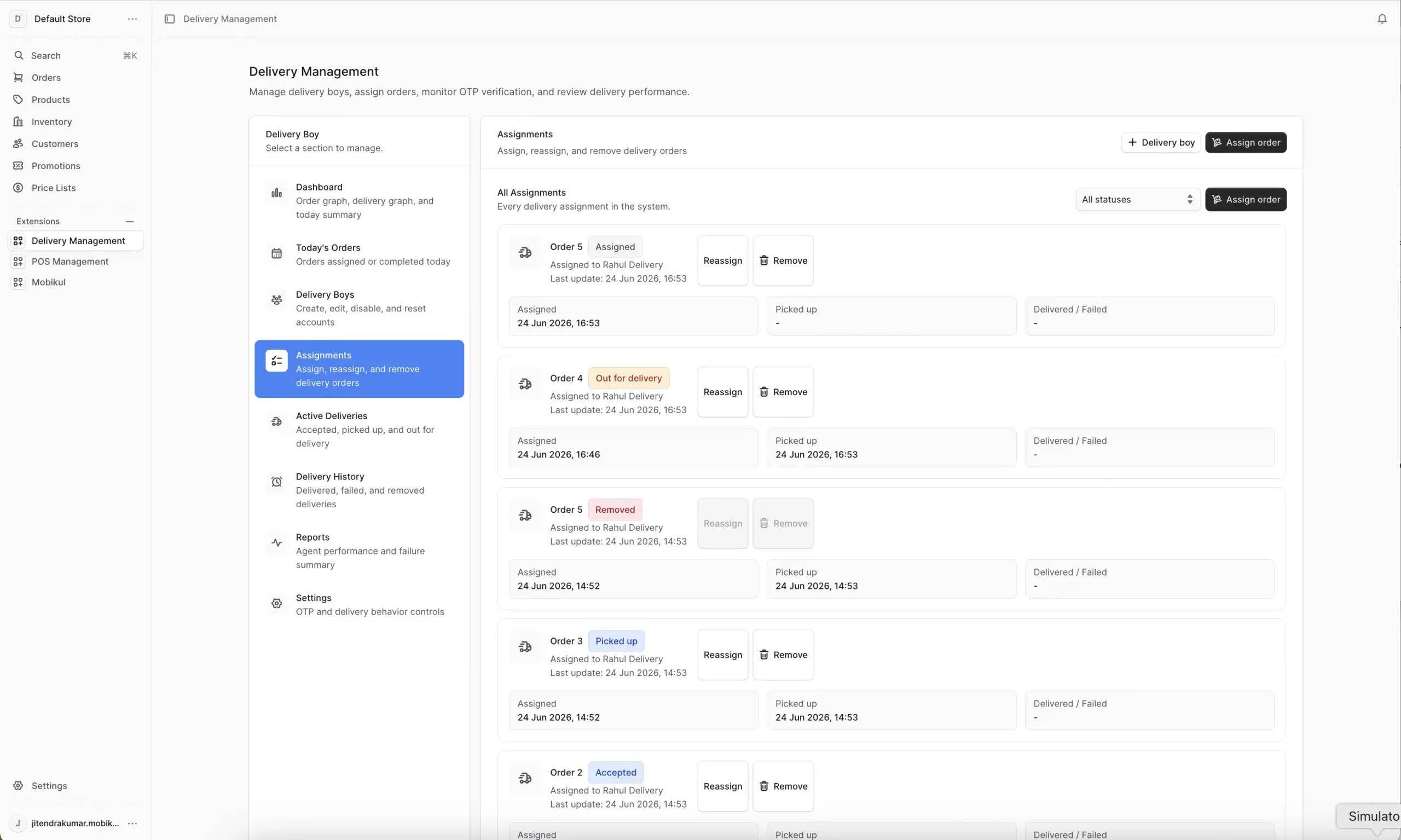
Assignments Overview
The Assignments section provides a complete view of all delivery-order assignments in the system.
Administrators can monitor assigned orders, reassign deliveries to different delivery boys, and remove assignments when required.
Features
- View all delivery assignments in one place.
- Track order assignment status and delivery progress.
- Reassign orders to another delivery boy.
- Remove delivery assignments when necessary.
- Filter assignments by delivery status.
- Review assignment timestamps and delivery activity.
Available Statuses
- Picked Up
- Out for Delivery
Benefits
- Centralized assignment management.
- Faster order reassignment process.
- Better visibility into delivery operations.
- Efficient tracking of delivery progress.
- Improved delivery workforce management.
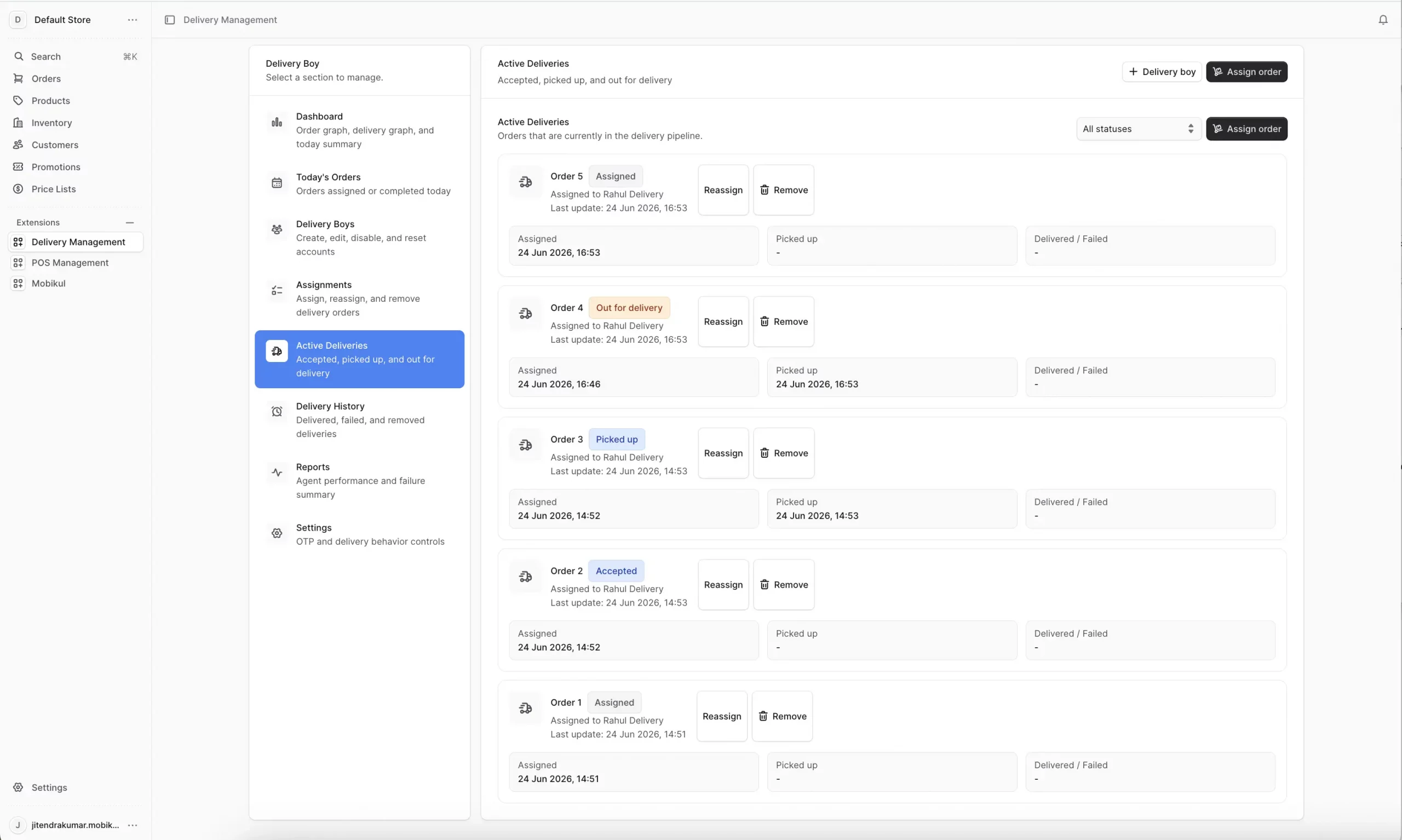
Active Deliveries Overview
The Active Deliveries section displays all orders that are currently in progress within the delivery workflow.
It helps administrators monitor ongoing deliveries, track delivery progress, and manage active assignments in real time.
Features
- View all active delivery orders in one place.
- Monitor delivery progress across different stages.
- Reassign active orders when required.
- Remove delivery assignments if necessary.
- Filter active deliveries by status.
- Track delivery activity and status updates.
Available Statuses
Benefits
- Real-time visibility into ongoing deliveries.
- Faster response to delivery issues.
- Improved delivery tracking and management.
- Better coordination between administrators and delivery boys.
- Enhanced operational efficiency for active orders.
Delivery History Overview
The Delivery History section provides a record of completed and closed delivery assignments.
Administrators can review delivered, failed, and removed orders, along with their delivery timelines and status updates.
Features
- View completed delivery records.
- Track delivered, failed, and removed orders.
- Review delivery timelines and activity history.
- View failure reasons for unsuccessful deliveries.
- Filter delivery history by status.
- Access historical delivery assignment information.
Available Statuses
Benefits
- Complete visibility into past delivery activities.
- Easy tracking of successful and unsuccessful deliveries.
- Faster identification of delivery issues and failure reasons.
- Improved delivery performance analysis.
- Better record keeping and operational auditing.
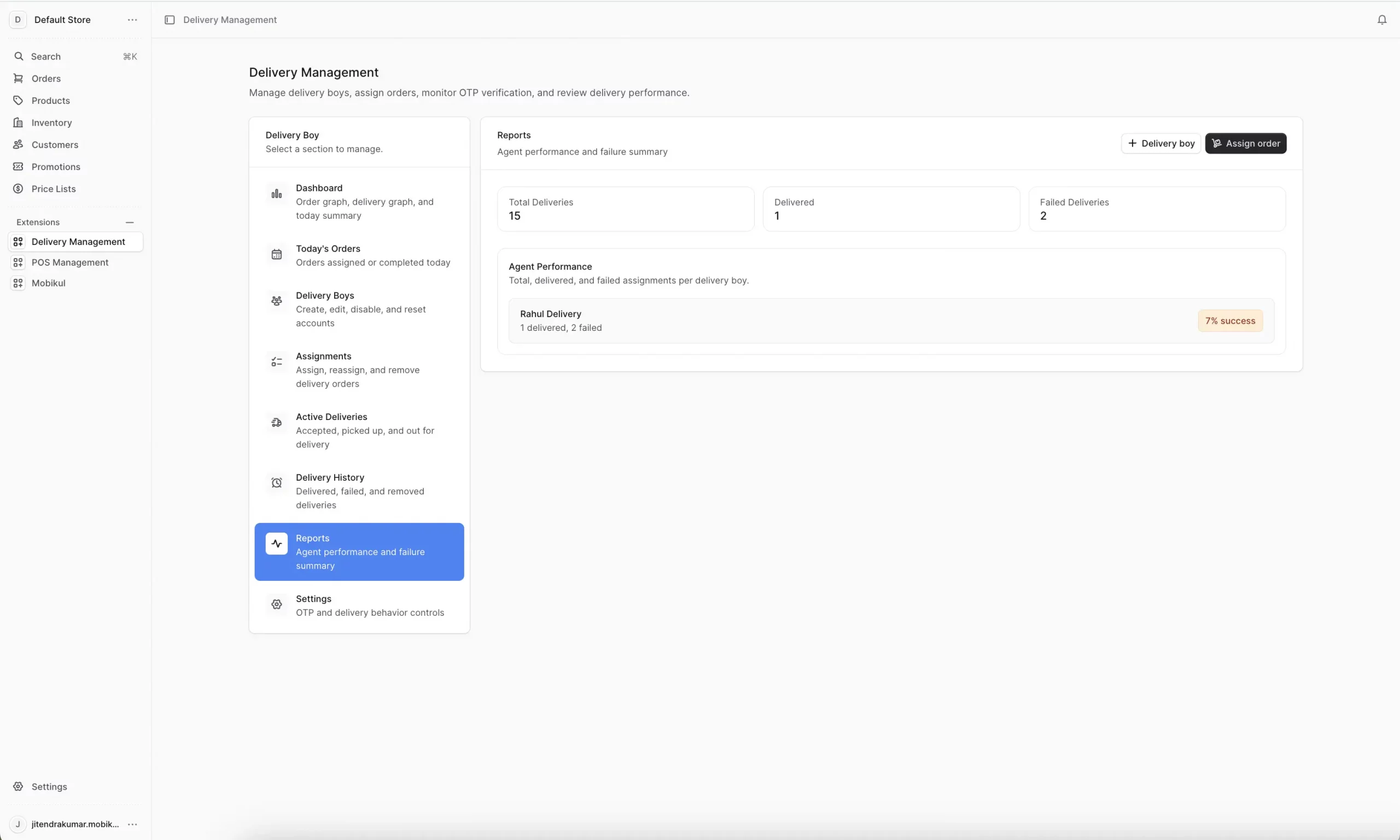
Reports Overview
The Reports section provides a quick overview of delivery performance, including total deliveries, successful deliveries, failed deliveries, and delivery boy efficiency.
Use this section to monitor agent performance and identify delivery issues.
Features:
- View total, delivered, and failed delivery counts.
- Track delivery boy performance and success rates.
- Analyze delivery completion and failure statistics.
- Identify agents with high or low delivery success rates.
Settings Overview
The Settings section allows administrators to configure OTP verification and delivery workflow rules.
These settings help control how delivery assignments and customer notifications are managed.
Features:
- Configure OTP length and expiration time (TTL).
- Enable or disable automatic order assignment.
- Allow delivery boys to reject assigned orders.
- Send customer notifications for delivery status updates.
- Require fulfilment creation before order assignment.
- Save and manage delivery workflow preferences.

Frontend Of NodeJS Food Delivery Application
Splash
The launching screen of the app can be amended from the code end, which will appear to the users as they open up the app.
Splash
The launching screen of the app can be amended from the code end, which will appear to the users as they open up the app.

NodeJS Food Delivery Application Overview
The Delivery Partner App enables riders to receive delivery assignments, manage active orders, update delivery statuses, and track delivery performance.
The NodeJS Food Delivery Application is integrated with Medusa Admin, where administrators create and manage rider accounts.
Sign In Screen
Access your delivery partner account and start receiving delivery assignments.
Steps
- Open the Delivery Partner App.
- Enter your registered Email Address.
- Enter your Password.
- Tap Sign In.
Login Screen Features
- Email Address – Enter your registered email.
- Password – Enter your account password.
- Show/Hide Password – Tap the eye icon to view or hide your password.
- Sign In Button – Logs you into the application.
Notes
- Rider accounts are created and managed by the administrator through Medusa Admin.
- Contact your administrator if you cannot access your account.
Frontend View


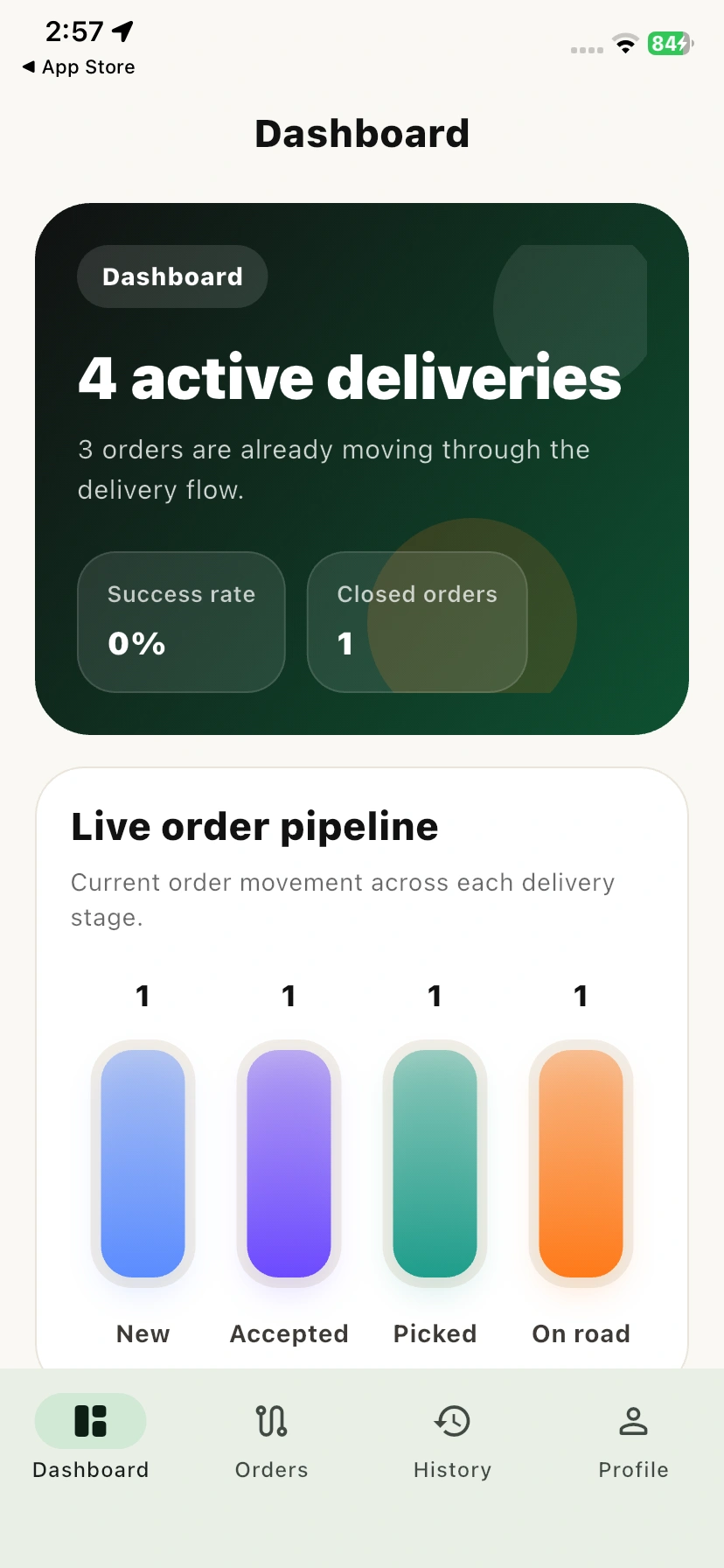
Dashboard Screen
Provides an overview of delivery activity and performance metrics.
- Dashboard Summary Card – The dashboard displays your current delivery status and performance information.
- Ready for Assigned Deliveries – Indicates that you are available and waiting for new delivery assignments.
- Success Rate – Shows the percentage of successfully completed deliveries.
- Closed Orders – Displays the total number of completed and closed delivery orders.
Live Order Pipeline
Track the current status of orders throughout the delivery process.
- New – Orders recently assigned and awaiting acceptance.
- Accepted – Orders that have been accepted by the delivery partner.
- Picked – Orders collected from the store or restaurant and ready for delivery.
- On Road – Orders are currently being delivered to the customer.
Note:-> Each stage displays the number of orders currently in that status.
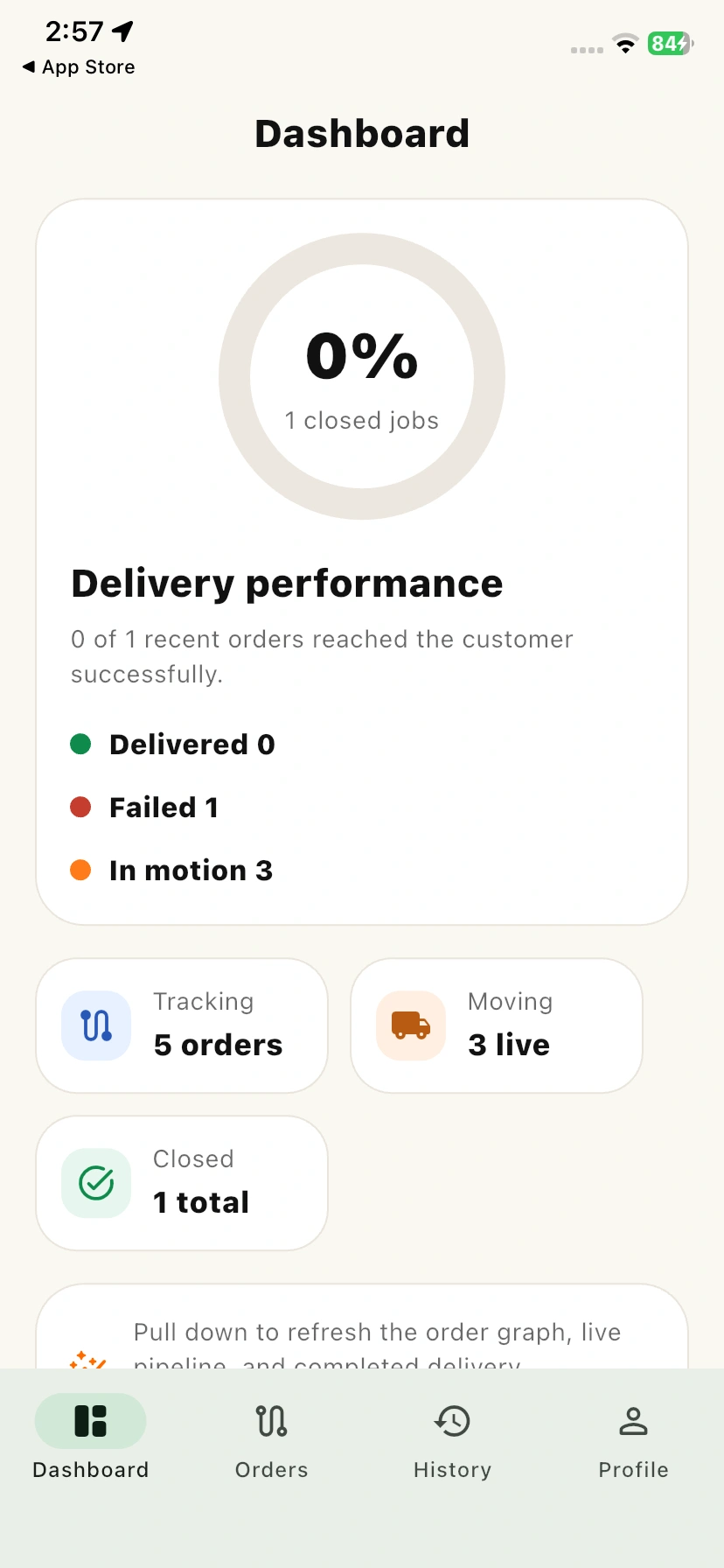
Delivery Performance
- Displays the overall delivery success rate of the delivery agent.
- Provides a summary of delivered, failed, and in-progress orders.
- Helps agents monitor their delivery efficiency and performance.
- Updates automatically based on recent delivery activities.
Tracking Orders
- Shows the total number of orders currently assigned to the delivery agent.
- Enables agents to monitor active deliveries from a centralized dashboard.
- Provides quick visibility into ongoing delivery tasks.
Moving Orders
- Displays the number of orders that are currently out for delivery.
- Helps agents track deliveries that are actively being fulfilled.
- Provides real-time insight into orders that are in transit.
Closed Orders
- Shows the total number of completed delivery orders.
- Helps agents review successfully finished deliveries.
- Provides a quick summary of completed delivery performance.
Frontend View
Orders Screen
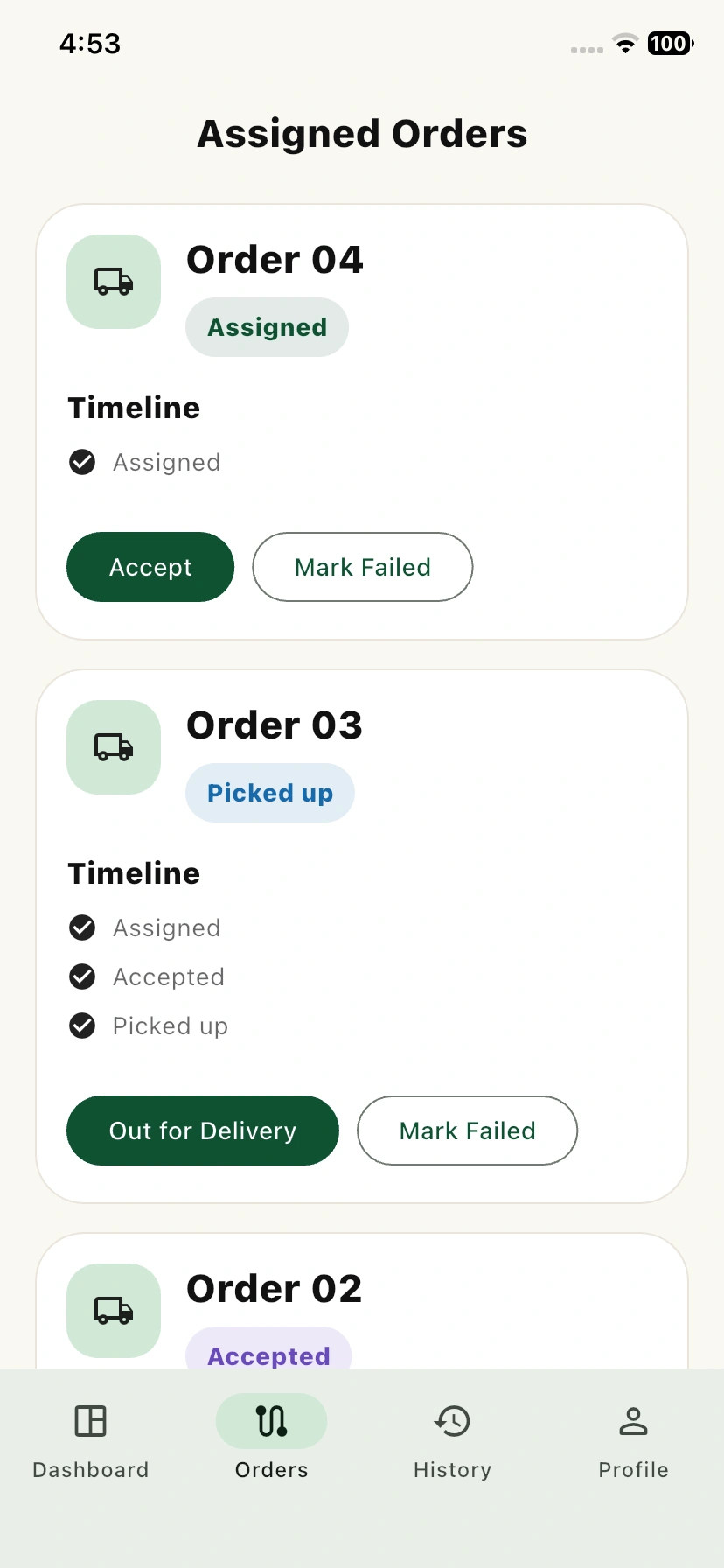
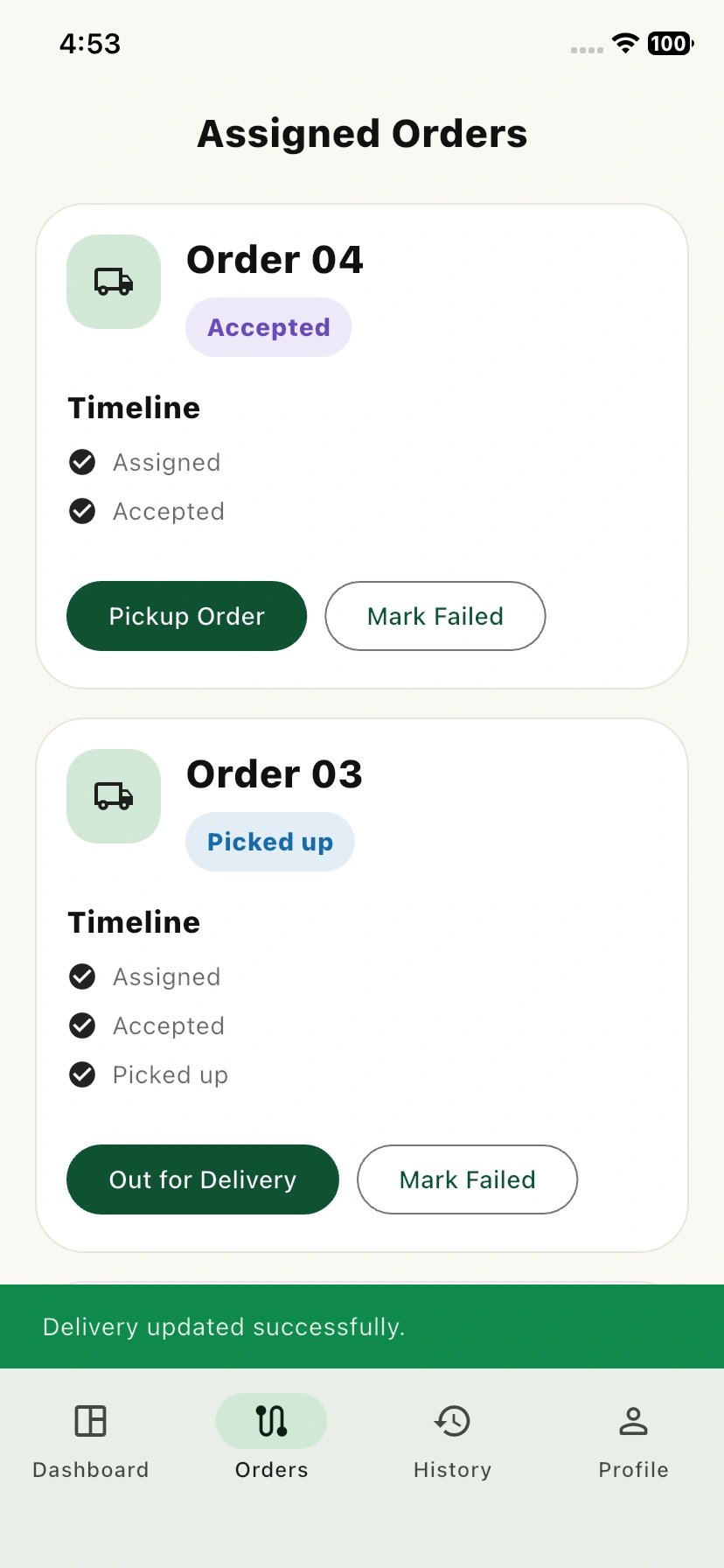
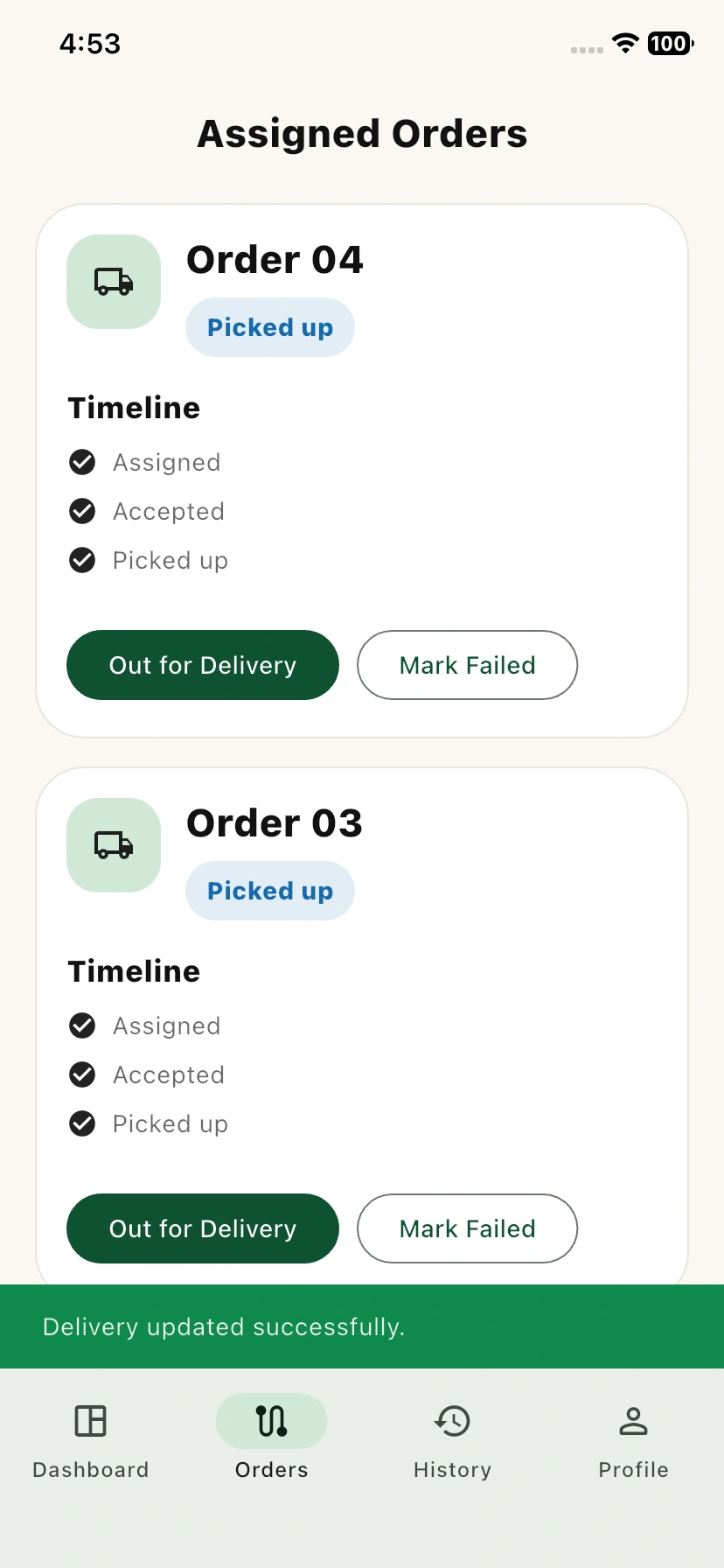
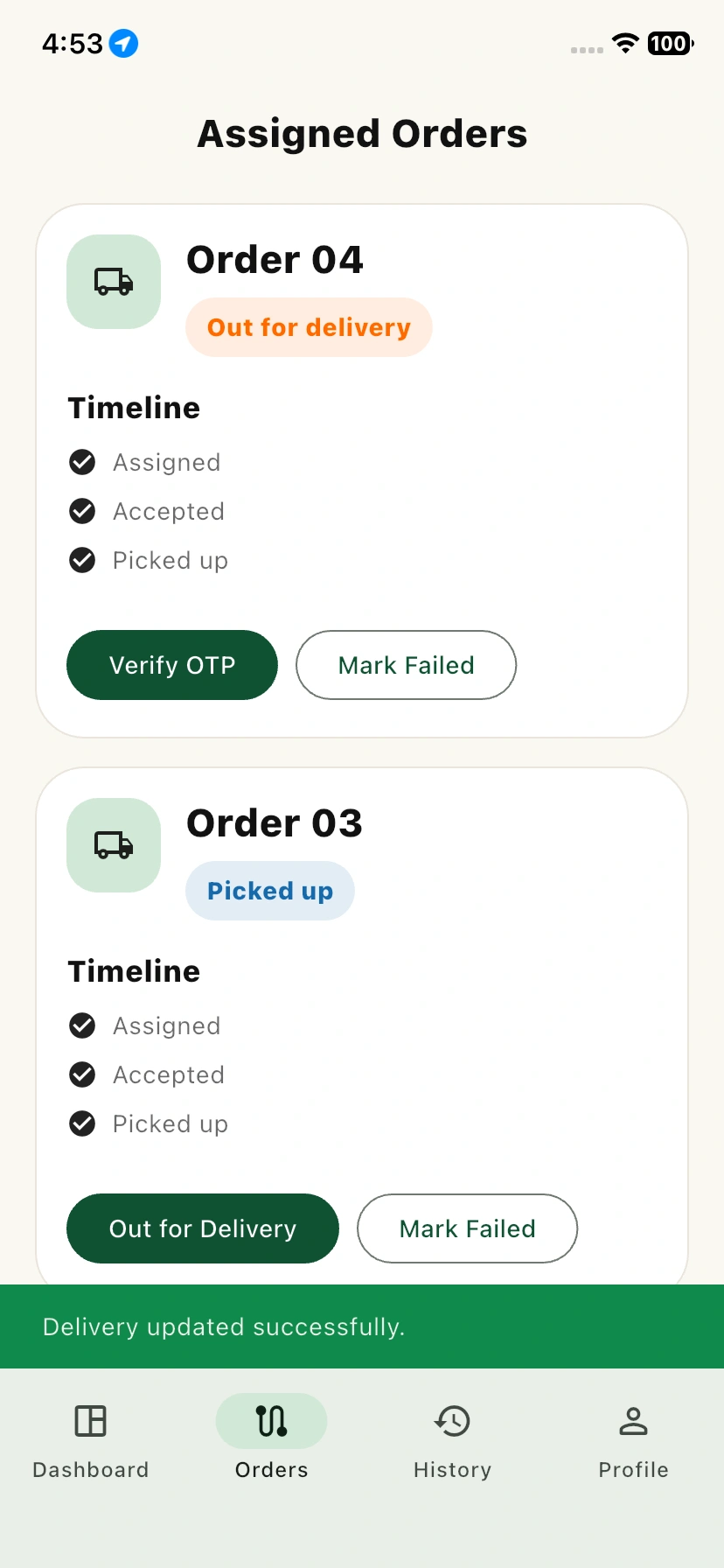
The Assigned Orders section displays all delivery tasks assigned to the delivery agent.
Each order includes its current delivery status, timeline, and available actions.
Delivery agents can manage the complete delivery workflow from a single screen, including accepting orders, picking up packages, and updating delivery progress.
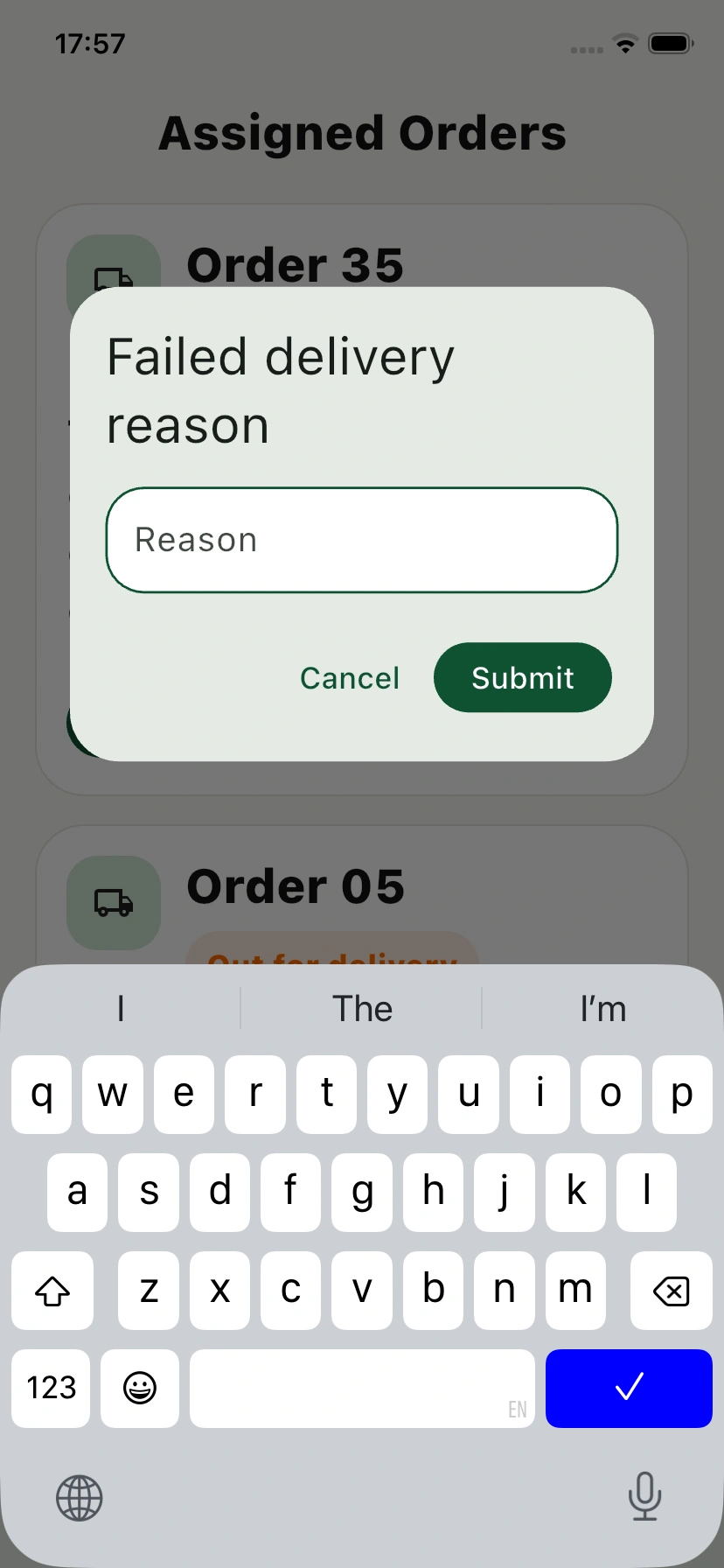
They can also verify delivery OTPs and mark orders as failed whenever delivery cannot be completed.
Order Acceptance
When a new order is assigned, it appears in the Assigned Orders list with an Accept button.
Delivery agents can review the order and accept the assignment to begin the delivery process.
If the delivery cannot be completed, the order can be marked as failed with an appropriate reason.
Pickup Confirmation
After an order has been accepted, the Pickup Order button becomes available.
Delivery agents can use this action to confirm that the package has been collected from the store, warehouse, or pickup location.
This status update ensures accurate order tracking and visibility for administrators.
Out for Delivery
Once the package has been picked up, the Out for Delivery button is displayed.
Delivery agents can update the order status to indicate that the shipment is currently in transit to the customer.
This helps keep customers informed about the progress of their delivery.
OTP Verification
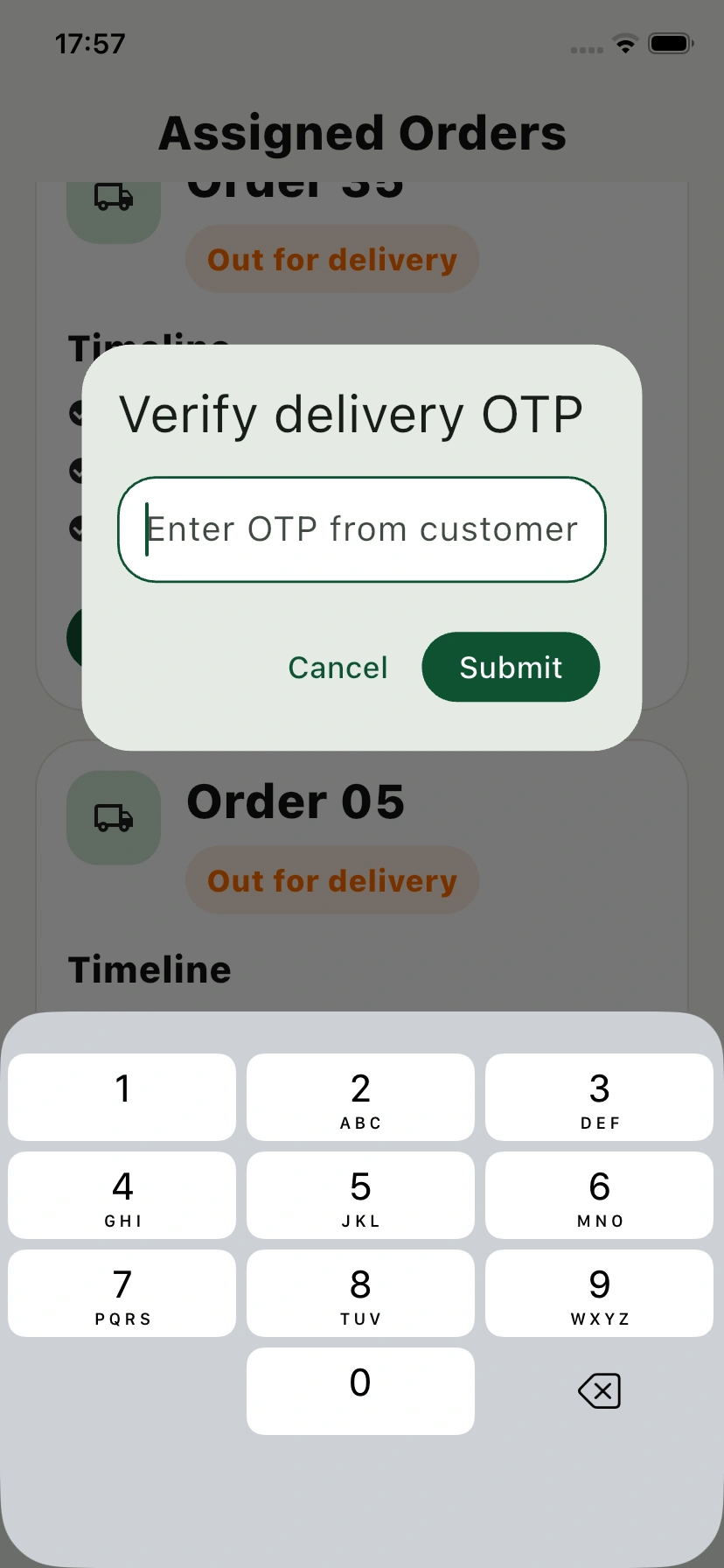
After reaching the delivery destination, the Verify OTP button becomes available.
Tapping this button opens an OTP verification pop-up where the delivery agent can enter the OTP provided by the customer.
Once the OTP is successfully verified, the order is marked as delivered, ensuring secure and accurate delivery confirmation.
Mark Failed
At every stage of the delivery process, delivery agents have the option to mark an order as failed if the delivery cannot be completed.
This action helps maintain accurate delivery records and allows administrators to review failed delivery attempts.
Frontend View
Order Details Screen
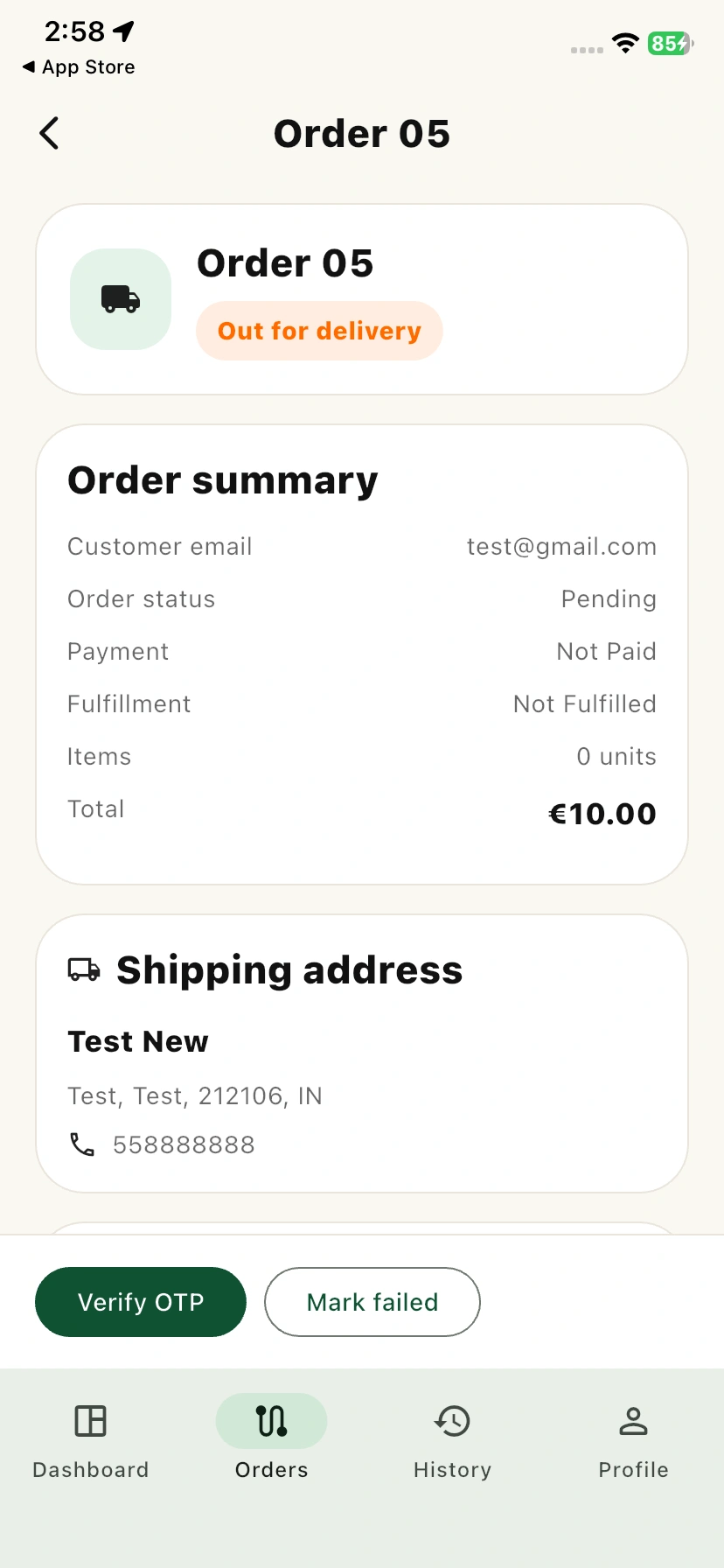
The Order Details page provides complete information about a delivery order, including customer details, delivery address, ordered products, and payment information.
It also allows delivery agents to track delivery progress and manage the entire delivery process from a single screen.
Order Summary
The Order Summary section displays key order information, including customer email, order status, payment status, fulfilment status, total items, and order value.
This helps delivery agents quickly understand the current state of the order before proceeding with delivery.
Shipping Address
The Shipping Address section contains the customer’s delivery location, including the recipient’s name, address, and contact number.
Delivery agents can use this information to accurately reach the delivery destination.
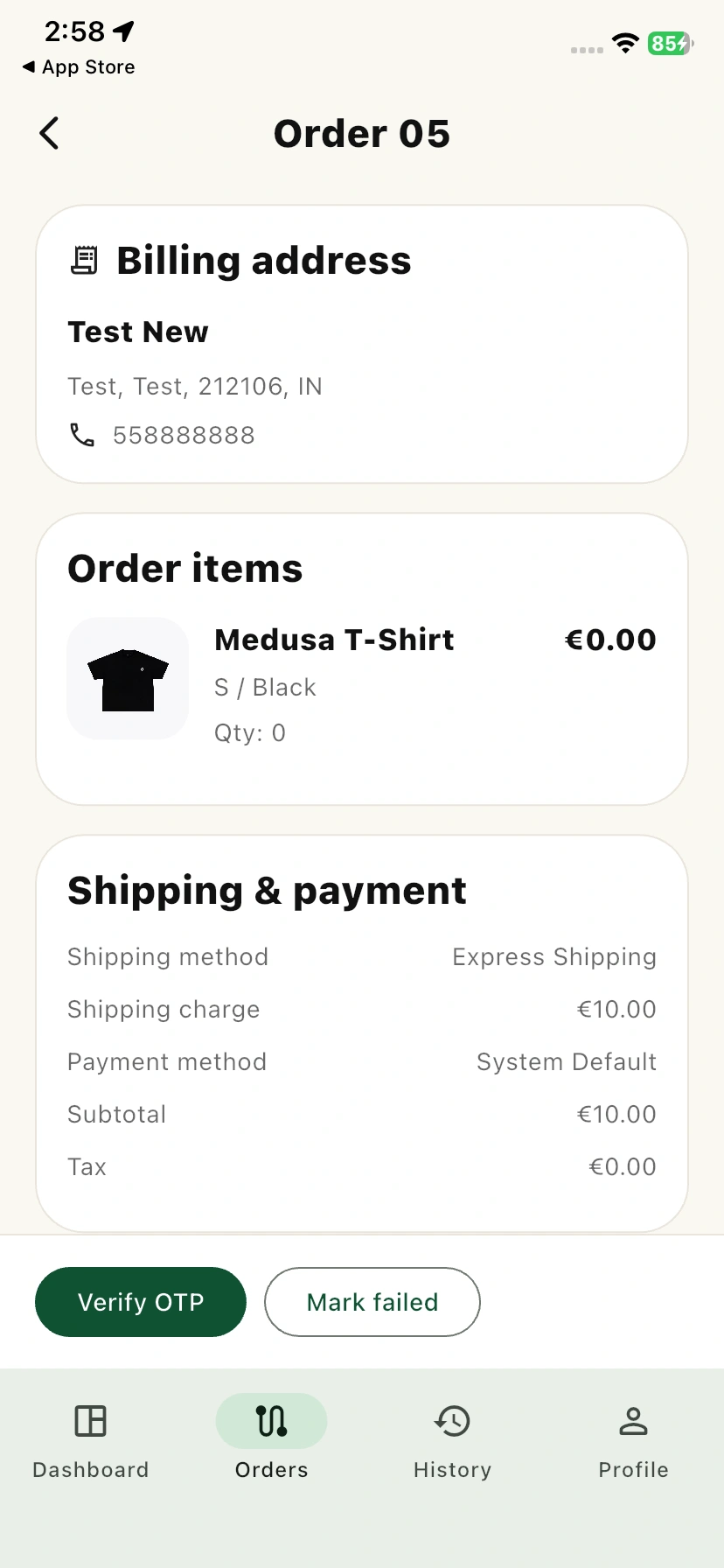
Billing Address
The Billing Address section displays the billing information associated with the order.
This information is useful for reference and helps ensure that customer details are recorded correctly.
Order Items
The Order Items section lists all products included in the order along with their quantity, selected variants, and pricing details.
Delivery agents can review the items before handing them over to the customer.
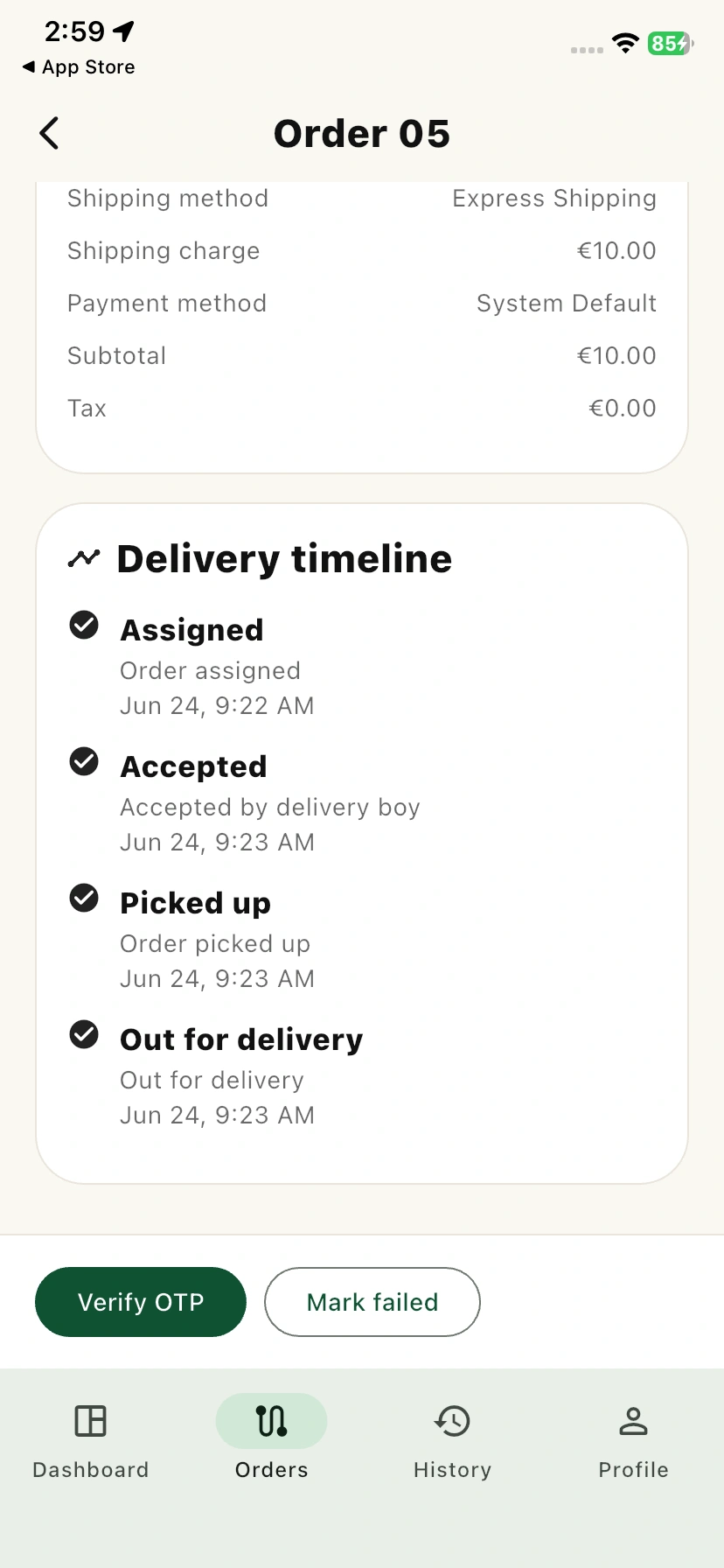
Shipping & Payment Details
The Shipping & Payment Details section provides information about the selected shipping method, shipping charges, payment method, subtotal, taxes, and total order amount.
This gives delivery agents complete visibility into the order’s payment and shipping information.
Delivery Timeline
The Delivery Timeline displays each stage of the delivery process, including order assignment, acceptance, pickup, and out-for-delivery updates.
Each status is recorded with a timestamp, allowing delivery agents and administrators to track the order’s progress accurately.
Frontend View
Delivery Timeline
The Delivery Timeline displays each stage of the delivery process, including order assignment, acceptance, pickup, and out-for-delivery updates.
Each status is recorded with a timestamp, allowing delivery agents and administrators to track the order’s progress accurately.
History Screen
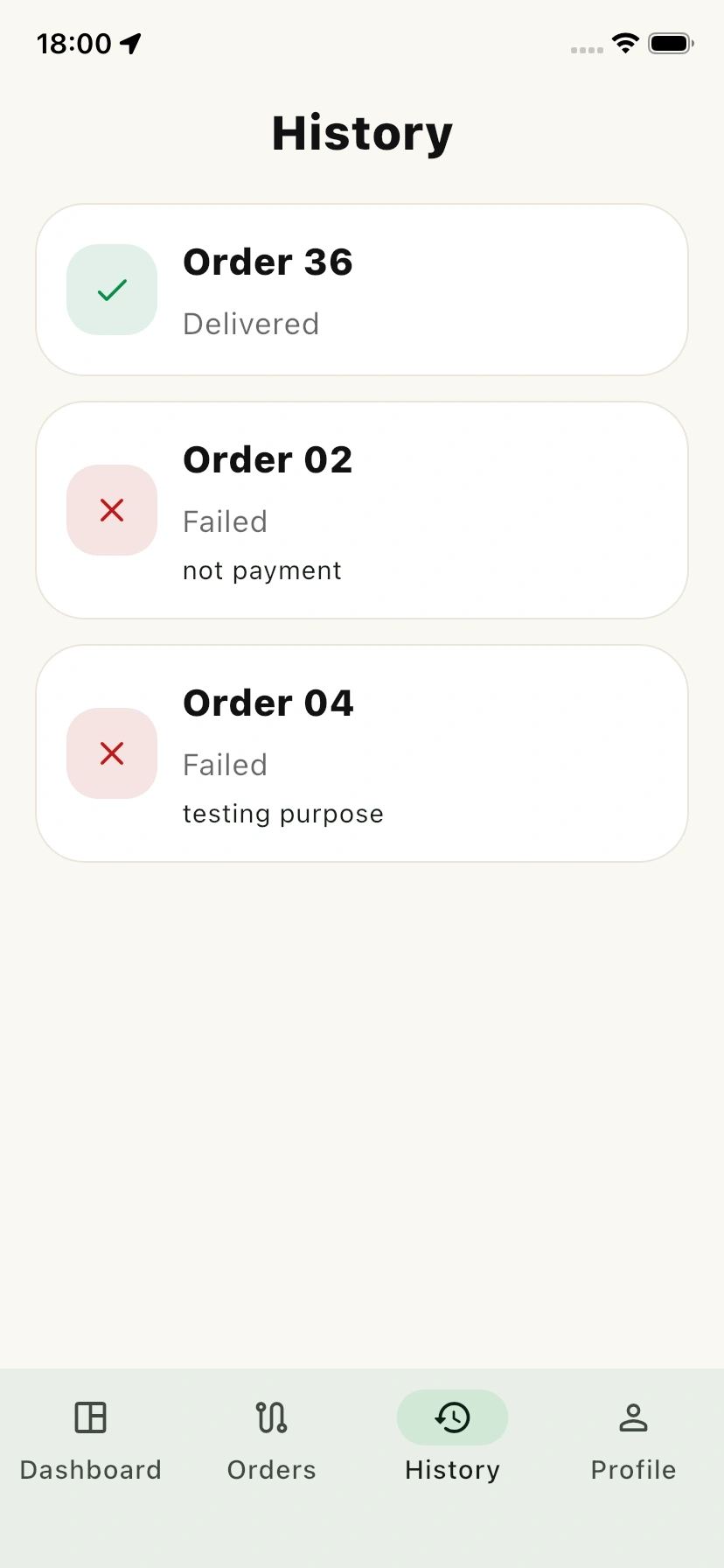
The Delivery History section provides a complete record of all delivery activities performed by the delivery agent.
Orders are organized based on their final status, making it easy to review completed deliveries, failed attempts, and removed assignments.
Delivered Orders
Displays all successfully completed deliveries. Agents can review delivered orders, verify delivery information, and access the full order history for reference.
Failed Orders
Shows orders that could not be completed due to reasons such as customer unavailability, incorrect address details, OTP verification failure, or other delivery issues.
Agents can review failure information for each order.
Removed Orders
Lists orders that were removed from the delivery agent’s assignment before completion. This helps maintain a record of reassigned or cancelled delivery tasks.
Order Details and Tracking
Tapping any order in the History list opens the Order Details screen, where delivery agents can view complete order information.
This includes customer details, delivery status, ordered items, delivery addresses, payment information, and the complete delivery timeline.
This allows agents to track the entire delivery journey even after the order has been completed, failed, or removed.
Frontend View
History Screen
The Delivery History section maintains a record of completed, failed, and removed deliveries, allowing agents to review past delivery activities and performance.
Profile Screen
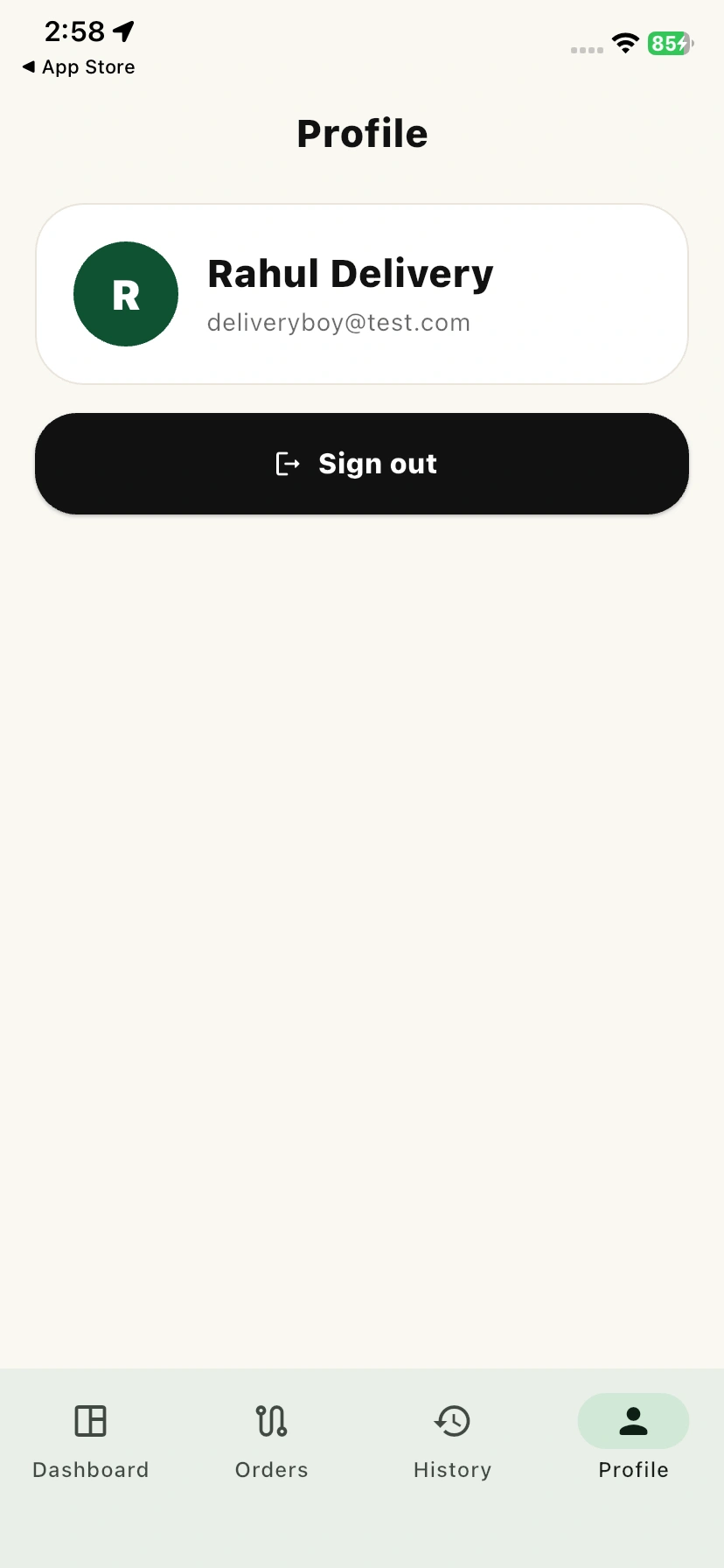
The Profile screen allows delivery agents to view their account information and securely sign out of the application when required.
Frontend View
Profile Screen
The Profile screen allows delivery agents to view their account information and securely sign out of the application when required.
Conclusion
The NodeJS Food Delivery Application User Guide provides everything needed to manage delivery operations efficiently, from delivery boy management and order assignments to delivery tracking.
It also helps administrators configure delivery settings and streamline the complete delivery workflow.
By following this guide, administrators can streamline delivery workflows, improve operational efficiency, and ensure a smooth delivery experience for both delivery agents and customers.
If you still have any issues, feel free to add a ticket and let us know your views to make the module better

PakarPBN
A Private Blog Network (PBN) is a collection of websites that are controlled by a single individual or organization and used primarily to build backlinks to a “money site” in order to influence its ranking in search engines such as Google. The core idea behind a PBN is based on the importance of backlinks in Google’s ranking algorithm. Since Google views backlinks as signals of authority and trust, some website owners attempt to artificially create these signals through a controlled network of sites.
In a typical PBN setup, the owner acquires expired or aged domains that already have existing authority, backlinks, and history. These domains are rebuilt with new content and hosted separately, often using different IP addresses, hosting providers, themes, and ownership details to make them appear unrelated. Within the content published on these sites, links are strategically placed that point to the main website the owner wants to rank higher. By doing this, the owner attempts to pass link equity (also known as “link juice”) from the PBN sites to the target website.
The purpose of a PBN is to give the impression that the target website is naturally earning links from multiple independent sources. If done effectively, this can temporarily improve keyword rankings, increase organic visibility, and drive more traffic from search results.