ShipIT-Farm’s Odoo GLS Shipping Integration helps users manage shipping tasks directly within Odoo. Additionally, users can easily create shipments, create labels, track shipments, and manage shipping orders.
This module also helps users apply shipping costs to sales orders using shipping price rules. Users can manage shipping processing through a single workflow in Odoo.
- GLS ShipIT-Farm Carrier integration to manage shipping services directly from Odoo shipping methods.
- Shipping Pricing Rules Support for automatic shipping cost calculation on sales orders.
- Direct Delivery Creation of delivery orders without using an external delivery platform.
- Automatic Delivery Label creation after successful delivery creation within Odoo.
- Real Time Delivery Tracking with tracking reference and delivery status updates.
- Delivery Order Tracking details are available directly from the delivery note in Odoo.
- One-Click Delivery Cancellation before delivery processing begins with the carrier.
- Centralized Shipping Management for shipping, labels, tracking and delivery operations.
- Seamless ShipIT-Farm GLS API integration for automated shipping workflows within Odoo.
- Once you purchase the App from the Webkul store, you will receive a link to download it zip module submit.
- Extract the files on your system once the download is complete. As a result, you will be able to see a folder named- ‘gls_shipit_farm_delivery_carrier‘.
- Copy and paste this folder inside your folder Odoo Add-ons Path.
- Now, open the Odoo Application and click on the Settings menu. Here, click Enable Developer Mode.
- Then, open the Application menu and click ‘Update Module List.’
- In the search bar, clear all filters and search for ‘gls_shipit_farm_delivery_carrier‘.
- You will be able to see the module in the search results. Click on ‘Activate‘ to install it.
Configuration of Odoo GLS ShipIT-Farm Shipping Integration
1. First, go to Inventory → Configuration → Shipping Methods. Then, open the GLS ShipIT-Farm shipping method and move to the GLS Credentials section in Odoo.
Next, enter the GLS Contact ID, GLS Secret ID, and GLS Client ID. After that, select the required integration options and save the settings to connect GLS ShipIT-Farm with Odoo.
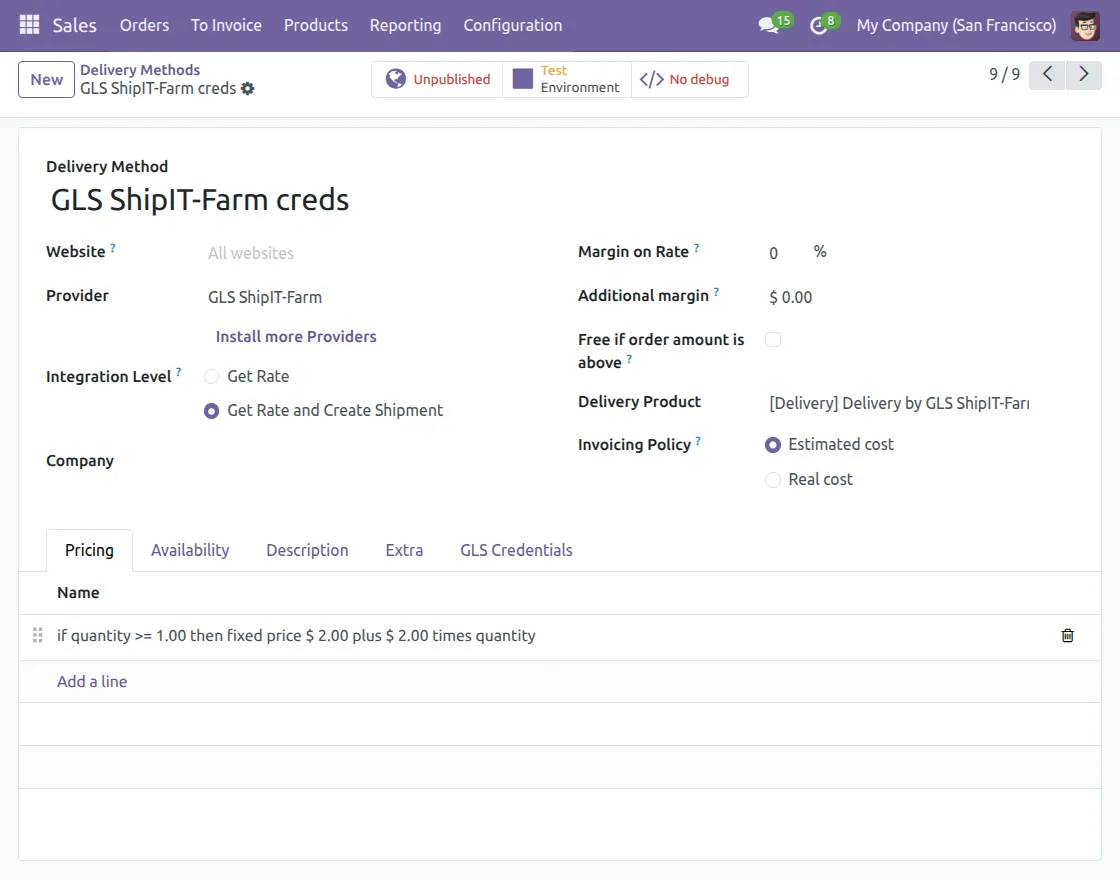
2. Go to the Prices section in the GLS ShipIT-Farm shipping method to configure shipping price rules within Odoo.
Add pricing rules based on quantity, weight, price, or other conditions to automatically calculate ShipIT-Farm GLS shipping costs during order processing.
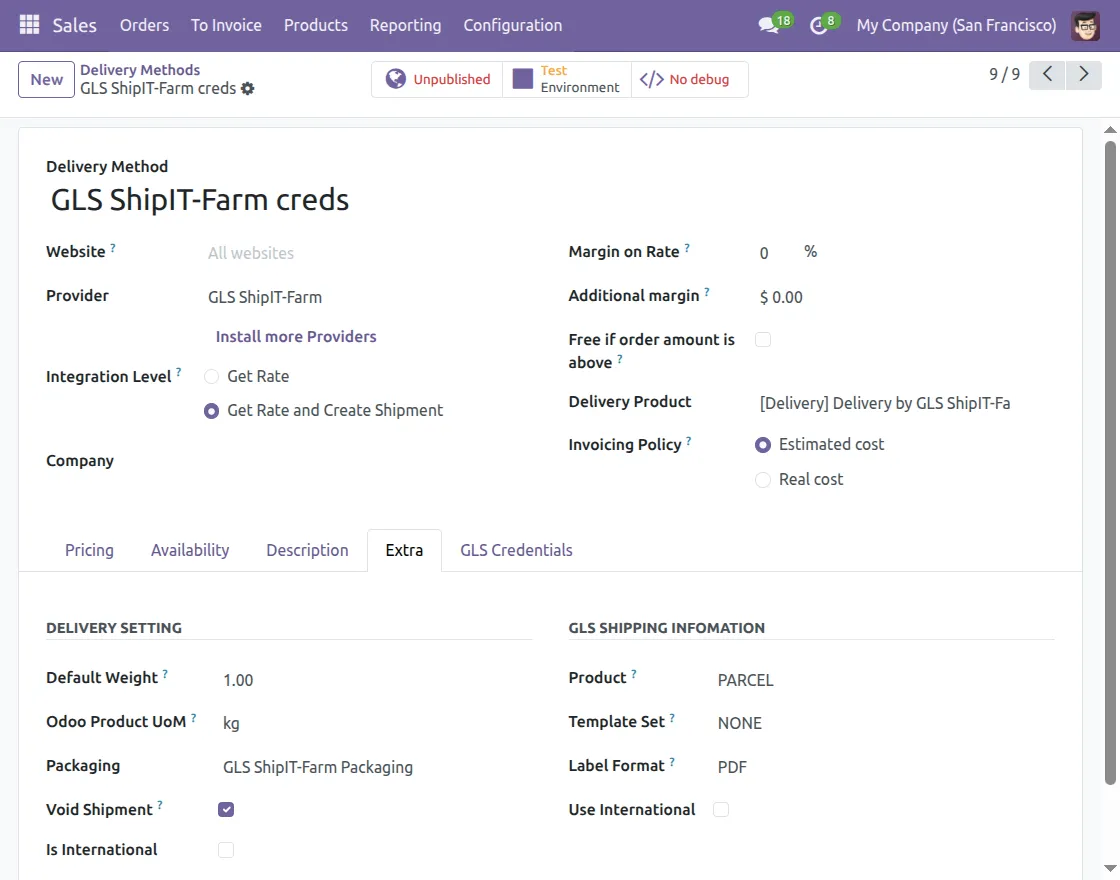
3. Go to the Extras section in GLS ShipIT-Farm shipping methods and configure the necessary shipping settings within Odoo.
Set default weight, package type, label format, international shipping options, and other shipping settings, then save the configuration for shipping processing.
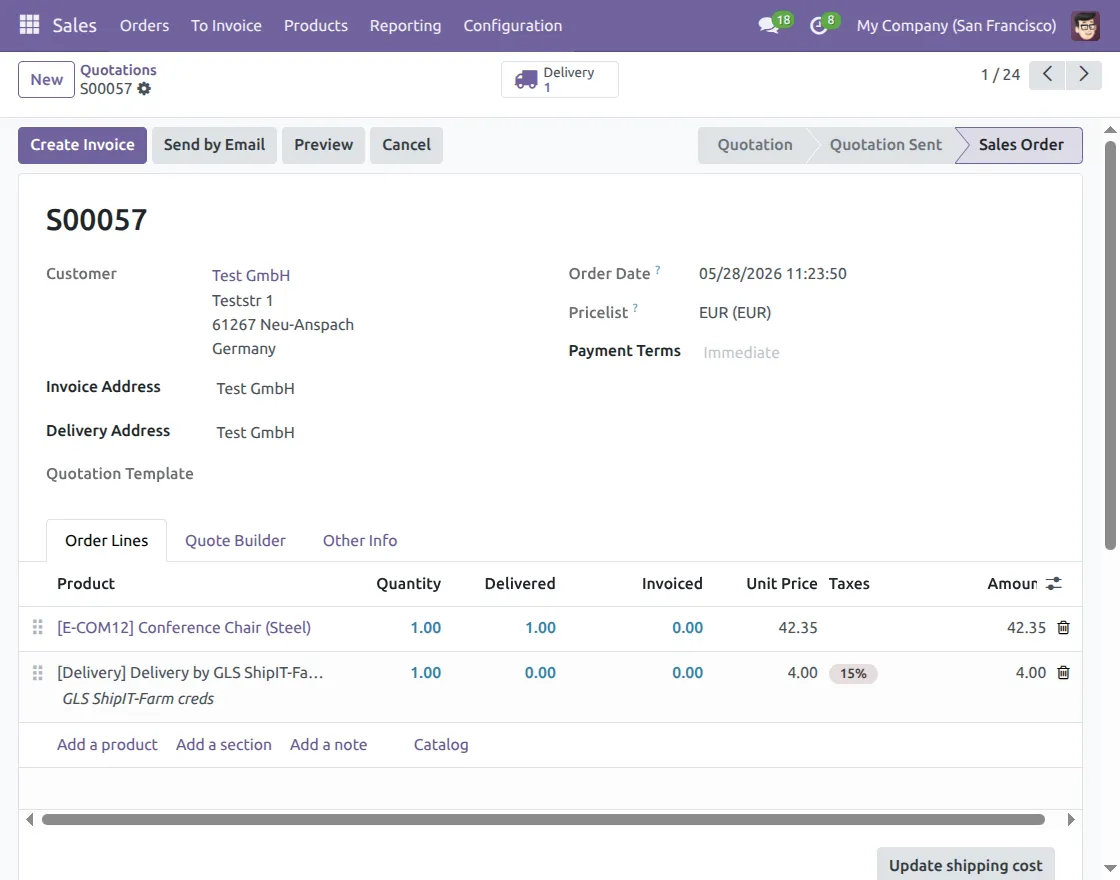
4. Click Add Shipping in the sales order and select Credibility of GLS ShipIT-Farm as a delivery method in Odoo.
Click Get Rates to automatically calculate shipping costs from shipping pricing rules, then click Add to apply shipping costs to the order.

5. After adding the GLS ShipIT-Farm shipping costs, click Confirming to confirm sales orders in Odoo.
As a result, a shipping order is created automatically with the GLS ShipIT-Farm shipping method and detailed shipping costs are calculated.
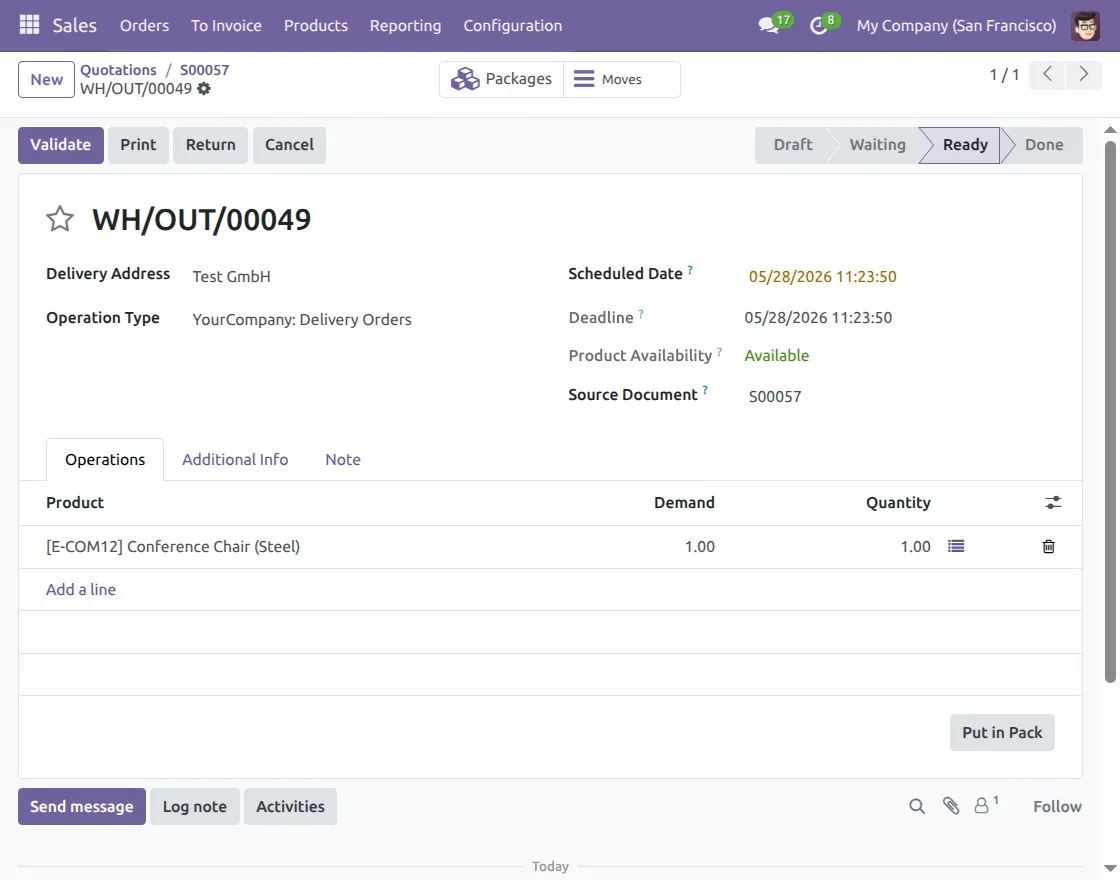
6. Open a delivery order in Odoo and click Put it in the package to add package details for shipping.
Select the GLS ShipIT-Farm package type, add shipping weight and package dimensions, then click Keep to continue the delivery process.

7. Open a shipping order in Odoo to manage the GLS ShipIT-Farm shipping process within the system.
Users can review delivery information, product quantities, operation details, and delivery data before validating a delivery in Odoo.
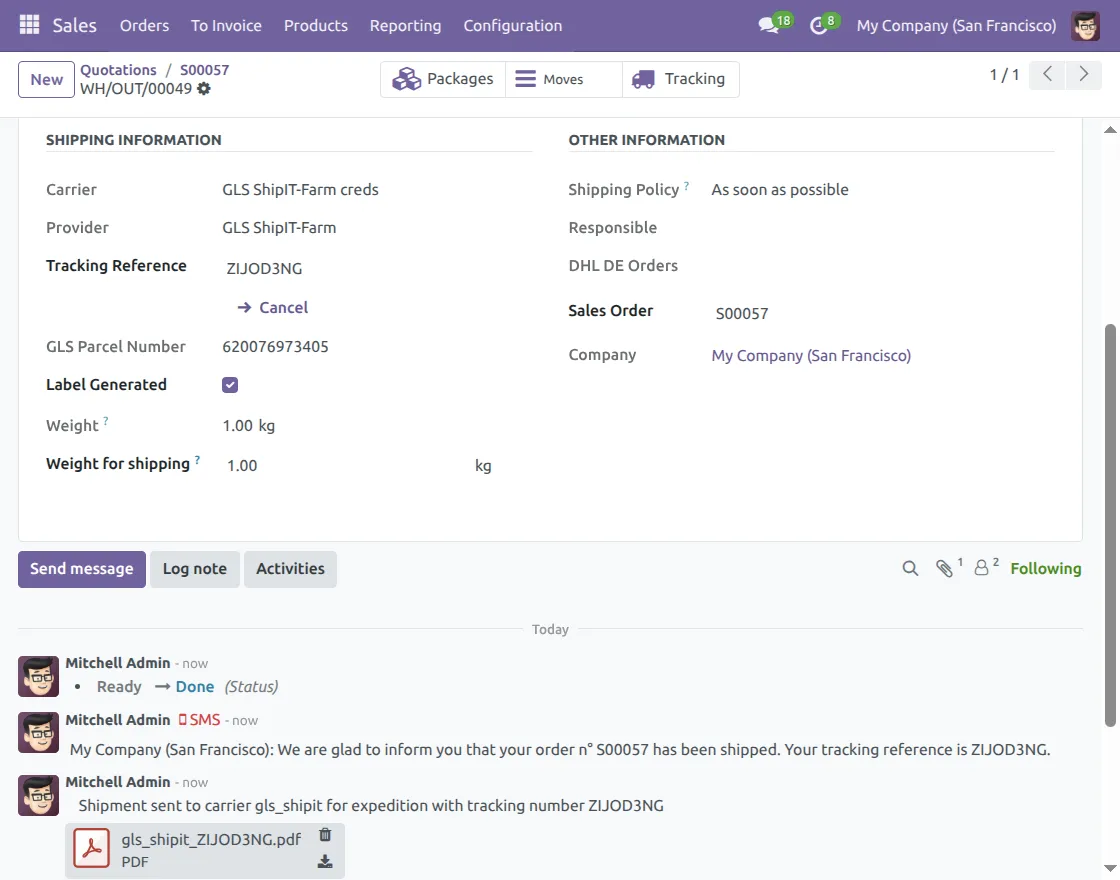
8. After shipment creation, open the shipping order to view ShipIT-Farm GLS tracking details within Odoo.
Additionally, users can check tracking references, GLS package numbers, shipping status, and generated label information directly from the shipping details section.

9. After shipping creation, a shipping label is automatically generated in the shipping order in Odoo.
Additionally, users can download GLS ShipIT-Farm shipping labels directly from the shipping note for packaging and shipping operations.
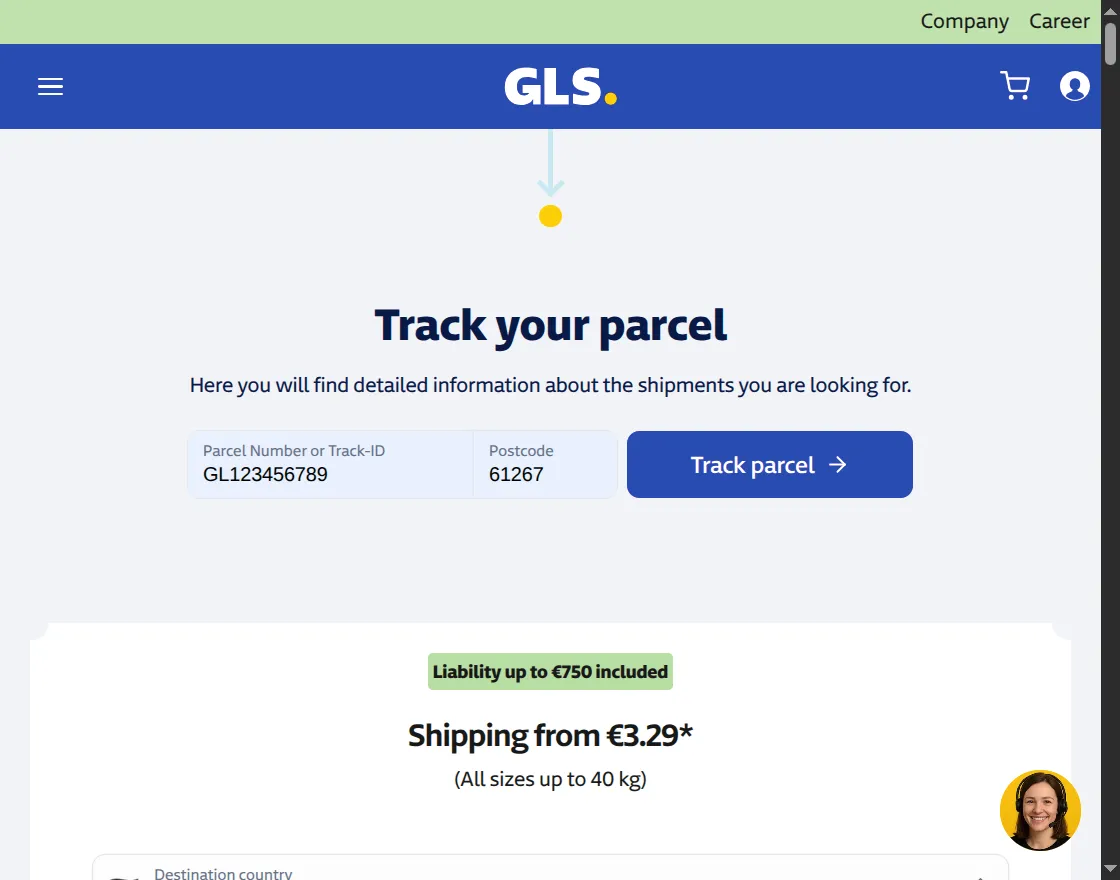
10. Users can also track GLS ShipIT-Farm shipments directly from the GLS tracking portal using the shipping tracking number and postal code details.
Additionally, the GLS tracking page displays live delivery status and delivery tracking updates for selected shipments.
11. Click the Cancel option from the shipping order to stop shipping GLS ShipIT-Farm before further shipping processes begin.
A confirmation pop-up appears before sending cancellation. Click Ok to cancel the delivery and update the delivery status within Odoo.
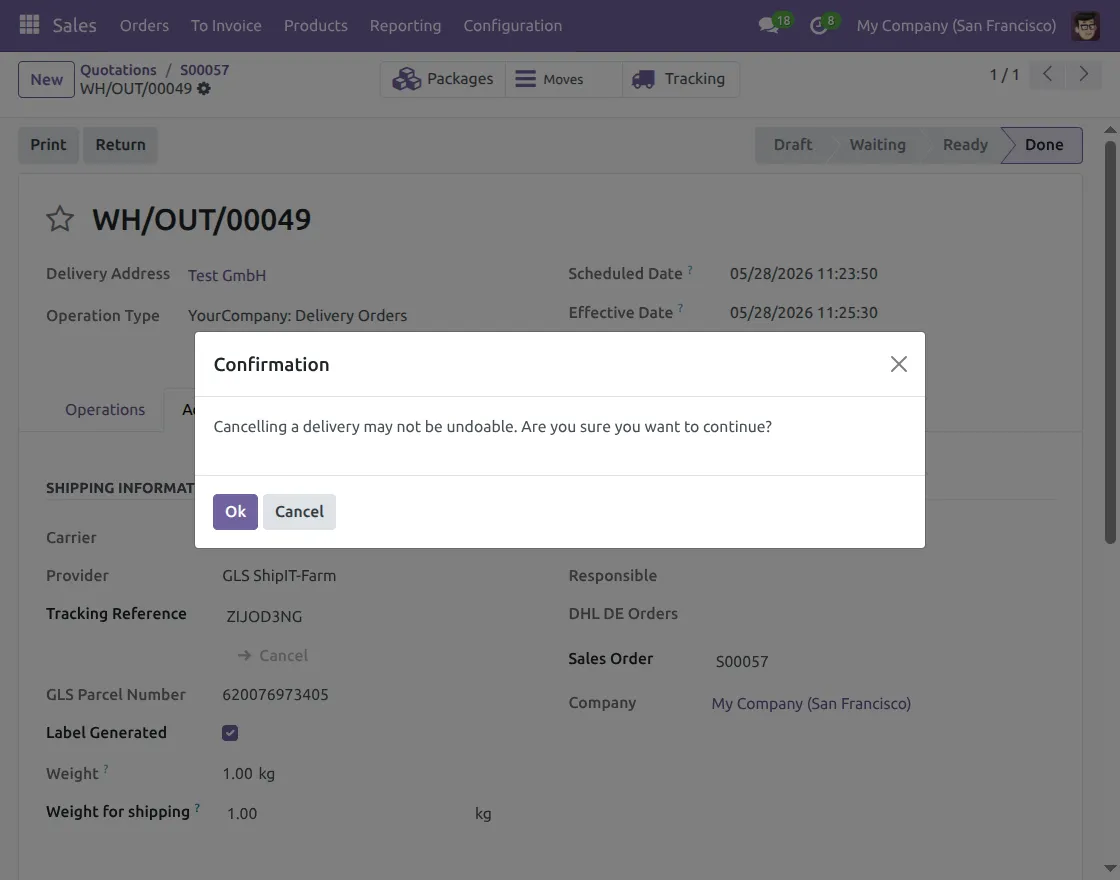
12. After cancellation of delivery, the module automatically updates the delivery status within Odoo. Additionally, it shows delivery cancellation details directly in the delivery order.
Users can also view delivery cancellation messages and update delivery notes directly from the delivery chat section.

We hope this guide is useful for you! Please share your feedback in the comments below.
If you still have problems/questions, please create a ticket at UV Desk.
I hope this helps. If you have further questions, contact us on our support mail.
Thank you for noticing!!
Current Product Version – 1.0.0
Supported Framework Versions – ODOO 17, 18, 19

PakarPBN
A Private Blog Network (PBN) is a collection of websites that are controlled by a single individual or organization and used primarily to build backlinks to a “money site” in order to influence its ranking in search engines such as Google. The core idea behind a PBN is based on the importance of backlinks in Google’s ranking algorithm. Since Google views backlinks as signals of authority and trust, some website owners attempt to artificially create these signals through a controlled network of sites.
In a typical PBN setup, the owner acquires expired or aged domains that already have existing authority, backlinks, and history. These domains are rebuilt with new content and hosted separately, often using different IP addresses, hosting providers, themes, and ownership details to make them appear unrelated. Within the content published on these sites, links are strategically placed that point to the main website the owner wants to rank higher. By doing this, the owner attempts to pass link equity (also known as “link juice”) from the PBN sites to the target website.
The purpose of a PBN is to give the impression that the target website is naturally earning links from multiple independent sources. If done effectively, this can temporarily improve keyword rankings, increase organic visibility, and drive more traffic from search results.