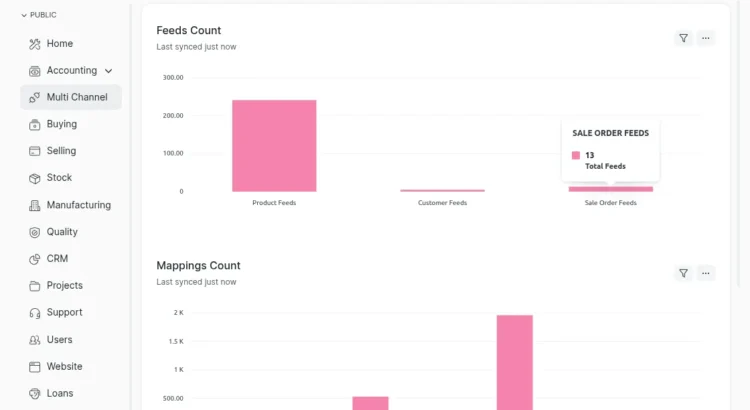
ERPNext Multi-Channel Magento 2 Connector enables seamless integration between Magento 2 and ERPNext to automate the synchronization of products, categories, customers, attributes, and sales orders.
This connector ensures both platforms stay updated in real-time, minimizing manual effort and reducing data inconsistencies.
With this module, businesses can simplify catalog management, inventory updates, and order processing operations between Magento and ERPNext.
This integration helps improve efficiency, accuracy, and overall management of multichannel workflows.
Prerequisites for using ERPNext Multi Channel Magento 2 Connector
ERPNext Multi Channel Magento 2 Connector works in conjunction with the following modules:
You have to install the above-mentioned modules to use ERPNext Multi Channel Magento 2 Connector.
- Import Categories from Magento to ERPNext. Quickly sync all Magento categories to ERPNext to maintain the same catalog structure.
- Import & Update Attributes, Attribute Values and Attribute Sets. Retrieve and update Magento attributes, values, and sets to ensure correct product variant configuration.
- Simple & Configurable Product Import with Mappings. Simple/configurable product imports from Magento and automatically map them to ERPNext items.
- Import & Update Customer Records. Sync Magento customers to ERPNext with automatic updates for profile changes.
- Import Sales Orders with Status Based Evaluation. Bring Magento orders to ERPNext while evaluating each order based on its status.
- Automatic Order Status Sync (ERPNext → Magento). Automatically update Magento order status based on ERPNext workflow changes.
- Automatic Stock Update (ERPNext → Magento). Sync stock levels from ERPNext to Magento in real time to avoid overselling.
- Automatic Feed Evaluation. Automatically process imported feeds (products, customers, orders) and convert them into ERPNext records.
- Export Categories, Attributes & Products from ERPNext to Magento. Push ERPNext products, categories, and attributes to Magento for seamless two-way synchronization.
- Once you purchase the App from the Webkul store, you will receive a link to download it zip module submit.
- Extract the files on your system once the download is complete. As a result, you will be able to see a folder named- ‘magento2x_erpnext_connector‘
- Copy and paste this folder inside your folder Odoo Add-ons Path.
- Now, open the Odoo Application and click on the Settings menu. Click Enable Developer Mode here.
- Then, open the Application menu and click ‘Update Module List.’
- In the search bar, clear all filters and search for ‘magento2x_erpnext_connector.‘
- You will be able to see the module in the search results. Click on ‘Activate‘ to install it.
1. Module Dashboard: Shows an overview of synced items such as products, orders, and customers. Helps quickly monitor sync performance.
Multi-Channel → Dashboard
2. You can access channels, mapping and feeds. Shows all Magento connector features in one place.
Multi-Channel → Dashboard
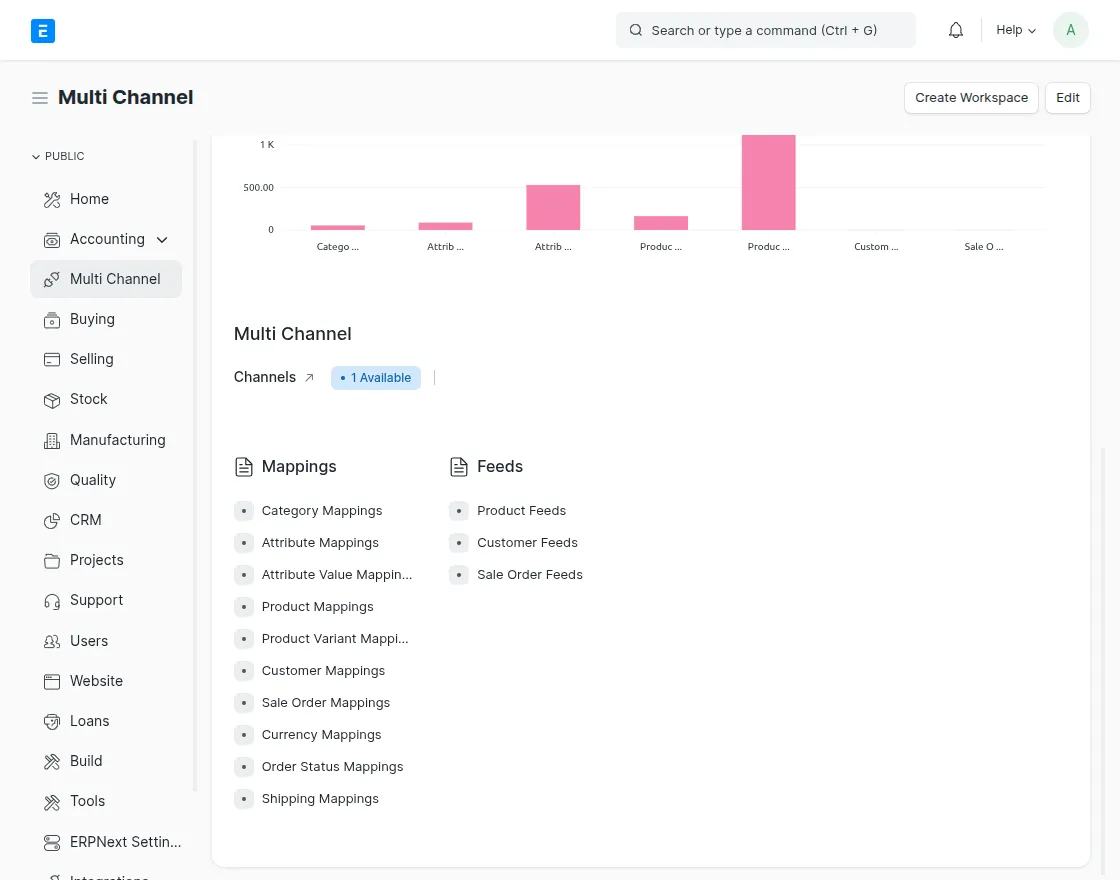
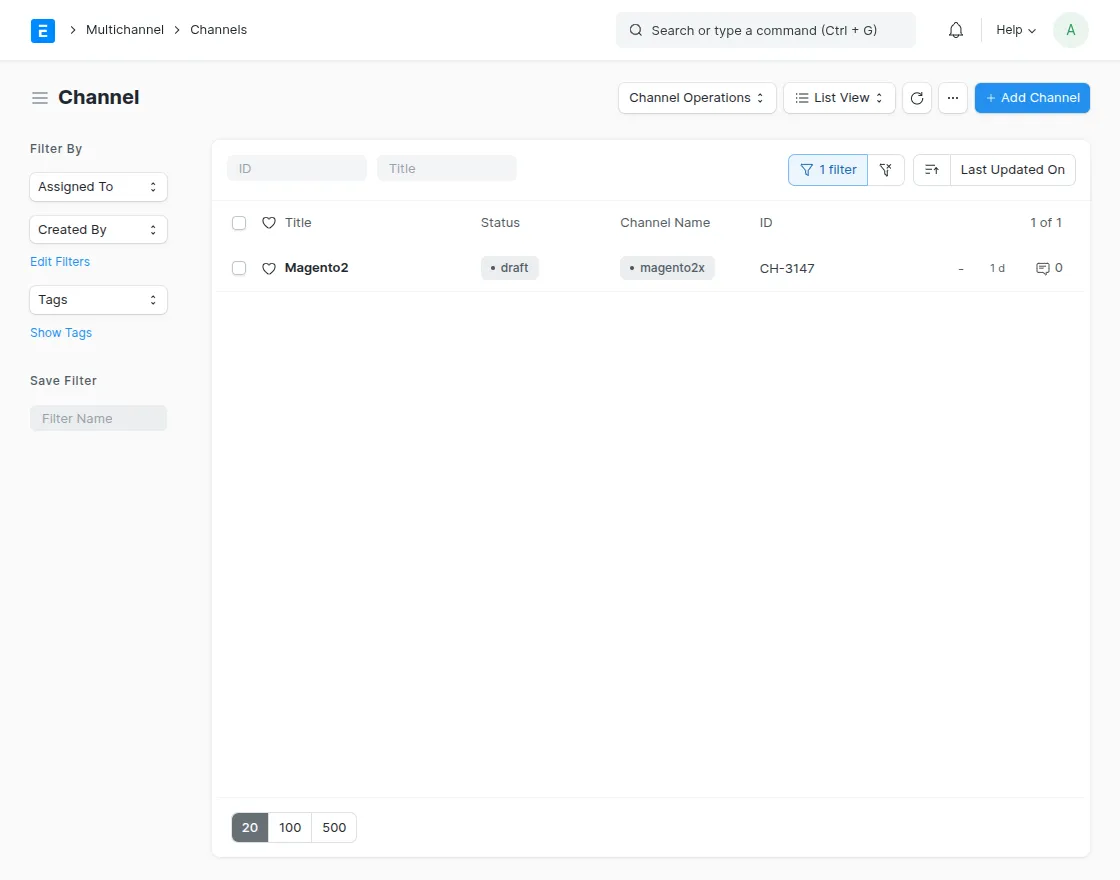
3. Channel settings: Used to create a new Magento channel instance. Start connection setup by entering channel details.
Multi-Channel → Channel → Create
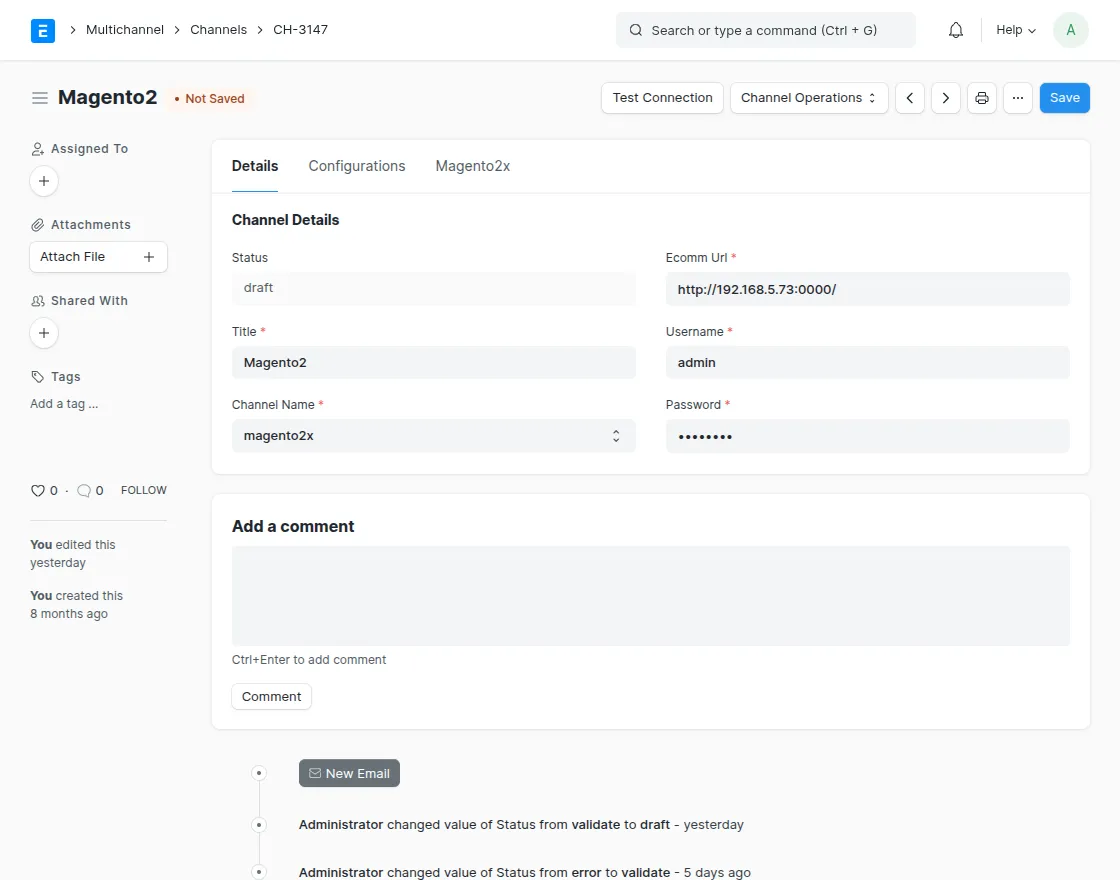
4. Verify successful communication between ERPNext and Magento. Displays connection error or success messages.
Multi-Channel → Channel → Select Channel → Test Connection
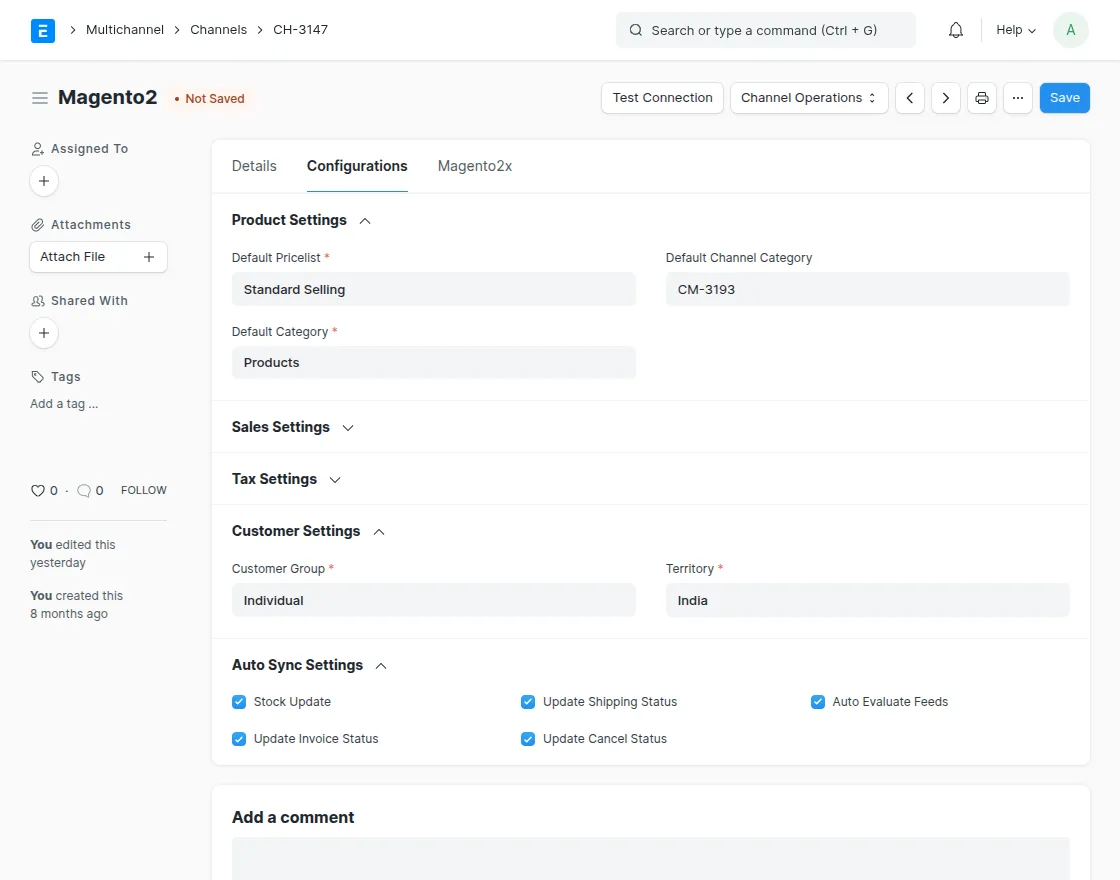
5. Chanel components and configuration settings: Set product, customer, tax and auto-sync preferences. Control the behavior of sync actions for your Magento channels.
Multi-Channel → Channel → Select Channel → Configuration Tab
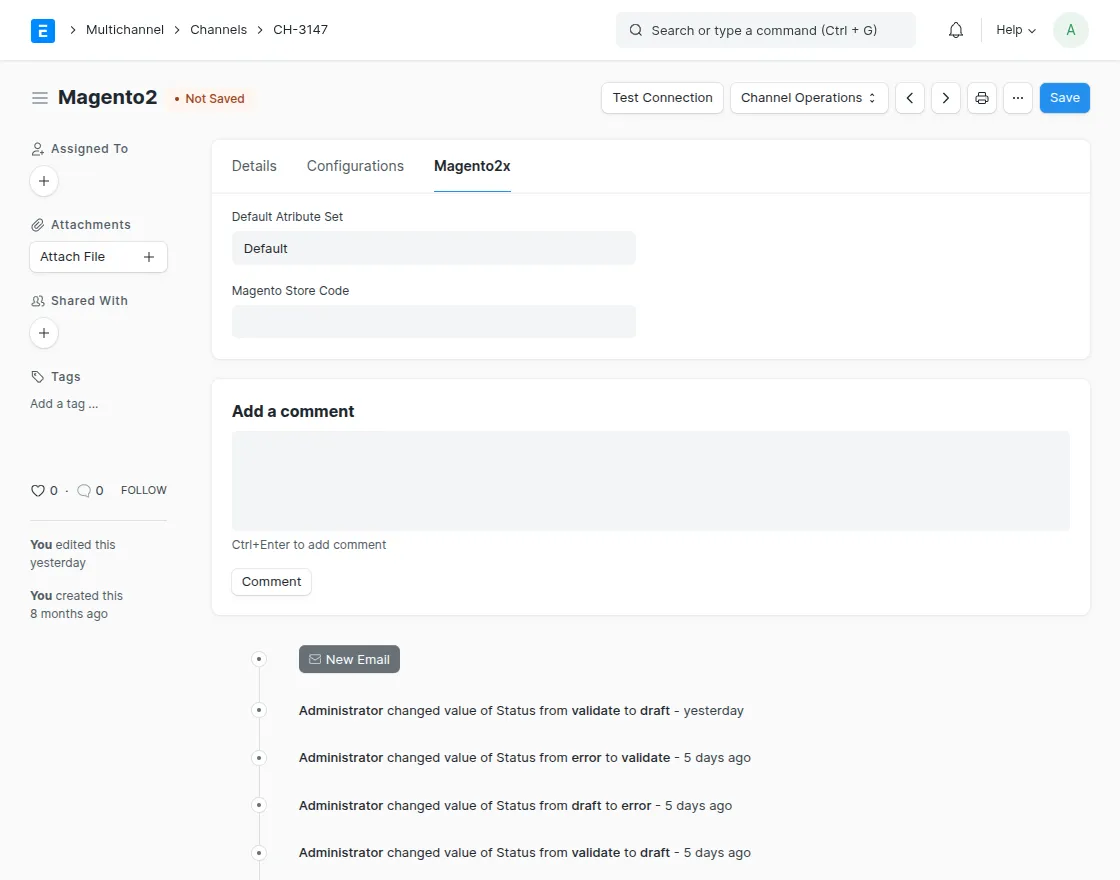
6. Here, you set the Magento attribute set and storage code, as well as channel specifics. Ensure ERPNext properly authenticates with Magento.
Multi-Channel → Channel → Select Channel → Details Tab
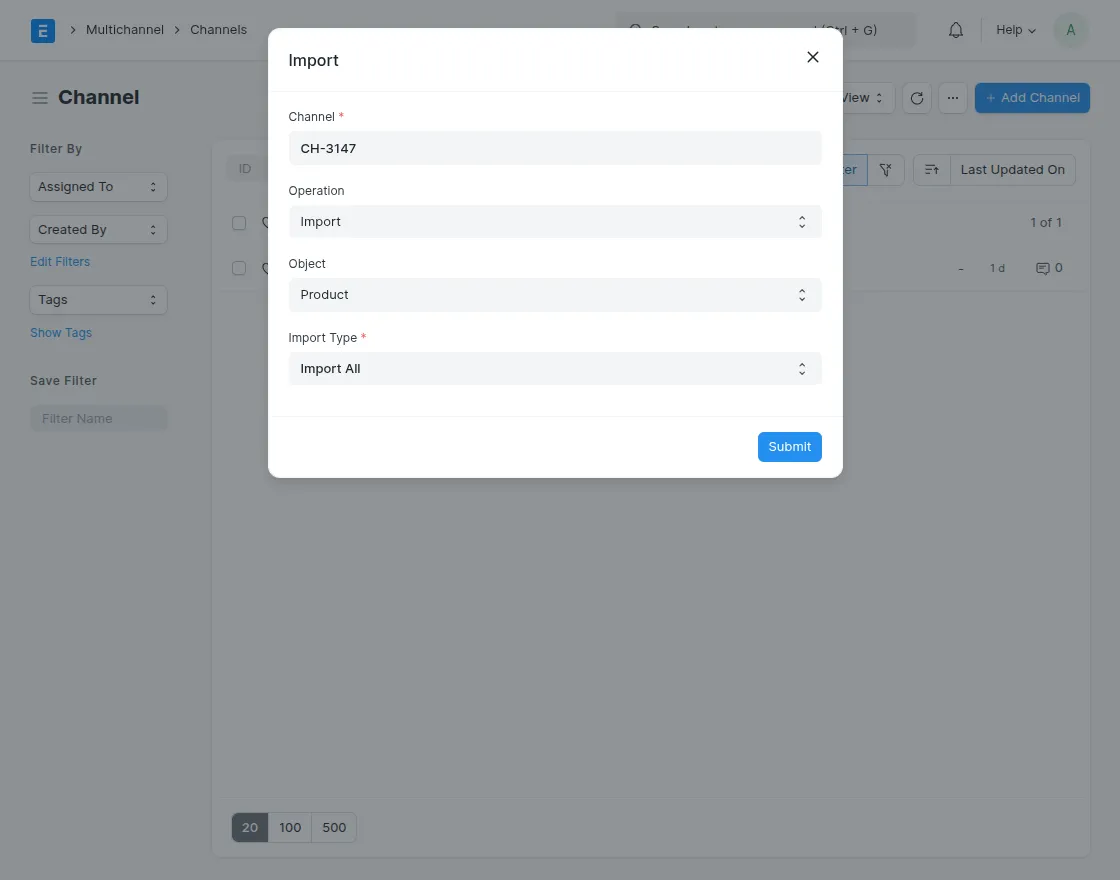
7. Import operations: Import categories, products, customers and orders from Magento. Allows manual synchronization whenever necessary.
Multi-Channel → Channel → Select Channel → Import Part
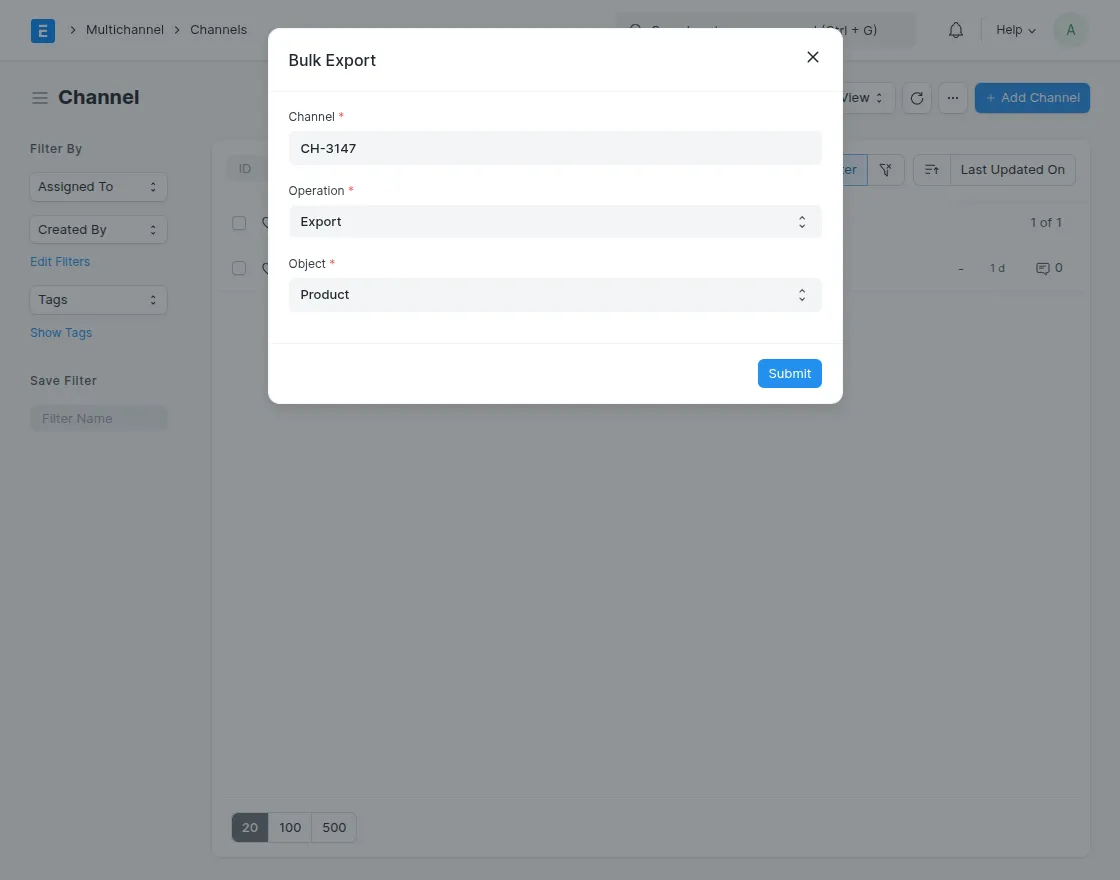
8. Export/Update Operations: Used to export ERPNext items (products, categories, attributes) to Magento. Supports export and update actions.
Multi-Channel → Channel → Select Channel → Import/Export Button
9. Category mapping: Map Magento categories with ERPNext categories. Ensure consistent category structure across both systems.
Multi-Channel → Mapping → Category Mapping
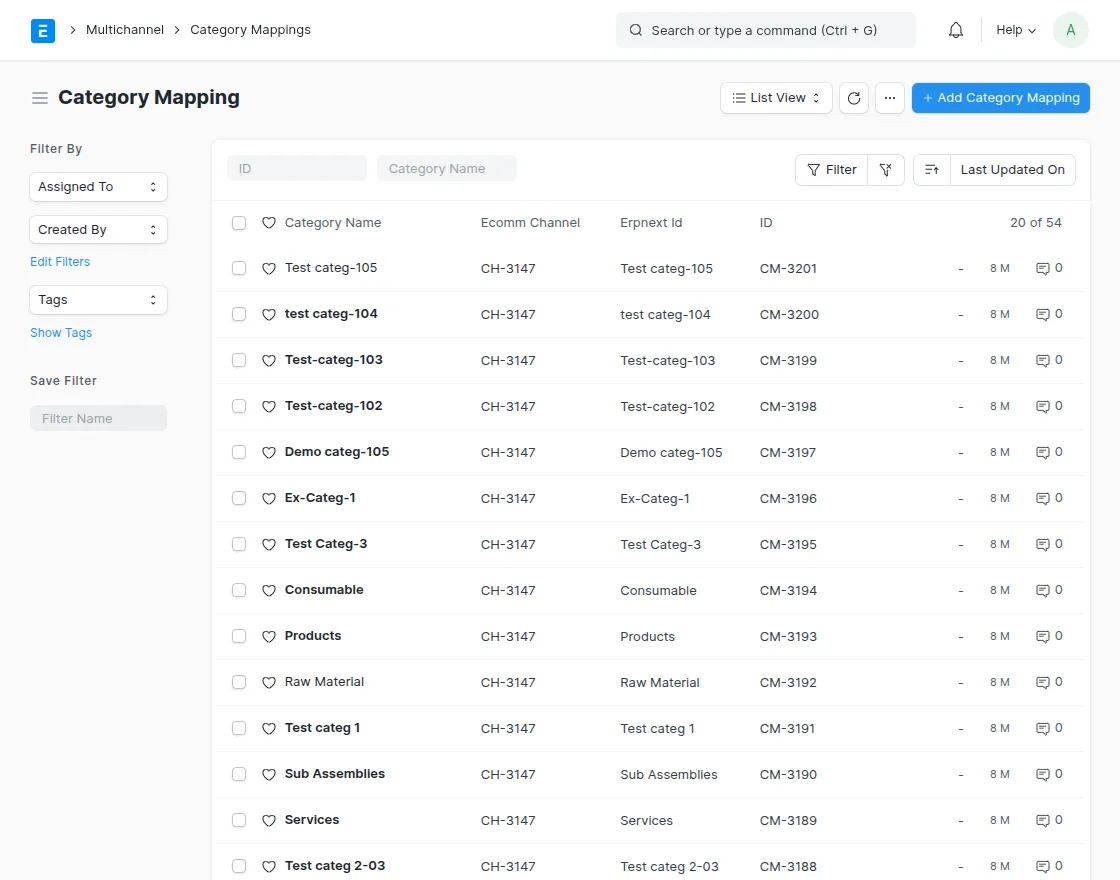
10. Attribute mapping: Shows how attributes (size, color) are mapped between platforms. Important for configurable product synchronization.
Multi-Channel → Mapping → Attribute Mapping
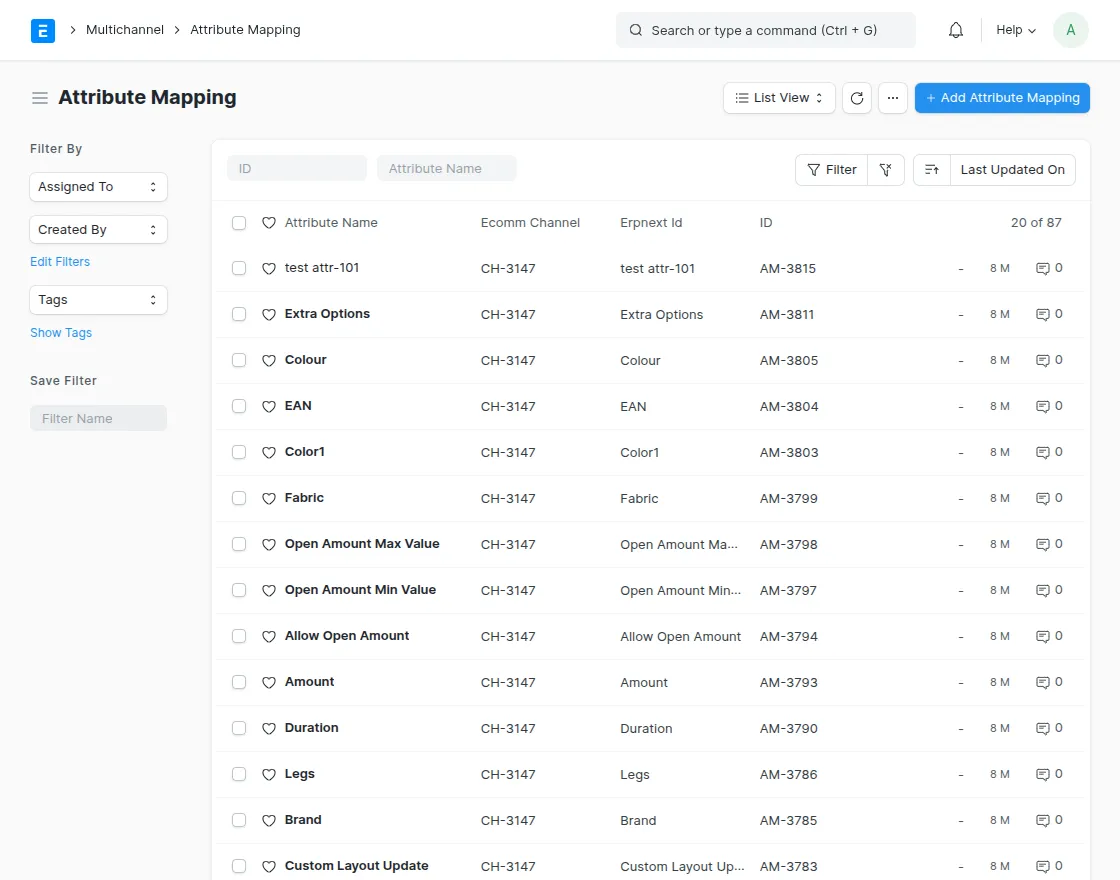
11. Attribute value mapping: Displays attribute value mapping such as Red, Blue, Small, and Large. Ensure variant values are synchronized correctly.
Multi-Channel → Mapping → Attribute Value Mapping
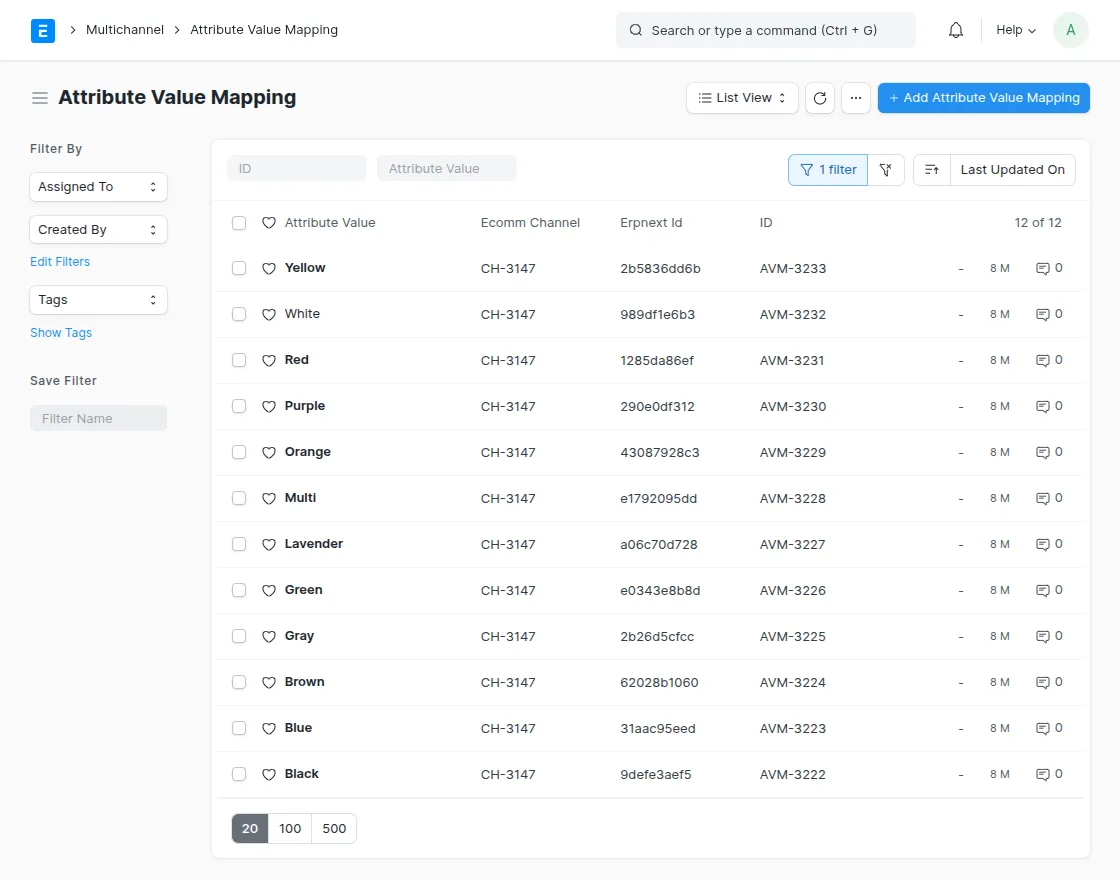
12. Product mapping: Displays synchronized product level mapping. Prevent the creation of duplicate products.
Multi-Channel → Mapping → Product Mapping
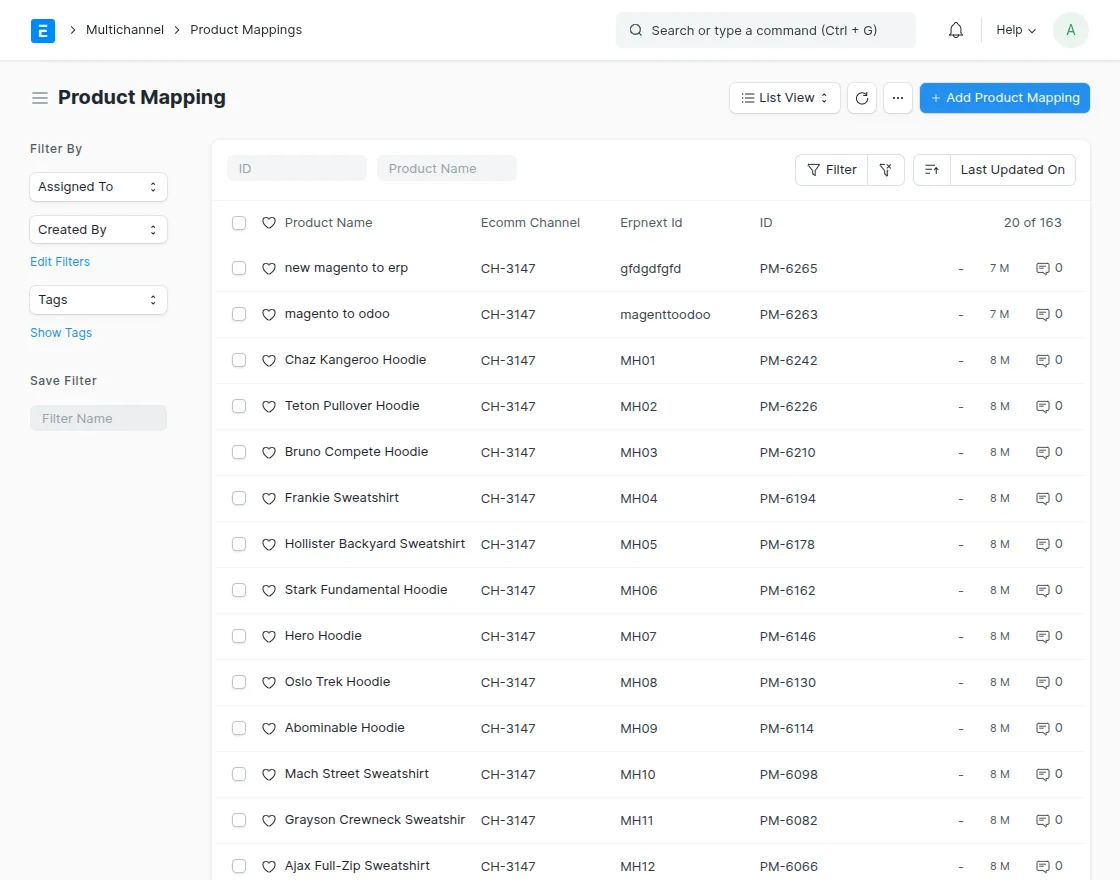
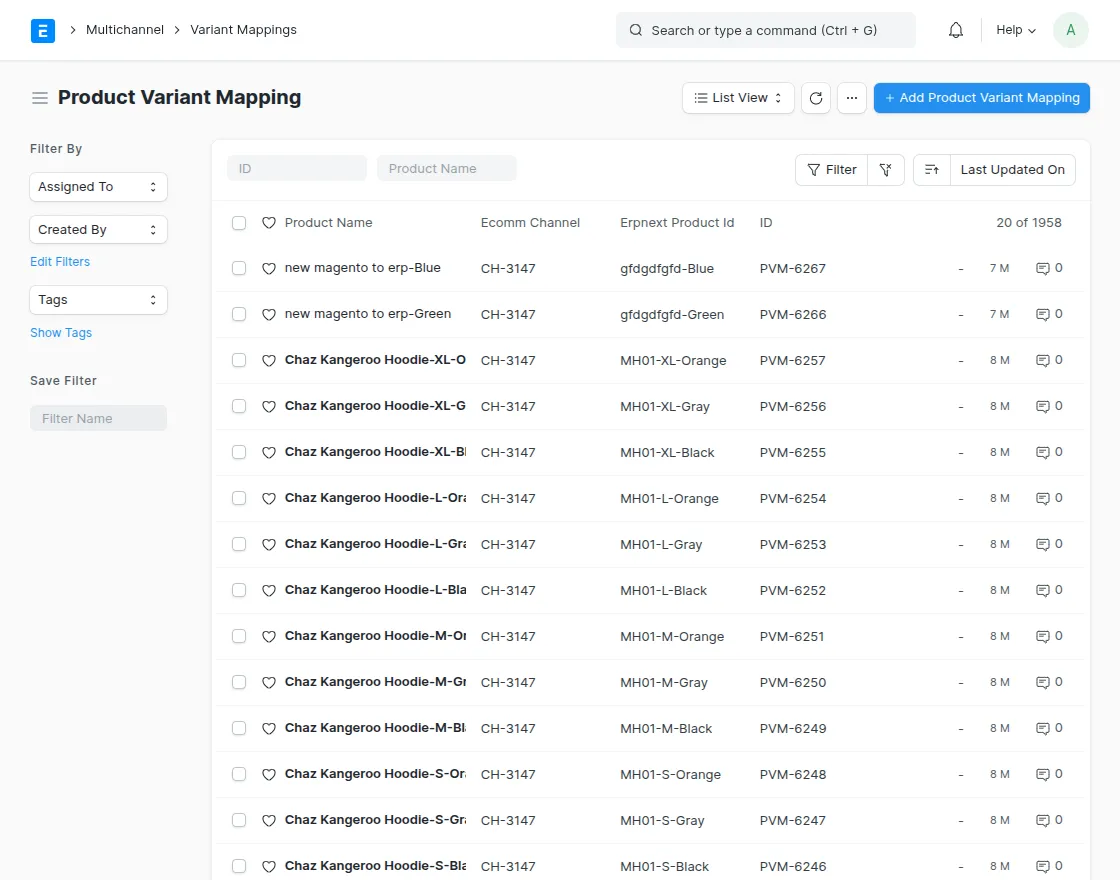
13. Product variant mapping: Includes mapping for SKU variants. Maintain accurate variant inventory synchronization.
Multi-Channel → Mapping → Variant Mapping
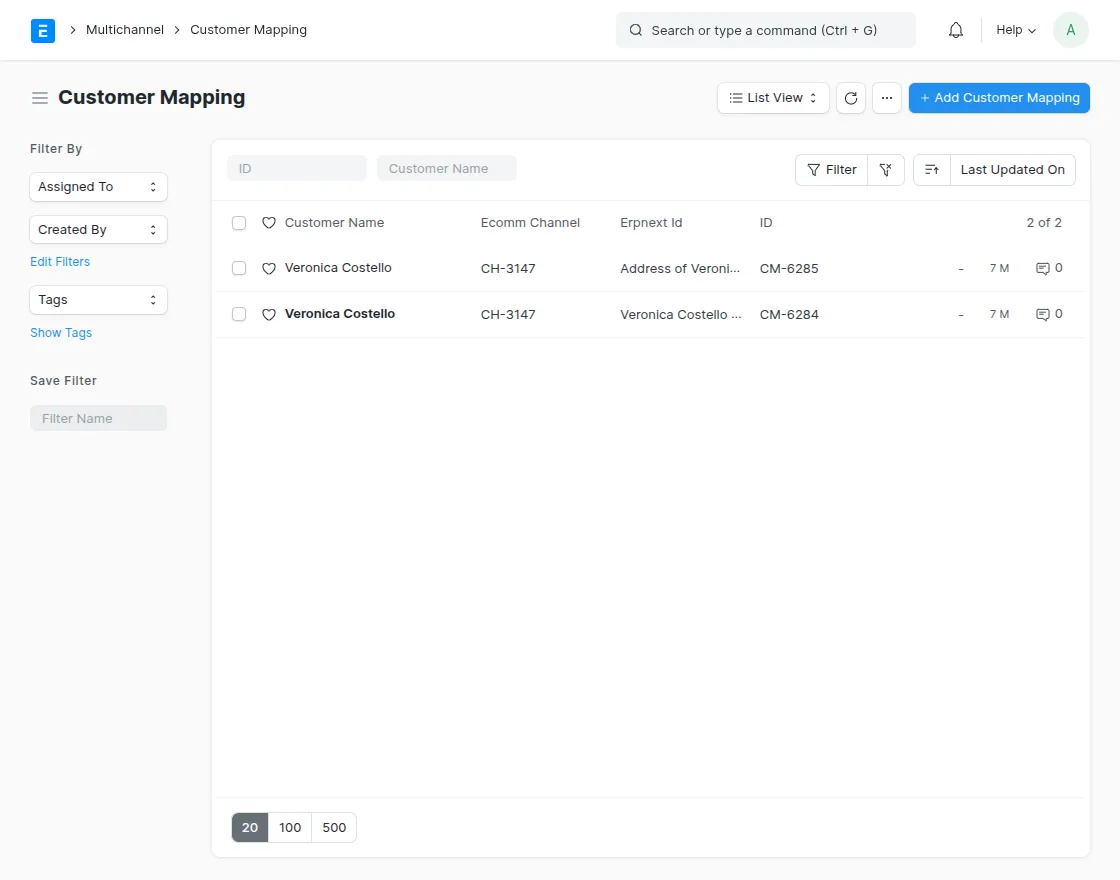
14. Customer mapping: Map Magento customers with ERPNext customer records. Ensure integrated customer data.
Multi-Channel → Mapping → Customer Mapping
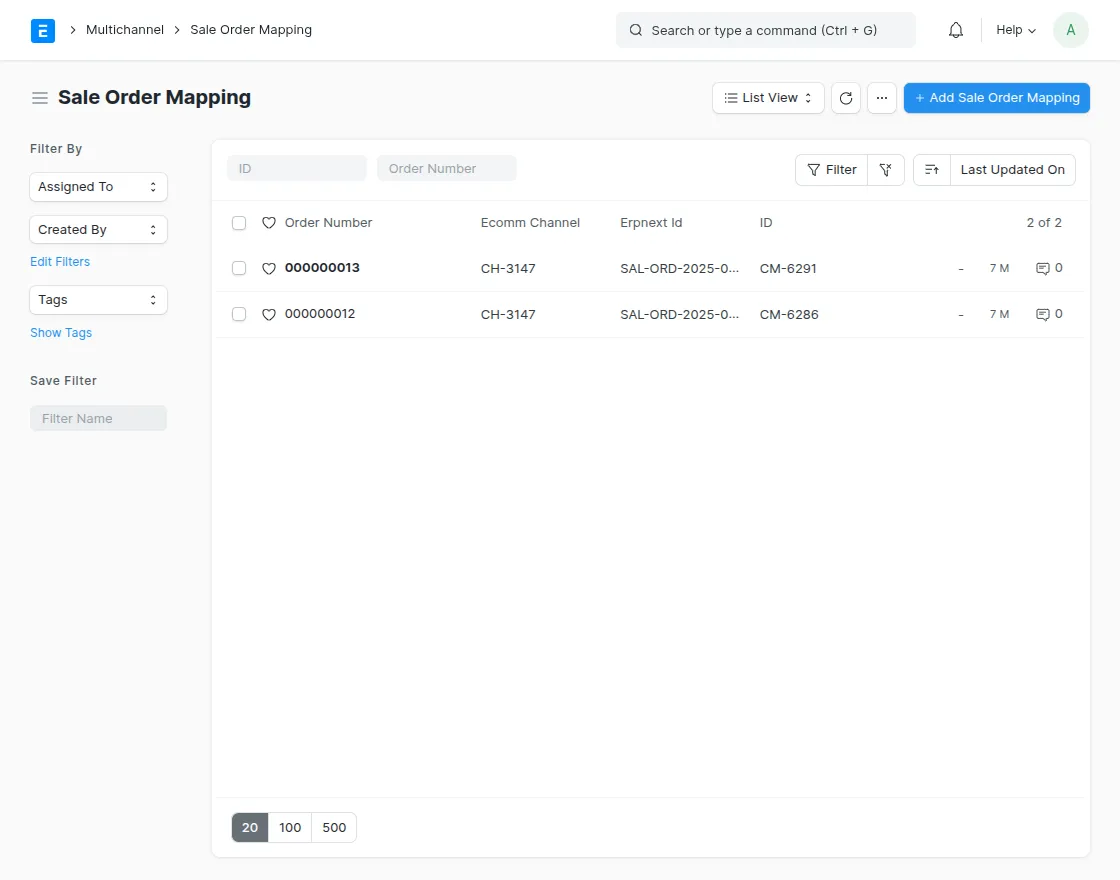
15. Sales order mapping: Shows the mapping between Magento orders and ERPNext orders. Helps track order sync status.
Multi-Channel → Mapping → Sales Order Mapping
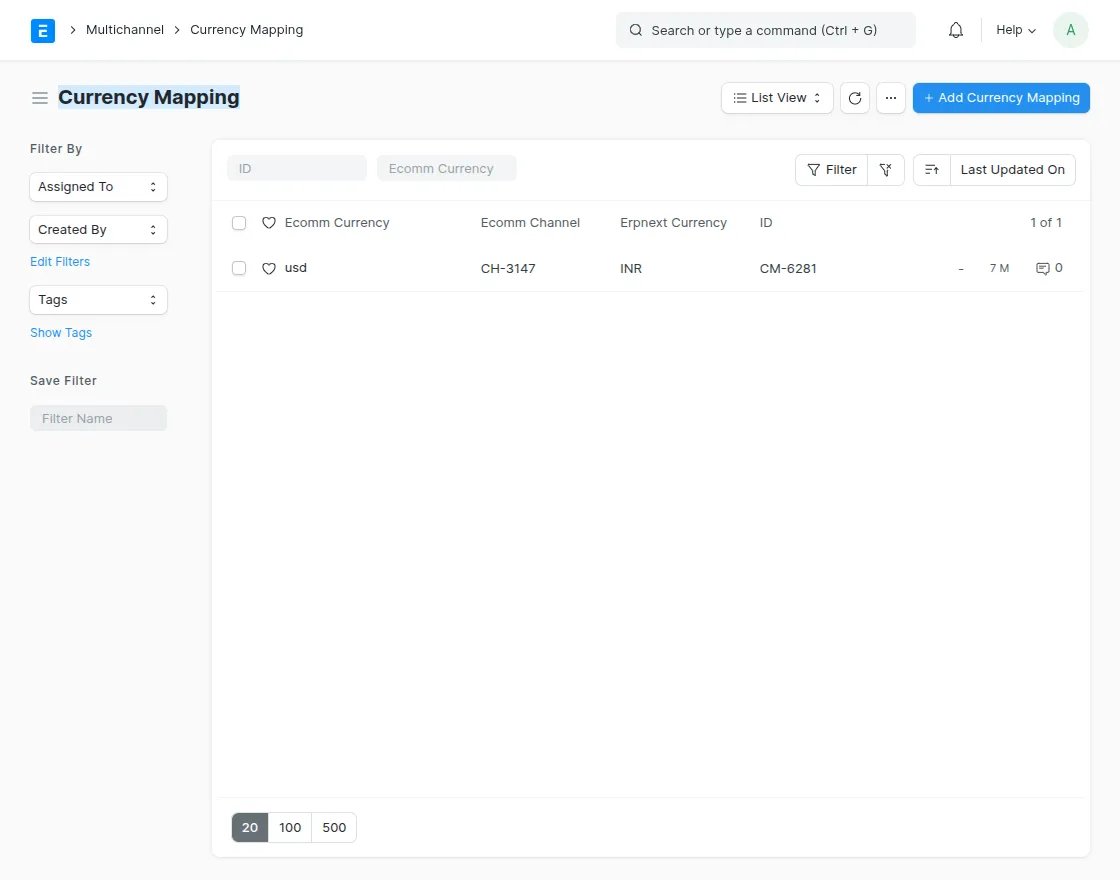
16. Currency mapping: Map Magento currency to ERPNext currency. Useful for multi-currency stores.
Multi-Channel → Mapping → Currency Mapping
17. Order status mapping: Correlate Magento order status values with ERPNext status. Used for automatic synchronization of order status.
Multi-Channel → Mapping → Order Status Mapping
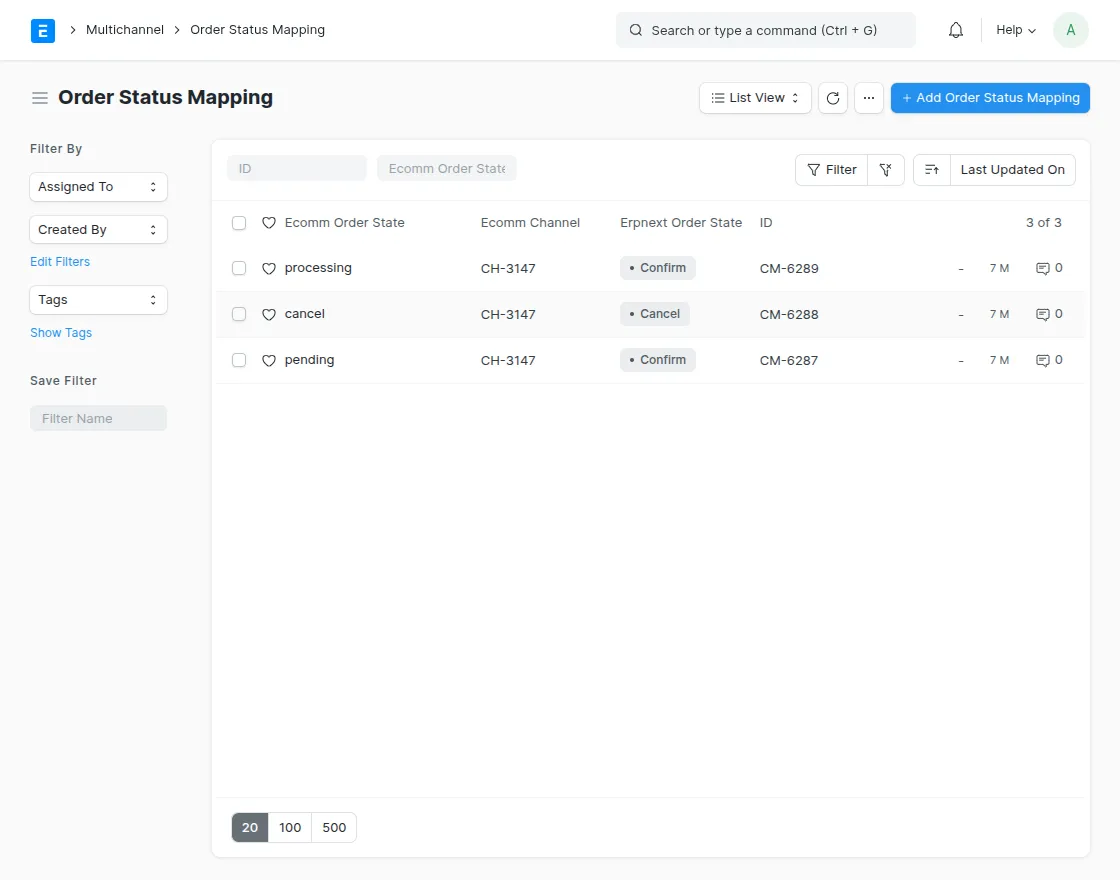
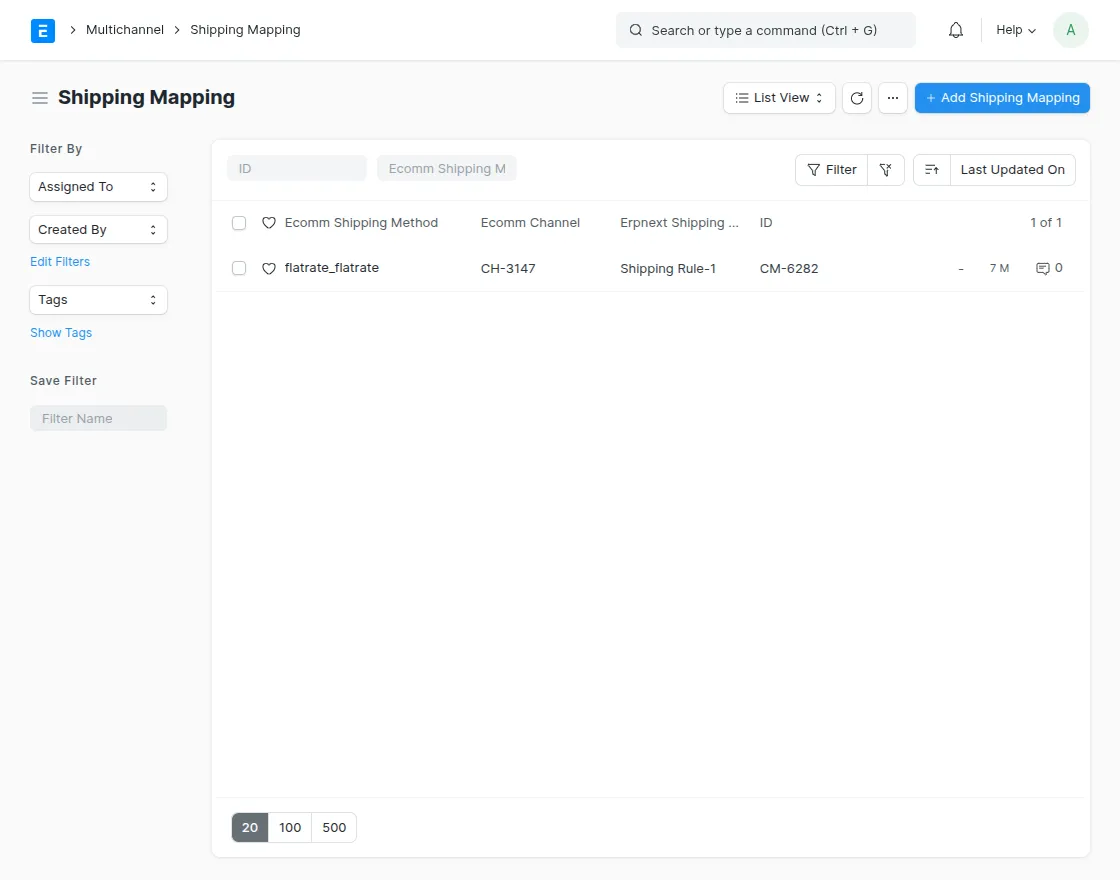
18. Shipping mapping: Map Magento shipping methods to ERPNext shipping carriers. Ensure shipping details are synced correctly.
Multi-Channel → Mapping → Delivery Mapping
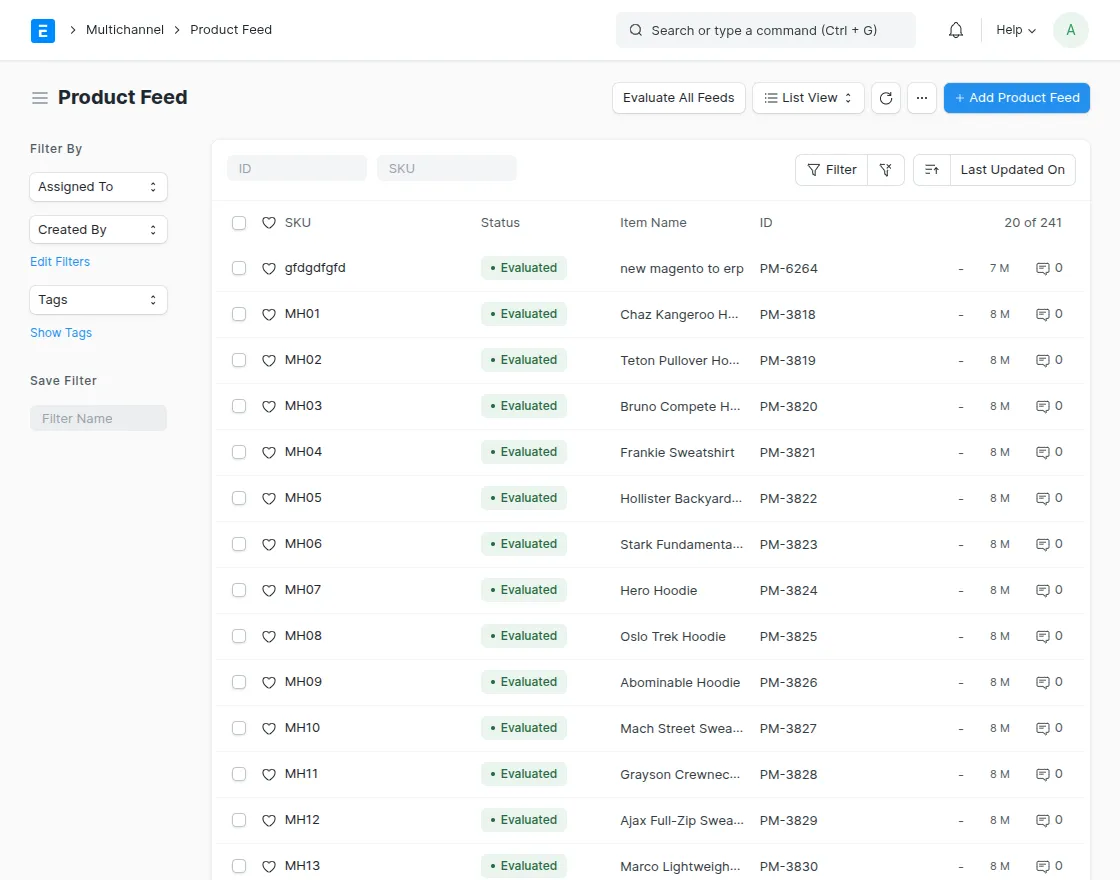
19. Product feed: Displays raw imported products awaiting evaluation. You can fix problems before building the actual product.
Multi-Channel → Feed → Product Feed
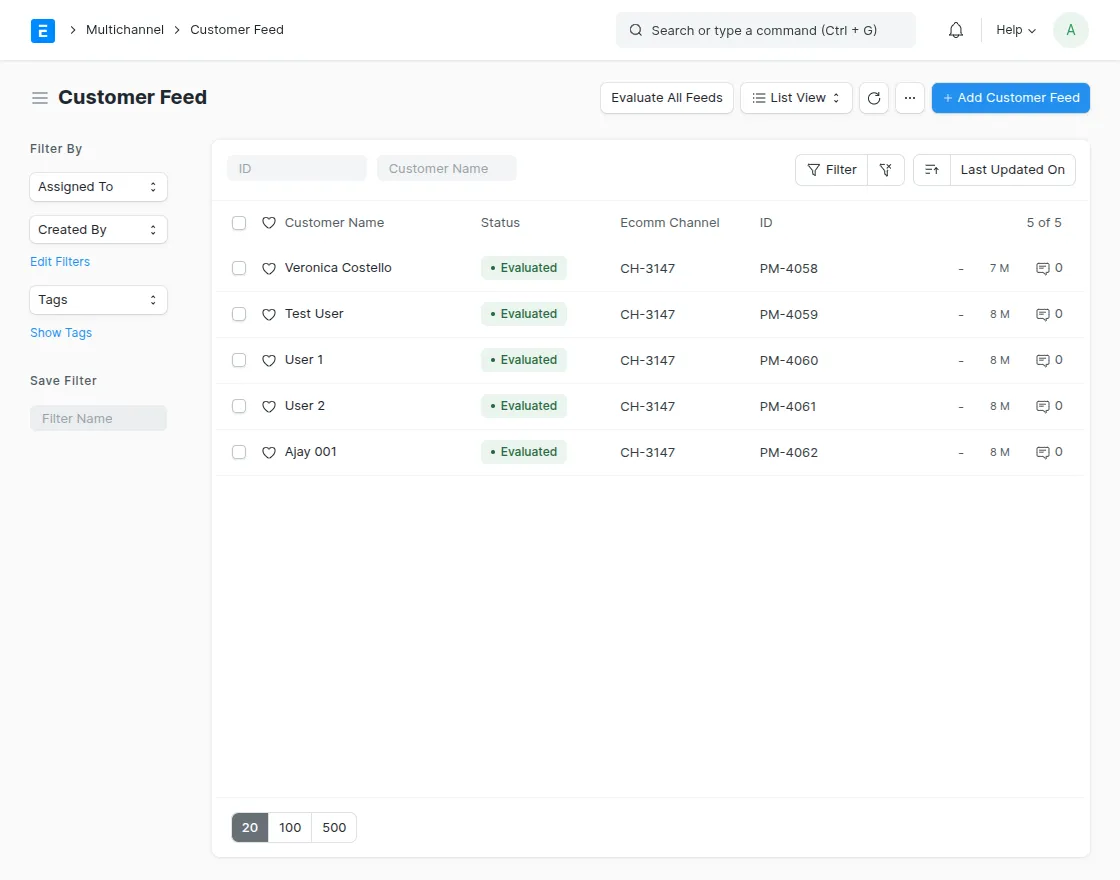
20. Customer feed: Shows customer data pulled from Magento before approval. Useful for validating customer information.
Multi-Channel → Feeds → Customer Feeds
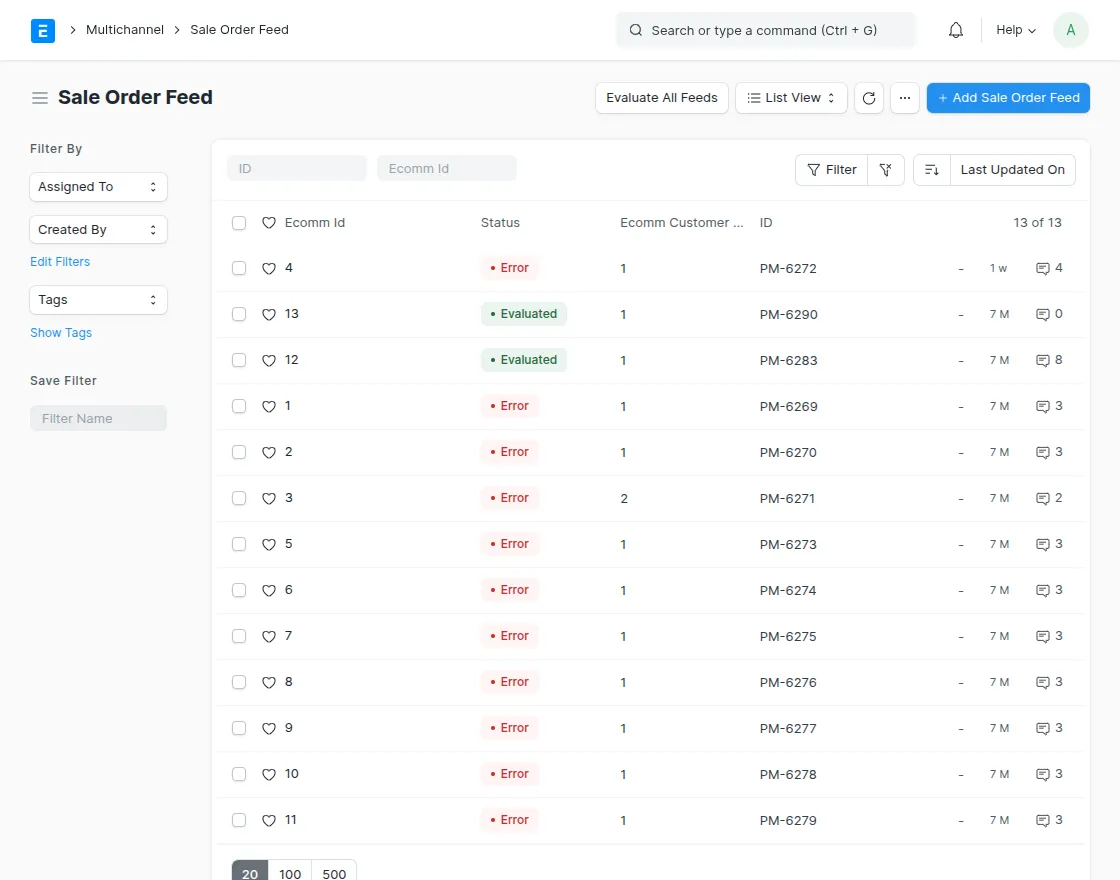
21. Sales order feed: Lists imported sales orders before conversion. Allows manual review before creating an ERPNext order.
Multi-Channel → Feed → Sales Order Feed
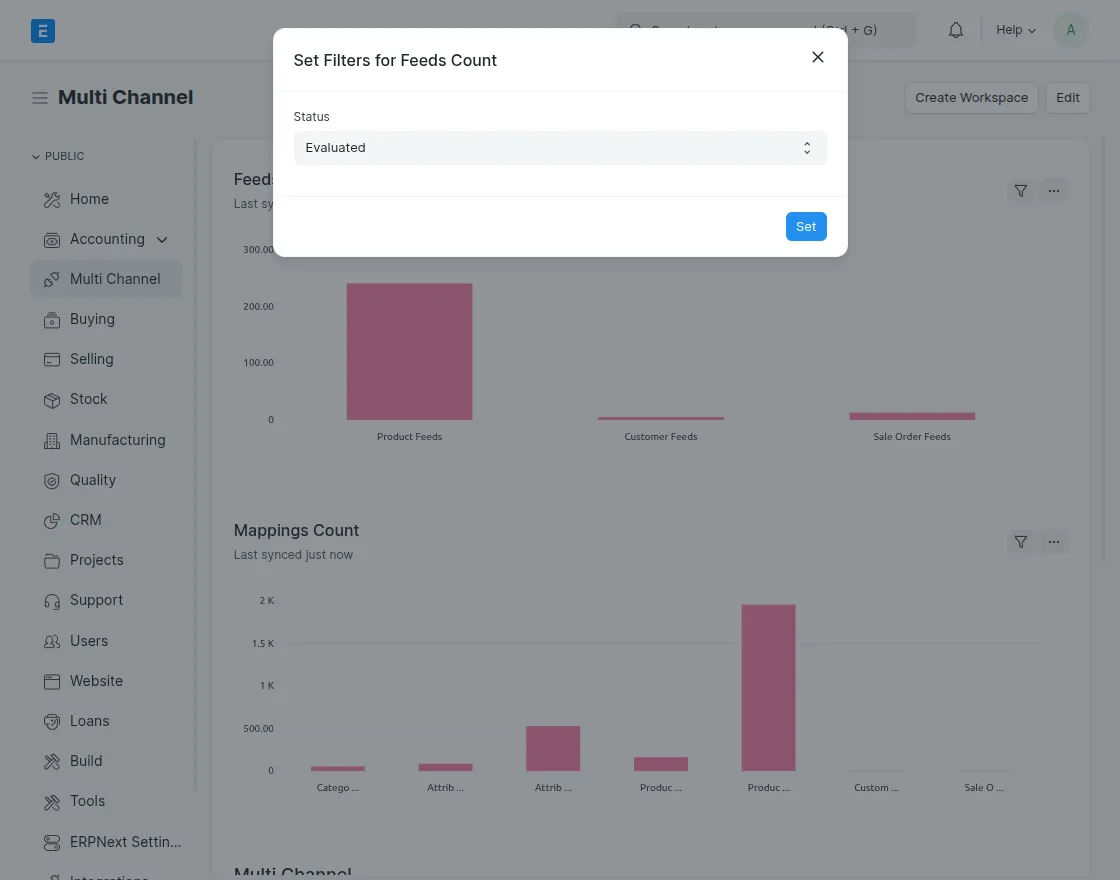
22. Filter for number of feed states: Allows filtering feeds by state (new, evaluated, error). Helps quickly diagnose sync problems.
Multi-Channel → Feed → Filter Button
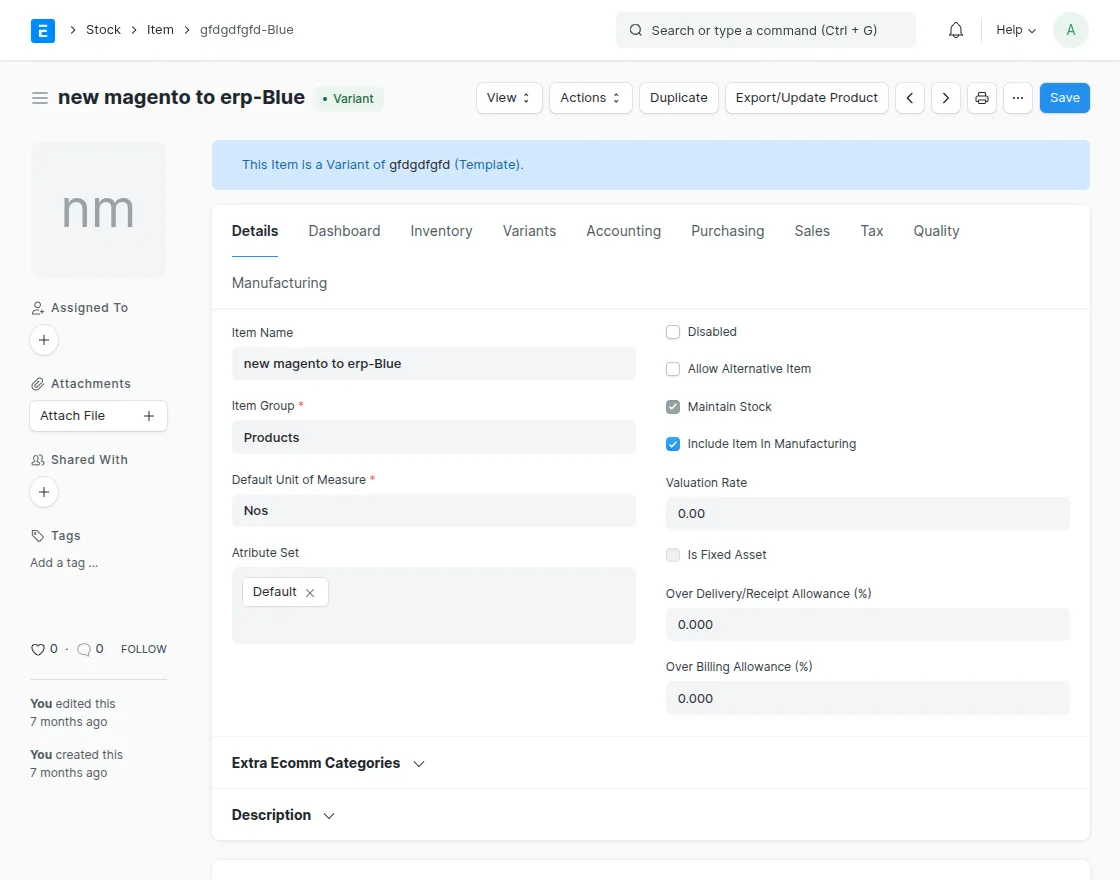
23. Import/export option from items page: Sync specific items directly instead of full bulk import/export. Useful for updating individual items manually.
Go to: Any Product (Item) / Category / Customer → Actions → Import/Export
We hope this guide is useful for you! Please share your feedback in the comments below.
If you have any questions, please create a ticket at the UV Desk. I hope this helps.
If you have further questions, contact us at: support@webkul.com
Thank you for noticing!!
Current Product Version – 1.4.0
Supported Framework Version – ERPNext 14.0

News
Berita Teknologi
Berita Olahraga
Sports news
sports
Motivation
football prediction
technology
Berita Technologi
Berita Terkini
Tempat Wisata
News Flash
Football
Gaming
Game News
Gamers
Jasa Artikel
Jasa Backlink
Agen234
Agen234
Agen234
Resep
Download Film
Gaming center adalah sebuah tempat atau fasilitas yang menyediakan berbagai perangkat dan layanan untuk bermain video game, baik di PC, konsol, maupun mesin arcade. Gaming center ini bisa dikunjungi oleh siapa saja yang ingin bermain game secara individu atau bersama teman-teman. Beberapa gaming center juga sering digunakan sebagai lokasi turnamen game atau esports.
